



12 Proven Ways to Turbocharge Your MacBook Performance
12 Easy Tips to Speed up Your MacBook
We all love Apple’s computers, the feel of a brand new Mac sure leaves one feeling giddy. But over time you may notice your Mac systems slowing down, as all systems tend to do overtime. With all these apps and programs consuming systems resources you gradually lose that quick, responsive performance. 
Instead of throwing your Mac out of the window why not try something else. Here are a bunch of tips that might help improve your MacBook performance; you don’t have to worry as they’re quite easy to workaround.
1. Tackle Resource-Hungry Processes
Some apps can be more power-intensive than others and you should keep a check on them. For this simply go to the Activity Monitor. You can open it from the Applications> Utility folder. The activity monitor illustrates how your MacBook is running. You will see a CPU and Memory section showing how much an application seems to be demanding from your system. You can close any app from here that is using up a lot of CPU power. 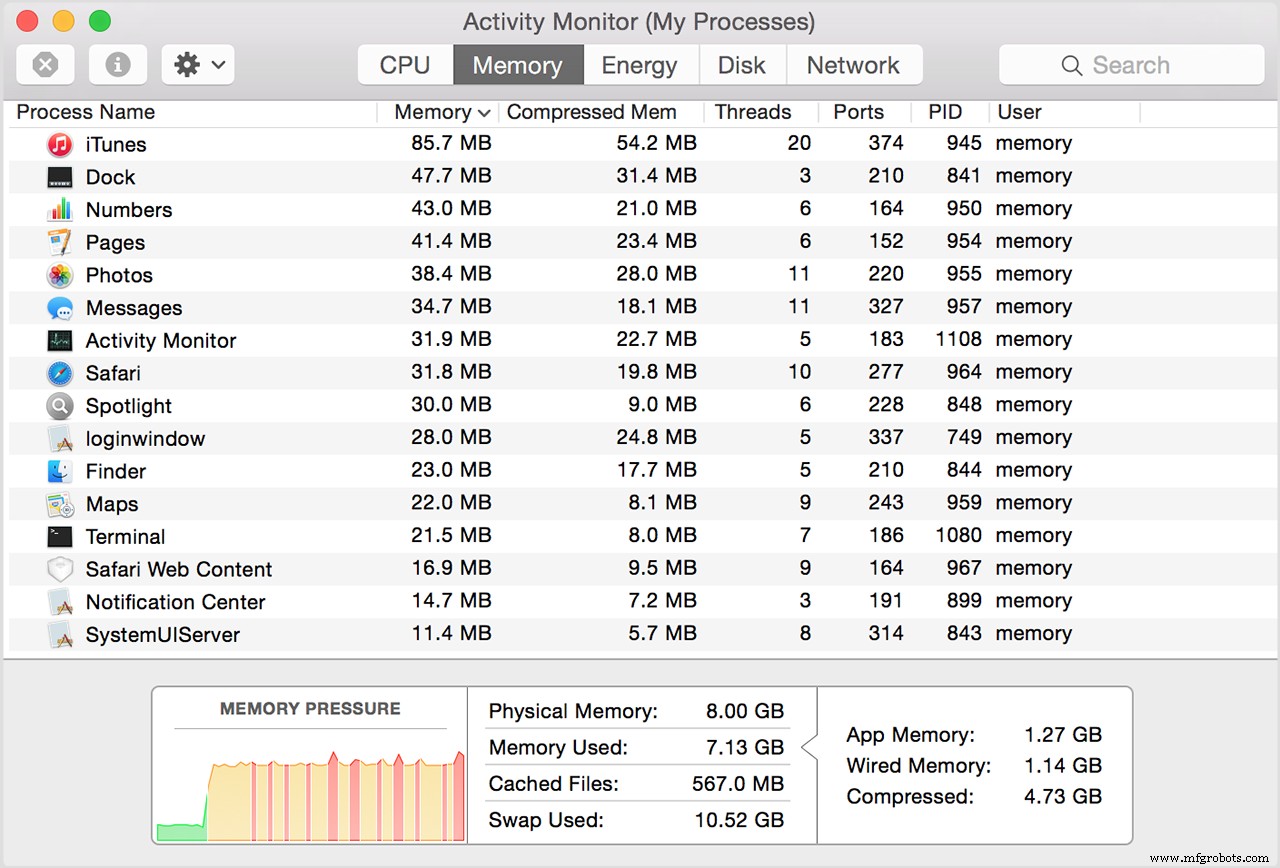
2. Limit your Start-up Apps
Whenever you power up your Mac, a lot of unnecessary apps will automatically launch themselves which contributes to slowing down your Mac. Simply take a look at your System Preferences. Then go to Users and Groups and click on your User Name. Log in and take a look at your Login Items. Here select any items you don’t need to use immediately as your Mac starts up and remove them from the Startup items list. 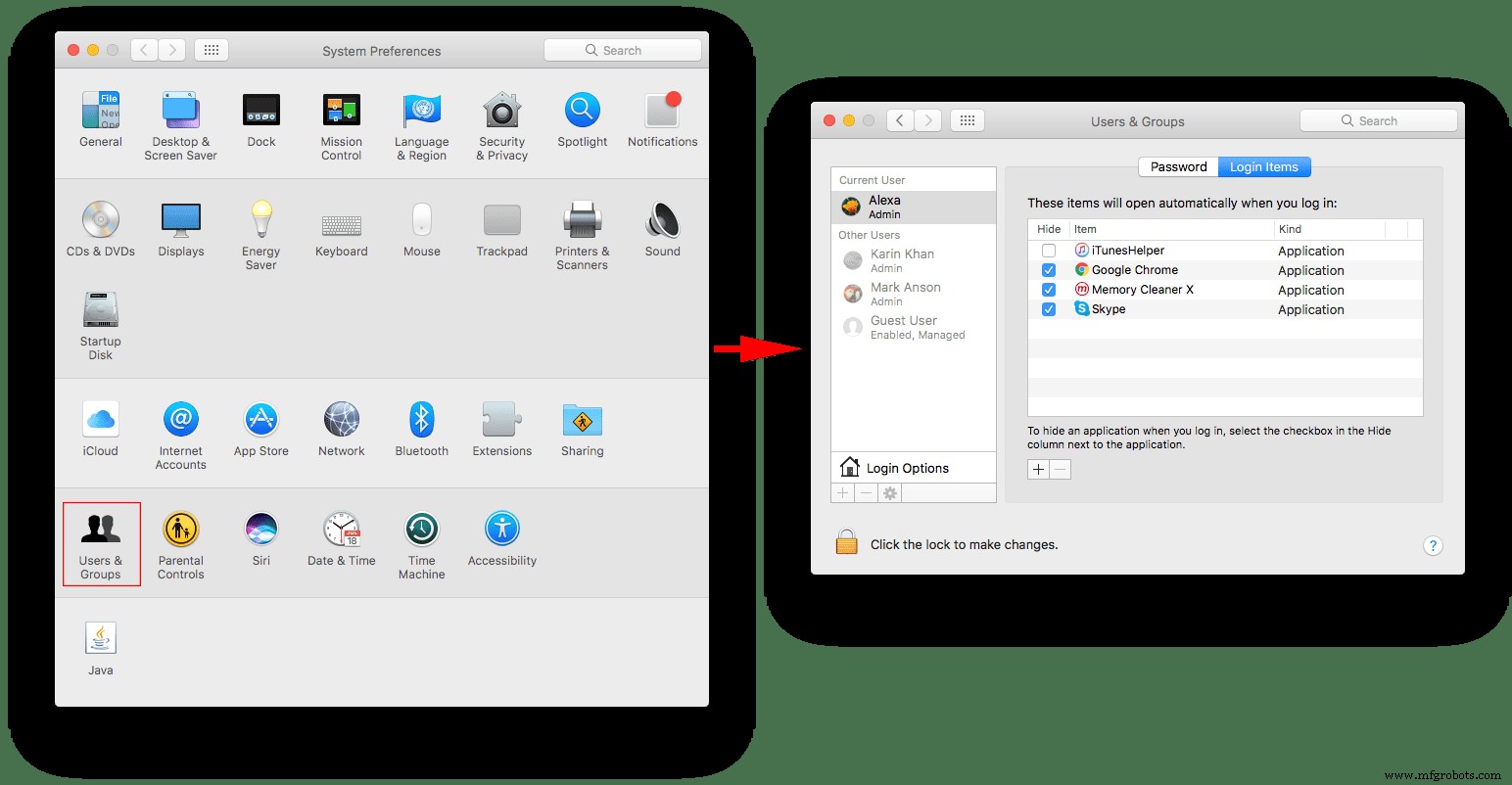
3. Switch off Visual Effects
A great way to speed up your Mac is to turn off visual effects. Macs are known for their amazing visuals so tweaking a few here and there won’t make much of a difference. For this
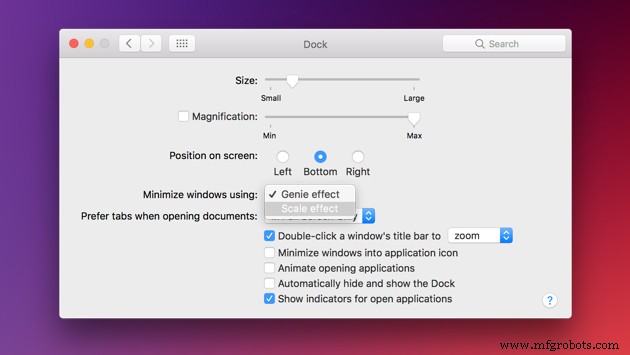
- Go to System Preference>Dock
- Here uncheck the following sections: Animate opening applications, Automatically hide and show the Dock.
- Finally, go to Minimize windows using and change the Genie effect to Scale effect.
4. Delete Add-Ons for your Browser:
Without even realizing it, you may have added various add-ons and extensions to your browser. Although they help give you amazing user experience, they come at a cost. Yup, they’ll most likely reduce your browser speed. You can tackle this by a) reducing the number of open tabs and b) removing any unnecessary browser extensions.
- For Chrome, simply go to Menu > Settings and click on Extensions.
- For FireFox, click on Tools> Add-ons.
- For Safari, go to the main menu> Safari extensions.
5. Re-index the Spotlight
If you’ve updated your OS recently, you would be aware of how your Mac tends to get laggy when Spotlight is indexing. Sometimes the indexing can get a stick and you need to speed up your Mac. For this go to Preferences> Spotlight. Here click on the “Privacy” tab drag your hard drive from Finder into the Privacy list. Once you’ve added it, remove it again and the indexing will restart. 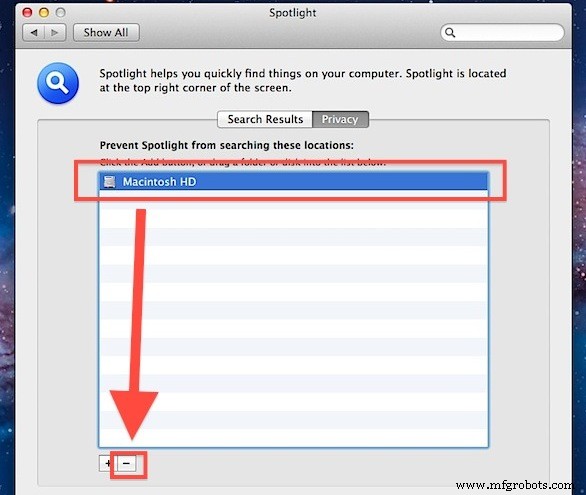
6. Clear the Caches on your Mac
Web browsers can hog your system resources. Whenever you visit a website, the browser will cache web pages to download a website faster when you revisit it. For a while, it doesn’t have any effects but over time these cache files can take up a lot of storage on your Mac and slow down your computer.
You can clear up your cache by using a cleaning utility such as CleanMyMac X.
- Download the CleanMyMacX app for free.
- Next select System Junk
- Click on Scan and then Clean.
7. Get rid of Unused Apps
Simply uninstall the applications you don’t use or don’t really need anymore. Simply moving them to the Trash bin isn’t enough as they can still leave behind gigabytes of junk behind. In order to uninstall apps on your Mac completely check out this step by step procedure. You’ll have to search for all the associated files that came along with the app.
8. Clean your Hard Drive
Cleaning up your hard drive will massively help you boost your Mac speed, plus it’s probably the easiest way. Go through your hard drive and remove anything that could be slowing it down. These might include caches, logs, apps, hidden trash files etc.
Doing it manually will consume time. Luckily there is another option for you. You can use CleanMyMac X to do it all under five minutes. And it’ll find junk files you never knew even existed and dispose of them for you.
9. Update your OS and Hardware
Macs will usually update themselves but just in case you should check. Check your version of the OS. For this, click on the Apple icon in the top left corner of your screen. Then go to ‘About This Mac’. Make sure your system is upgraded. 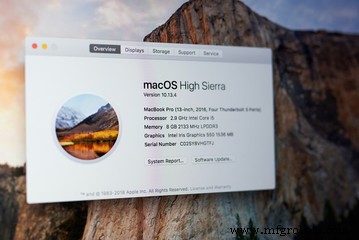
The hardware update, on the other hand, can be costly. You can go for this option if you’ve already upgraded your OS and cleaned your hard drive, yet it hasn’t made any noticeable difference.
10. Free Up Your RAM
Use your Mac’s Terminal app to free up your RAM instantly. You can use this option when your system is running out of memory to run on. 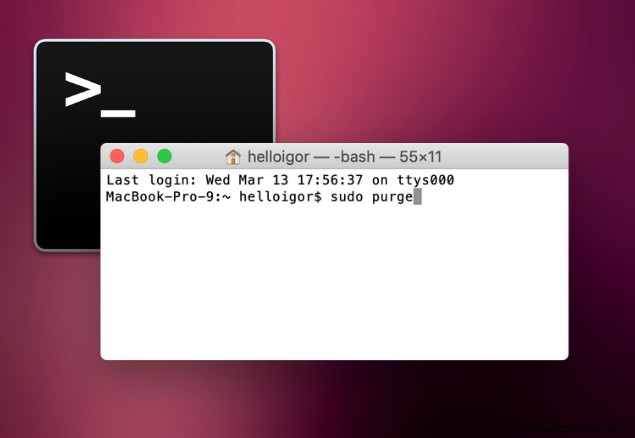 For this
- Open the Terminal app through Launchpad.
- Paste the following command: Sudo purge. And press Enter
- Here enter your system password when requested.
You can also use the CleanMyMac X app to free up your RAM. For this
- Download and open the CleanMyMac X app.
- Go to the Maintenance tab.
- Here click ‘Free up RAM’.
11. Rest your SMC and PRAM
Have you ever experienced your Mac shutting down unexpectedly? Or your battery doesn’t charge properly? Or your Mac performs slowly? One thing that could help you here is resetting your SMC and PRAM.
- Resetting your SMC (System Management Controller)
For your MacBook Air, MacBook Pro and MacBook, if the battery is non-removable,
- Close your Mac.
- Press Shift + Control + Option and press the power button at the same time. Hold for 10 seconds.
- Release and turn on your Mac once again.
For your MacBook Air, MacBook Pro and MacBook, if the battery is removable,
- Close your Mac and remove the battery.
- Press the power button and hold for 5 seconds.
- Now turn on your computer once again.
For your iMac, Mac Mini and Mac Pro,
- Shut down your Mac.
- Unplug its power cord and wait for 15 sec.
- Plugin the power cord again and wait for 5 seconds.
- Finally, turn on your Mac again.
- Resetting your PRAM (Parameter RAM)
- Shut down your computer.
- Press the power button.
- Press the Command, Option and P+R keys at the same time and hold until your Mac restarts.
- Release the keys.
12. Increase your RAM
Increasing the amount of RAM you have installed will surely speed up your Mac. First, check how much RAM your Mac already has. For this,
- Click on the Apple logo
- Go to ‘About this Mac’
- Go for ‘Memory’ specs
Usually, the amount you’d see in the latest models is around 8GB. Adding an extra 8 GB to this will cost you around $30. The more RAM you have the more space your Mac has to work with.
Industrial Technology
- Essential CNC Machine Safety Tips for Operators & Staff
- Localizing Your Supply Chain: 4 Proven Strategies to Navigate Disruptions
- Simplify Your Industrial Electronics Repair Report: Expert Tips for Clear Understanding
- Three Proven Strategies to Cut Energy Costs in Your Facility
- 7 Proven Strategies to Elevate Safety on Your Manufacturing Floor
- Maximize Efficiency: 4 Proven Tips for Your Waterjet Cutter
- Protect Your Home Network: 3 Essential Cybersecurity Tips
- Master Production Planning: Proven Strategies to Boost Efficiency & Cut Costs
- Speed Up CNC Machining: Expert Tips for Rapid Production and On-Time Delivery
- 4 Expert Strategies for Optimizing Your Pilot Production Build