



Set Up Teams, Projects, and Secure Access in Autodesk Fusion – A Complete Guide
Collaboration is at the heart of Autodesk Fusion. In today’s remote‑first world, teams need to work together anytime, anywhere. Fusion gives designers, engineers and manufacturers the tools to collaborate in real time, whether in the office, from home, or across borders.
Create Your First Team
Begin by creating a team in Fusion. A team is the foundation for collaboration, allowing you to invite members, set permissions, and manage projects centrally.
Teams in Fusion support features such as design reservation, role‑based security, AnyCAD file references, cross‑project reuse, version history, ‘where‑used’ analytics, and an integrated viewer. One team per organization is usually sufficient—check with stakeholders before adding a new one. See step‑by‑step instructions.
Organize Projects and Folders
After the team exists, create projects and structure them with folders and sub‑folders to mirror your existing file hierarchy. This keeps data discoverable and aligns with users’ mental models.
Get Quick Feedback from External Stakeholders
External collaborators can join your team to view, comment, and even add files, or you can share a password‑protected link. Learn how to create a share link.
Access Fusion Anywhere
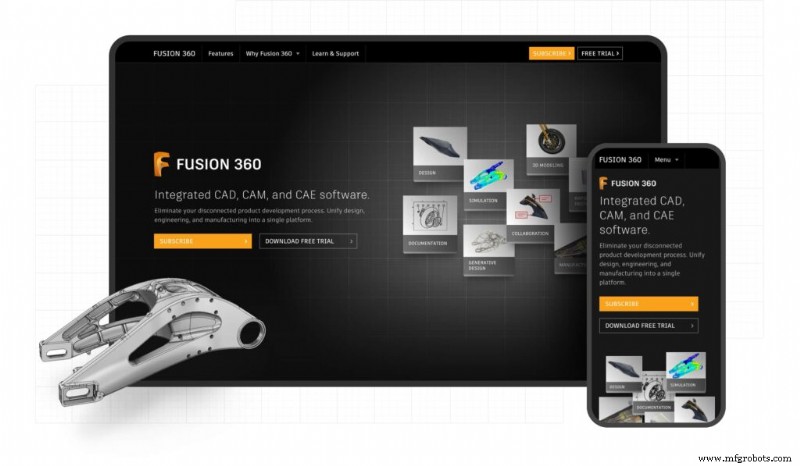
With Fusion’s web and mobile apps, your team stays productive on the go.
- Desktop app – Full design and editing capabilities.
- Web app – Explore data, view designs, add members, and adjust settings.
- iOS app – View designs and give feedback.
- Android app – View designs and give feedback.
Secure Your Team’s Data
All Autodesk subscriptions include Single Sign‑On (SSO), which lets users log in with their corporate credentials, reducing password fatigue and strengthening security. If SSO isn’t enabled yet, learn how to set it up.
Administrators can fine‑tune several security options:
File Sharing Settings
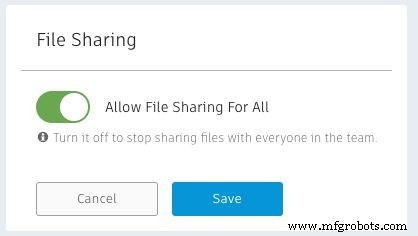
Decide whether team members can create share links and whether those links require passwords. Disable the feature if it doesn’t fit your workflow.
Adding New Team Members
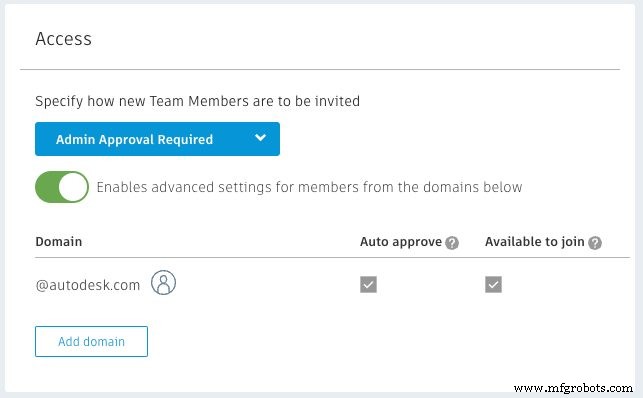
Choose from: admin‑invite‑only, admin‑approval required, or no approval.
Assign Roles and Permissions
Roles can be set at both the team and project levels. Below is a quick reference.
| Role Level | Role Type | Permissions & Capabilities |
|---|---|---|
| Team | Admin | Full control over team settings, member management, security configuration, and all projects. |
| Team | Member | Access to assigned projects, ability to collaborate and contribute to designs. |
| Project | Admin | Manage project settings, assign project roles, control project‑level permissions. |
| Project | Member | View, edit, and collaborate on project designs. |
| Project | Viewer/Moderator | View designs and provide feedback; moderators can also manage comments and markups. |
Extend Fusion with the MFGDM Cloud API
Fusion’s powerful MFGDM API lets you integrate design data with ERP/MRP systems, sustainability analytics, costing tools, and more. The GraphQL endpoint exposes Hubs, projects, assembly structures, metadata, mass properties, and can even export components as STEP files. Explore the API and sample apps.
Frequently Asked Questions
- How do I create a team in Fusion? Open Fusion, navigate to the data panel, and follow the team creation workflow. See the Autodesk Help documentation for step‑by‑step guidance.
- What is SSO in Fusion? Single Sign‑On allows users to log in with corporate credentials, removing the need for separate usernames and passwords.
- Can I access Fusion data on mobile? Yes – use the iOS and Android apps to view designs and provide feedback on the go.
- What roles are available in Fusion teams? Teams support admin and member roles; projects offer admin, member, and viewer/moderator roles, each with specific permissions.
Industrial Technology
- Why RFID Is Risky for Military Asset Tracking: 3 Key Flaws
- Digital Procurement: A Proven Path to Post-Pandemic Success
- New Wave Interference Technique Boosts Long‑Range Wireless Charging
- Build a Voltage Tripler Circuit: Step‑by‑Step Guide
- FR4 Material: Essential Choice for Reliable PCB Assembly
- Optimizing NRE Costs: A Complete Guide for PCB Projects
- Exploring 3D Printing Technologies: SLA, SLS, FDM, DLP, MJF, PolyJet, DMLS & More
- Unlocking Hidden Value: How Supply‑Chain Serialization Drives Efficiency, Security, and Brand Protection
- Understanding Urethane: Global Uses and Key Advantages
- Performance Evaluation of Thin-Film Embedded Resistors for High-Precision Microwave and Aerospace Applications