



Loading G-Code Part Programs in Mach3: A Step-by-Step Guide
This tutorial describes how a cnc machinist can load a G-Code part program (written by hand or generated by CAD/CAM software) in Mach3 CNC.
- Press Load GCode button.
- Windows file open dialog will show up.
- Choose the file containing part program (g codes) .
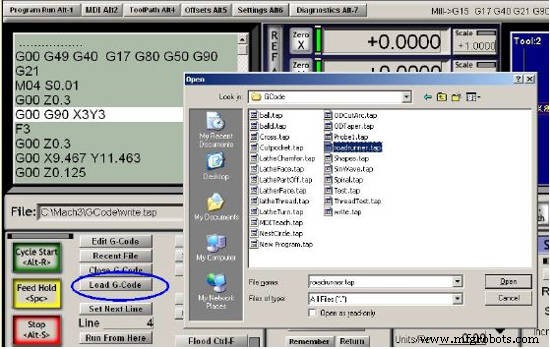
When the file is chosen, Mach3 will load and analyse the code.
This will generate a toolpath for it, which will be displayed, and will establish the program extrema.
The loaded program code will be displayed in the G-code list window.
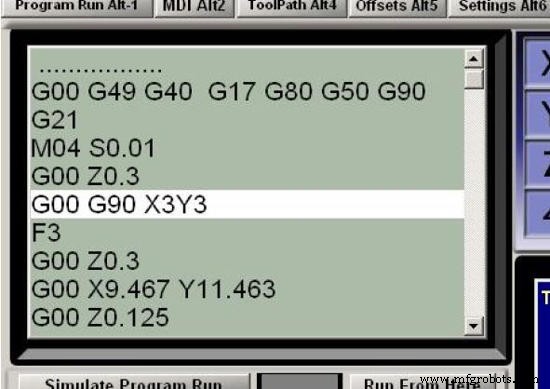
You can scroll through this moving the highlighted current line using the scroll bar.
Complete G & M Code Reference for Fagor 8037 Milling & Lathe
Fagor 8055/8055i G‑Codes & M‑Codes: Complete Programming Guide
CNC Machine
- How to Become an AWS Expert: A Practical Guide to Mastering Cloud Services
- Developing a Robust Electrical Maintenance Program: A Practical Guide
- Launching a Reliability Program: A Proven Roadmap
- Designing a Reliable Electrical Maintenance Program to Boost Safety & Production
- PCB Recycling 101: Part I – Recovering Gold, Copper, and More Safely
- Master CNC Blueprint Reading: Essential Skills for Modern Machinists
- Step-by-Step Guide: Mill a Full Circle on CNC Machines Using Practical G‑Code
- Master CNC Programming: A Beginner’s Guide to Fanuc Controls
- Comprehensive Mach3 Mill G‑Code Reference Guide
- Comprehensive Guide to Mach3 M Codes for CNC Machining