



Export 3D Elements from E3.panel: Step‑by‑Step Guide
In this article you can check how to export 3D elements from your projects. Exporting can be performed in different formats and colors for devices inserted in E3.series sheets and improves the representation and documentation of your project. See the full video article and optimize your processes!
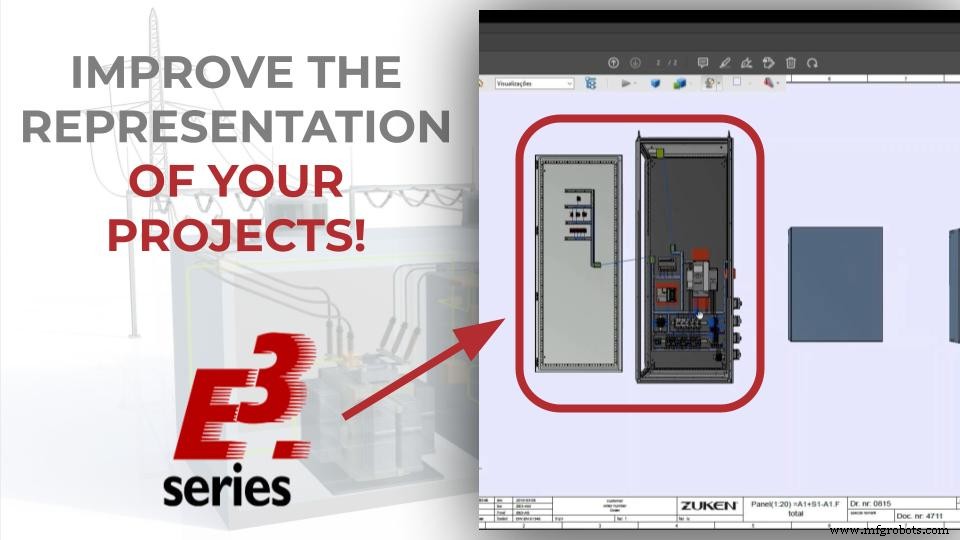
E3.panel Viewing Options
Initially, a project that contains an electrical panel is opened with the E3.panel module functionalities. The sheet is selected and it is possible to enable various viewing options for the devices, such as:

E3.panel features
- "Toggle Display Mode"
- "Graphic from 2D in 3D"
- "Display STEP Models in 3D"
These options are available in the "Panel" option, with the right mouse button click on E3.series' upper interface.
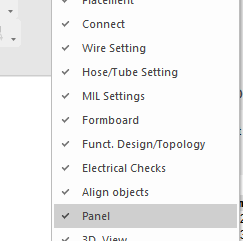
How to Enable Panel Options
Try NOW the industry-leading E-CAE E3.series tool in the world with technical training courses!
Click on the banner below
How to Export the Project
Then the project sheet is exported under "File" - "Export" and the option of "PDF" is selected.
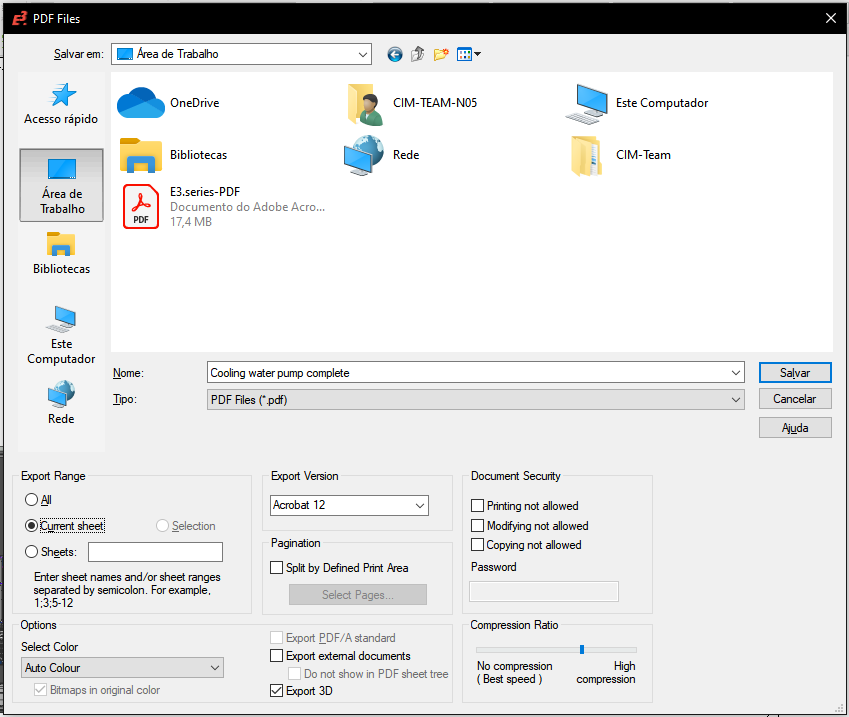
E3.series Export Window
A new window opens and the options for "Current Sheet", "Auto Color", "Acrobat 12" and "Export 3D" are selected for the various settings boxes.
Watch the Full Video
Subscribe to our Youtube channel here for more technical videos.
Export in 3D
Once the process is finished, you can open the file with the 3D elements exported with compatible software. In this case we use "Adobe Acrobat Reader 12".
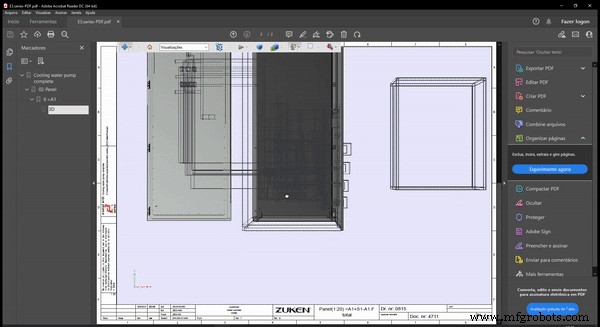
Project Exported with 3D Elements
Thus, the design is better documented for complex elements and helps visualization.
Make the E3.series Trial according to your demand using the button below!

Are You a Student?
Download E3.series for free!

Industrial Technology
- Master Cable Duct Installation in Electrical Panels Using E3.series
- Build Electrical Panels Quickly with CAE E3.series: A Step‑by‑Step Guide
- Step‑by‑Step Guide: Wiring Solar Panels & Batteries in Parallel for a Reliable 12V System
- Step-by-Step Guide: Wiring Solar Panels & Batteries in Series for a Reliable 24V System
- Connecting Batteries in Series-Parallel to a Solar Panel: A Step‑by‑Step Guide
- Step-by-Step Guide: Wiring Batteries in Parallel with Solar Panels & UPS for Reliable Power
- Step-by-Step Guide: Wiring Batteries in Series for Solar Panels and UPS Systems
- Step-by-Step Guide: Wiring a Solar Panel to a 12V DC Load and Battery
- Connecting a Solar Panel to 120‑230V AC Load via Inverter & UPS – Step‑by‑Step Guide
- How Solar Panels Are Made: A Step-by-Step Guide to High-Quality Solar Energy Production