



Master Turning Features in Fusion 360: A Comprehensive Guide
Learn about the five subfeatures of turning in Fusion 360 and how leveraging them can help your next project.
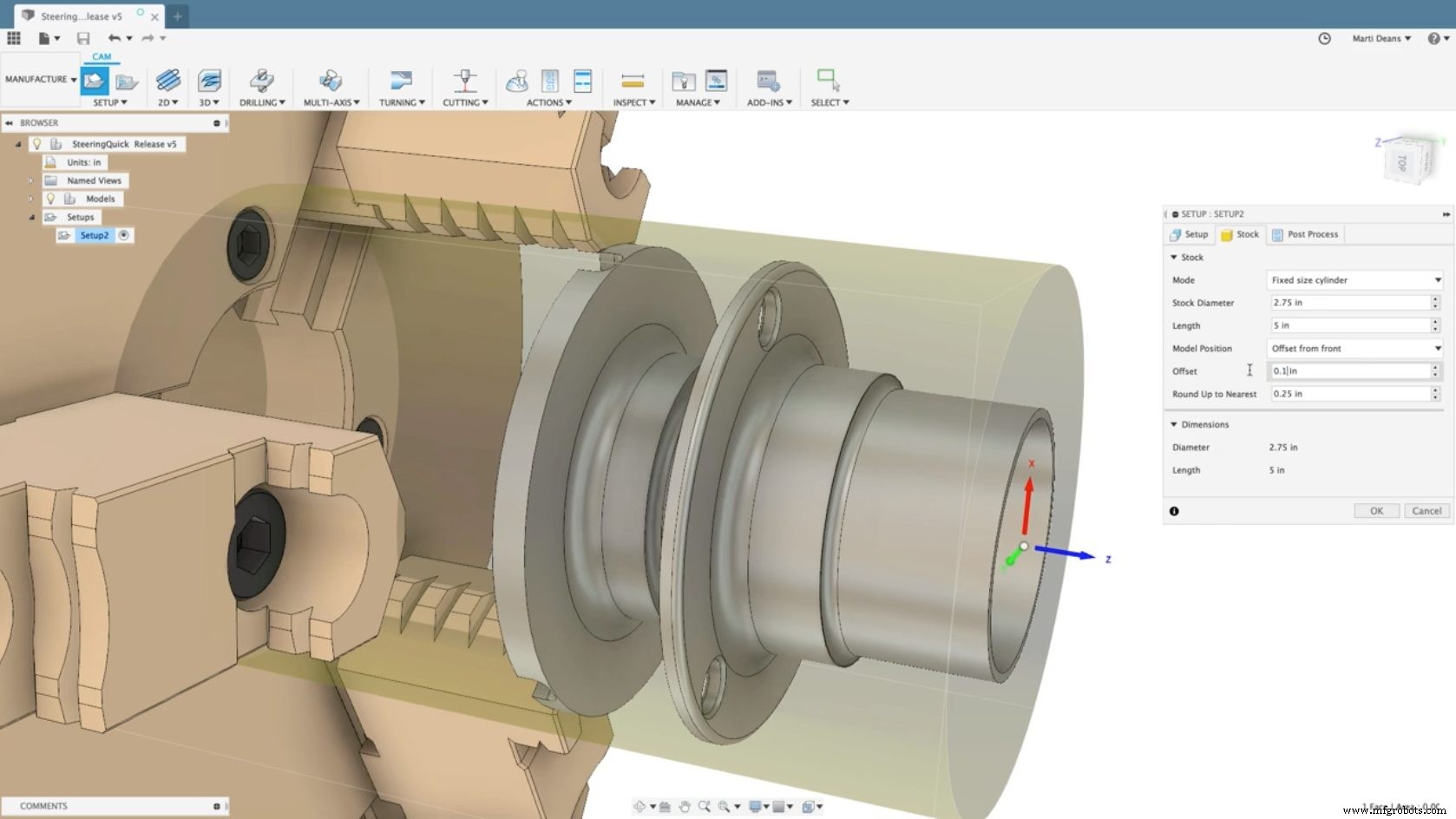
Autodesk Fusion 360 has many capabilities that help machinists create complex projects within one streamlined solution. For example, turning features in Fusion 360 allow machinists to program two-dimensional turned parts and verify toolpaths with stock simulation to identify errors and prevent collisions with the model, stock, tools, and workholding. Users can create and program projects quickly. This article will delve into the five subfeatures of turning in Fusion 360.
Fusion 360 Turning Capabilities
Turning features in Fusion 360 include profile roughing and finishing strategies, stock simulation, round holders, custom holders, and profile corner control. Using turning tools, designers can cut past the center to eliminate small nubs from worn tools, select geometry off the model, and simplify toolpath creation. Designers also have access to roughing options — like pecking, profiling, and grooving — to reduce wear and tear on tools while managing complex materials. When finishing, designers can ensure parts are to the correct size by utilizing the wear compensation function built into each toolpath.
Let’s break down these five subfeatures of turning in Fusion 360:
1. Profile Roughing and Finishing Strategies
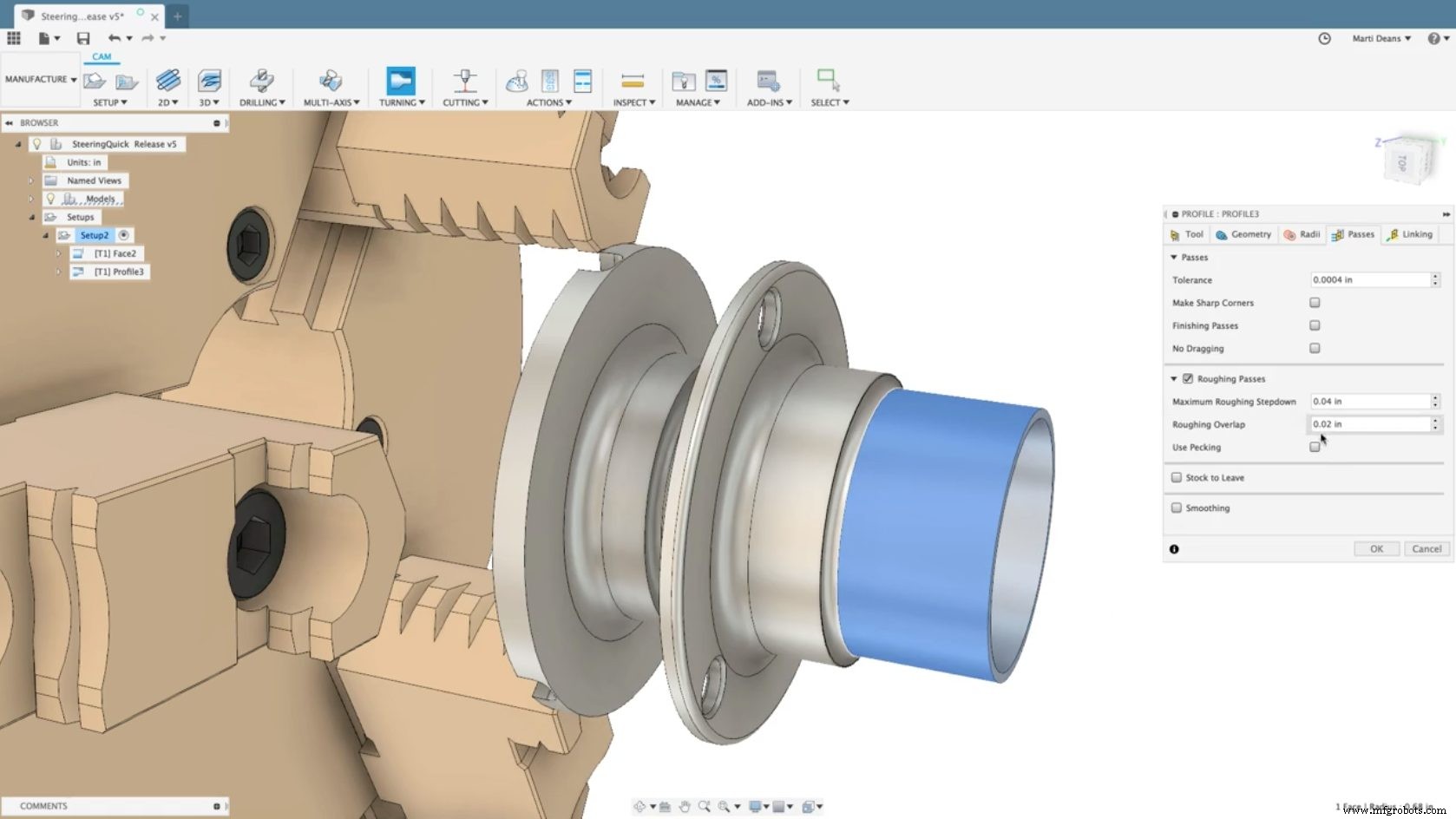
Tangential extensions allow you to extend the turning profile geometry tangentially in the front or back by defining the respective extension distance. They’re helpful when machining extra material to create space for another tool. You can manipulate tangential extensions under the Geometry tab for profile turning for profile roughing and finishing. The measured distance along the direction of the extension defines the extension distance.
On the other hand, the Tool Limit function allows you to define how the Z-limit is used with respect to the cutting tool.
2. Stock Simulation
Stock simulation helps simulate small parts, tolerances, and associated toolpaths.
3. Round Holders
You can use round boring bars with relief angles to accurately model round shank tools for toolpath verification and simulation. As such, round boring bars are applicable for internal and general grooving tools.
4. Custom Holders
You can define custom tool holders for general tools or boring bars. You can manipulate the holder’s leading angle and trailing angle parameters, ensuring accurate creation and stock simulation results.
5. Profile Corner Control
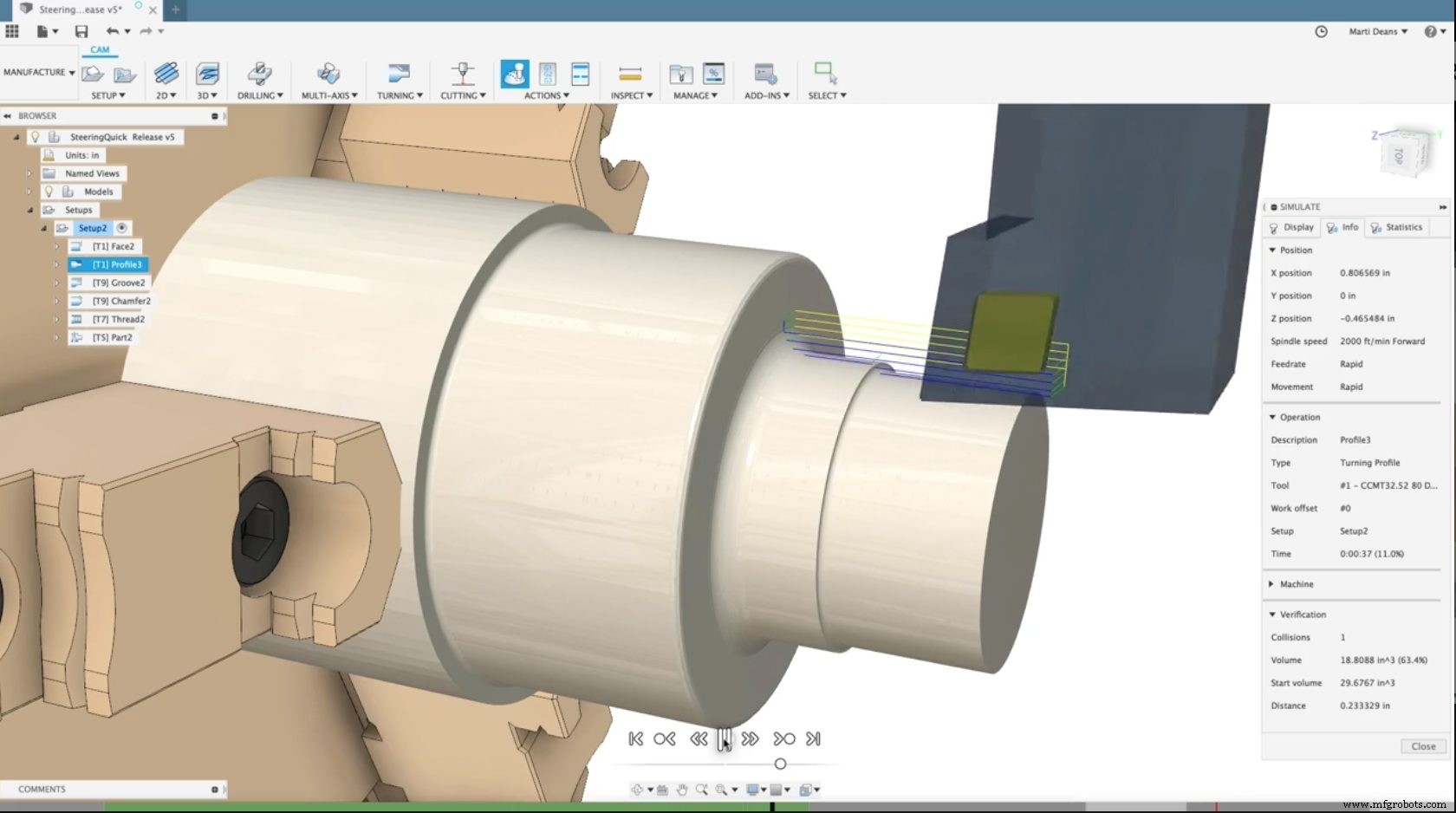
The profile corner control function allows designers to define a turning toolpath at the outer corners of a part. Using the “make sharp corners” parameter, designers can change the default option (rounded arc corners) to sharp corners without arcs.
Fusion 360 continues to add new features and improve upon old ones. Designers and engineers can get the most out of the Fusion 360 platform by knowing and using each function available to them.
Try Fusion 360 and its integrated turning functions today!

Industrial Technology
- Achieving a Digital Factory: How Fusion 360 & Prodsmart Drive Manufacturing Utopia
- Master 5‑Axis Machining with Autodesk Fusion 360
- Top 10 Fusion 360 Courses from Autodesk University 2020 – Watch Online for Free
- Fusion 360 Extensions Explained: Unlock Advanced CAD/CAM Capabilities
- Master Autodesk Fusion 360 Machine Simulation: From Preview to Production
- Mastering Fusion 360's Machining Extension: Advanced Features for Precision Manufacturing
- Master Autodesk Fusion 360: A Comprehensive 3D Modeling Guide for Beginners & Professionals
- Master 3+2 Axis Milling in Fusion 360: Boost Efficiency & Reduce Setup Time
- Master Tool Orientation in Fusion 360: Advanced Controls & Accessibility Analysis
- Master 4‑Axis Machining in Autodesk Fusion 360: Advanced Techniques & Toolpath Wrap