



KiCad Basics: A Practical Guide to PCB Design for Beginners
Master the essentials of KiCad, the open‑source PCB design suite that powers both hobbyists and industry professionals. This guide walks you through downloading, setting up projects, managing libraries, and creating schematics—all before exporting Gerbers for fabrication.
Step 1: Download KiCad
Start by installing the latest stable release of KiCad from the official KiCad website. The installer packages all core tools—schematic capture, PCB layout, and package editor—into a single application bundle.
After installation, launch KiCad. The main window presents a project browser that opens three peripheral programs: Schematics, PCB Layout, and Footprint Editor. These work together to create a complete PCB design.
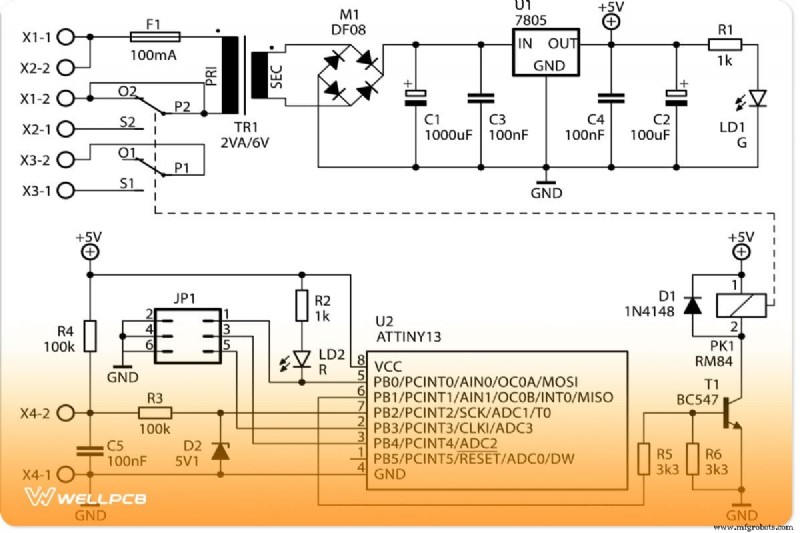
Step 2: Set Up the Project
Download the starter project files (usually a ZIP) and extract them to a folder on your local drive. Typical KiCad project files include:
- project.pro – the project container that tracks all design files
- *.kicad_pcb – the PCB layout file
- *.sch – the schematic capture file
- *.kicad_mod – individual component footprints
Unlike Eagle, KiCad requires you to explicitly associate each schematic symbol with a footprint. This separation ensures design flexibility and consistency.
Step 3: Configure the Component Library
Open the schematic editor and double‑click the library icon. If a component appears with a question mark, KiCad cannot locate the corresponding symbol. Click the Library Manager icon, then Open Library Folder to add or adjust library paths.
The project file records where each library resides, so you only need to set the path once per project.
Step 4: Add Components to Your Schematic
To insert a component, click Add (or press A). The component library pops up; select the desired part and press Enter. Place the component on the schematic canvas. When the component remains in placement mode, hit Esc to return to normal pointer mode.
Duplicating a component is simple: click on the existing part, press C to copy, then click the target location.
Step 5: Wire the Components
Wire connections by hovering over a component pin and pressing W. Drag the cursor to the target pin and release. KiCad will automatically generate net names based on the pins you connect.
Step 6: Annotate the Schematic
KiCad offers an automatic annotation tool. Click the Annotate Schematic button, accept the default settings, and confirm. The tool will assign unique reference designators (e.g., R1, C2) and prompt you to review the changes.
Once annotated, you can proceed to the PCB layout stage, where the footprints will be assigned and the board geometry defined.
Industrial Technology
- How Many Lights Can Fit on a Single Circuit Breaker? Expert Guide for 15A, 20A & 10A Circuits
- Industry 5.0: Human‑Centric, Sustainable, and Resilient Innovation for the Future of Manufacturing
- CMOS Gate Circuits: Design, Operation, and Comparison to TTL
- Essential Guide to Generator Components: A Practical Overview
- How Robotics Transform Investment Casting: Applications & Advantages
- Protecting Industrial Cloud Infrastructure: Strategies Against Cyber Attacks
- Microsoft Unveils AttnGAN: AI That Turns Text Descriptions into Photorealistic Images
- Warehouse Optimization: Definition, Benefits, and Key Strategies
- CNC Boring Mastery: Overcome Challenges, Tips & Techniques for Precision Drilling
- Engineering the Fast Radius Face Mask: Design, Prototyping, and Innovation