



Designing Industrial IoT Systems with the RTI DDS Toolkit in LabVIEW 2017
Two years ago I began working on a highly intriguing initiative: the RTI DDS Toolkit for LabVIEW. I was excited because LabVIEW was my native platform, and I was eager to extend its capabilities. Just before joining the team, I learned that the toolkit’s primary developer was moving to another department. Coupled with RTI’s recent NI Tools Network Product of the Year award, the stakes felt high – but also incredibly motivating.
I became the main developer on the LabVIEW side, and spent several months absorbing every nuance of the existing project from my predecessor. Once the hand‑over was complete, I launched new features and took full ownership, driving the toolkit toward integration with LabVIEW 2017.
Working closely with National Instruments, we aligned the toolkit with NI’s requirements and expanded our team to support the effort. The result: the RTI DDS Toolkit shipped as part of LabVIEW 2017, officially announced during NI Week 2017’s keynote presentation.
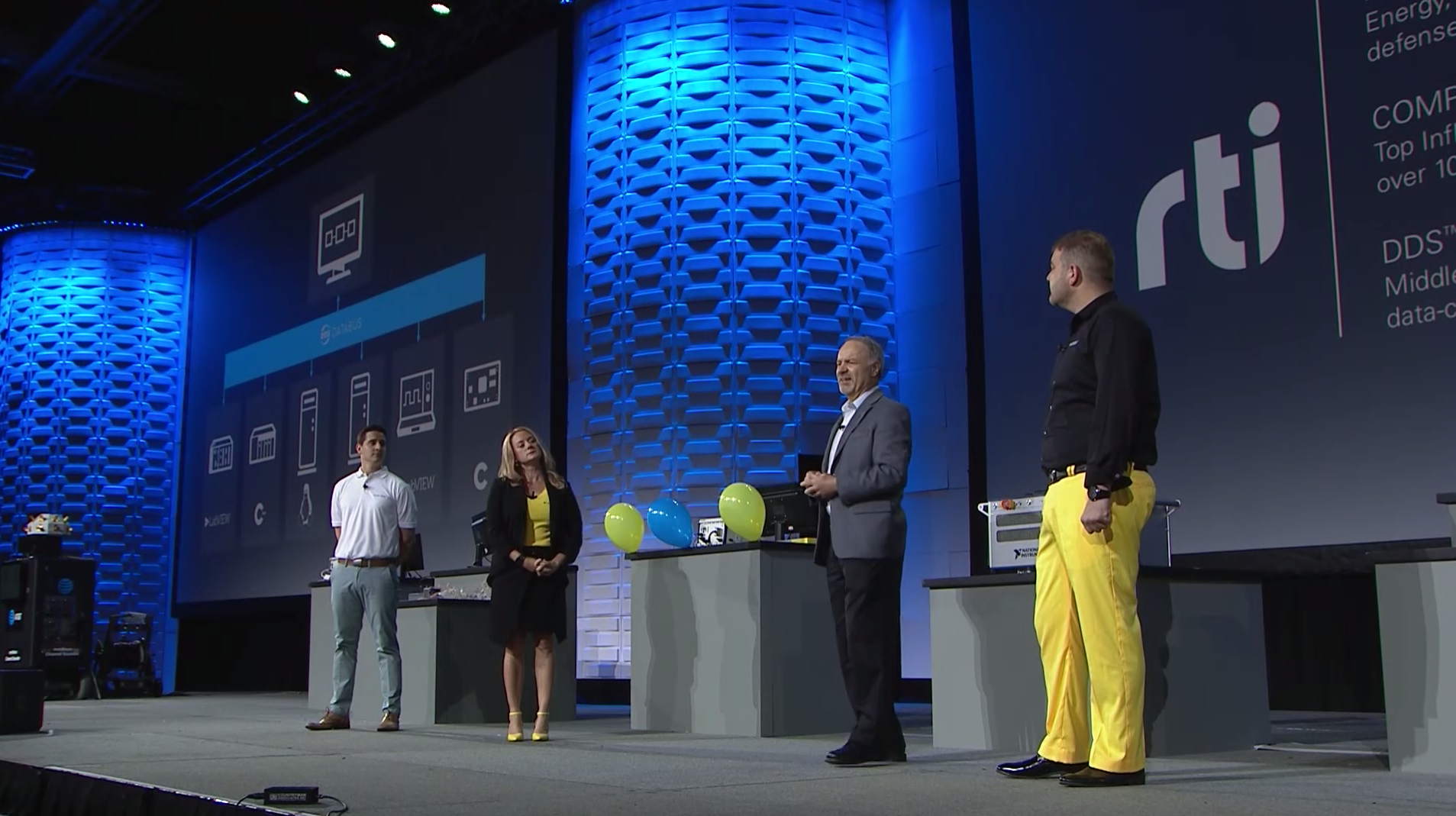
Following the announcement, we received a number of common questions about DDS. Below is a consolidated FAQ that addresses those inquiries.
Frequently Asked Questions
“What is DDS?”
DDS (Data Distribution Service) is an open standard from the Object Management Group (OMG). It’s more than a messaging protocol; it’s an interoperable, data‑centric communication framework designed for the Industrial Internet of Things (IIoT). Learn more at OMG DDS.
“Can I use DDS to connect LabVIEW applications?”
Absolutely. DDS enables communication not only between LabVIEW programs but also between LabVIEW and other systems, regardless of operating system or programming language. It’s even compatible with NI Linux‑based boards such as the cRIO 903x and cRIO 906x series.
“What are the key features of the RTI DDS Toolkit?”
The toolkit introduces a highly configurable data‑communication paradigm that was previously unavailable in LabVIEW. It supports N:M communications with security, low latency, reliability, and high throughput. Combined with LabVIEW’s other communication methods, it addresses all networking challenges.
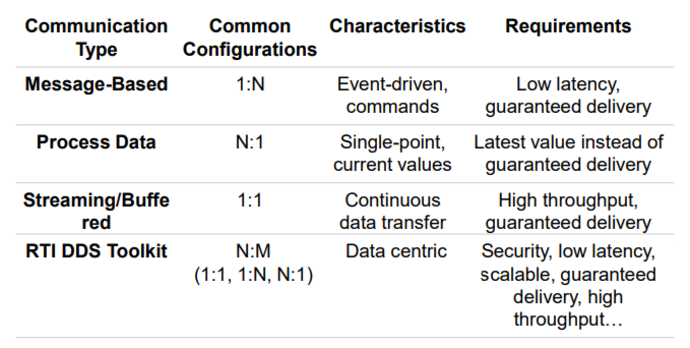
By default, the toolkit follows a publish‑subscribe pattern: publishers write data to a topic, while subscribers consume the data they’re interested in. Readers and writers automatically discover each other and exchange data peer‑to‑peer over the most efficient path—shared memory, UDP multicast, or UDP unicast—without requiring a network service or message broker. This yields a highly scalable, easy‑to‑deploy solution.
“How do I install and use the RTI DDS Toolkit in LabVIEW?”
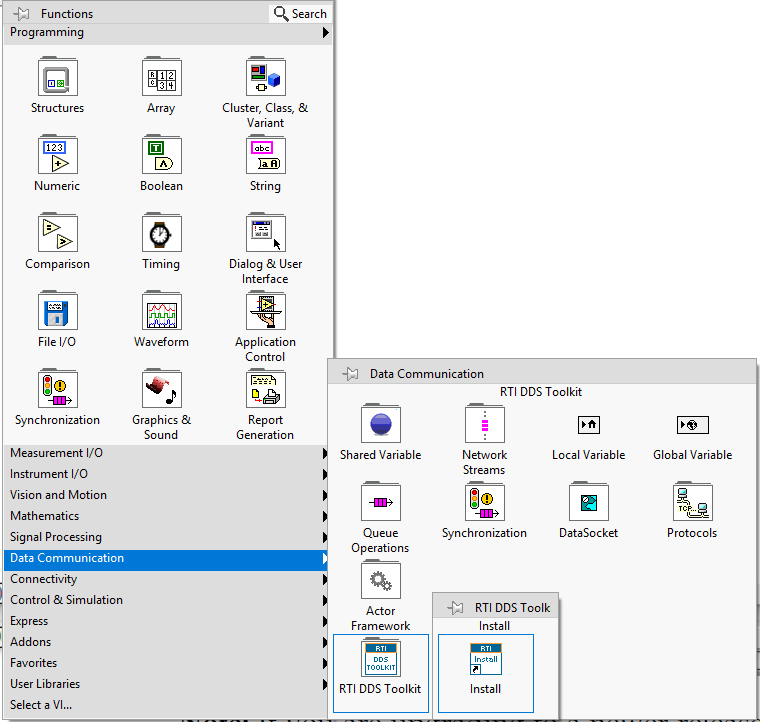
In LabVIEW 2017, the toolkit appears in the block diagram menu: Data Communication > RTI DDS Toolkit > Install.
For earlier LabVIEW versions, locate the toolkit in the LabVIEW Tools Network via the VI Package Manager (search for "rti dds" and click "Install Package(s)").
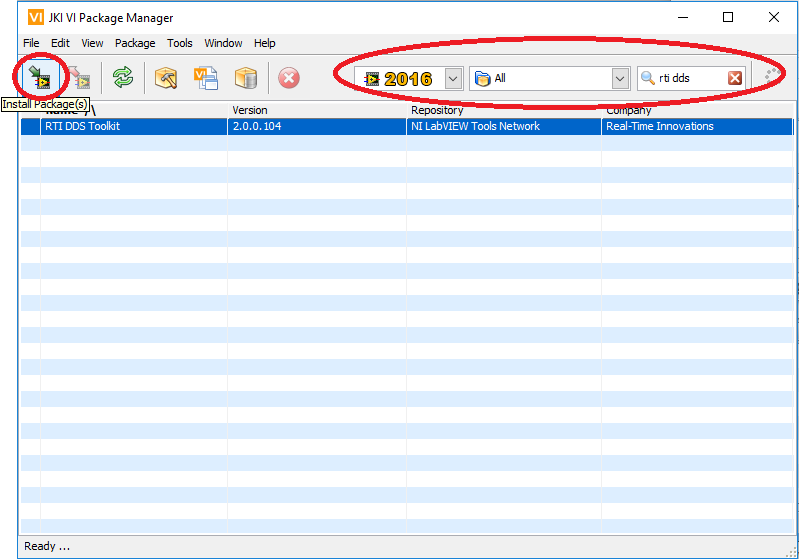.png)
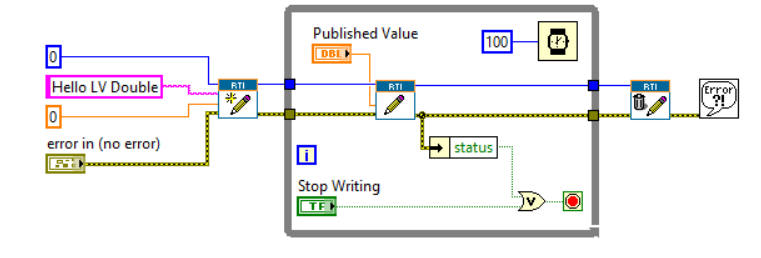
The installation wizard will guide you through the process. Once installed, the toolkit follows LabVIEW’s familiar Startup – Action – Shutdown pattern, making it intuitive for existing LabVIEW developers.
“What additional tools are included in version 2.0.0.104?”
In addition to core functionality, the toolkit provides:
- Debugging utilities to identify and resolve VI errors.
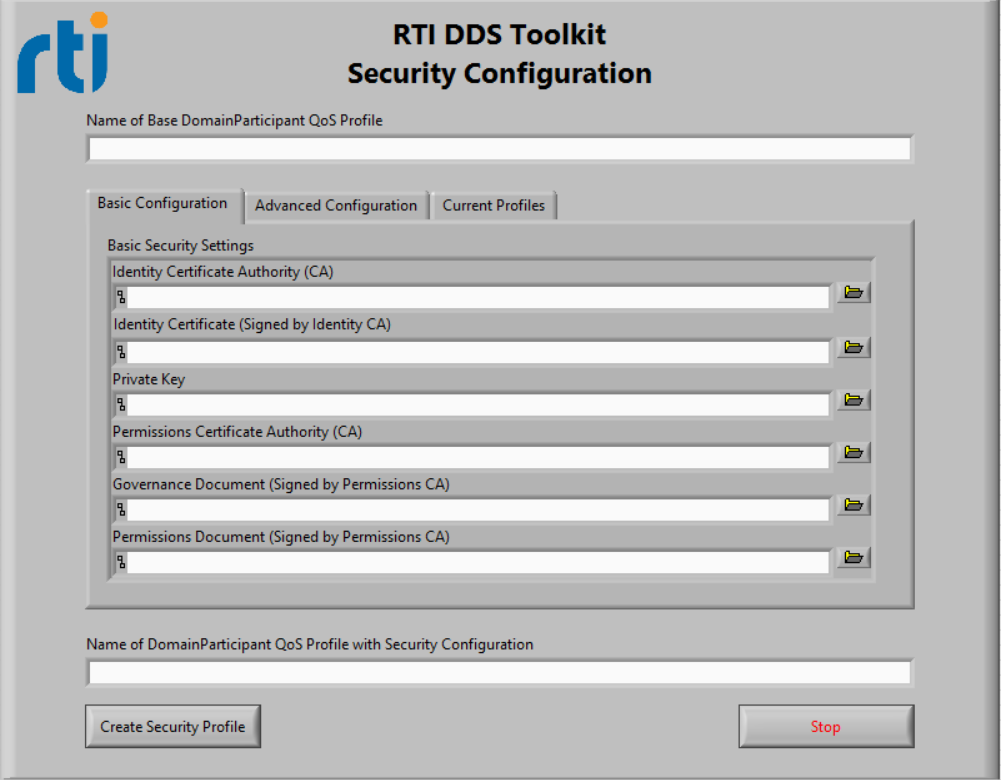
- A Security Panel for easy configuration of authentication, encryption, and signing.
- A ComplexType Generator that produces custom subVIs for your LabVIEW type definitions (*.ctl files).
“How do I debug my DDS‑enabled LabVIEW application?”
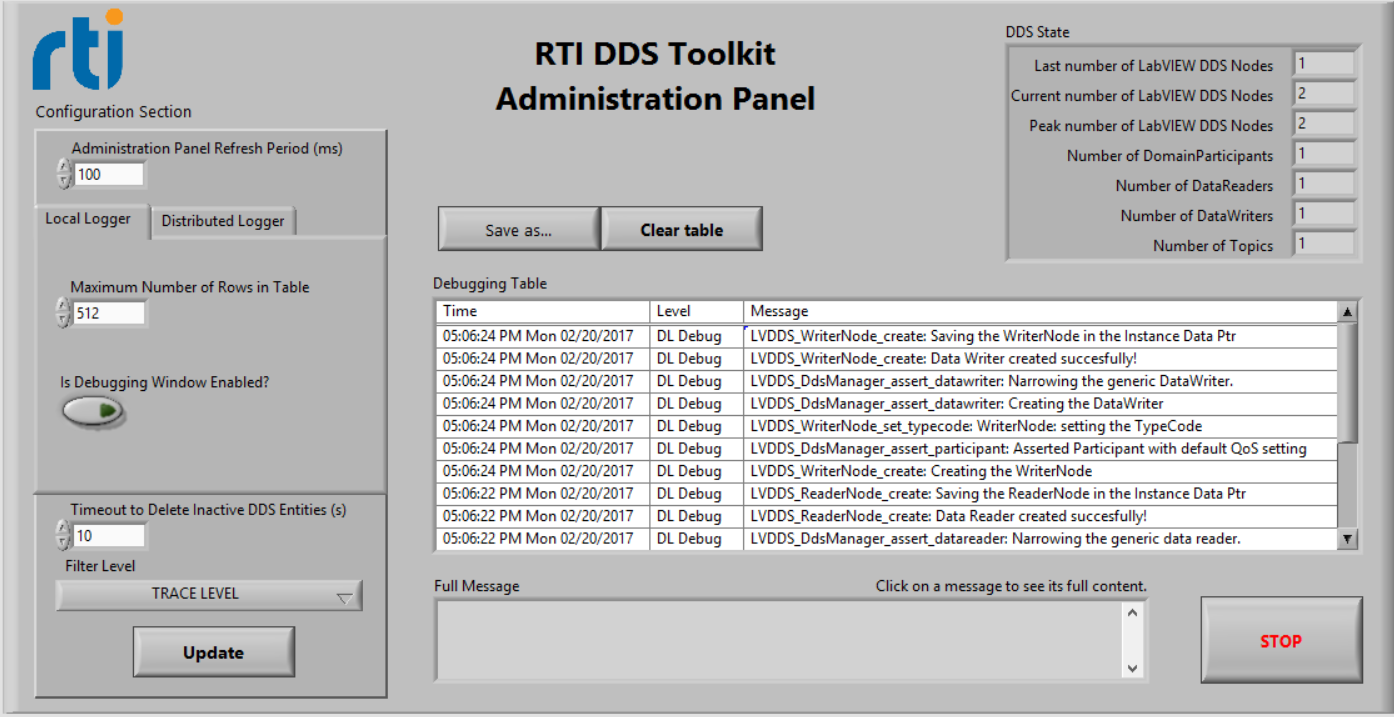
The RTI DDS Toolkit Administration Panel displays real‑time debug messages and gives a global view of your system (entity counts, LabVIEW nodes, etc.). You can also tweak logging settings directly from the panel.
“How can I secure my DDS communications?”
Use the Security Panel to create “Secure Profiles” that define authentication, encryption, and signing parameters. These profiles are then applied when creating readers or writers.
“Can I use complex LabVIEW types with DDS?”
Yes. The ComplexType Generator produces a suite of subVIs tailored to your custom LabVIEW types. These include reader/writer VIs and optional example VIs.
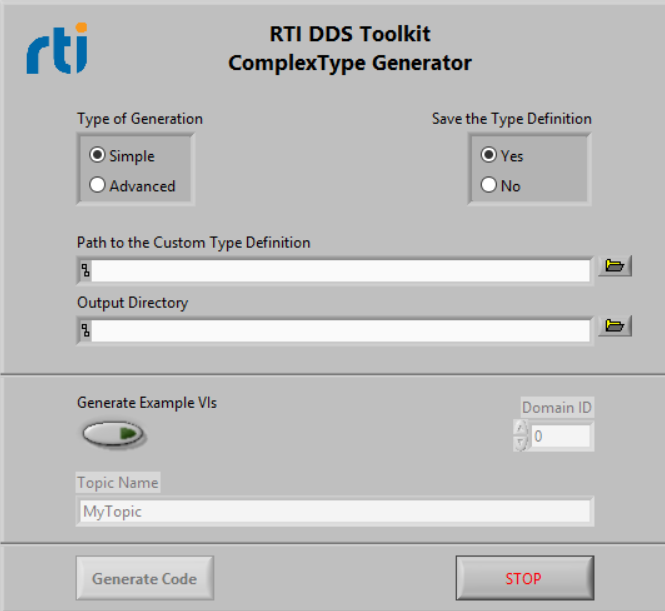
If your type definition changes, simply regenerate the subVIs (excluding the example VIs) and replace the old ones.
Note that the administration and security panels are Windows‑only due to LabVIEW runtime dependencies. However, equivalent subVIs are available for real‑time targets under the Tools > DDS Debugging and Tools > DDS Security palettes.
Further learning resources:
- RTI DDS Toolkit Getting Started Guide
- RTI DDS Toolkit Webpage
- RTI Community Forum
- NI RTI DDS Toolkit User Guide
We also invite you to register for our co‑hosted webinar, "Designing Industrial IoT Systems with LabVIEW 2017’s Interoperable Data Communication Support." Join NI experts as they cover LabVIEW’s data‑communication features, compare OPC UA and DDS standards, and offer guidance on selecting the right solution for your IIoT architecture.
Internet of Things Technology
- Connext DDS in Industrial IoT: 5 Key Insights for Reliability, Security, and Scalability
- Integrating Qt with DDS: Building Scalable IoT Applications
- How 5G Will Transform Industrial IoT: Boosting Automation, Reliability, and Connectivity
- How IoT Empowers Children with ASD to Learn, Play, and Thrive
- Bridging the Gap: How ERP and MES Systems Adapt to the Industrial IoT Revolution
- How IoT Drives Value in Industrial Automation for Oil & Gas
- Bringing IoT to Life with IBM & Tech Data – Part 2
- Turning IoT Into Reality: Tech Data & IBM Insights – Part 1
- IoT-Driven Downtime Monitoring for Industrial Packaging Lines
- Leveraging IoT & Industry 4.0 to Optimize Compressed Air Systems