



Connecting GrabCAD Print to Your Stratasys 3D Printer – A Step‑by‑Step Guide
When you change your network, upgrade your computer, or relocate your Stratasys printer, the connection to GrabCAD Print can break. This guide walks you through diagnosing and restoring the link, covering IP discovery, network checks, antivirus exclusions, and a clean reinstall if needed.
1. Locate the Printer’s IP Address in GrabCAD Print
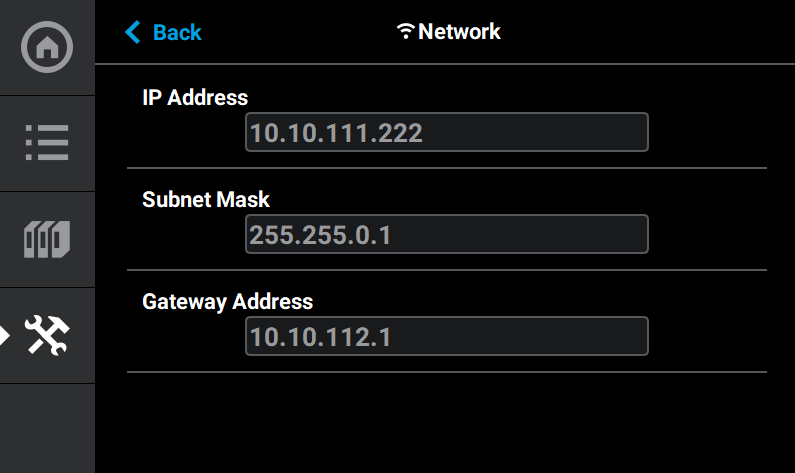
First, determine your printer’s IP address from its onboard network menu. If you’re unsure how to access this menu, consult your Stratasys service provider.
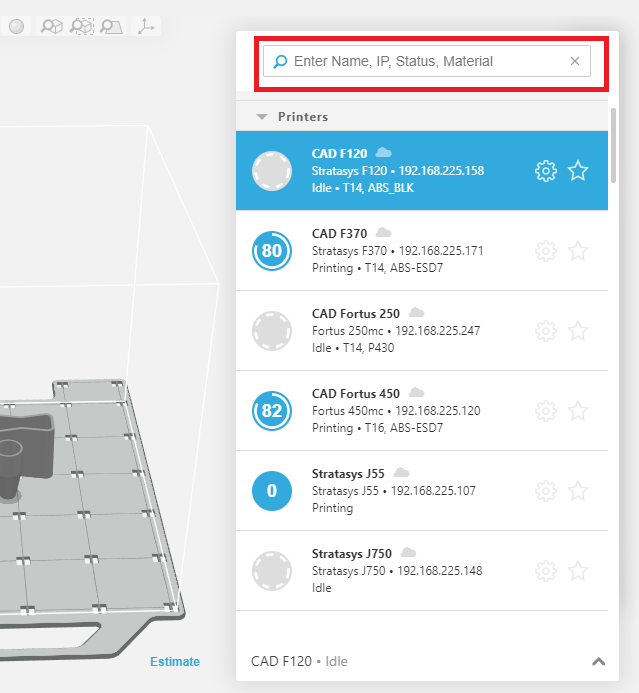
Once you know the IP, open GrabCAD Print, go to the “Select a printer” page, click the magnifying glass, and type the address.
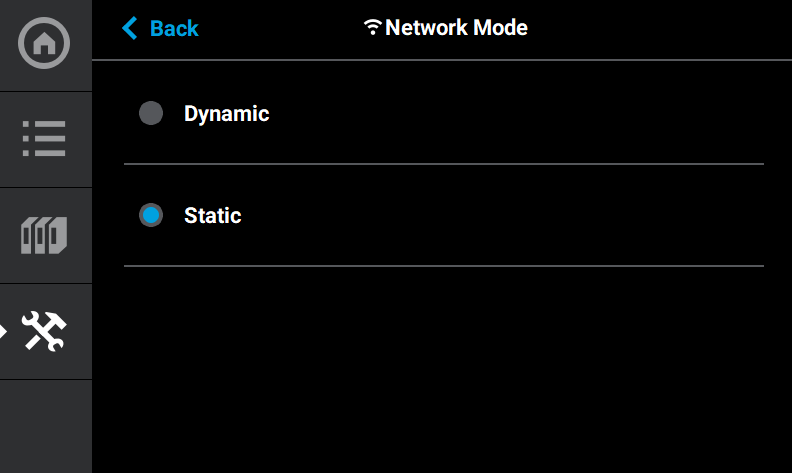
If the search fails, set the printer to a static IP in its network menu, then retry the search.
2. Verify Network Connectivity Outside GrabCAD
Open a command prompt (Win + R, type cmd). Test connectivity with ping <printer‑IP>. For example, ping 192.168.225.162. A successful reply confirms the printer is reachable on the network.
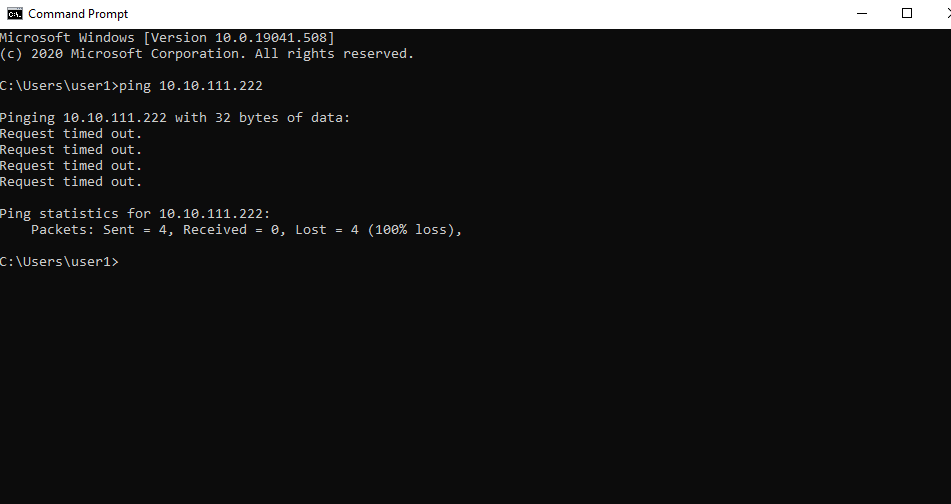
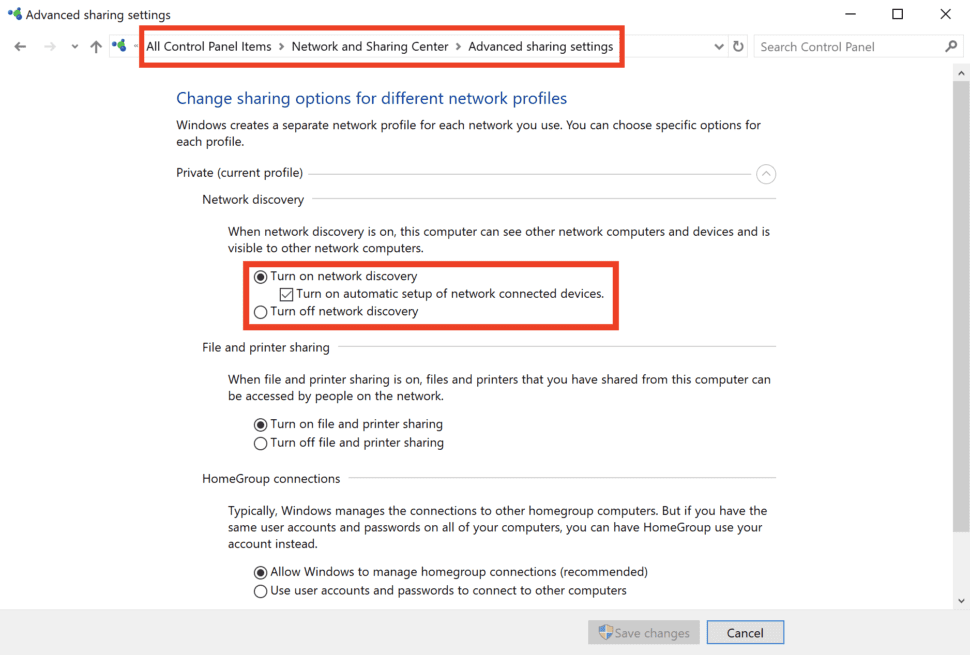
If ping fails, double‑check the IP, ensure the printer is powered, and that no firewall blocks the connection. In Windows, enable network discovery: Control Panel > Network and Sharing Center > Advanced Sharing Settings.
3. Resolve Antivirus Interference
Some antivirus suites flag GrabCAD background processes as malicious, disrupting communication. Add the following executables to the exception list and always click “Allow” when prompted:
- GrabCADPrint.exe – Main application (may run multiple instances)
- PrinterServiceServerConsole.exe – Maintains network links
- FDMBuildServiceServerConsole.exe – Handles FDM slicing and toolpaths
- PolyJetService.exe – PolyJet‑specific operations
- gc_service_runner.exe – Enables Analysis Mode
- gc_print_data_service.exe – Collects usage statistics (configurable under File > System Preferences)
- VoxelFileCreateUtil.exe – (Optional) Voxel Print Utility
- gc_print_server.exe – Runs with GrabCAD Print Server
4. Reinstall GrabCAD Print
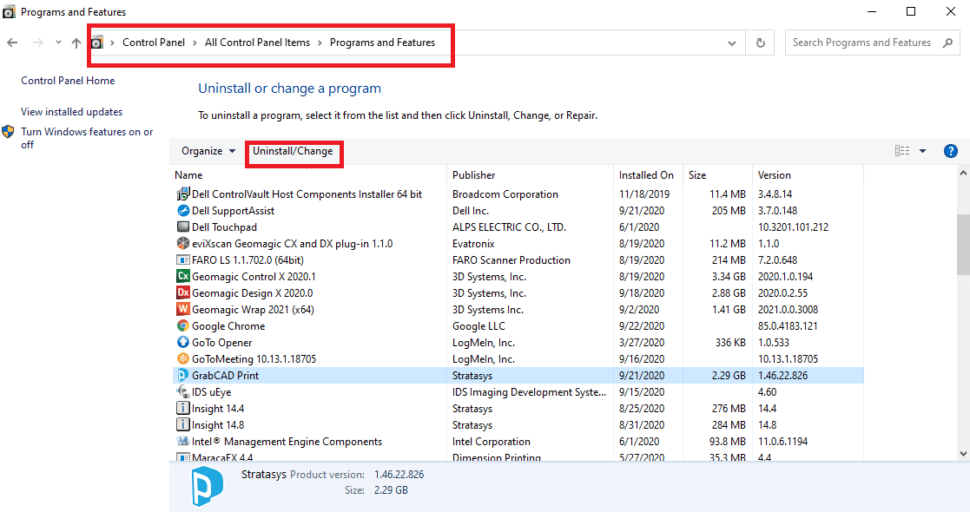
Persistent connectivity problems often stem from corrupted or outdated installations. Uninstall via Control Panel > Programs and Features, then download the latest installer from print.grabcad.com and reinstall.
5. Clean Up Residual Components
If reinstalling doesn’t help, a comprehensive clean‑up is required:
- Uninstall all GrabCAD products from Control Panel.
- Download the fresh installer from print.grabcad.com and run it.
- If issues persist, use Microsoft’s troubleshooting tool (MicrosoftProgram_Install_and_Uninstall.meta.diagcab). Open it, select “Problems uninstalling,” and let the wizard remove leftover services.
- After the wizard finishes, reboot the PC, run the tool again, and delete any remaining services such as Printer Service or GrabCAD Print Server.
- Reinstall GrabCAD Print and verify connectivity.
6. Contact GrabCAD Support
If all troubleshooting steps fail, submit a support ticket at print.grabcad.com or email print@grabcad.com. Provide details of the steps taken and any error messages.
Optimize Your Designs For 3D Printing
From Concept To Production. CADimensions Can Help You Every Step Of The Way
3D Printing Services
3D printing
- Stratasys F123 Series – 3D Printing Made Simple for Every Professional
- Stratasys Launches GrabCAD Voxel Print for J750 and Partners with e‑Xstream for Advanced Simulation
- Step‑by‑Step Guide to Replacing Nozzle Tips on Your Stratasys 3D Printer
- Step‑by‑Step: Connect Your Ender 3 to WiFi for Seamless Printing
- How Often Should You Level Your 3D Printer Bed for Optimal Print Quality?
- How Long Will a 1‑Kilogram 3D Printer Filament Last? A Practical Guide
- Master ABS 3D Printing: Proven Settings for Superior Quality
- What Are the Minimum Print Sizes Achievable with 3D Printers?
- How 3D Printers Operate: A Comprehensive Technical Overview
- Check If Your 3D Printer Supports Advanced Materials