



Create Electrical Schematics Quickly with CAE E3.series: A Step‑by‑Step Guide
In this article, you can check how the creation of an electrical schematic can be done in E3.series. The creation is simple, intuitive and with E3.series intelligent functionalities the processes become completely optimized and efficient, so that the conception time of your projects is as short as possible. See the full video article!
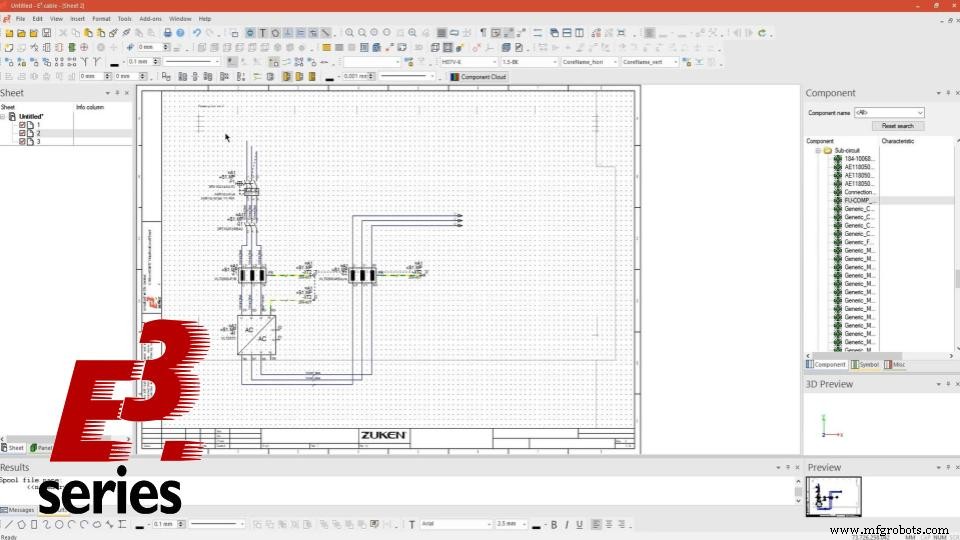
Initial Settings
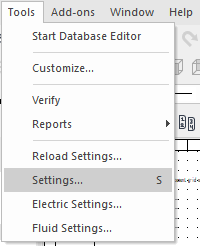
Initially, the grid is defined for the project sheets and the desired language is selected. The project's electrical settings can be accessed in "Tools" and "Settings" or by the "S" key on the keyboard.
Then three worksheets are added, with respective names of: 1, 2 and 3.
Try NOW the industry-leading E-CAE E3.series tool in the world with technical training courses!
Click on the banner below
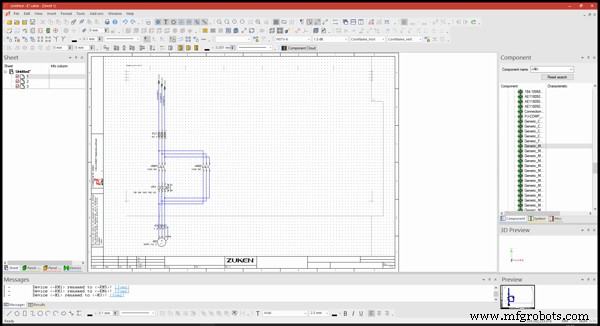
With the first sheet selected, two equal subcircuits are added. Adding is done just by dragging components from the library onto the project sheet.
Cross-References
Then cross references are inserted to the open connections of the sub circuits.
In the addition of the cross references in the subcircuit of the second sheet, the names are automatically established, and for the other references, it is possible to rename with the "F2" key or with the right mouse button under the text and "Text Properties".
For the second and third sheets, 3 connectors are inserted into the design to continue the cross-references of the sub circuits.
After correctly renaming the references, they are highlighted with the number and location on the project sheet.
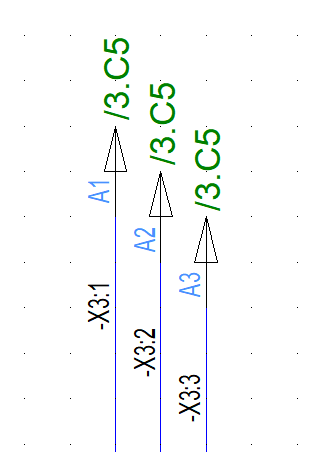
This can be done within the same sheet and also on different sheets.
Report Types
Finally, the list of materials and content are added through "Tools" and "Reports". E3.series allows several report options:
- Content;
- Bill of Materials;
- Connection;
- Cables;
- Among others.
In different formats such as:
- Project sheet;
- Excel;
- Word;
- Access;
- ASCII.
See the full video below
Subscribe to our Youtube channel here for more technical videos.
Make the E3.series Trial according to your demand using the button below!

Are you a student?
Download E3.series here for free!
Industrial Technology
- Build a Full Connection Table in E3.series 2021 – A Complete Guide
- Streamline Terminal Documentation with CAE E3.series: A Step‑by‑Step Guide
- Master Electrical Design: Optimize Projects with E3.schematic Features
- Build Electrical Panels Quickly with CAE E3.series: A Step‑by‑Step Guide
- Master Block Diagram Design in E3.series: Boost Electrical Project Efficiency
- Master Panel Routing in E3.series: A Step‑by‑Step Guide
- Master Wire Insertion in E3.series Electrical Projects with E3.cable
- E3.series Electrical Projects: Mastering Sheet Organization for Efficient Workflows
- Master E3.series for Industrial Equipment Design: Unified Electrical & Mechanical Engineering
- How to Test Electrical Component Continuity with a Multimeter