



Master Electrical Design: Optimize Projects with E3.schematic Features
In this article you can check out some smart features of the E3.schematic module, such as inserting connectors automatically and configuring wires in the project's connections. See the full video article and optimize your projects!
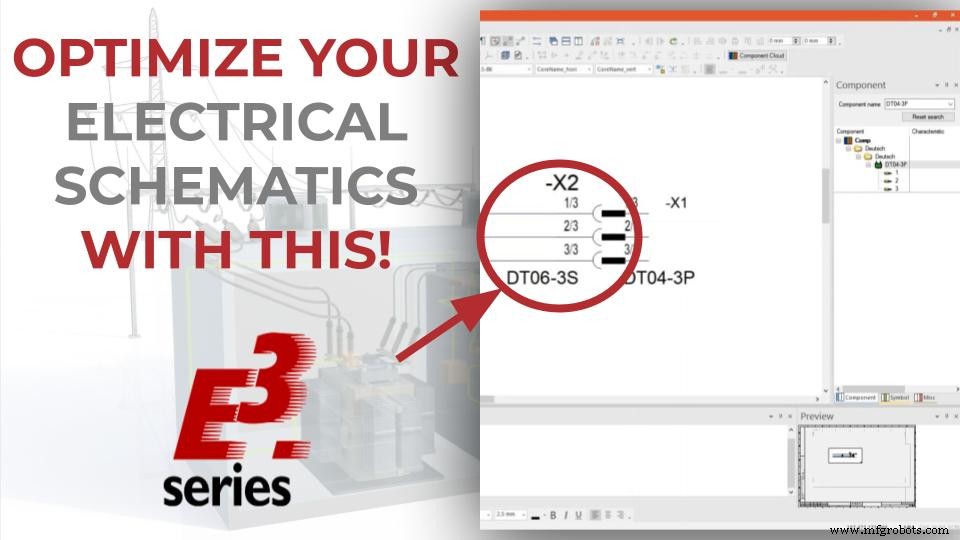
Preview in the Project
Components are dragged from the database and added to the project sheet where they become devices. In this selection, E3.series allows a preview in the window below.
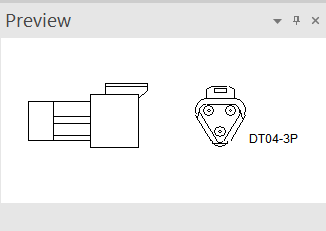
If you haven't enabled it, just right click on a region of the top menu and select 'Preview'.
Try NOW the industry-leading E-CAE E3.series tool in the world with technical training courses!
Click on the banner below
Multi-Connection and Automatic Compatible Connectors
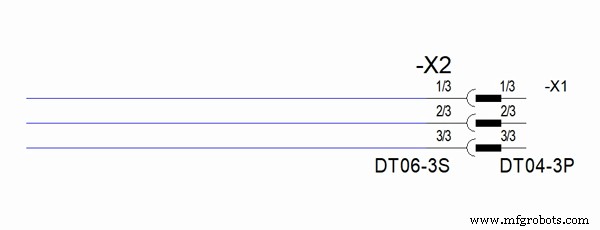
Connections are then made together to all connectors simultaneously. For this, the connection option used is 'Multi-Connection'. Thus, when selecting the region where you want to insert the connections, the compatible connectors are automatically generated by E3.series, and are already available in the project's 'Devices' table.
Once the connections are made, the wires are quickly inserted using the 'Insert Default Wire' option.
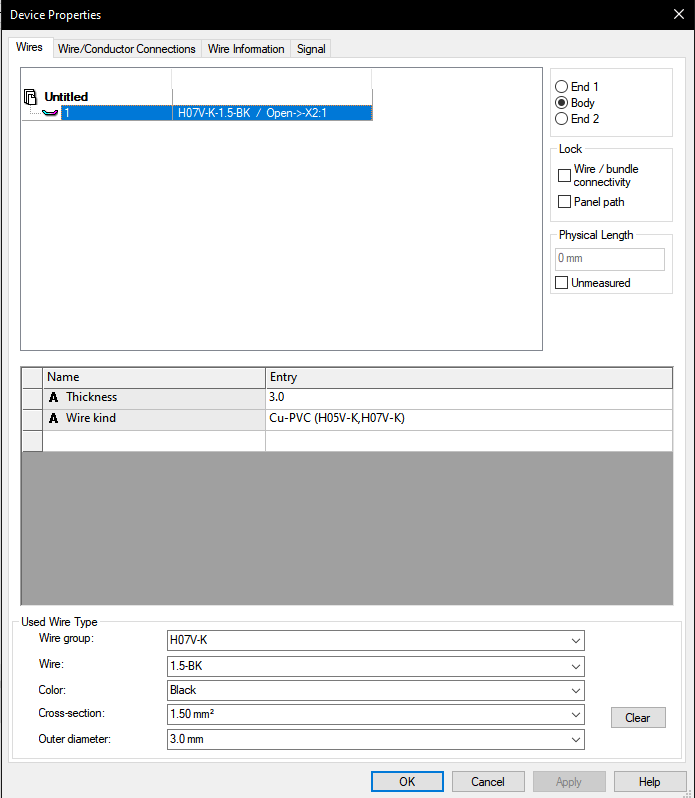
All wires added by this method are specified by the following windows:

In other words, in this case we are using the H07V-K/1,5-BK type.
Watch the Full Video
Subscribe to our Youtube channel here for more technical videos.
Segment Size and Configurations
The segment size can be viewed by right-clicking on the connection and 'Segment Diameter'.
At the end, it is possible to dimension and change the properties of the wire inserted in the table of 'Devices' -> 'Wires' and with the right click select 'Wire Properties...'. The new yarn selected was of the FLR4Y-A/2,5-RD type.
Make the E3.series Trial according to your demand using the button below!

Are you a Student?

Industrial Technology
- Avoiding Common Pitfalls in Data Analytics Projects – A Practical Guide
- Mastering Supply Chain Optimization: Boost Efficiency, Cut Costs, and Drive Business Growth
- Build Electrical Panels Quickly with CAE E3.series: A Step‑by‑Step Guide
- Create Electrical Schematics Quickly with CAE E3.series: A Step‑by‑Step Guide
- Master Block Diagram Design in E3.series: Boost Electrical Project Efficiency
- Master Wire Insertion in E3.series Electrical Projects with E3.cable
- E3.series Electrical Projects: Mastering Sheet Organization for Efficient Workflows
- Accurately Calculate Employee Costs with Overhead: A Complete Guide
- Transform Your Supply Chain with Digital Manufacturing Solutions
- Master Production Planning: Proven Strategies to Boost Efficiency & Cut Costs