



E3.series Electrical Projects: How to Create a Single‑Line Component View
In this week's tech tip, the creation of a single-line view of a component is presented. A new symbol is created in the database and its text attributes are inserted. Afterwards, a new component, three-line symbol and model are added and the pins are automatically related. At the end, the initially created symbol is added as a single-line view.
Try NOW the industry-leading E-CAE E3.series tool in the world with technical training courses!
Click on the banner below:
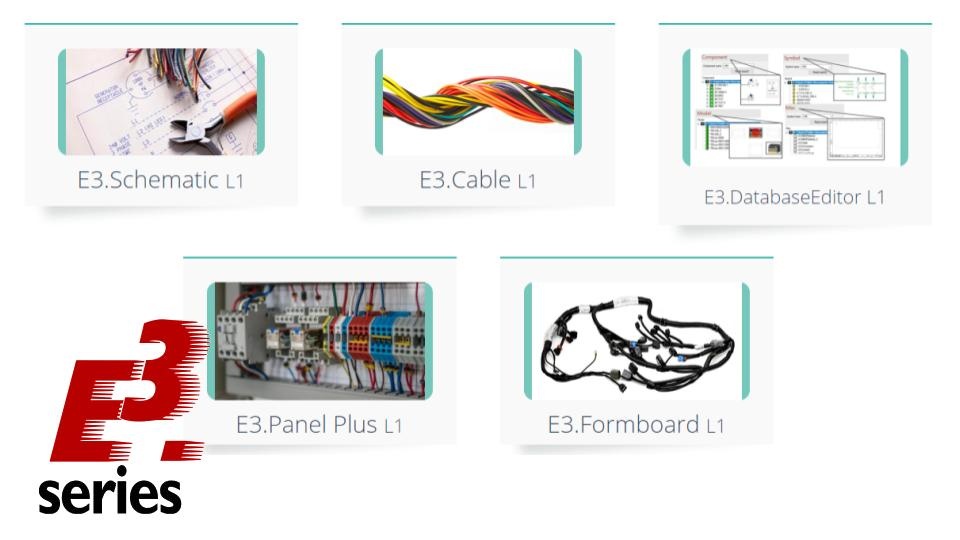
See:
Subscribe to our Youtube channel here for more technical videos.
To learn more about E3.series use the button below:

E3.series 2021: New Panel Design Tools & 3D Export Features
Explore E3.Community – Your Dedicated Hub for E3.series Training and Support
Industrial Technology
- Master Block Diagram Design in E3.series: Boost Electrical Project Efficiency
- Create Electrical Panel Variants Quickly with E3.series – Efficient Design Layouts & Custom Documentation
- E3.series 2021: Highlight Panel Connections for Faster Electrical Design
- Generate Automatic Reports for Electrical Projects in E3.series – Boost Documentation & Efficiency
- E3.series Electrical Projects: Fast & Intuitive Symbol Creation for DXF/DWG Export
- Effortless Panel Design in E3.series: Quick Assembly Guide
- Master Cable Creation & Editing in E3.series: A Step-by-Step Guide
- Master Terminal Strip Creation in E3.series for Electrical Projects
- Insert Step Models into E3.series Electrical Projects: A Step-by-Step Guide
- Create Hierarchical Blocks in E3.series Electrical Projects – Easy & Efficient