



Top CAD File Formats Used in Fusion 360 – Quick Reference
Autodesk Fusion 360 supports a wide variety of CAD file formats. Take a look at the five most popular supported ones in this brief overview.
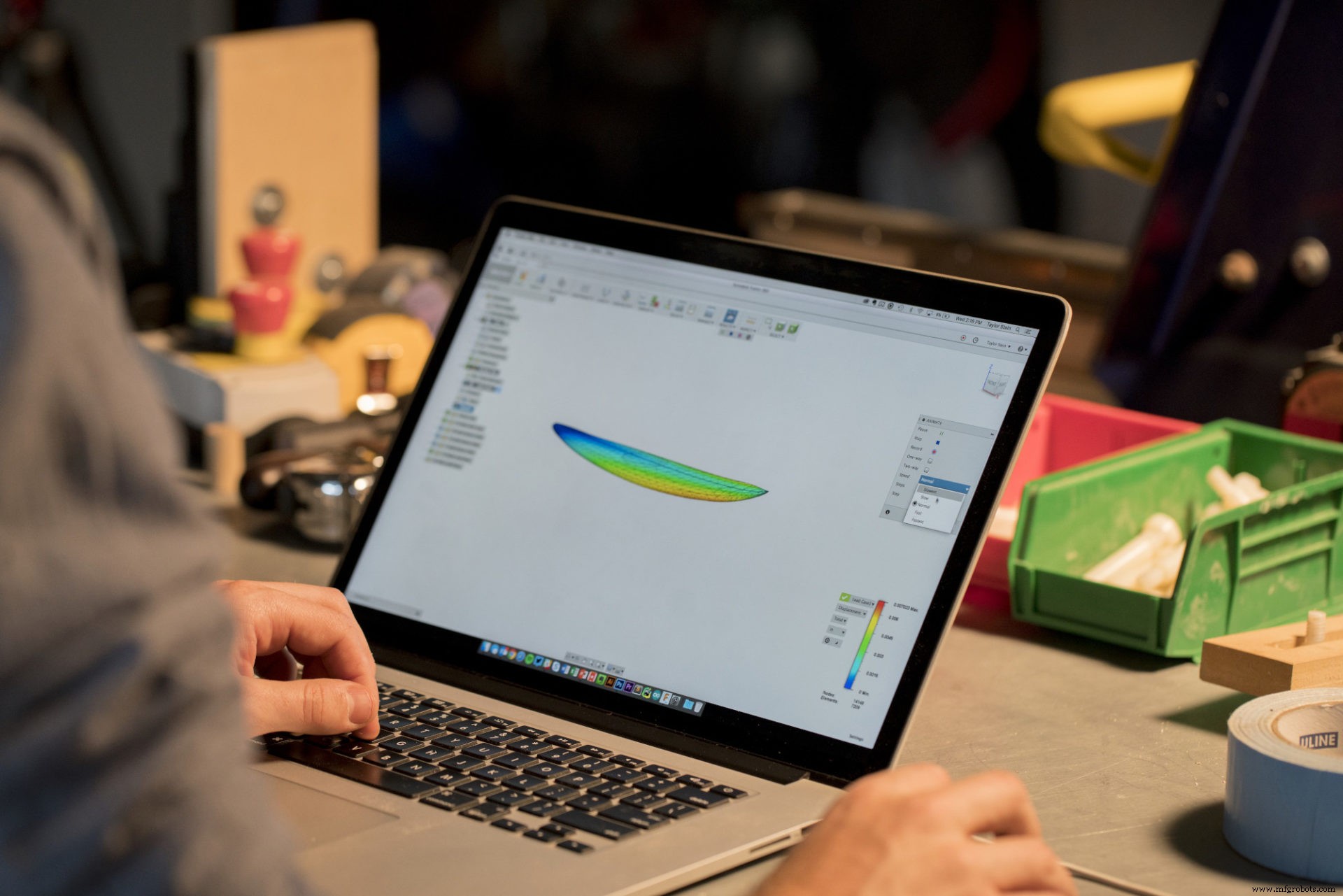
Computer-aided design (CAD) is a method of digitally creating 2D drawings and 3D models of real-world products. CAD, in recent decades, has replaced manual drafting – and for good reason. It’s much easier to design in a forgiving digital space where you can make revisions and edits without halting the entire project. In recent years, Autodesk has pushed the envelope even further with Fusion 360, an integrated cloud CAD package that includes:
- CAM (computer-aided manufacturing)
- CAE (computer-aided engineering)
- PCB (printed circuit board) software
- Extensions to unlock advanced capabilities in each category
But what makes Fusion 360 stand out from the competition? For one, Fusion 360 is a versatile platform that supports various CAD file formats. The five most used file extensions with Fusion 360 are:
- Autodesk Inventor (.ipt)
- STEP (.step)
- OBJ (.obj)
- STL (.stl)
- Solidworks (.sldprt)
Let’s take a look at these supported file extensions and see why the versatility provided by Fusion 360 is a game-changer for CAD users.
Autodesk Inventor Part File (.ipt)
The IPT file is a 2D or 3D model created in Autodesk Inventor. Autodesk inventor is a program used to design mechanical 3D prototypes. An IPT file typically contains a 3D part meant to be combined with other parts to form an assembly. When the parts are ready to be incorporated into an assembly, the resulting file extension is IAM (.iam).
The Standard for the Exchange of Product Data (.step)
STEP files are among the most accepted CAD formats and are an ISO 10303-2xx standard across several industries. STEP files contain three-dimensional models saved in a plain text format readable by Fusion 360. The text describes a model’s structure and is written in an ASCII format that adheres to the aforementioned ISO standard.
There are three major mechanical STEP file formats:
- STEP AP203: Defines configuration management data of 3D models (parts and assemblies)
- STEP AP214: A progression from the previous, this file includes colors, layers, and design intent
- STEP AP242: A progression from the previous two, this file introduces model-based definition (MBD) workflows
OBJ (.obj)
An OBJ file is a universal text-based 3D model format. OBJ files can house references to one or more .mtl files containing additional surface shading data. One downside to OBJ files is the file size. Because OBJ files have a simple format structure, the file size can become quite large when storing complex 3D objects.
Stereolithography (.stl)
STL is an interchange file format that houses universal 3D formats focused solely on surface geometry and shapes. STL files do not include colors, textures, or other attributes. STL files are acceptable for quick prototyping, 3D printing, and some CAM software applications; however, without support for color or other attributes, STL contains only simple data and thus only works well in basic situations.
SolidWorks (.sldprt)
A SLDPRT is a 3D image format used by SolidWorks CAD software. The file contains a 3D object or part that is eventually put into a single assembly (.sldasm) file. You can view SLDPRT files in a variety of applications like Adobe Acrobat. Fusion 360 allows for viewing and support of SLDPRT files.
Supporting Diverse File Types
The Fusion 360 cloud CAD platform enables engineers to collaborate and work remotely without having to worry about whether they will be able to access their project files or not. Engineers are able to use Autodesk Inventor (.ipt), STEP (.step), OBJ (.obj), STL (.stl), Solidworks (.sldprt), and many more file types within the Fusion 360 platform.
Fusion 360 is a versatile platform that supports file extensions from other Autodesk products and software platforms like Solidworks. Fusion 360 combines CAD, CAM, CAE, and PCB software in one affordable package.
Download Autodesk Fusion 360 to go from dream to done in no time.

Industrial Technology
- 10 Common CAD Inefficiencies & Effective Solutions
- Machine Parts with Fusion 360 Using a Generatively Designed 3D-Printed Fixture
- Running Fusion 360 with a Grbl Post Processor: A Step-by-Step Guide
- Computer‑Aided Manufacturing (CAM): How It Drives Modern Production
- 7 Compelling Reasons to Adopt Fusion 360’s Additive Manufacturing Workspace
- Fusion 360 Extensions Explained: Unlock Advanced CAD/CAM Capabilities
- 3 Key Benefits of Using Fusion 360's Nesting & Fabrication Extension
- Master Fusion 360’s Machine Builder: Build Custom Machines for Simulation
- Effortlessly Integrate Haas Tooling into Fusion 360: A Step‑by‑Step Guide
- Choosing the Right CAD File Format for CNC Machining: STEP vs IGES