



PLCnext Engineer: Mastering Multi‑Language Support (2021.0 LTS)
This tutorial I will show you how to handle Multi-language functions i PLCnext Engineer since this is supported from 2021.0 LTS.
The following example will use English as default language and Swedish as alternative language
Hardware: AXC F 2152 PLCnext controller (from FW 2021.0 LTS)
Software: PLCnext Engineer 2021.0 LTS
Project: Starterkit Demo project (Project need to adopted to 2021.0 LTS)
Step 1. Activate multilanguage in your project
- Select “Extras > Options”.
- Click the ‘International’ folder and select the ‘Default Language Settings’ category.
- Choose English as “Default” language
- In the ‘Alternative’ list box, select the respective entry and click ‘Add Alternative’. The language is inserted into the list of available national languages in the project. Repeat this step for the desired languages. I picked es and use it as alias for Swedish.
- Confirm the ‘Options’ dialog with ‘OK’.
The modifications are stored when exiting PLCnext Engineer.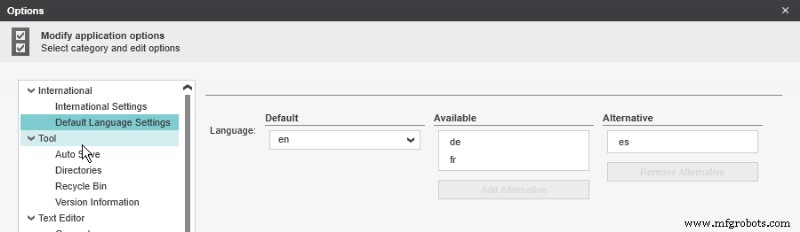
Step 2. Translation – Insert strings in your project
Add two buttons to your project. Name the buttons English and Swedish
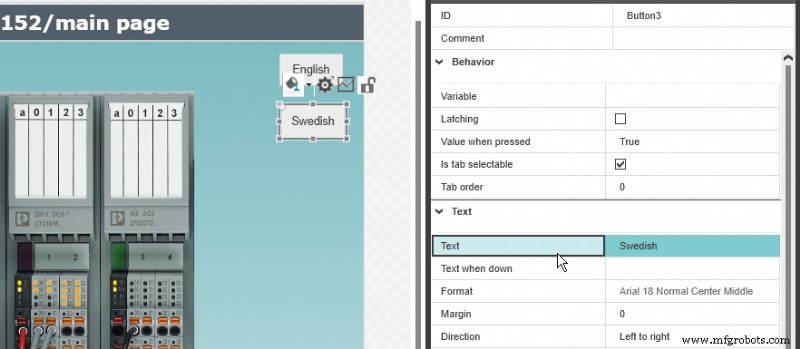
Now we have two language column available in the project. We need to translate the text.
We need to translate the text in the ‘Resources’ editor of the ‘Application’ PLANT node (under the ‘HMI Webserver’).
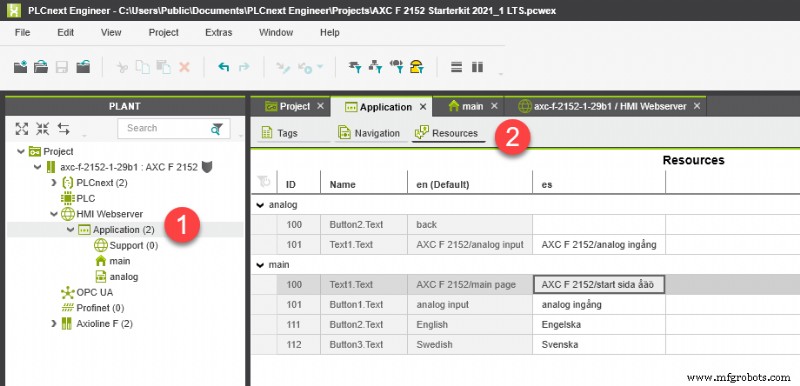
Step 3. Switch language
There are systemtags in eHMI application which are useful. The global system variables can be found in Tags sheet in Application.
LangaugeCode is the variable we need to modify to switch language in our application.
We can also add a new variable iLanguage with Integer as datatype to easily see current langauge. To modify
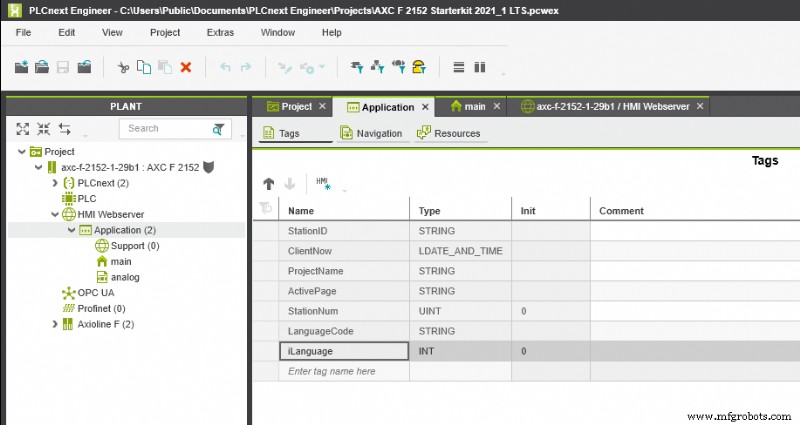
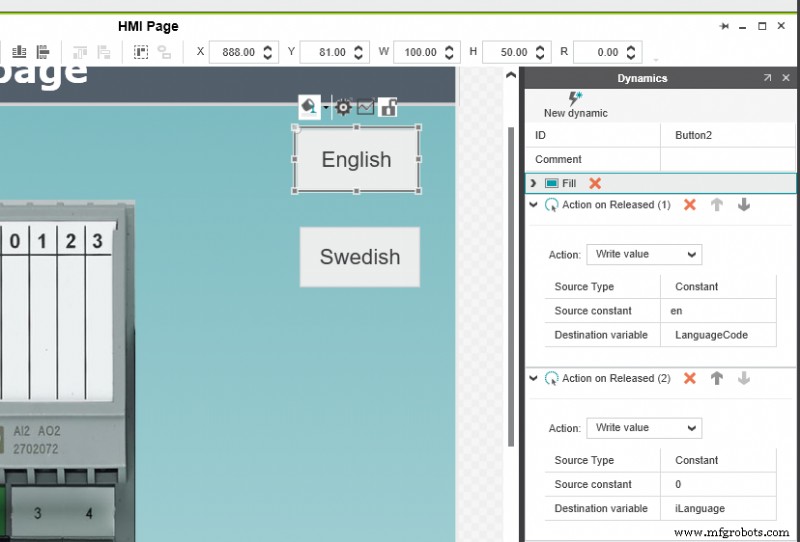
Go back to the main page and back to the buttons. The buttons switches HMI application language to English/Swedish
English button will write en to LanguageCode and 0 to iLangauge
Swedish button will write es to LanguageCode and 1 to iLanguage
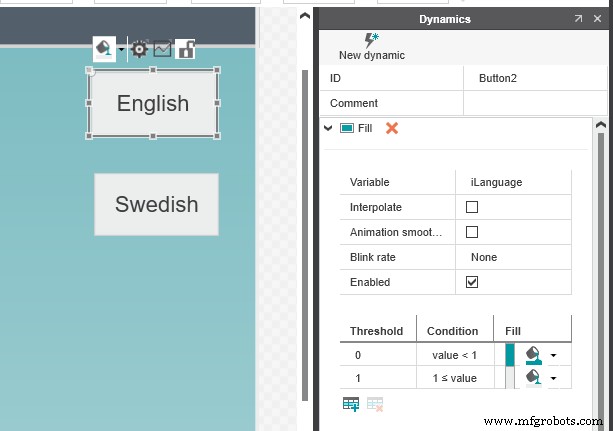
I have also add as extra functionality that button will turn green when the respective language is set.
Step 4. Test the functionality
Download the project and enter ip address of the PLCnext controller in your web browser.
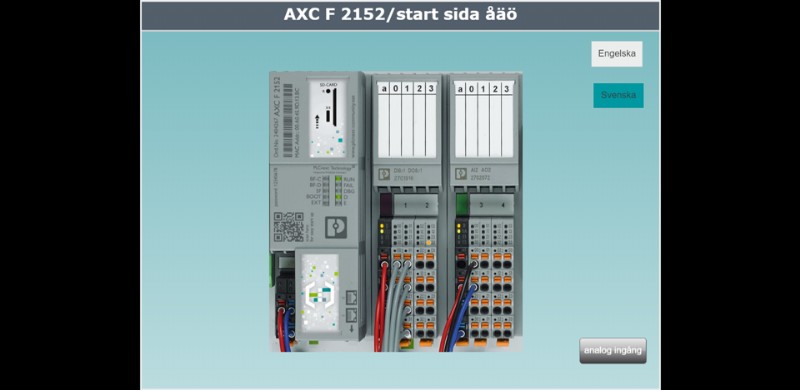
NOTE: As the HMI display language is switched by the HMI client, several clients could use different languages.
Link to video
Industrial Technology
- Microprocessor Programming Fundamentals
- Mastering PCB Reverse Engineering: A Step-by-Step Guide
- Maximizing PLCnext Engineer Simulation: Connect to Node‑RED via REST
- Storing Process Data with SQLite in PLCnext C++ Projects
- Installing and Licensing Atvise SCADA on PLCnext Controllers
- Custom On-Screen Keypad for PLCnext Engineer eHMI – Enhance Touch Screen Interaction
- Integrating Machine Learning into PLCnext Controllers
- PLCnext Engineer: Mastering Multi‑Language Support (2021.0 LTS)
- Straton Runtime: Integrating PLCNext Engineer with IEC61850 for Seamless Data Exchange
- easymon Finder: Effortless Remote Monitoring for PLCnext Systems