



Managing & Storing Project Data in Fusion 360: A Comprehensive Guide
Explore how Fusion 360’s cloud‑based platform empowers multiple teams to collaborate securely while protecting sensitive data.
Product development is increasingly complex, especially as organizations scale. Multiple viewpoints, frequent iterations, and vast amounts of data can overwhelm teams, making clear communication and data governance essential.
Distributed teams often struggle to share information across time zones and organizational boundaries. Traditional CAD/CAM tools may lack the collaborative features needed for real‑time decision‑making, which can stall progress and reduce stakeholder buy‑in.
Fusion 360 tackles these challenges by offering a unified cloud suite where contributors can manage every phase of the development cycle—design, engineering, manufacturing, and marketing—while keeping sensitive data secure and accessible only to authorized parties.
Adapting to Modern Data‑Sharing Standards
Today’s collaborative workflows demand transparency and rapid information exchange. Fusion 360’s workspace serves as a central hub where documentation, drawings, and assets coexist, and where access control protects proprietary information.
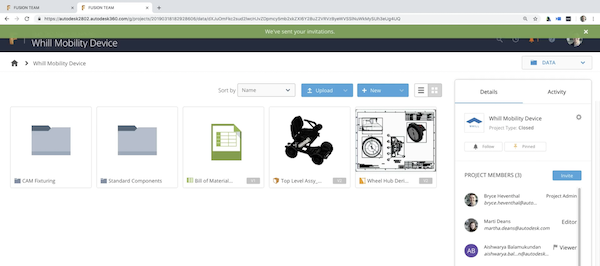
Figure 1. A single view within the Fusion 360 project dashboard. Screenshot courtesy of Autodesk.
Access Control and Permission Management
Defining who can see or edit a file is the foundation of data security. Fusion 360 implements role‑based access control (RBAC), allowing administrators to assign users as Editors, Viewers, or custom roles that reflect organizational responsibilities.
Beyond RBAC, Fusion 360 supports isolated workspaces for sub‑teams, enabling parallel development while safeguarding trade secrets. For instance, the collaboration between Toyota and BMW on the B58 straight‑six engine for the 2020 Supra illustrates how companies can share data without exposing confidential details.
To create discrete spaces for a team, follow these steps:
- From the project dashboard, click View and Manage Members—located near the bottom of the right‑hand sidebar—to see current contributors and their roles.
- Use the ROLE drop‑down to toggle between Editor and Viewer permissions.
- Click the trash can icon to remove a member if needed.
- Navigate the Join Requests tab to review pending invitations.
- Click the blue Invite button to add new members.
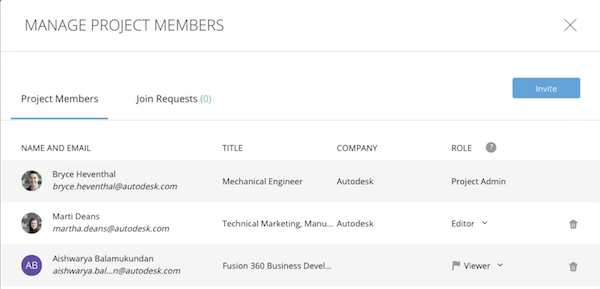
Figure 2. The member management pane is intuitive and easy to navigate. Screenshot courtesy of Autodesk.
Projects can be set as Open, Closed, or Secret. Additionally, Fusion 360 allows users to generate shareable links for individual assets—similar to Google Drive—while controlling editability.
Efficient File Sharing Across Platforms
Sharing files remains a logistical hurdle when teams use different software ecosystems. Fusion 360 mitigates this by supporting a broad spectrum of file formats, ensuring compatibility across CAD, CAM, and simulation tools.
Exporting and Downloading
Exporting is straightforward within the Fusion 360 workspace. Choose the format that best suits your collaborators’ needs:
- 2D and 3D native formats
- STL, OBJ, STEP, SAT, SMT
- DWG, DXF, FBX, SketchUp
- Inventor 2018 (legacy support)
- Fusion 360 Archive (compressed project bundle)
Legacy formats like Inventor 2018 and Fusion 360 Archive are especially useful when partners haven’t migrated to the latest software versions.
To download a file, click the blue Download button in the project title banner and select your preferred format.
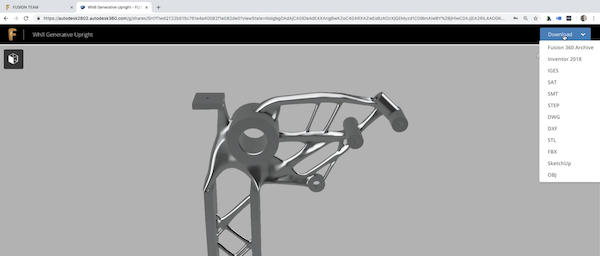
Figure 3. Quickly download assets in a variety of formats. Screenshot courtesy of Autodesk.
Internally, stakeholders can continue working with Fusion 360 file types, while external partners can opt for neutral formats to maintain cross‑platform compatibility.
Version History and Change Tracking
Tracking design evolution is critical. Fusion 360’s version control is fully integrated into the workspace and provides a clear audit trail of every iteration.
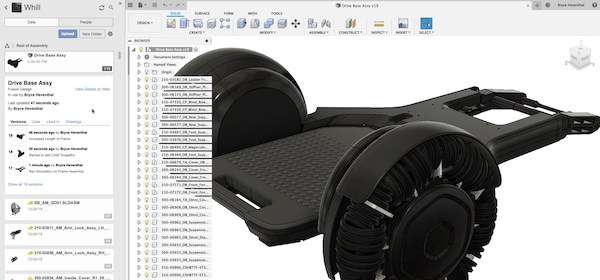
Figure 4. Detail‑rich version control accessed directly from the workspace. Screenshot courtesy of Autodesk.
To view a component’s history:
- Click the Grid button on the upper left to open the Data pane.
- Components appear with version labels (e.g., V1) in the lower right corner.
- Click a version label to open its detailed history; double‑click to open that specific iteration.
- Use the Web interface to View Details, then select View or Promote a design iteration.
- Compare versions side‑by‑side to see Added, Removed, and Modified changes.
Cloud Storage Flexibility
Fusion 360’s dashboard functions like any modern cloud storage service. Files can be uploaded in multiple formats and accessed from any device—desktop, mobile, or tablet—via a web browser. The platform also offers iOS and Android apps, ensuring that Windows or macOS users are not left behind.
Settings and preferences are preserved across devices. Offline mode allows contributors to continue working even without an internet connection, with changes synchronizing once connectivity is restored.
Data Management Best Practices
Autodesk built Fusion 360 to keep teams organized and empowered. Even large volumes of data can be managed efficiently with just a few clicks. For organizations that don’t need a full Fusion 360 subscription, the Team Participant license offers essential data‑management features at a lower cost.
Industry Articles provide partners with valuable news, insights, and technical expertise. All viewpoints expressed are those of the partner and not necessarily those of All About Circuits or its writers.
Cloud Computing
- Securely Store and Manage Sensitive Data with Google Cloud Secret Manager
- Accelerate Design & Production with Formlabs and Fusion 360 Integration
- Enhance Product Design Security with Fusion 360 Manage Extension
- Step‑by‑Step Guide to Machining a Steering Wheel with Fusion 360
- Mastering Spider Plate Machining with Fusion 360: A Detailed Tutorial
- Mill a Hemisphere in Fusion 360: A Complete, Professional Guide
- Fusion 360 CNC Guide: How to Machine a Chess Piece
- Effortless Data Management & Design Control with Fusion 360 Manage Extension
- Effortlessly Integrate Haas Tooling into Fusion 360: A Step‑by‑Step Guide
- Storing Process Data with SQLite in PLCnext C++ Projects