



Begin with IXON Cloud: Fast, Secure Remote Access for Industrial Equipment
Discover how effortless configuring IXON products can be. Remote access to your industrial equipment is just a few clicks away—follow this step‑by‑step guide.
In this concise installation guide we’ll walk you through the IXON Industrial IoT solution, featuring remote access as its core offering. By completing three simple steps, you’ll have secure VPN access to PLCs, HMIs, and robots in moments. Experience the speed of IXON’s end‑to‑end solution with the IXON Starter Kit.
About IXON’s Remote Service & IIoT Solution
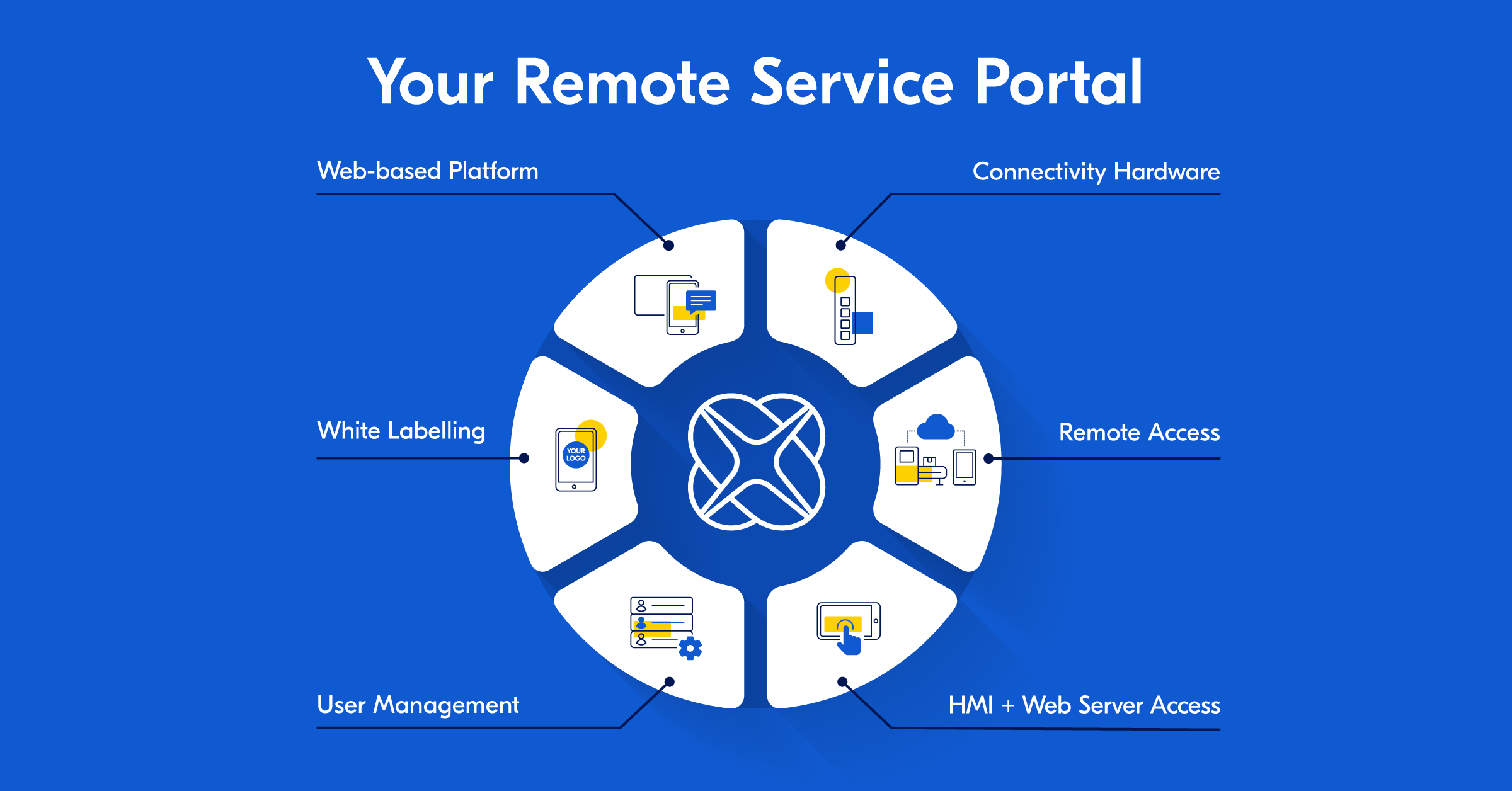
IXON is an award‑winning, no‑code Remote Service & Industrial IoT solution designed for machine builders and their customers. It delivers the easiest entry point to remote access and scalable data services that enhance machine productivity, reduce downtime, and enable new business models.
IXON Cloud is a Software‑as‑a‑Service (SaaS) platform with smart IoT connectivity, allowing you to activate new features on demand—no hardware swaps or software re‑installations required.
In this article you’ll learn the essentials of IXON’s remote access solution and how to get started.
Requirements to Get Started with IXON
To begin installation and configuration, you’ll need an IXrouter—a combined industrial VPN router and IoT edge gateway from IXON. If you don’t yet have one, request a 30‑day free Starter Kit here. You’ll also need a computer, tablet, or smartphone with internet access.
Step‑by‑step guide to remote access with IXON Cloud and the IXrouter:
- Create your free company account in IXON Cloud.
- Configure internet access for the IXrouter.
- Register and activate the IXrouter to start secure remote access to PLCs, HMIs, and robots.
For a first‑time user, the entire installation takes about 5‑10 minutes.
Step 1: Create Your Free Company Account in IXON Cloud
Sign Up for IXON Cloud
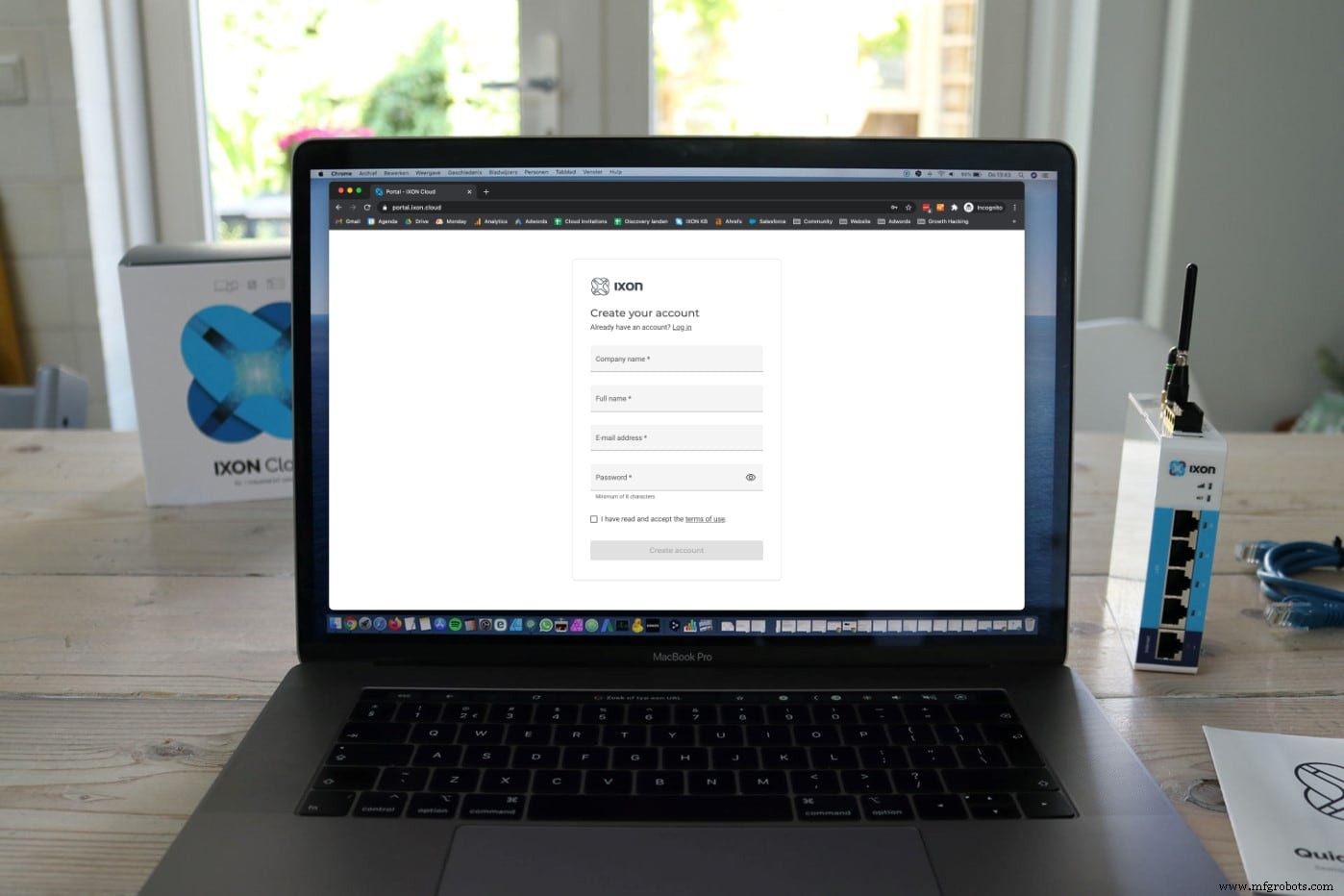
Begin by creating a free IXON Cloud account. Visit www.ixon.cloud and register—no payment required.
Once you confirm your account, you’ll have unlimited free access to the company portal, where you can manage all equipment and user access from a single location.
Step 2: Configure Internet Access for the IXrouter
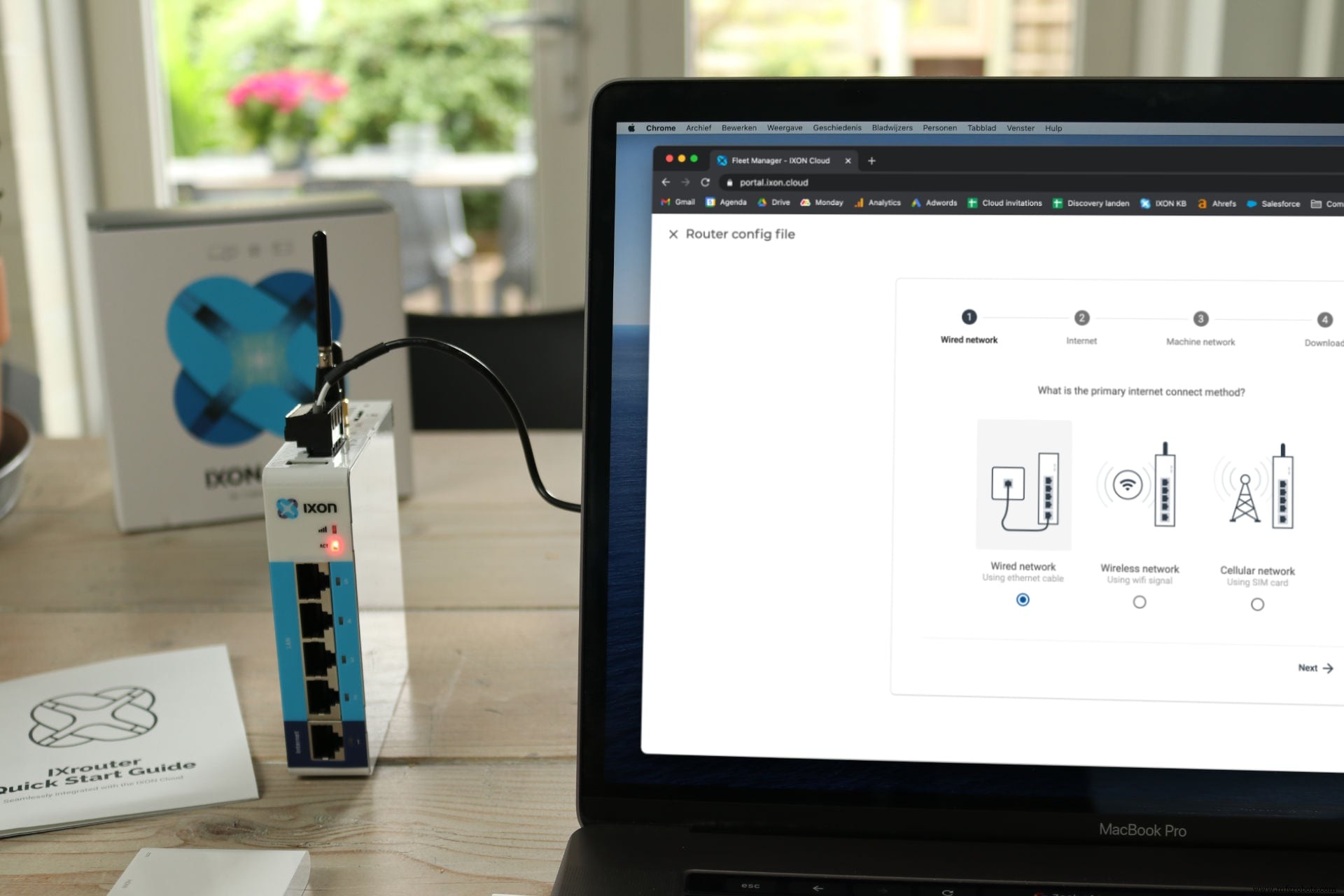
Next, connect the IXrouter to the internet. You’ll need to define how the device connects—via Ethernet, Wi‑Fi, or cellular—so it can register online with your IXON Cloud account.
Create an IXrouter Configuration File with Internet Settings
Log in to your IXON Cloud account and navigate to the “Tools” section. Click the “Start configuration” button to launch the wizard for internet settings.
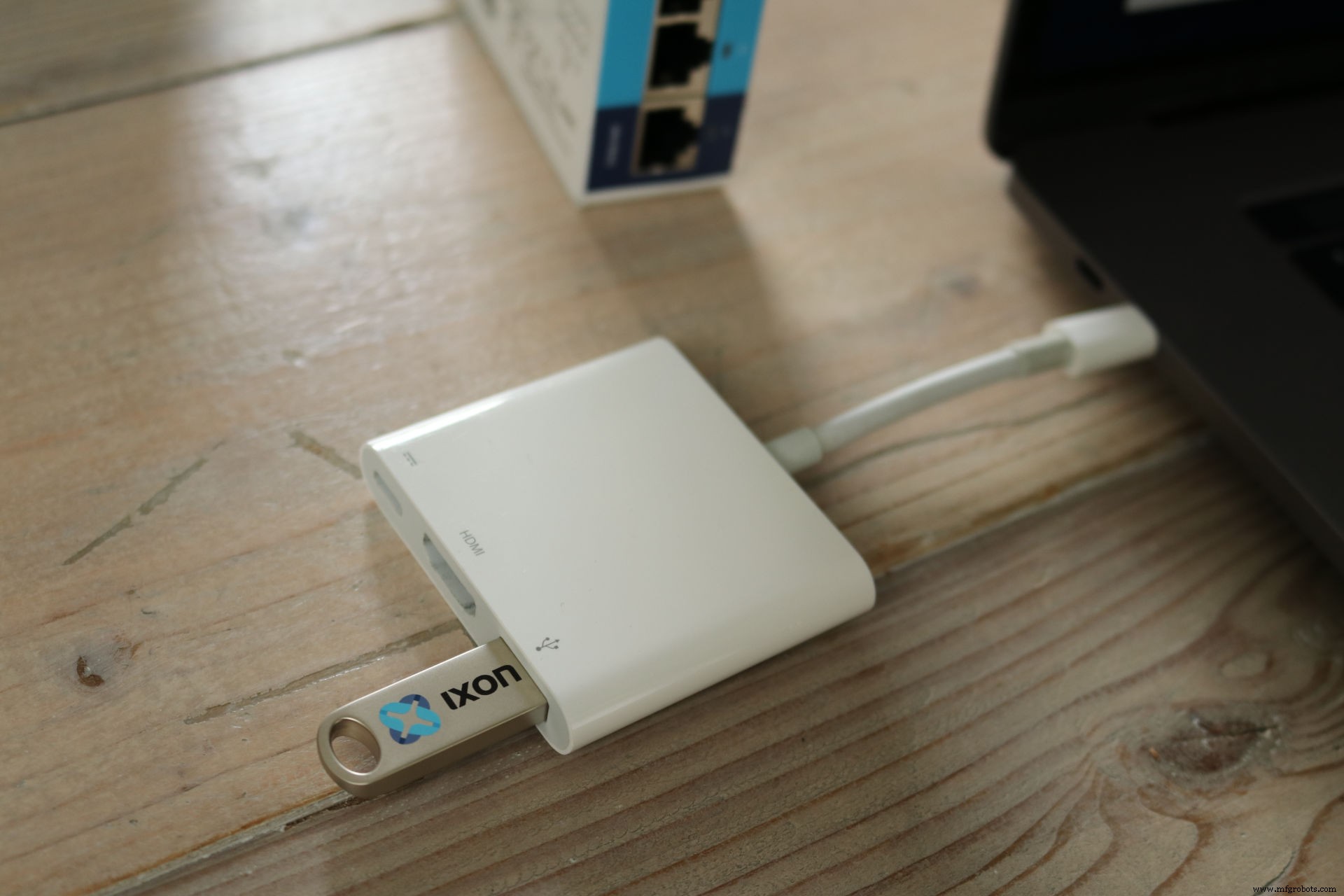
Transfer the Configuration File to the USB‑Stick
After completing the wizard, download the generated configuration file and copy it onto the IXON USB‑stick.
Apply the Configuration Settings via the USB‑Stick
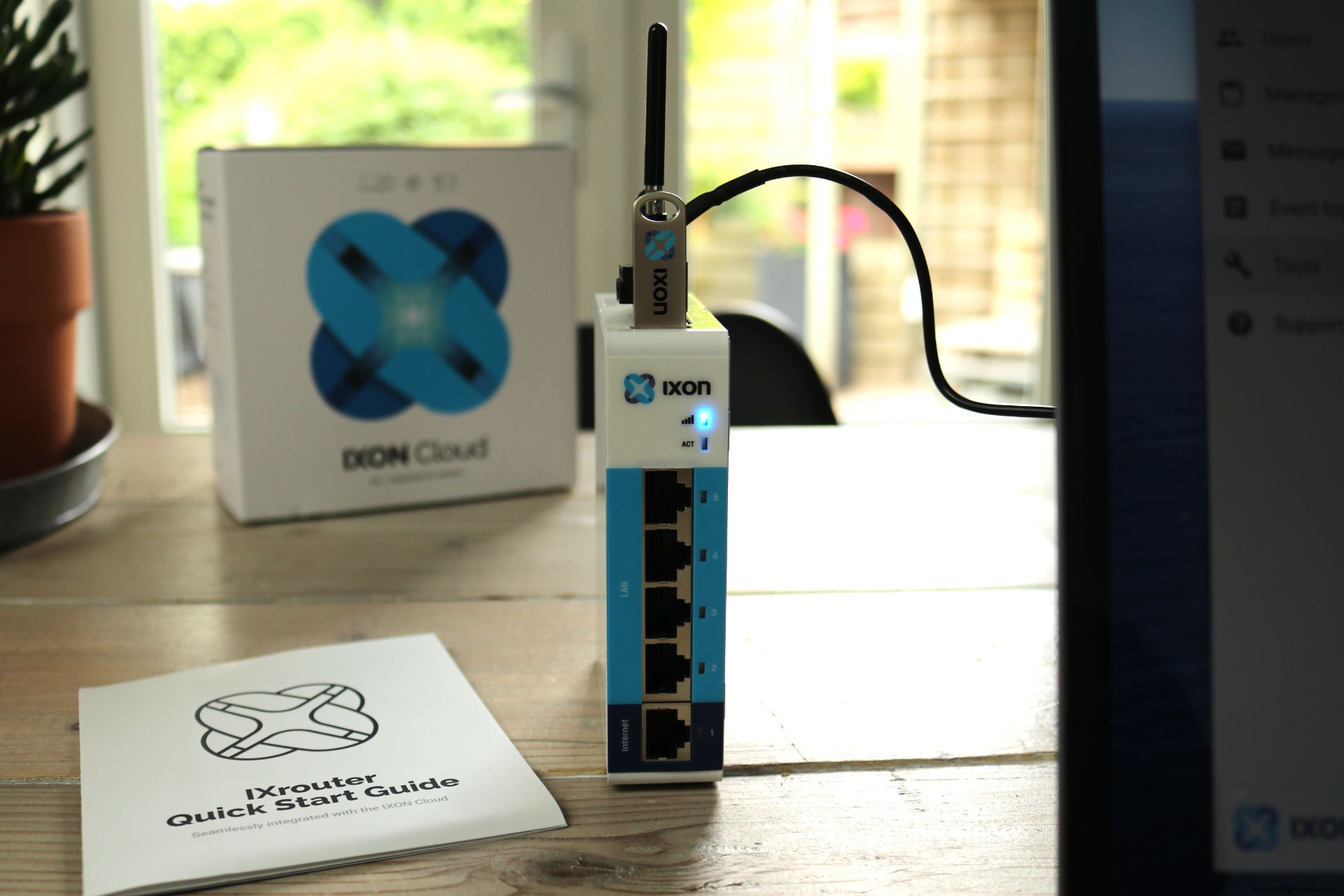
Connect the IXrouter to power and either an Ethernet cable or a mounted antenna. If the device isn’t connected, the “ACT” LED will display red. Insert the USB‑stick with the configuration file; the IXrouter will then establish its internet connection, indicated by blinking blue and red LEDs.
Step 3: Register and Activate the IXrouter in Your IXON Portal
Register a New Device
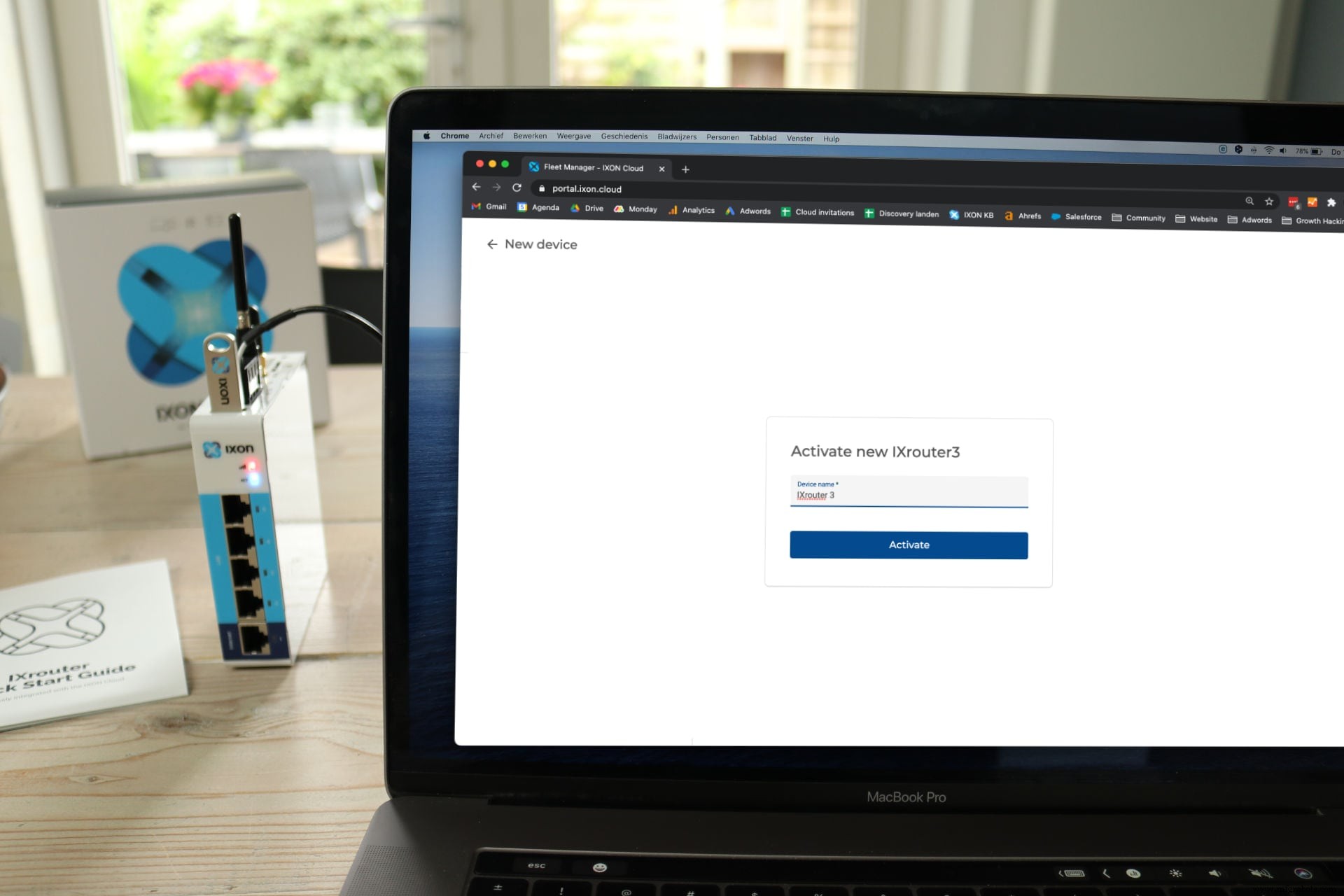
Once online, the IXrouter automatically registers with your IXON portal. Open the “Devices” section and wait for the “New device” entry to appear.
Activate the IXrouter and Assign a Name
Click the new device to activate it and assign a user‑friendly name. The IXrouter is now ready for remote access.
Start a Secure VPN Connection
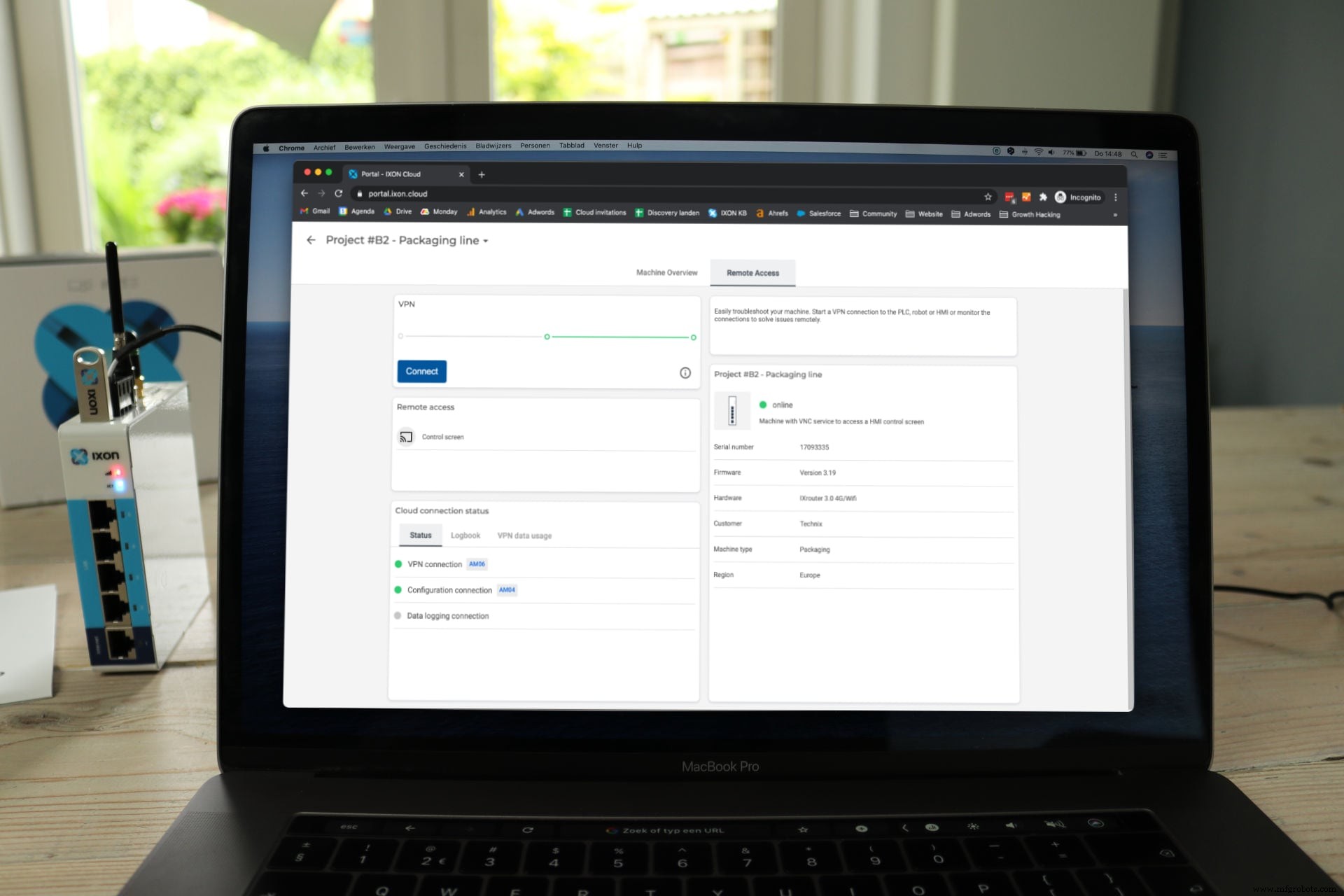
With the IXrouter online, launch a secure VPN from any browser or the IXON mobile app. In the portal, select the desired IXrouter and press the “Connect” button.
Secure Remote Access to PLC and HMI
Any device connected to the IXrouter’s LAN port—such as a PLC or HMI—can be accessed via VPN from your PC. You can deploy new PLC firmware (e.g., via Siemens TIA Portal) or remotely control HMI panels through VPN or VNC, all with a single click.
Data Logging from PLC and Sensors
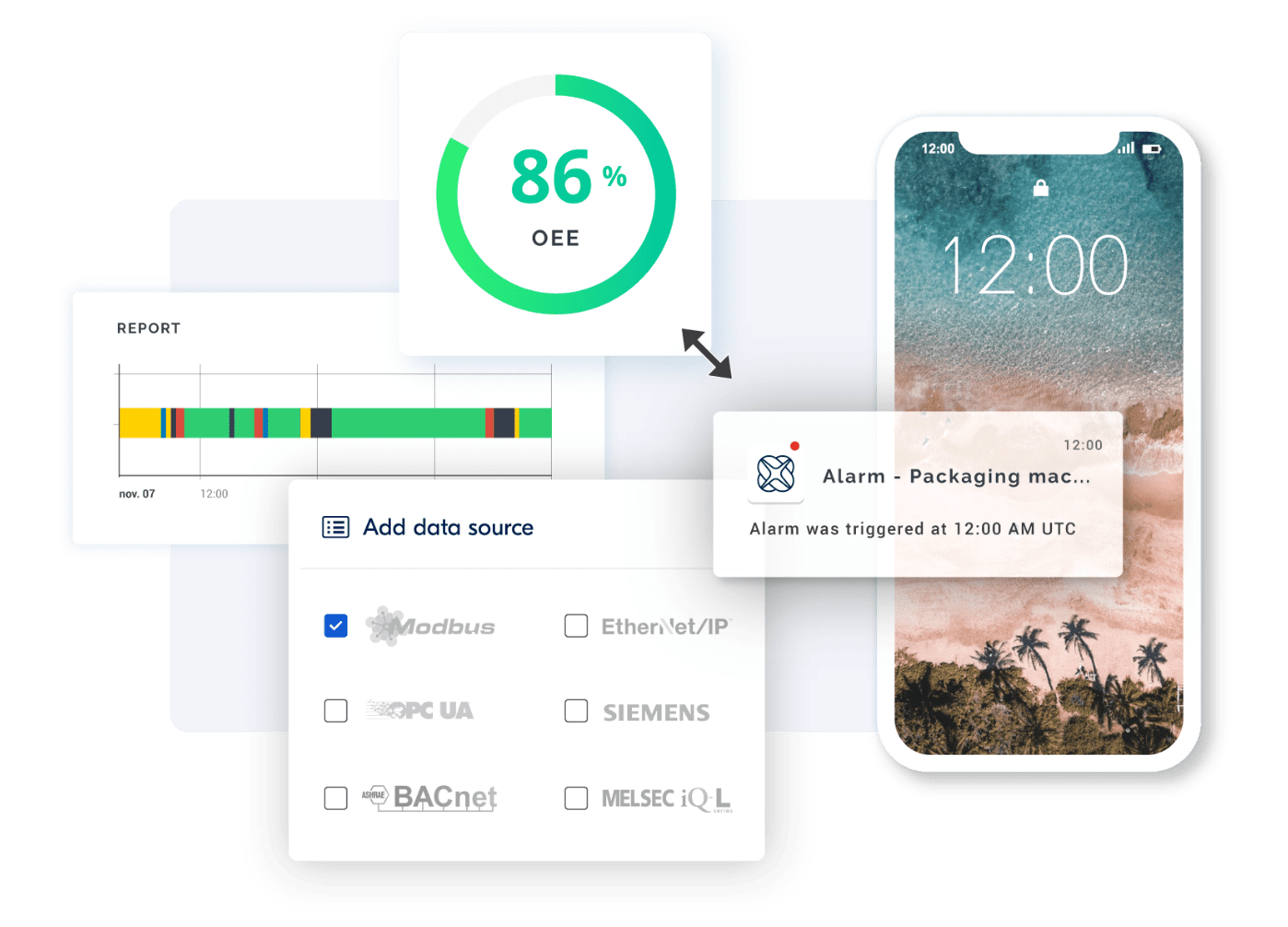
Configure data sources, communication protocols (OPC‑UA, Modbus, Siemens, etc.), variables, and logging conditions. The IXrouter monitors machine data locally and, when conditions are met, securely transmits it to IXON’s ISO‑27001 certified database cluster.
Leverage this data to build real‑time monitoring dashboards, trigger predictive maintenance alerts, or create customized production insights.
Get Started with Your IXON Starter Kit
Now that you know how simple remote access installation is with IXON, try it yourself.
[[Request IXON Starter Kit]]
Alternatively, join our free webinars for a live, interactive demonstration of the full installation process.
Internet of Things Technology
- Getting Started with Python: Install, Run, and Write Your First Program
- How to Structure Your IXON Cloud Account: A Step-by-Step Guide
- Fully Customise Your IIoT Portal with IXON Studio – No Coding Required
- Secure Collaboration with Advanced Role‑Based Access Control in IXON Cloud 2
- 5 Compelling Reasons IT Will Embrace Cloud Adoption in Manufacturing
- Additive Manufacturing 101: A Beginner’s Guide to 3D Printing
- Begin Your Industry 4.0 Journey: A Practical Guide
- Accelerate Your Machine Shop's Efficiency with Smart Automation
- Beginner’s Guide to Yaskawa Motoman Robot Programming: Boost Speed & Accuracy
- Beginner’s Guide: Setting Up RoboDK on Raspberry Pi