



How to Structure Your IXON Cloud Account: A Step-by-Step Guide
One of the most significant upgrades in the IXON Cloud platform is its enhanced user management system. To help administrators design an effective structure for their IIoT accounts—including users, devices, groups, and roles—we’ve compiled a comprehensive, step-by-step guide featuring three best practices.
Key Elements in the New User Management System
| Element | Definition |
|---|---|
| Roles | A role bundles specific permissions, such as admin rights and device access, and can include one or more access categories. |
| Access categories | A selection of pages and services that users can reach. |
| Groups | A collection of devices and users. Groups can be subdivided into different group types. |
| Pages | Individual machine dashboards containing data and service access (e.g., VPN, VNC, HTTP). Each page can be assigned to one or more access categories. |
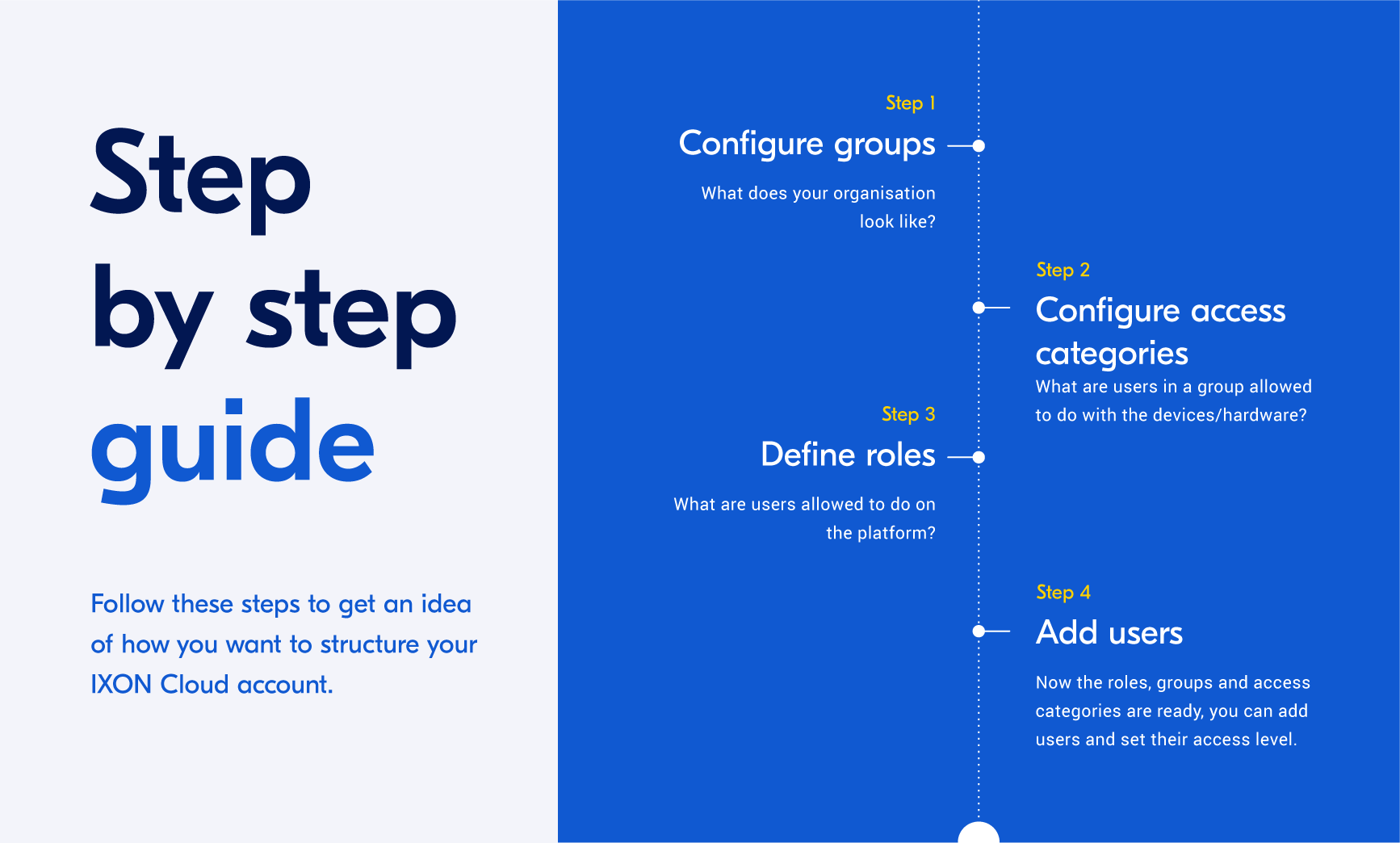
Step-by-Step Guide
Follow these four steps to craft a clear and scalable IXON Cloud account structure. If you only manage a handful of devices and users, a lean configuration with fewer groups and roles is recommended.
Jump to section:
- Step 1: Configure Groups
- Step 2: Configure Access Categories
- Step 3: Define Roles
- Step 4: Add Users
- Example Use Cases
Step 1: Configure Groups
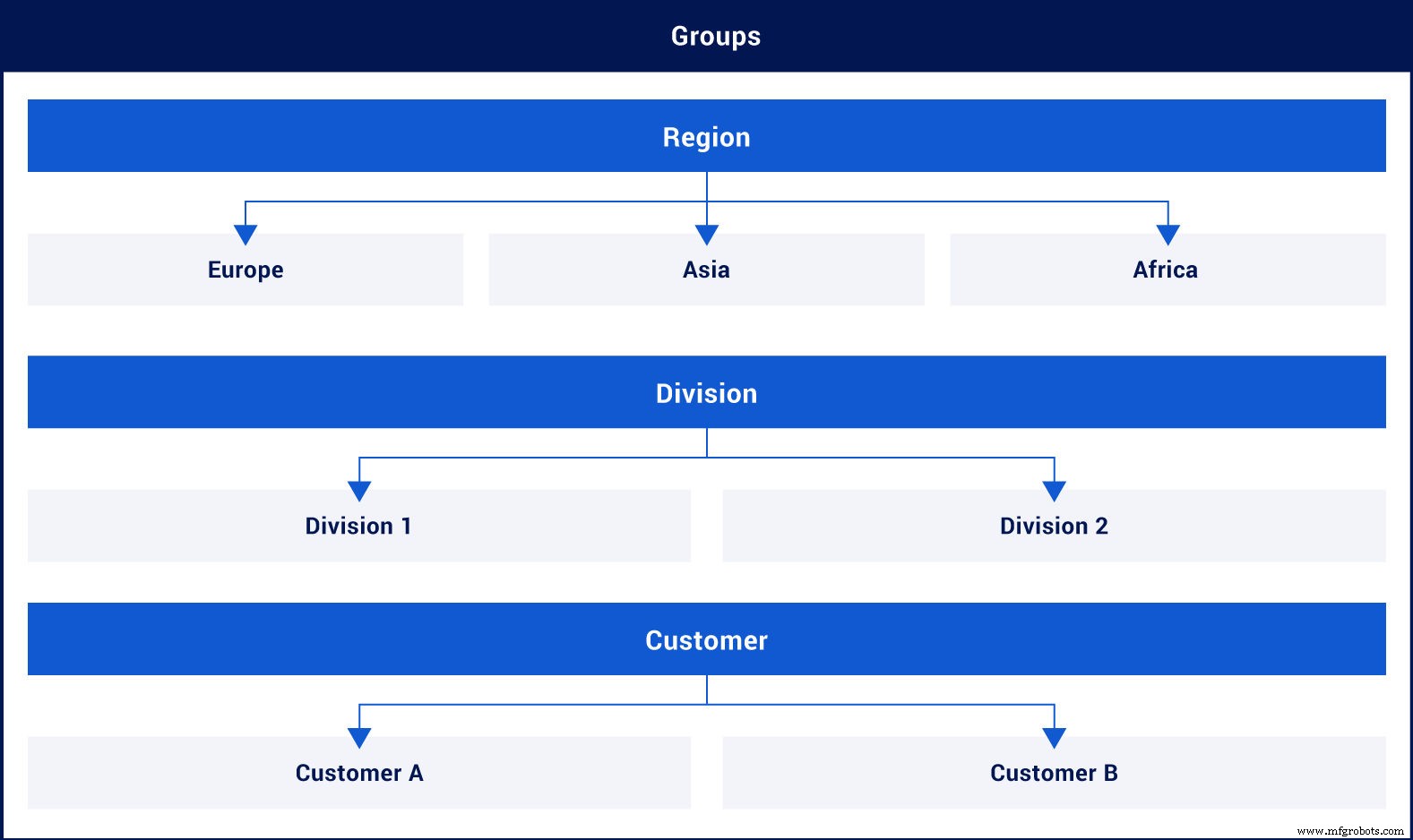
The central question: What does your organization look like? Map how devices are distributed globally and who is involved internally and externally. Create group types and groups in the admin panel to maintain a clear overview.
Typical group hierarchies might include:
- Customers – Customer A, Customer B
- Regions – Europe, Asia
- Divisions – Benelux, Global
- Machine types – Inspection, Packaging, Weighing
- Projects – Project A, Project B
- Service partners – Partner A, Partner B
Once groups are defined, assign each device to the appropriate group(s) via the Fleet manager. A device becomes visible only to users who have access to the group it belongs to.
Step 2: Configure Access Categories
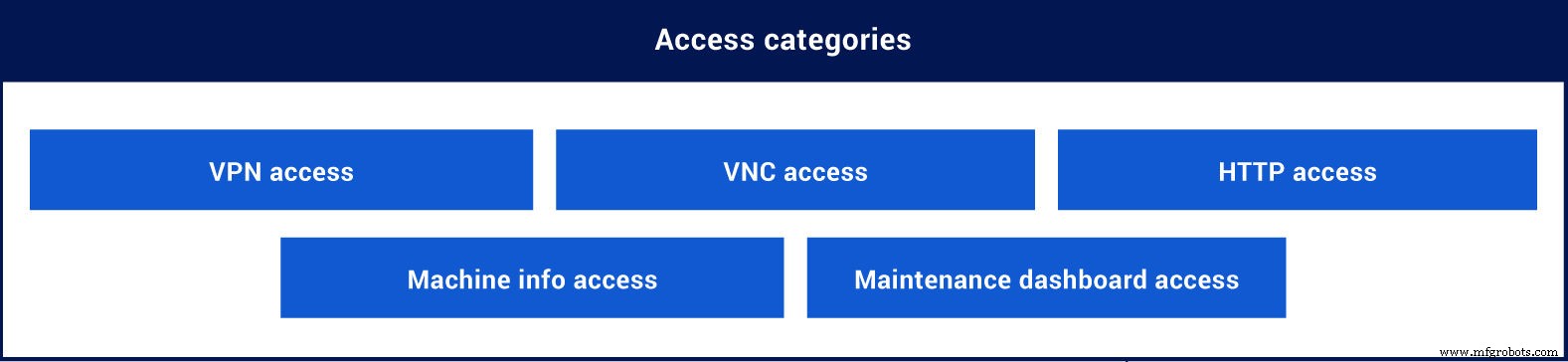
Ask yourself: What actions can users in each group perform on devices and hardware? Determine which pages and services require VPN, VNC, HTTP, or other access.
Common access category structures include:
- Based on access level – No access, View access, Operator access, Service access, Administration access
- Based on feature access – VPN, HTTP, VNC, Monitoring dashboard, Service page
Create each access category in the admin section under “Roles.” Then assign pages and services to these categories in the Fleet manager.
Examples of assigning categories:
- Add the ‘VPN’ or ‘Service access’ category to the VPN service.
- Add ‘VNC’ or ‘Operator access’ to the VNC service.
- Assign a ‘Troubleshooting’ page to the ‘Service page’ or ‘Service access’ category.
- Link a ‘Machine overview’ page to the ‘View access’ category.
Step 3: Define Roles
Consider: What responsibilities should users have on the platform? Differentiate between company-wide roles and group-specific roles. Company-wide roles apply to the entire IXON Cloud account, whereas group-specific roles target a subset of devices.
Think about daily activities of each role. For instance, a customer admin might only manage users and devices within their own group.
In the Admin section, create the roles and assign access rights, including which access categories they can use. Typical role examples:
- Service engineer
- Software engineer
- Customer admin
- Customer operator
- First‑line support
- Partner (view only)
Step 4: Add Users
The final step is to invite users and configure their permissions. With roles, groups, and access categories already in place, you can assign users to specific groups and roles via the Portal app.
Example user assignments:
- User A: Company-wide role as Service engineer.
- User B: Customer admin role for group Customer A.
- User C: First‑line support role for Region A and Region B groups.
- User D: Partner role for group Partner A.
Example Use Cases
Below are three illustrative scenarios that showcase how to structure the IXON Cloud user management system based on common organizational models.
- Use case 1: Manufacturers selling installations directly to customers.
- Use case 2: Manufacturers selling via partner channels and providing support.
- Use case 3: Global manufacturers with multiple divisions and local service teams.
[[Download all use cases in PDF]]
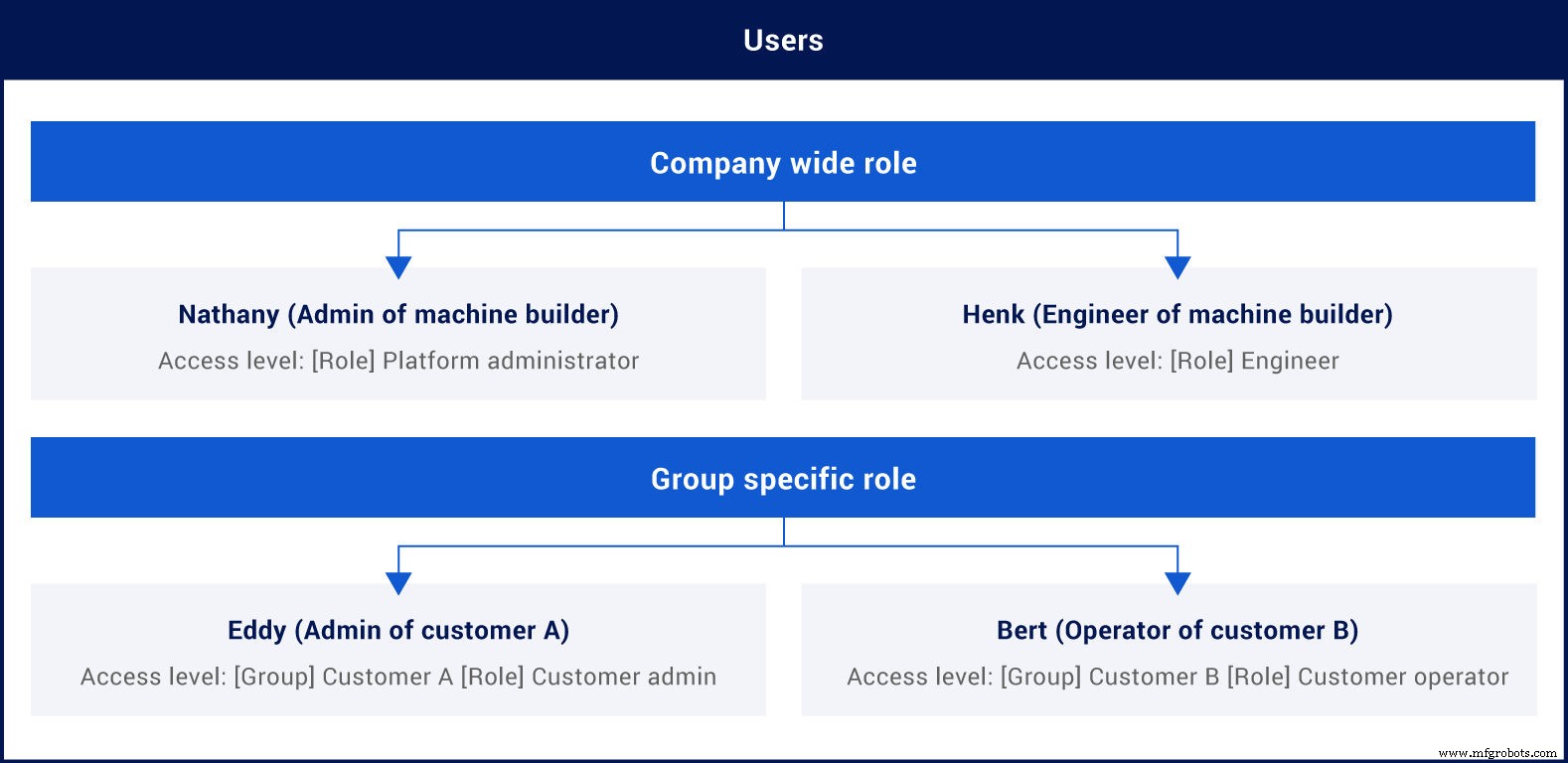
Use Case 1: Direct-to-Customer Installations
In this model, the manufacturer’s engineers support customers directly. All engineers have full device configuration rights and can troubleshoot via VPN and VNC. Each customer manages their operators, who can only access the VNC of their own machine.
Use Case 2: Partner-Channel Installations
Manufacturers sell through partners; engineers still provide support. Engineers can configure devices, access all devices via VPN, HTTP, and VNC, and view the maintenance dashboard. Partners manage their own devices and customers; operators access VNC for their machines.
Use Case 3: Global Manufacturer with Local Service Teams
Manufacturers split into regions and divisions, collaborating with local service teams. Each division’s service manager owns its users and devices and assigns them to support engineers. Engineers can troubleshoot allocated devices via VPN and view machine dashboards. Customers do not yet have platform access.
Get Started
Use the insights above to structure your own IXON Cloud account. Ready to begin?
Create your IXON Cloud account
Internet of Things Technology
- Discover 7 Powerful IXON Cloud Features That Boost Productivity
- IXON Cloud 2 FAQ: Key Changes, Migration, and Customization
- Fully Customise Your IIoT Portal with IXON Studio – No Coding Required
- Secure Collaboration with Advanced Role‑Based Access Control in IXON Cloud 2
- Begin with IXON Cloud: Fast, Secure Remote Access for Industrial Equipment
- IXON Cloud Brochure – Download the Latest Edition (English, German, Dutch, Italian, French, Spanish, Portuguese)
- IXON Debuts the World’s First No‑Code IIoT Platform at SPS Nürnberg 2019
- Why IXON Is Your Ideal Industrial IoT and Remote Access Partner
- IXON Cloud Connector on PLCnext Store: Seamless Remote Access & Industrial IoT Integration
- IXON Cloud: Comprehensive IIoT Solution for Industrial Connectivity