



Getting Started with Python: Install, Run, and Write Your First Program
Getting Started with Python: Install, Run, and Write Your First Program
This guide walks you through installing Python on any operating system, running it via Thonny or the command line, and creating your first “Hello World” program.
Video: Introduction to Python
Python is a cross‑platform, open‑source programming language that runs on Windows, macOS, Linux, and even the Java and .NET virtual machines. While many Linux and macOS distributions ship with Python pre‑installed, the bundled version may be outdated. Installing the latest release ensures you have access to the newest features and security updates.
The Easiest Way to Run Python
For beginners, Thonny IDE is the most straightforward option. It bundles the latest Python interpreter, eliminating the need for a separate installation.
- Download Thonny from the official website.
- Run the installer and follow the on‑screen prompts to install Thonny.
- Open Thonny, go to File > New, and save your script with a
.pyextension (e.g.,hello.py). - Write your Python code, then press Run > Run current script or hit F5 to execute.
Install Python Separately
If you prefer a standalone installation, follow these steps:
- Download the latest Python release from python.org.
- Run the installer. During setup, check Add Python to environment variables so you can invoke Python from any terminal.
- Optionally, choose a custom installation directory.
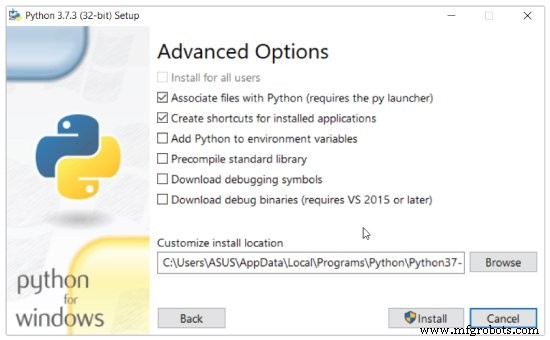
After installation, you can launch Python from the command line.
1. Run Python in Immediate Mode
Open a terminal and type python (or python3 on macOS/Linux). The interpreter starts, allowing you to type expressions directly:
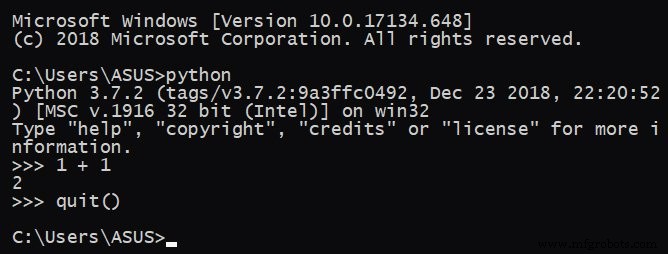
Try entering 1 + 1; you’ll see 2 as the output. Type quit() to exit.
2. Run Python in an Integrated Development Environment (IDE)
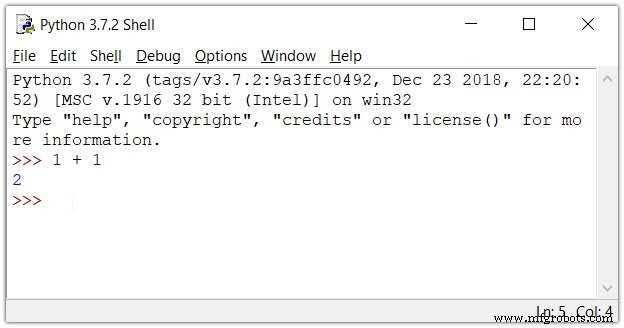
While any text editor can write Python code, an IDE provides code hinting, syntax highlighting, and project management tools. Python’s bundled IDE, IDLE, is a solid choice for beginners.
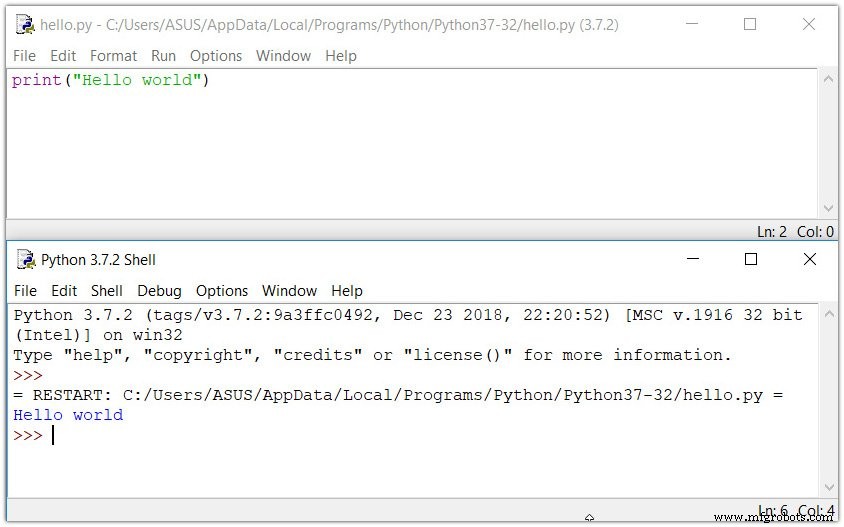
Open IDLE, create a new file (File > New File), save it with a .py extension, and write your script. Execute it with Run > Run Module or press F5:
Your First Python Program
Now that Python is up and running, let’s create a classic beginner’s program: Hello World. It prints a friendly greeting to the console.
print("Hello, world!")Save the file as hello_world.py and run it. You’ll see:
Hello, world!
Congratulations! You’ve written and executed your first Python program. Python’s simplicity and readability make it an excellent starting point for deeper exploration.
Python
- Retrieve Current Date and Time in Python: A Practical Guide
- How to Get Started with 3D Printing for Maximum Business Impact
- Python Print() Function: A Practical Guide with Examples
- Launching Your Manufacturing Business into E‑Commerce: A Practical Guide
- Master International Shipping: A Practical Guide for Retailers & Manufacturers
- Begin Your Industry 4.0 Journey: A Practical Guide
- Master Edge AI Inferencing: A Practical Guide to Actionable Insights
- Beginner’s Guide to Yaskawa Motoman Robot Programming: Boost Speed & Accuracy
- Beginner’s Guide: Setting Up RoboDK on Raspberry Pi
- Beginner's Guide to 3D Printing: Start with Confidence