



Mastering Arduino with DS3231 RTC: Step‑by‑Step Tutorial
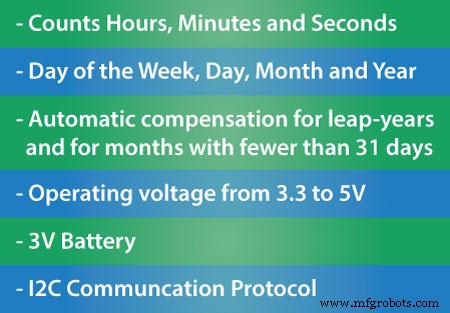
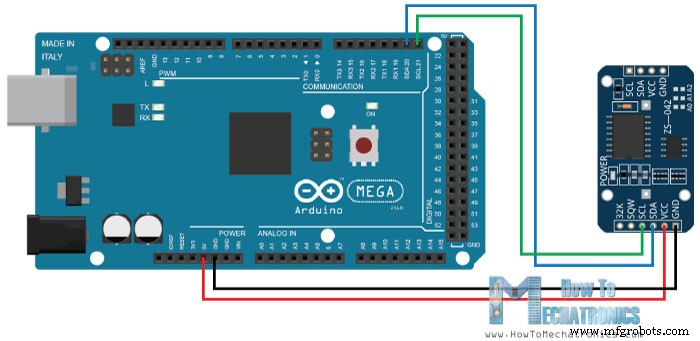
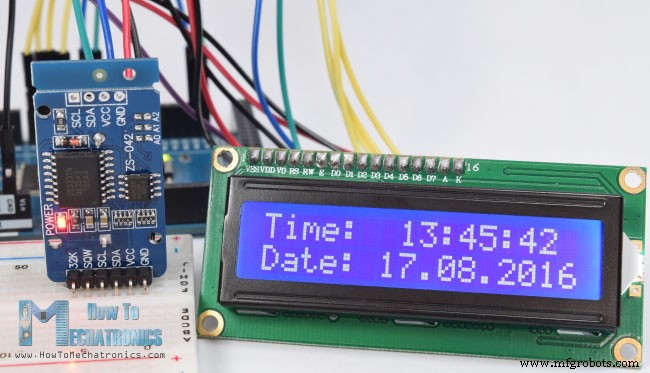
In this Arduino Tutorial we will learn how to use the DS3231 Real Time Clock Module. You can watch the following video or read the written tutorial below. The first question that comes here is why we actually need a separate RTC for our Arduino Project when the Arduino itself has built-in timekeeper. Well the point is that the RTC module runs on a battery and can keep track of the time even if we reprogram the microcontroller or disconnect the main power. The DS3231 is a low-cost, highly accurate Real Time Clock which can maintain hours, minutes and seconds, as well as, day, month and year information. Also, it has automatic compensation for leap-years and for months with fewer than 31 days. The module can work on either 3.3 or 5 V which makes it suitable for many development platforms or microcontrollers. The battery input is 3V and a typical CR2032 3V battery can power the module and maintain the information for more than a year. The module uses the I2C Communication Protocol which makes the connection to the Arduino Board very easy. Here’s the circuit schematics: So all we need is 4 wires, the VCC and the GND pins for powering the module, and the two I2C communication pins, SDA and SCL. You can get the components needed for this Arduino Tutorial from the links below: Once we connect the module we need to program the Arduino Board to work with the Real Time Clock. However, when it comes to programing a communication between Arduino and an I2C module the code isn’t that small and easy. Luckily, there are already several libraries for the DS3231 RTC which can be found on the internet. For this tutorial I chose to use the Library made by Henning Karlsen which can be found and downloaded from his website, www.rinkydinkelectronics.com. So once we download and install the library we can use its first demo example to initially activate the clock of the RTC module. In the setup section of the demo example code we can notice that there are three line that we need to uncomment in order to initially set the day of the week, the time and the data. The first line is for setting the day of the week, the second line is for setting the time in hours, minutes and seconds, and the third line is for setting the date in days, months and years. Once we upload this code we need to comment back the three lines and re-upload the code again. If we take a look at the loop section of the code we can see that now using the three custom functions we get the information from the RTC and print them in the Serial Monitor. Here’s how they appear in the Serial Monitor. Now even if we disconnect the Arduino power and then reconnect it and run the Serial Monitor again we can notice that the time keeps going without being reset. So now we have our Real Time Clock up and running and we can use in any Arduino Project. As a second example I connected an LCD to the Arduino and printed the time and the date on it. Here’s the source code of this example: That’s all for this Arduino Tutorial, feel free to ask any question in the comments section below.Overview
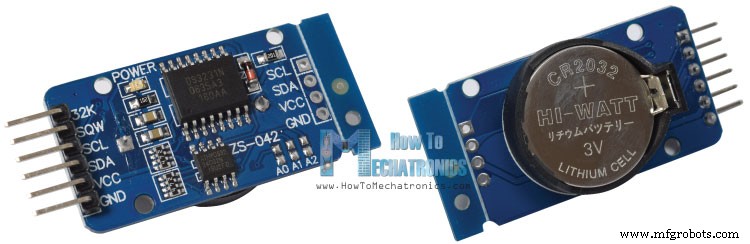
DS3231 Real Time Clock
Programming
// Code from the Demo Example of the DS3231 Library

void setup()
{
  // Setup Serial connection
  Serial.begin(115200);
  // Uncomment the next line if you are using an Arduino Leonardo
  //while (!Serial) {}

  // Initialize the rtc object
  rtc.begin();

  // The following lines can be uncommented to set the date and time
  //rtc.setDOW(WEDNESDAY);     // Set Day-of-Week to SUNDAY
  //rtc.setTime(12, 0, 0);     // Set the time to 12:00:00 (24hr format)
  //rtc.setDate(1, 1, 2014);   // Set the date to January 1st, 2014
}Code language: Arduino (arduino)// Code from the Demo Example of the DS3231 Library
void loop()
{
// Send Day-of-Week
Serial.print(rtc.getDOWStr());
Serial.print(" ");
// Send date
Serial.print(rtc.getDateStr());
Serial.print(" -- ");
// Send time
Serial.println(rtc.getTimeStr());
// Wait one second before repeating
delay (1000);
}Code language: Arduino (arduino)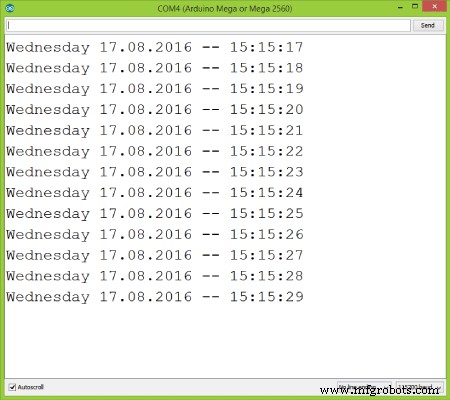
/*
* Arduino DS3231 Real Time Clock Module Tutorial
*
* Crated by Dejan Nedelkovski,
* www.HowToMechatronics.com
*
* DS3231 Library made by Henning Karlsen which can be found and downloaded from his website, www.rinkydinkelectronics.com.
*
*/
#include <DS3231.h>
#include <LiquidCrystal.h> // includes the LiquidCrystal Library

DS3231  rtc(SDA, SCL);
LiquidCrystal lcd(1, 2, 4, 5, 6, 7); // Creates an LC object. Parameters: (rs, enable, d4, d5, d6, d7)

void setup() {
 rtc.begin(); // Initialize the rtc object
 lcd.begin(16,2); // Initializes the interface to the LCD screen, and specifies the dimensions (width and height) of the display }
}

void loop() {
 lcd.setCursor(0,0);
 lcd.print("Time:  ");
 lcd.print(rtc.getTimeStr());

 lcd.setCursor(0,1);
 lcd.print("Date: ");
 lcd.print(rtc.getDateStr());

 delay(1000);
}Code language: Arduino (arduino)
Manufacturing process
- Build a Custom LED Master Clock with Alarm – Viewable from 12 Meters
- Arduino Temperature Monitor & Real-Time Clock Using a 3.2” TFT Display
- Build a Berlin Clock with Arduino UNO – DIY LED Matrix Clock
- eDOT: Precision Arduino Clock & Weather Station with Built‑In IR Remote
- Real-Time Arduino Weather Clock: OLED Display for Time, Date & Temperature
- Master the MPU6050: Accelerometer & Gyro Tutorial for Arduino
- Arduino Data Logging with SD Card & DS3231 RTC – Step‑by‑Step Tutorial
- Master Arduino Bluetooth: HC‑05 Module Tutorial for Smartphone & PC Control
- Master Arduino Control with MATLAB GUI: Step-by-Step Tutorial
- Arduino Tutorial 02: Buttons & PWM – Master Digital I/O & LED Control