


Industrial manufacturing
CNC Machine
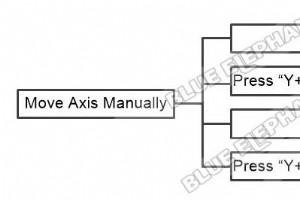
The steps are as follows. Press “Jog” Press “Y+”、“Y-”、“X+”、“X-”、“Z-”、“Z+”,for move position Press “5”,for switching high and low speed Press “Y+”、“Y-”、“X+”、“X-”、“Z-”、“Z+” The video is as follows.

Connect With Us Name Phone Email Country Message For any inquiries, don’t hesitate to contact us at: manager@elephant-cnc.com +86 191 0640 1832
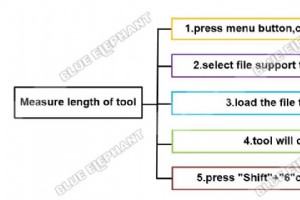
The steps are as follows. Press “Shift”+”6″combination key to measure the length of tool Every time we measure the length of disparate tool,we need execute disparate file. For example,we measure the length of tool 2 and tool 3 Press menu button,choose “1.Local Files”.We start from tool 2. Then c
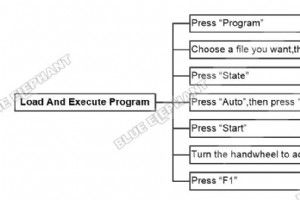
The steps are as follows. Press “Program” Choose a file you want,then press “F1” Press “State” Press “Auto”,then press “F1” Press “Start” Turn the handwheel to adjust position Press “F1” The video is as follows.
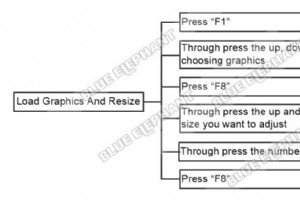
The steps are as follows. Press “F1” Through press the up, down, left and right key to choosing graphics Press “F8” Through press the up and down key to adjusting the size you want to adjust Through press the number keyto inputting size value Press “F8”
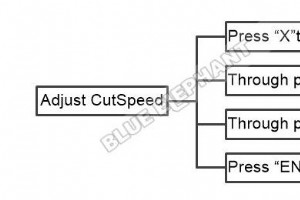
The steps are as follows. Press “X”to enter the interface of inputCutSpeed Through press the number keyto inputting the numerical Through press left and right key and “Del”to scaled down Press “ENTER” The video is as follows.

Home » Blog » How To Adjust Current Size By Hypertherm Power In FangLing 2300A Jack Zhang | Founder at Blue Elephant Hi, Im Jack Zhang, here to share my expertise in CNC Machines with you. February 22, 2025 Linkedin Facebook
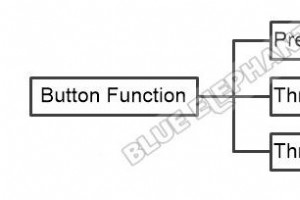
The steps are as follows. Press “MENU” Through turn the “IHS Height”to adjusting “Actual ARC Voltage” Through turn the “ARC Voltage”to adjusting “Setting ARC Voltage” The video is as follows.
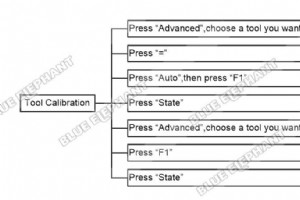
The steps are as follows. Press “Advanced”,choose a tool you want Press “=” Press “Auto”,then press “F1” Press “State” Press “Advanced”,choose a tool you want Press “F1” Press “State” The video is as follow.
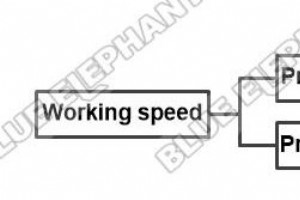
The steps are as follows. Press “7” to increase working speed Press “1” to decrease working speed The video is as follows.

Home » Blog » How To Back To Home In NK105 G2 Jack Zhang | Founder at Blue Elephant Hi, Im Jack Zhang, here to share my expertise in CNC Machines with you. February 22, 2025 Linkedin Facebook Youtube X-twitter
Connect With Us Name Phone Email Country Message For any inquiries, don’t hesitate to contact us at: manager@elephant-cnc.com +86 191 0640 1832
Connect With Us Name Phone Email Country Message For any inquiries, don’t hesitate to contact us at: manager@elephant-cnc.com +86 191 0640 1832
Connect With Us Name Phone Email Country Message For any inquiries, don’t hesitate to contact us at: manager@elephant-cnc.com +86 191 0640 1832
The steps are as follows. Press green button and unplug shank Press green button and install shank The video is as follows.
Connect With Us Name Phone Email Country Message For any inquiries, don’t hesitate to contact us at: manager@elephant-cnc.com +86 191 0640 1832
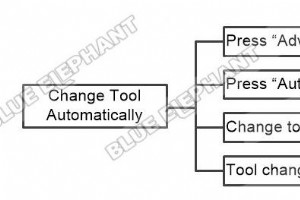
The steps are as follows. Press “Advanced”,then press “C” Press “Auto”,then press “F7” Change tool from 8 to 1 Tool change is completed The video is as follows.
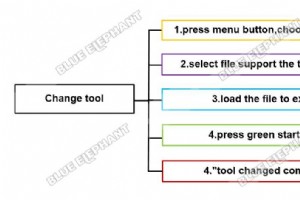
The steps are as follows. >Press menu button ,choose “Local Files” >Select file support the tool we need. >Then load the file to execute. >Press green start button to start working. >“tool changed completed” The video is as follow.

The steps are as follows. After Power on,all axis should back to “home”(REF point) Press “REF Point” Press “F7” If back to home sign occurs, the back to home succeeds The video is as follows.
Connect With Us Name Phone Email Country Message For any inquiries, don’t hesitate to contact us at: manager@elephant-cnc.com +86 191 0640 1832
CNC Machine

Manufacturing Day: Evolution, Impact, and Industry Showcase

Daily Walk‑Around Inspection Tips for Cat Equipment: Prevent Breakdowns & Boost Safety

Automatic Identification & Data Capture (AIDC): Enhancing Accuracy, Efficiency, and Visibility in Manufacturing & Logistics
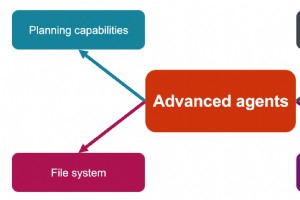
Standard vs. Advanced AI Agents: Key Differences That Drive Enterprise Success

