



How to Resolve the Cura “File Could Be Corrupt or Inaccessible” Error – 4 Proven Fixes
When Cura reports that a file “could be corrupt or inaccessible,” it usually means the software cannot read or open the model you’re trying to print. Below are four expert‑backed steps to troubleshoot and fix this common issue.
Quick‑reference checklist:
- Place the file in a folder with full access for Cura.
- Repair geometry errors with Meshmixer or Microsoft 3D Builder.
- Convert the model to STL format.
- Redownload the file if corruption is suspected.
1. Ensure the File Is Stored in an Accessible Folder
Many users encounter the error after downloading an STL from email or a cloud drive. Operating systems sometimes restrict third‑party applications from reading files on network or external drives. Move the file to a local folder—such as your Documents or a dedicated 3D‑Prints directory—where Cura has full read/write permissions.
For example, a user who downloaded an STL from Gmail found that Cura could not load it. After moving the file to the local Documents folder, the error disappeared.
Remember: a simple “file location” issue can masquerade as corruption.
2. Repair Errors with Meshmixer or Microsoft 3D Builder
If the file’s geometry contains holes, non‑manifold edges, or other structural defects, Cura will reject it. Both Meshmixer and Microsoft 3D Builder can analyze and automatically fix these problems.
Steps in Meshmixer:
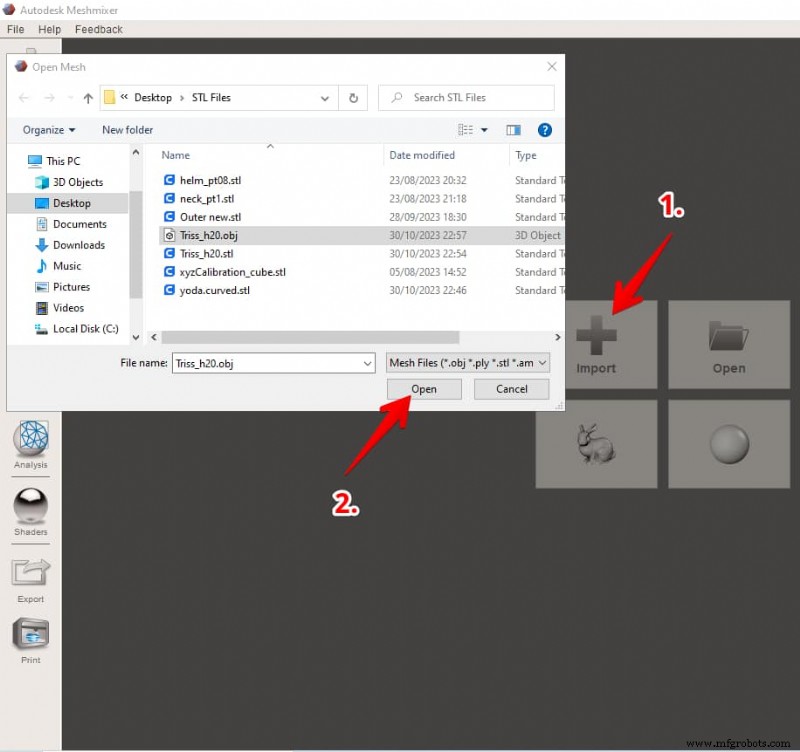
- Open Meshmixer, choose File > Import, and select your model.
- Navigate to Analysis > Inspector.
- Click Auto Repair All, then hit Done to fix detected issues.
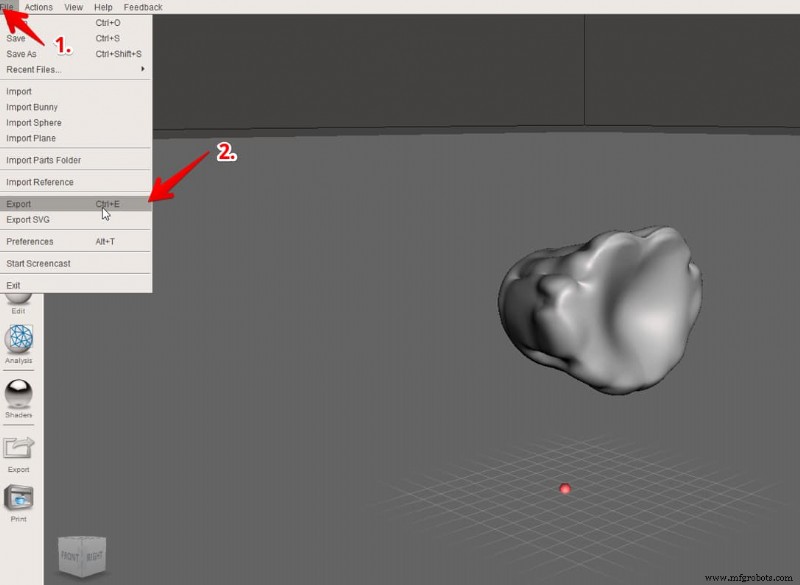
- Export the repaired file as STL: File > Export, choose STL, and save.
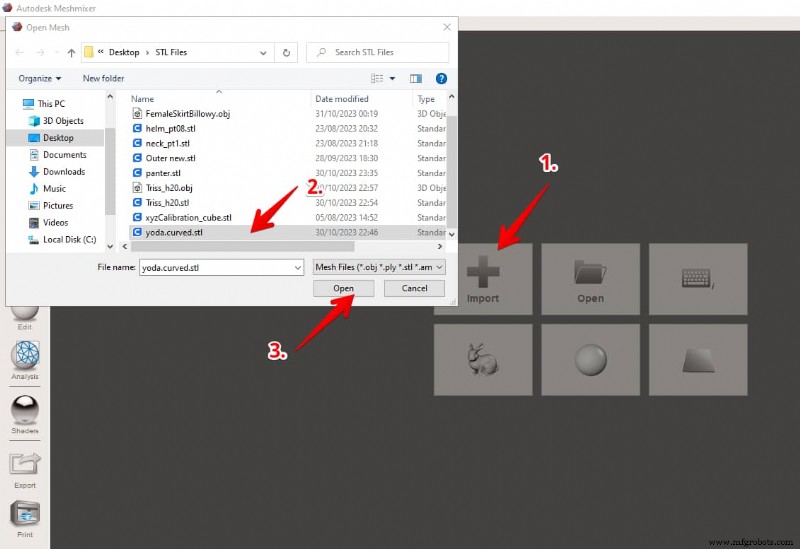
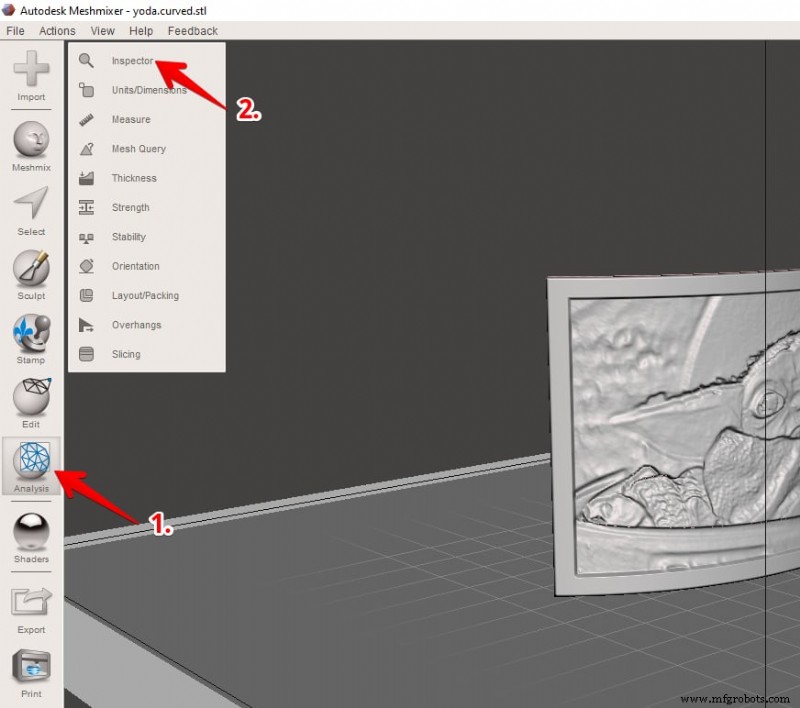
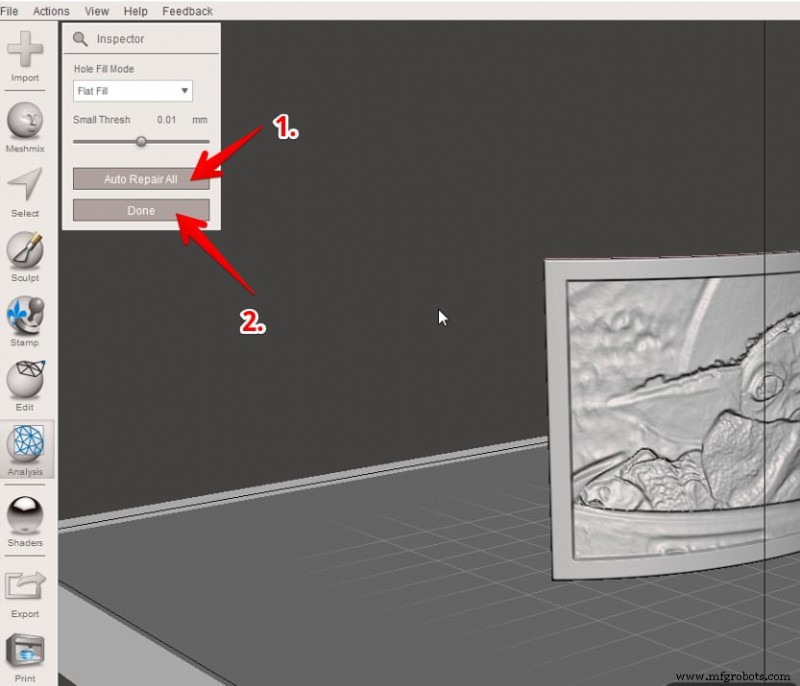
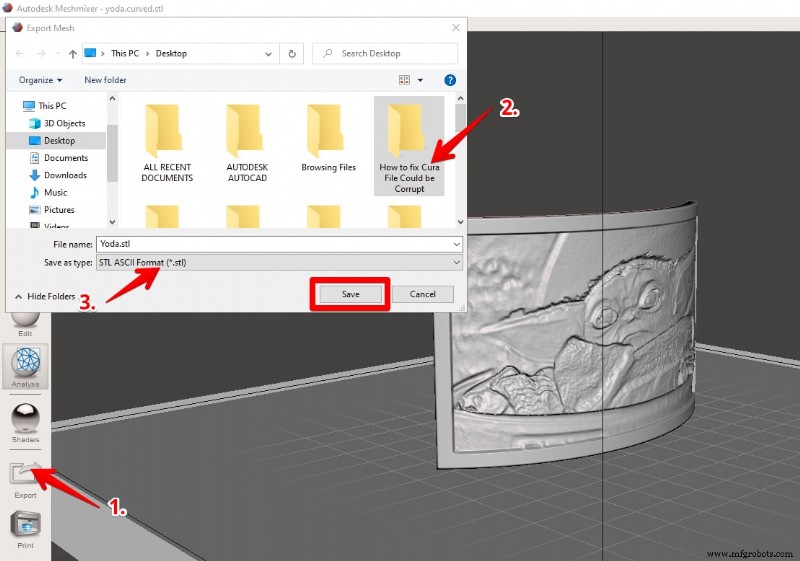
Users have reported that auto‑repair significantly reduces import errors, especially for complex models exported from Blender.
Watch Josef Prusa’s video guide for an in‑depth walkthrough.
3. Convert the File to STL Format
Cura primarily accepts STL files. If you’re working with OBJ, 3MF, or other formats, convert them first. Meshmixer or an online converter (e.g., 3D Convert) can do this quickly.
Conversion steps using Meshmixer:
- Import your OBJ or 3MF file.
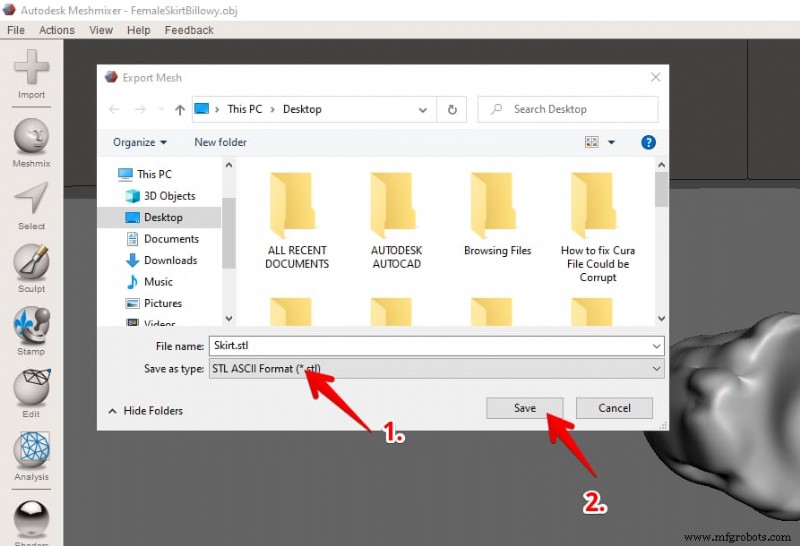
- Choose File > Export, name the file, select STL as the format, then click Save.
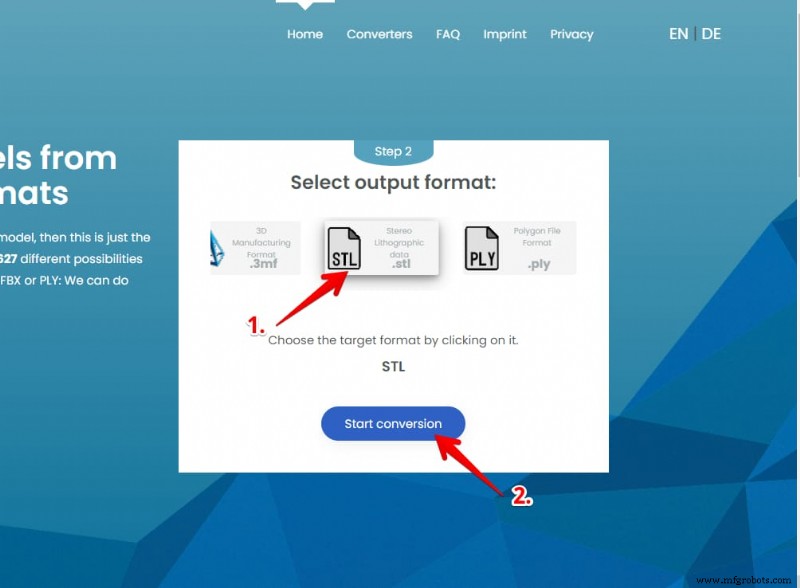
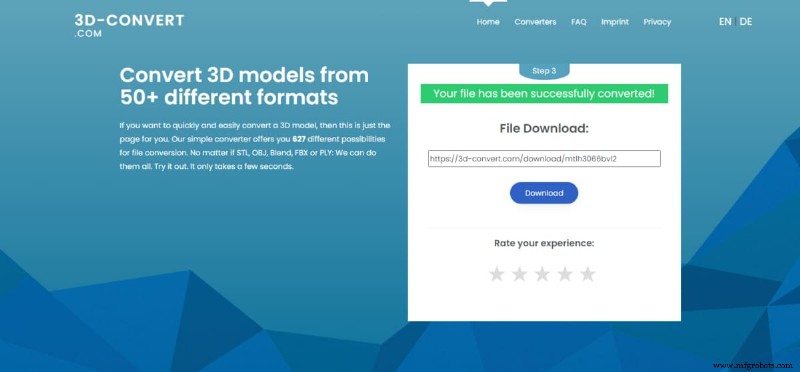
Online conversion workflow (3D Convert):
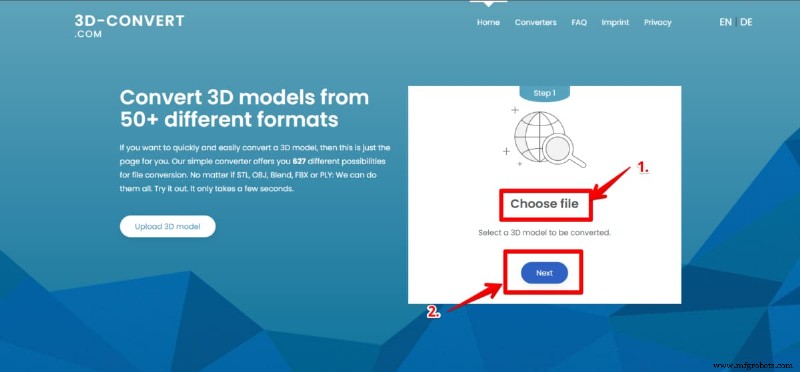
- Visit the site, click Choose a file, select your model, and click Next.
- Choose STL as the output format, then click Start Conversion.
- Download the converted file once the process completes.
Once the file is in STL format, retry importing it into Cura.
4. Redownload the File
If the above steps don’t resolve the issue, the original file may have been corrupted during download. Delete the current copy, then download again from a reliable source using a stable internet connection.
Tips for a clean download:
- Download files individually instead of as part of a zip archive.
- Verify the file size matches the expected value.
- Use a reputable hosting platform.
When in doubt, contact the model’s designer to request a fresh copy.

Michael Dwamena
Michael Dwamena is the founder of 3D Printerly, a platform that simplifies 3D printing for hobbyists and professionals. With ownership of over 20 filament and resin printers, he has extensive hands‑on experience. Michael has authored more than 900 articles, guiding millions through the intricacies of 3D printing.
3D printing
- High‑Speed 3D Printing with the AION500 MK3 – Unmatched Speed, Precision, and Strength
- Choosing the Right 3D Printing Materials: A Comprehensive Guide
- Reduce 3D Printer Noise: Proven Techniques to Keep Your Workspace Quiet
- 8 Cutting‑Edge Materials Driving Industrial 3D Printing
- Step-by-Step Guide to 3D Printing Text: From Design to Final Print
- Master TPU 3D Printing: Your Complete Guide to Flexible, Durable Parts
- Understanding Brittleness: Definition, Causes, Examples, and Common Materials
- Optimal SLS 3D Printing: Expert Tips for Workpiece Positioning
- Master 3D Printer Calibration: Step-by-Step Guide for Optimal Print Quality
- Why Proper Lubrication Is Essential for 3D Printer Performance