These were used in the development stage and will not be needed for the final prototypes.
×
2
Breadboard (generic)
This was used in the development stage and will not be needed for the final prototypes.
×
1
Jumper wires (generic)
These were used in the development stage and will not be needed for the final prototypes.
×
1
Necessary tools and machines
3D Printer (generic)
Soldering iron (generic)
Apps and online services
Arduino IDE
Arduino Web Editor
About this project
Instead of using an app, what if you could send a signal to eye-contact someone you are interested in talking to, in a social setting, even from afar? I'm not proposing a different way to start a date. I'm exploring a new usage of Bluetooth in the field of human interactions.
When I found out that Intel Curie modules can be assigned to act as central and peripheral BLE devices, I immediately wanted to make these glasses. (Learn more about CurieBLE from here.) Thanks to a tutorial on Adafruit, the reference framework of a 3D printed LCD glass is readily available. What I added onto the Adafruit tutorial are the BLE control (instead of a switch control) of two pieces of glasses at the same time, with one being the master and the other being the slave, and redesigned 3D printed frames.
This project was developed first on Arduino 101 and prototyped on tinyTILE, both have Intel Curie modules on them. Even if you may not be able to obtain Intel Curie modules in the future, I hope the methodology here could still be useful. I can imagine many different ways to apply Bluetooth central and peripheral capabilities and I'm looking forward to discussions on this topic.
Step 1 - Development
Two Arduino101s and two LEDs were used to develop the circuit and test the codes. Due to the complexity of the final circuits, it's always a good idea to start with a breadboard before soldering everything together.
For peripheral, you can use the code from the CurieBLE examples -> Peripheral -> LED and exchange the HIGH and LOW (find reason in last step). The code for central is provided in the end of the project. It is almost the same as CurieBLE -> Central -> LEDcontrol with a couple of lines added for the LCDs.
TinyTILE is almost exactly a miniature of Arduino101. The main central rectangle is the Intel Curie module. They can be flashed with the same codes. The pins on Arduino101 is always easier to use but the size of tinyTILE is more attractive for wearables. I like developing first on Arduino 101 and transfer everything onto tinyTILE. Check out another project using tinyTILE here. If form factor is not an issue for your project, feel free to use Arduino101 (see example here).
I test each component step-by-step, when I changed the Arduino101 to tinyTILE and changed the LEDs to LCDs.
Step 2 - 3D Printing
I redesigned the frames using SolidWorks on top of the one that's provided by Adafruit. You can download their basic design here and modify with whichever software you prefer for 3D printing. If you like exactly the looks I designed, you can find them in the attachments below. Why did I design a heart-shape and a universe? Watch the video for explanation and use your imagination.
The design could be modified to fit your face better. I found it a bit difficult to hold on my small nose. There are some companies nowadays that do a 3D scan of your face and customize glasses for you, which is great.
I think the 3D printer Ruiz Brothers from Adafruit used must be better than mine. Because mine printed so much support materials inside places that are very difficult to get out. As a UX designer, I have a lot to say about the inconvenience of my 3D printer. I'd like to have water-soluble support materials or a printer that doesn't need support materials or a liquid-based/light-solidifying 3D printer.
Step 3 - Assembly
The advice in Adafruit's tutorial on wiring, soldering and mounting is very good. You should check it out. I just had to add the extra tinyTILEs and the button in. Be careful to cut the wires into the right lengths.
Step 4 - Done and Have Fun!
When power is on, there's voltage applied to the LCDs, keeping them dark sunglasses. When the button on the master is pressed, voltage gets turned off on the master, which at the same time signaling voltage on the slave to be turned off via Bluetooth, making both glasses transparent.
The two glasses can be controlled pretty far apart, as long as they are within BLE range. I tested at home. Heart can get Universe's attention at least 15 steps away.
Imagine not using a button but a gesture, a nod or matching heartbeats!
Heart (master=central) : "I like your sophisticated mind <3"
Universe (slave=peripheral) : "I see you. Let's talk."
Code
Button control for central
Button control for centralArduino
This is almost the same as the one in the CurieBLE example.
 /*
 * Copyright (c) 2016 Intel Corporation.  All rights reserved.
 * See the bottom of this file for the license terms.
 */

/*
 * Sketch: LedControl.ino
 *
 * Description:
 *   This is a Central sketch that looks for a particular Sevice with a
 *   certain Characteristic from a Peripheral.  Upon succesful discovery,
 *   it reads the state of a button and write that value to the
 *   Peripheral Characteristic.
 *
 * Notes:
 *
 *  - Expected Peripheral Service: 19b10000-e8f2-537e-4f6c-d104768a1214
 *  - Expected Peripheral Characteristic: 19b10001-e8f2-537e-4f6c-d104768a1214
 *  - Expected Peripheral sketch:
 *
 */

#include <CurieBLE.h>

// variables for button
const int buttonPin = 3;
int oldButtonState = LOW;
const int ledPin = 5; // pin to use for the LED


void setup() {
  Serial.begin(9600);

  // configure the button pin as input
  pinMode(buttonPin, INPUT);
    pinMode(ledPin, OUTPUT);

  // initialize the BLE hardware
  BLE.begin();

  Serial.println("BLE Central - LED control");

  // start scanning for peripherals
  BLE.scanForUuid("19b10000-e8f2-537e-4f6c-d104768a1214");
}

void loop() {
  // check if a peripheral has been discovered
  BLEDevice peripheral = BLE.available();

  if (peripheral) {
    // discovered a peripheral, print out address, local name, and advertised service
    Serial.print("Found ");
    Serial.print(peripheral.address());
    Serial.print(" '");
    Serial.print(peripheral.localName());
    Serial.print("' ");
    Serial.print(peripheral.advertisedServiceUuid());
    Serial.println();

    // stop scanning
    BLE.stopScan();

    controlLed(peripheral);

    // peripheral disconnected, start scanning again
    BLE.scanForUuid("19b10000-e8f2-537e-4f6c-d104768a1214");
  }
}

void controlLed(BLEDevice peripheral) {
  // connect to the peripheral
  Serial.println("Connecting ...");

  if (peripheral.connect()) {
    Serial.println("Connected");
  } else {
    Serial.println("Failed to connect!");
    return;
  }

  // discover peripheral attributes
  Serial.println("Discovering attributes ...");
  if (peripheral.discoverAttributes()) {
    Serial.println("Attributes discovered");
  } else {
    Serial.println("Attribute discovery failed!");
    peripheral.disconnect();
    return;
  }

  // retrieve the LED characteristic
  BLECharacteristic ledCharacteristic = peripheral.characteristic("19b10001-e8f2-537e-4f6c-d104768a1214");

  if (!ledCharacteristic) {
    Serial.println("Peripheral does not have LED characteristic!");
    peripheral.disconnect();
    return;
  } else if (!ledCharacteristic.canWrite()) {
    Serial.println("Peripheral does not have a writable LED characteristic!");
    peripheral.disconnect();
    return;
  }

  while (peripheral.connected()) {
    // while the peripheral is connection

    // read the button pin
    int buttonState = digitalRead(buttonPin);

    if (oldButtonState != buttonState) {
      // button changed
      oldButtonState = buttonState;

      if (buttonState) {
        Serial.println("button pressed");

        // button is pressed, write 0x01 to turn the LED on
        ledCharacteristic.writeByte(0x01);
        digitalWrite(ledPin, LOW);
      } else {
        Serial.println("button released");

        // button is released, write 0x00 to turn the LED of
        ledCharacteristic.writeByte(0x00);
        digitalWrite(ledPin, HIGH);
      }
    }
  }

  Serial.println("Peripheral disconnected");
}

/*
  Arduino BLE Central LED Control example
  Copyright (c) 2016 Arduino LLC. All right reserved.

  This library is free software; you can redistribute it and/or
  modify it under the terms of the GNU Lesser General Public
  License as published by the Free Software Foundation; either
  version 2.1 of the License, or (at your option) any later version.

  This library is distributed in the hope that it will be useful,
  but WITHOUT ANY WARRANTY; without even the implied warranty of
  MERCHANTABILITY or FITNESS FOR A PARTICULAR PURPOSE. See the GNU
  Lesser General Public License for more details.

  You should have received a copy of the GNU Lesser General Public
  License along with this library; if not, write to the Free Software
  Foundation, Inc., 51 Franklin St, Fifth Floor, Boston, MA 02110-1301 USA
*/
Custom parts and enclosures
Schematics
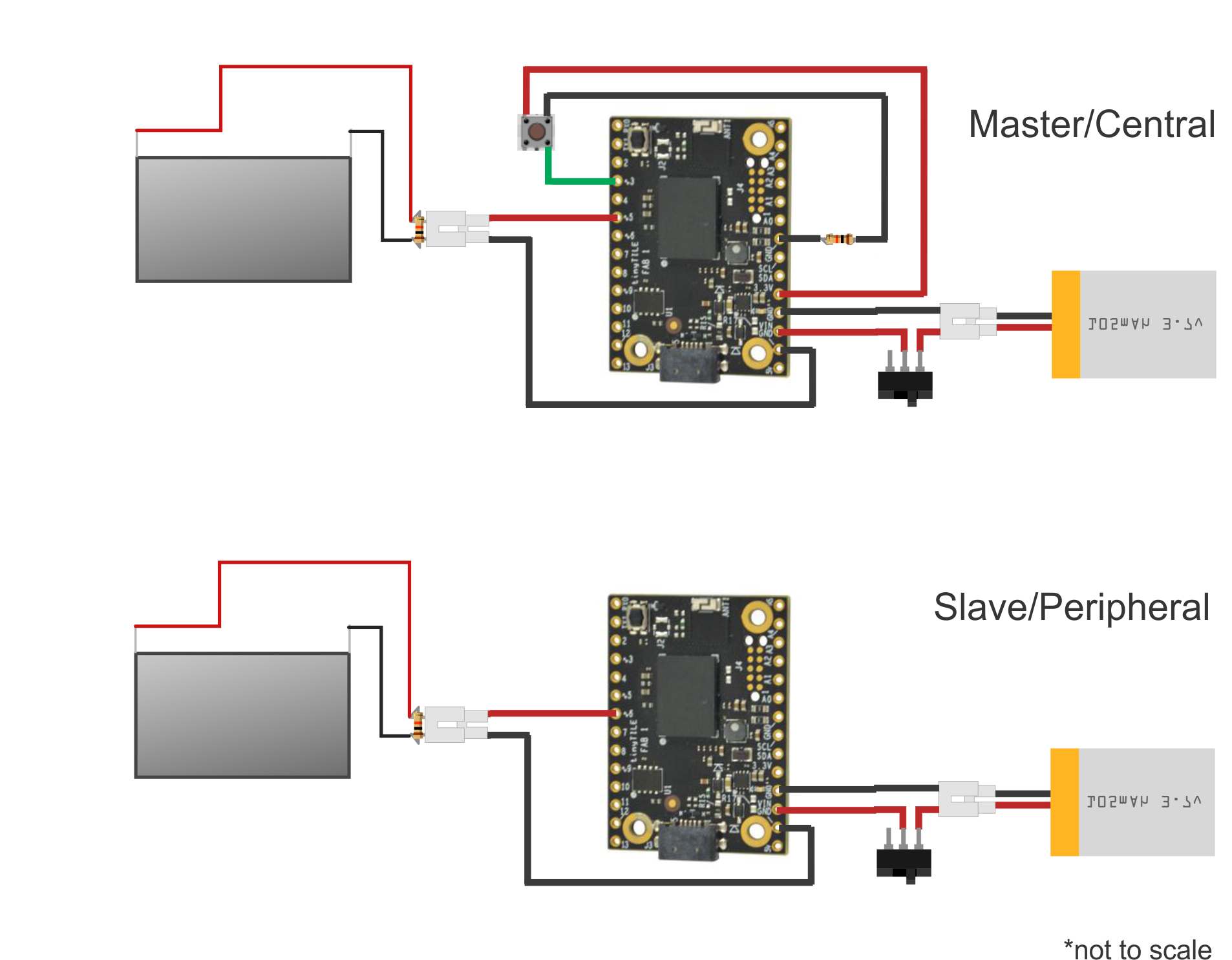
Central uses pin 3 for button and 5 for LCD. Peripheral uses pin 6 for LCD.