



Locating Stratasys Service Documents for All 3D Printer Models – A Complete Guide
What Are Stratasys Service Documents?
When a Stratasys printer displays an error, the service technician will usually request the printer’s configuration file (.CFG) or log files. These documents provide a detailed snapshot of the printer’s self‑checks, error events, and the sequence of actions leading up to and following the issue. Importantly, they contain no information about the parts you’re printing, so you can share them without compromising your intellectual property.
- Do you own an FDM or Poly‑Jet printer?
- FDM examples:
- F120, F170, F270, F370
- Fortus 380, 450, 900
- Dimension
- Poly‑Jet examples:
- Objet30, Objet30 Pro
- Connex 260, 350, 500
- J‑750, J‑735, J‑850, J‑826, J‑55
- FDM examples:
- Which part‑processing software are you using?
- GrabCAD Print
- CatalystEX
- Objet Studio
FDM Printers
For FDM models, the service document is the printer’s configuration file, a single .CFG text file. Retrieve it via your part‑processing software (GrabCAD or Catalyst) following the steps below.
GrabCAD
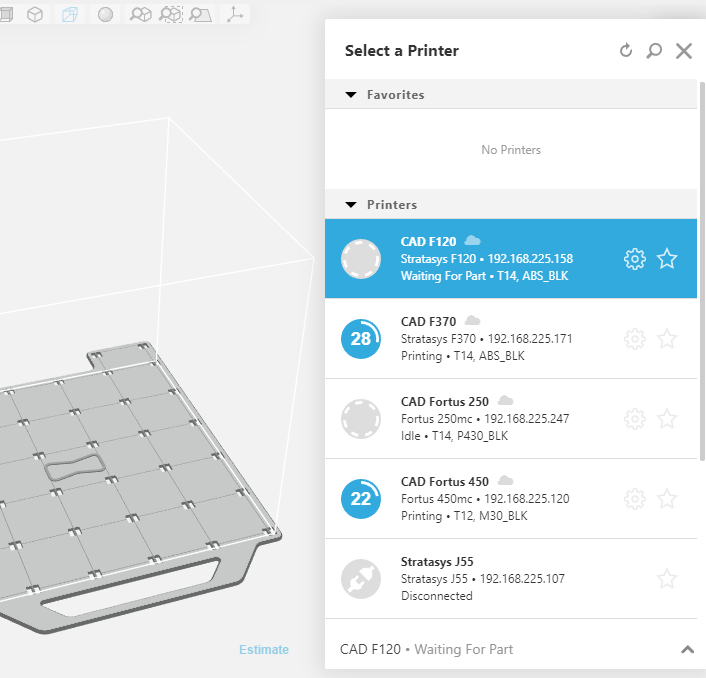
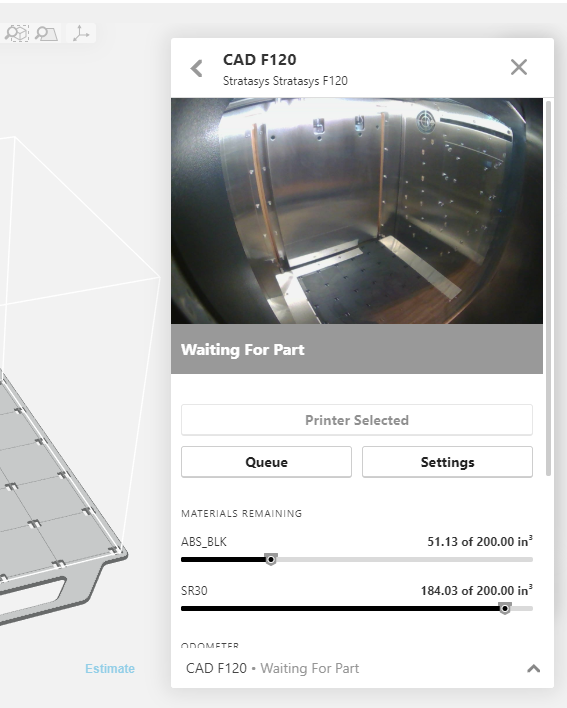
- Open the printer details page by clicking the gear icon next to your printer’s name.
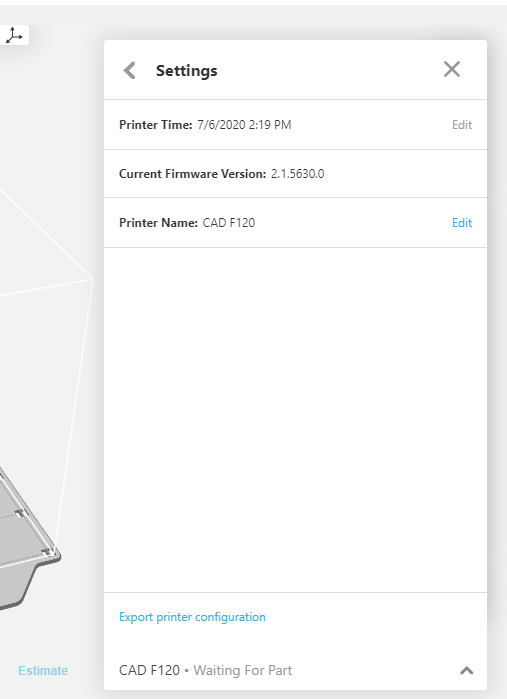
- Navigate to the printer’s settings by selecting Settings on that page.
- At the bottom of the settings screen, click Export printer configuration and save the file to a known location for later transfer to your service provider.
CatalystEX
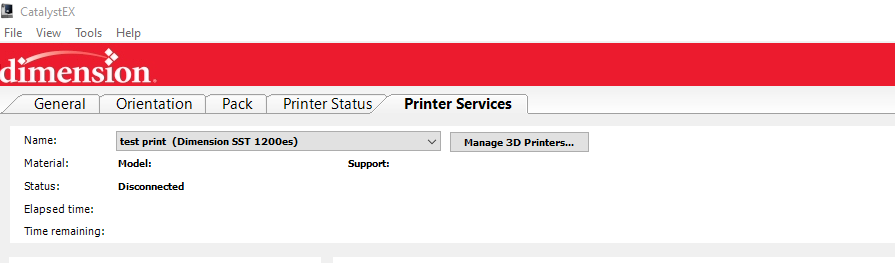
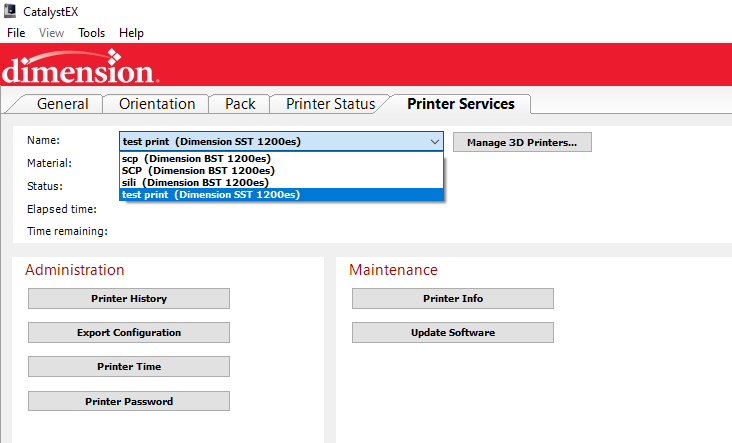
- From the CatalystEX main window, click the Printer Services tab.
- Select your printer from the drop‑down menu and confirm that the connection status is healthy.
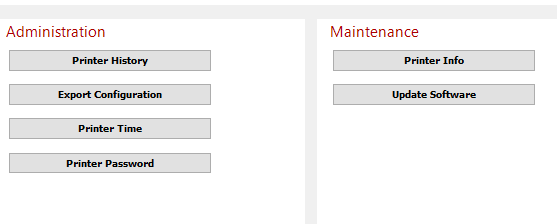
- Under Administration, choose Export Configuration and save the resulting file for your service technician.
Poly‑Jet Printers
Poly‑Jet models use log files as their service documents. These logs chronicle every event—error codes, calibration steps, temperature readings—providing technicians with a precise timeline of printer activity. Accessing them is straightforward, whether your printer is integrated with GrabCAD or operating independently.
Poly‑Jet with GrabCAD
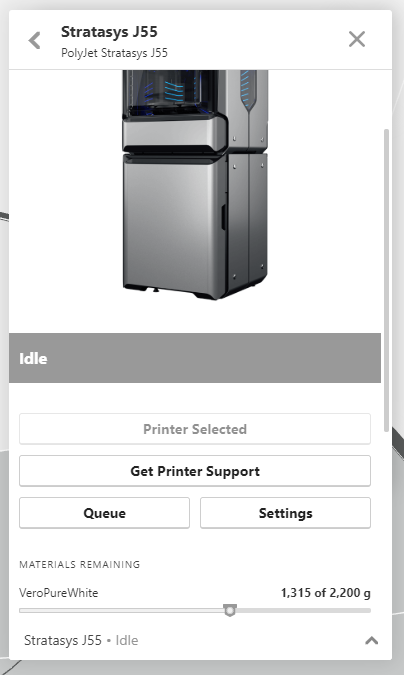
- Open the printer details page by clicking the gear icon next to your printer’s name.
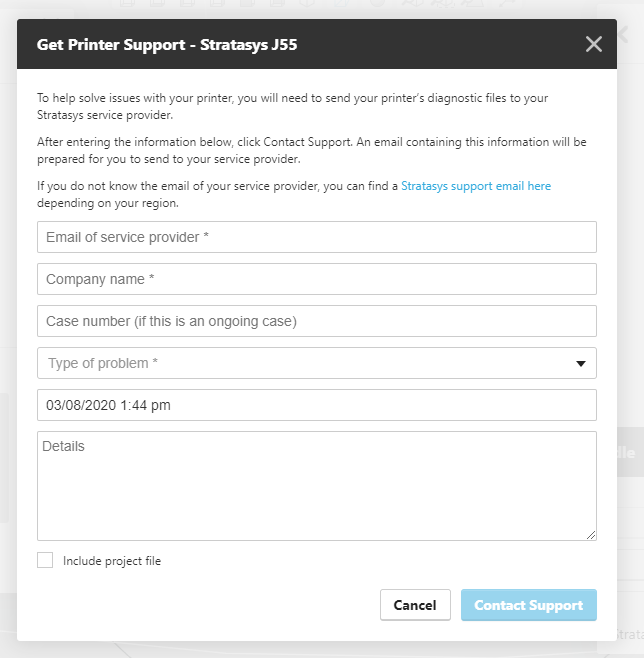
- Click Get Printer Support on that page.
- Fill out the support form with your details, your service provider’s contact information, and a brief description of the issue. For a list of regional service contacts, visit Stratasys Contact Page.
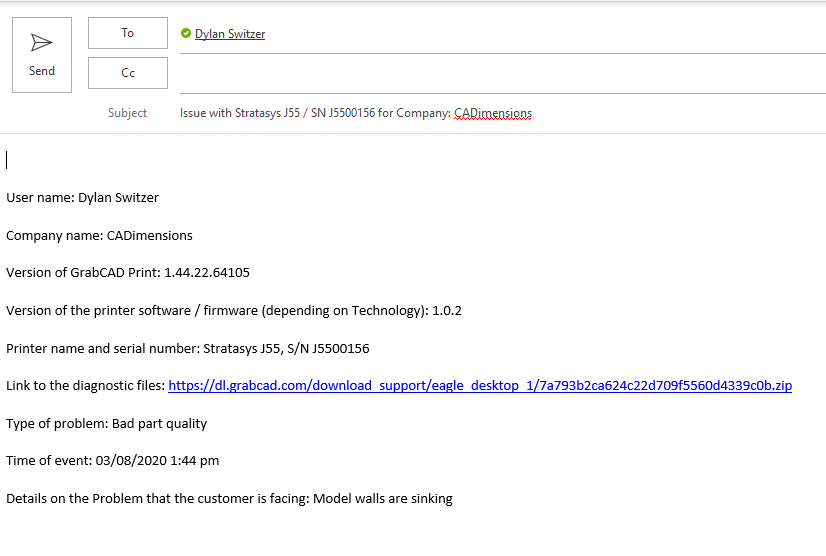
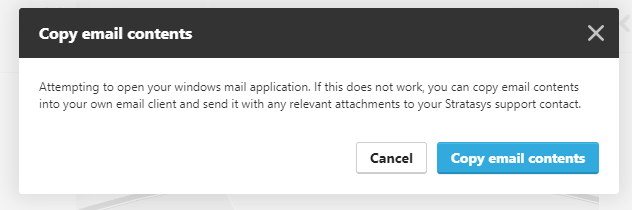
- Click Contact Support; your email client will auto‑populate a message containing a secure download link to the log file. If the email does not open automatically, you can copy the message contents and paste them manually.
Poly‑Jet Without GrabCAD
When a Poly‑Jet printer isn’t connected to GrabCAD, the log files reside on the printer’s embedded computer. Transfer them to a USB flash drive and forward them to your technician.
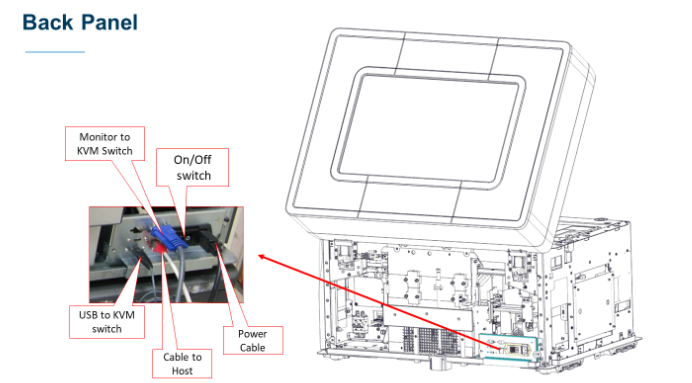
- Insert a USB flash drive into the rear USB port of the printer.
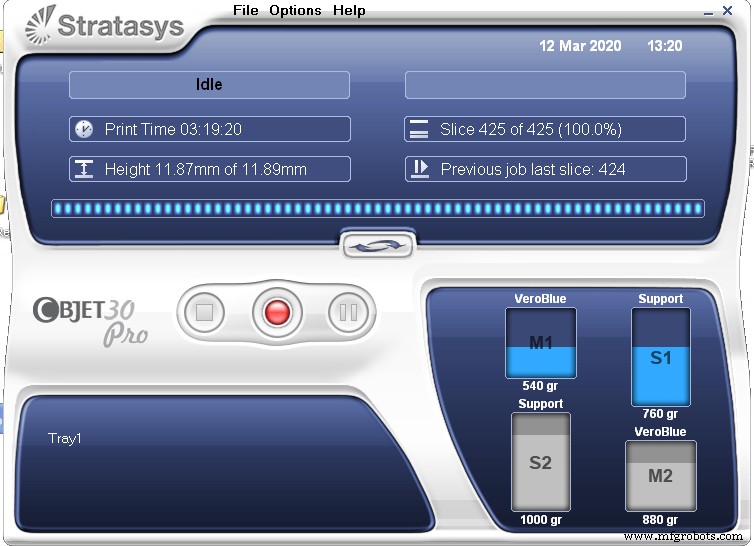
- Launch the Objet software on the embedded computer.
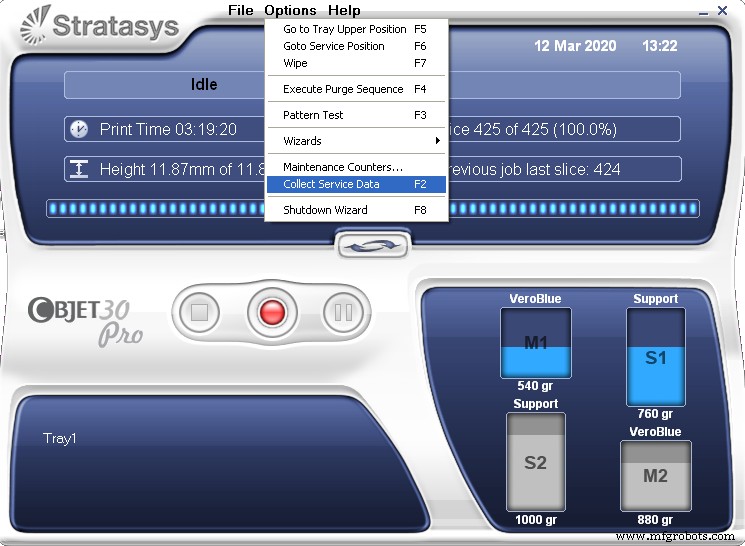
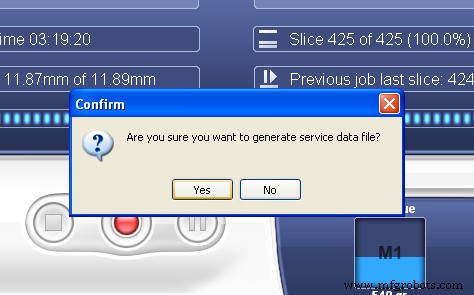
- Select Collect Service Data from the drop‑down menu and confirm the prompt.
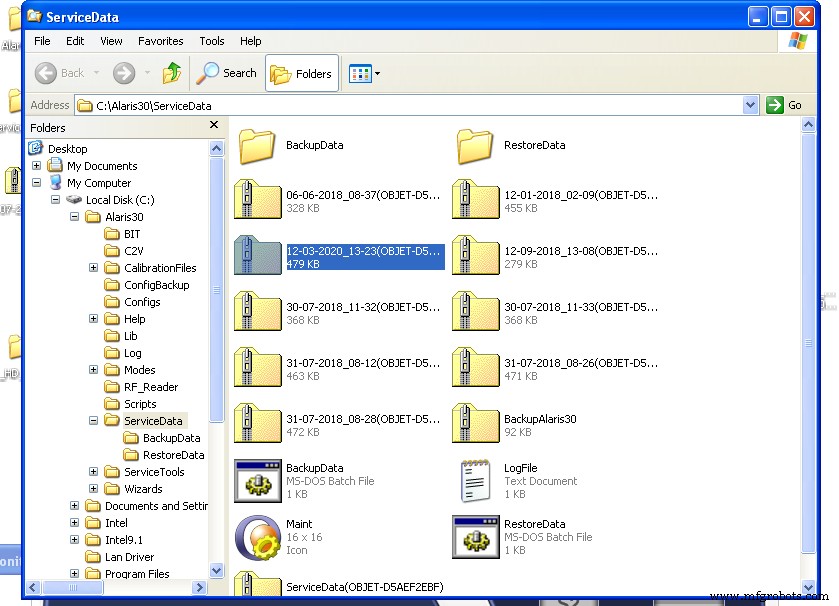
- Choose the ZIP folder that matches the date of the incident (usually the most recent) and copy it to the USB drive.
- Safely eject the USB drive and connect it to a computer with internet access.
- Send the ZIP file to your technician via Dropbox, WeTransfer, or another file‑sharing service—email may not accommodate the file size.
Next Steps
Congratulations—you now have the correct configuration or log file for your Stratasys printer. Send it to your reseller or a Stratasys service technician. They will guide you through any necessary repairs or adjustments to restore optimal performance. If you encounter further difficulties, Stratasys offers 24/7 support at +1‑800‑801‑6491.
3D printing
- Stratasys Origin One: Precision 3D Printing for Production-Grade Parts
- Mastering 3‑D Print Orientation: Tips for Surface Finish, Strength, and Support Efficiency
- Step‑by‑Step Guide to Replacing Nozzle Tips on Your Stratasys 3D Printer
- Connecting GrabCAD Print to Your Stratasys 3D Printer – A Step‑by‑Step Guide
- Expand Your Manufacturing Business: Proven Strategies to Attract New B2B Customers
- Choosing a Top-Quality VFD Drive Repair Service: A Practical Guide
- Implementing Asset Tracking in Food Service: Boost Efficiency & Reduce Downtime
- How Quickly Can a 3D Printer Produce Parts? Understanding Print Speed Factors
- Step-by-Step Guide to Cleaning Your 3D Printer Nozzle for Optimal Performance
- KUKA Coating Robots: Precision Solutions for Every Manufacturing Environment