



Build a Wi‑Fi Internet Radio with Raspberry Pi and Arduino: Stream Global Stations
Components and supplies
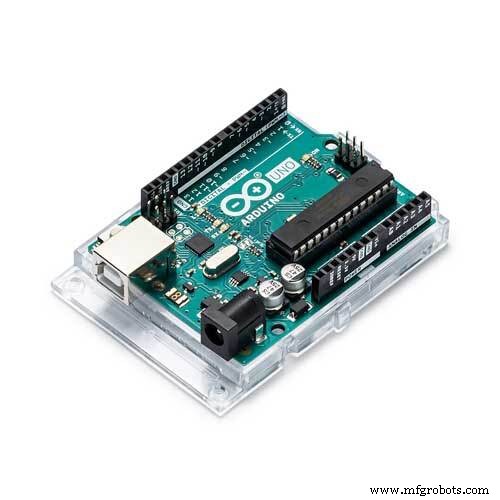 |
| × | 1 | |||
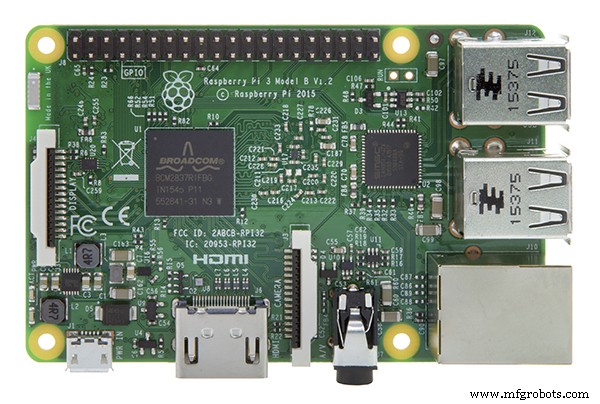 |
| × | 1 | |||
| × | 1 | ||||
| × | 1 |
Apps and online services
|
About this project
I love to listen to the radio when I am making something or cooking, but where I live FM reception is terrible. And with the Internet, listening to radio stations of the world is a pleasure, but I don't like to use my smartphone to hear music, so with a lot of Googling, I found several solutions.
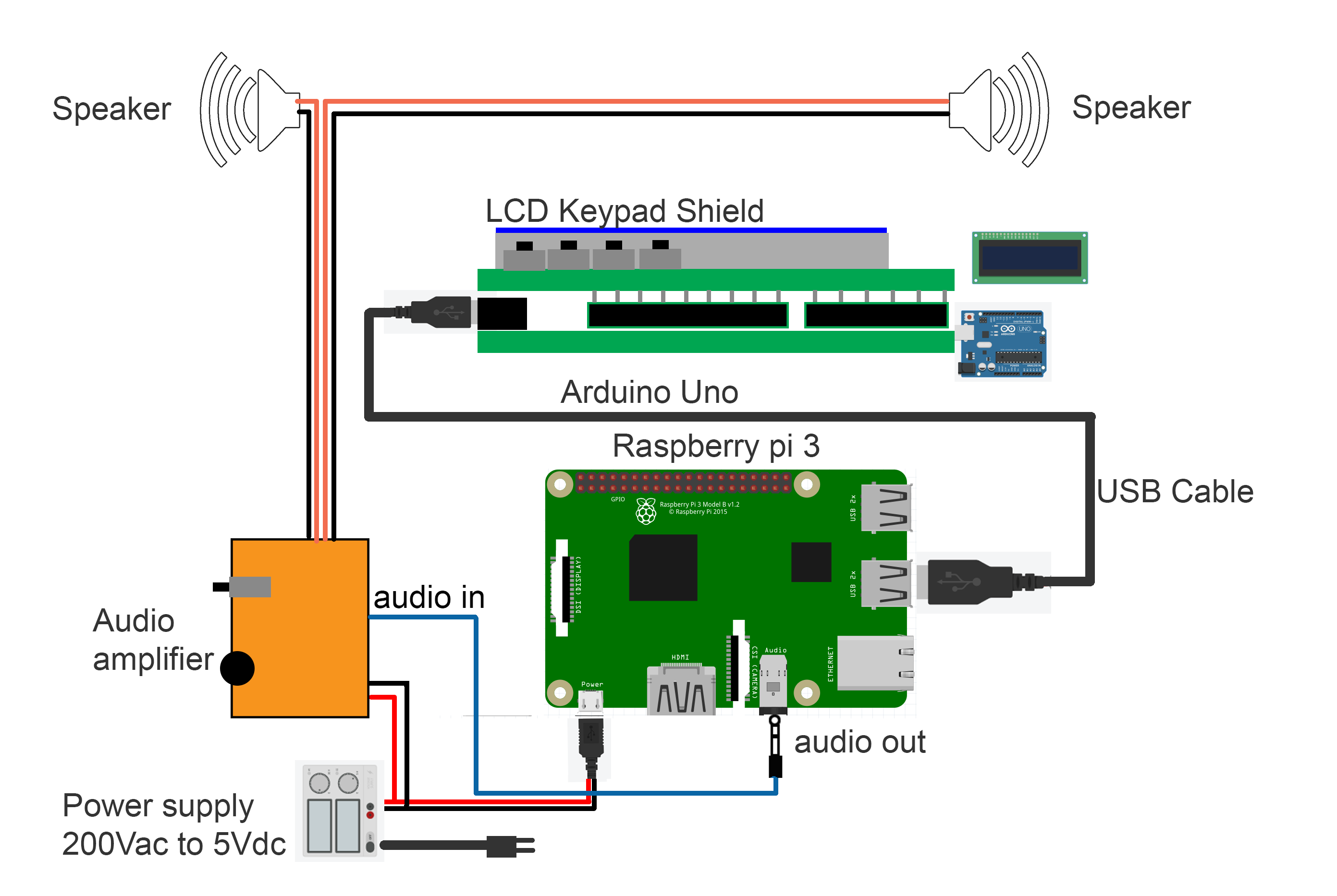
I based this project on another tutorial: Arduino / Raspberry Pi Internet Radio by akellyirl. The code is written in Python on the Raspberry Pi and basically uses the Linux music player daemon (mpd) and the player (mpd). There is a library nanpy that lets Python communicate with the Arduino which controls the push buttons and the LCD.
I used an LCD/keyboard shield for the Arduino that has push buttons: SainSmart LCD Keypad Shield for Arduino, and later added a 4 push button strip that I scrapped from a broken alarm clock. First I used a Raspberry Pi 2 with a USB WiFi adapter, but now I am using a RP3 which has built in WIFI and no need for antenna.
The hardest part was finding the right URLs of the stations I wanted. Finally I found this program: URL HELPER that sniffs the site you are on and show the URLs of the media playing. For the sound, I used a pair of active computer speakers also recovered from scrap.
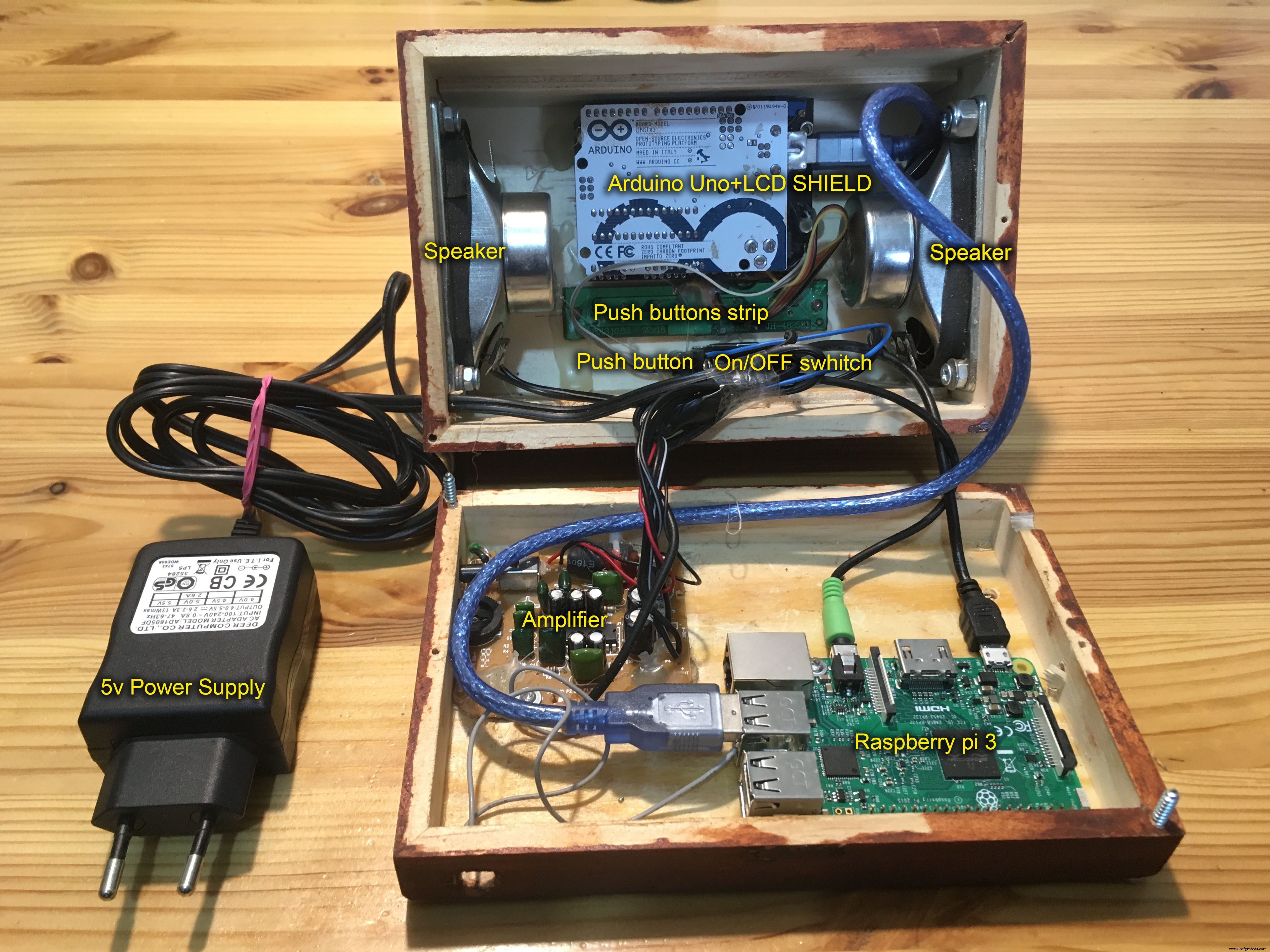
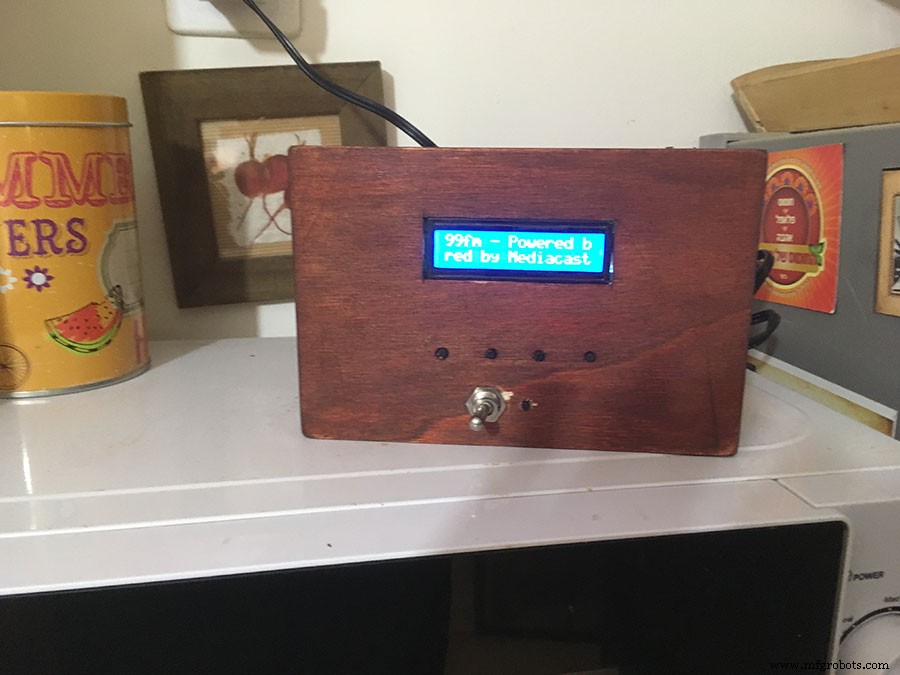
Installation instruction for RP3 (from Arduino / Raspberry Pi Internet Radio by akellyirl in Arduino):
1. Update Raspbian to the latest packages:
$ sudo apt-get update2. Install the mpd/mpc packages:
$ sudo apt-get install mpc mpdWe want to be able to talk to Arduino from Python running on the Pi. To do that, we need to install the nanpy library for Python and the nanpy firmware for Arduino:
1. Install Arduino packages to build the nanpy firmware for Arduino:
$ apt-get install arduino2. Get the nanpy library for Python and extract from /home/pi:
$ wget http://pypi.python.org/packages/source/n/nanpy/nanpy-v0.7.tar.gz $ tar xvf nanpy-v0.7.tar.gz3. Get setuptools for Python (a dependancy for nanpy) and extract:
$ wget http://pypi.python.org/packages/source/s/setuptools/setuptools-0.6c11.tar.gz#md5=7df2a529a074f613b509fb44feefe74e $ tar xvf setuptools-0.6c11.tar.gz4. Get pyserial for Python (a dependancy for nanpy) and extract:
$ wget http://pypi.python.org/packages/source/p/pyserial/pyserial-2.6.tar.gz $ tar xvf pyserial-2.6.tar.gz5. Go to the setuptools directory and install Python setuptools:
$ cd setuptools-0.6c11 $ sudo python setup.py install6. Go to the nanpy directory and install the Python nanpy library:
$ cd ../nanpy $ sudo python setup.py install7. Go to the serial directory and install the Python serial library:
$ cd ../pyserial-2.6 $ sudo python setup.py installNow we've got the files we need, let's put the nanpy firmware on the Arduino.
Firmwarenanpy allows a Python program running on the Raspberry Pi to operate the Arduino using conventional Arduino-Sketch syntax, e.g. the Python program to read an analogue input from Arduino might read:
int val = Arduino.analogRead(14)Nanpy has two components:
- A library for Python that allows Arduino commands to be written in a familiar syntax and communicate with Arduino;
- Firmware that runs on Arduino, communicating with Python on the Pi.
We installed the Python part of nanpy and downloaded the Arduino part of nanpy on the Pi in the last step. Now we need to upload the nanpy firmware to Arduino.
Plug Arduino into the USB of the Raspberry Pi.
1. Go to the nanpy firmware directory and upload to Arduino:
$ cd ../nanpy/firmware $ export BOARD=uno $ make $ make uploadIf you get a report that the device is not found on /dev/ttyACM0, plug the Arduino into the other USB port.
I created a playlist script and a Python script (published in the code tab) and made the Python script auto-run on the Raspberry boot. I also added another push button to show some menu options like showing the IP or choosing the audio output.
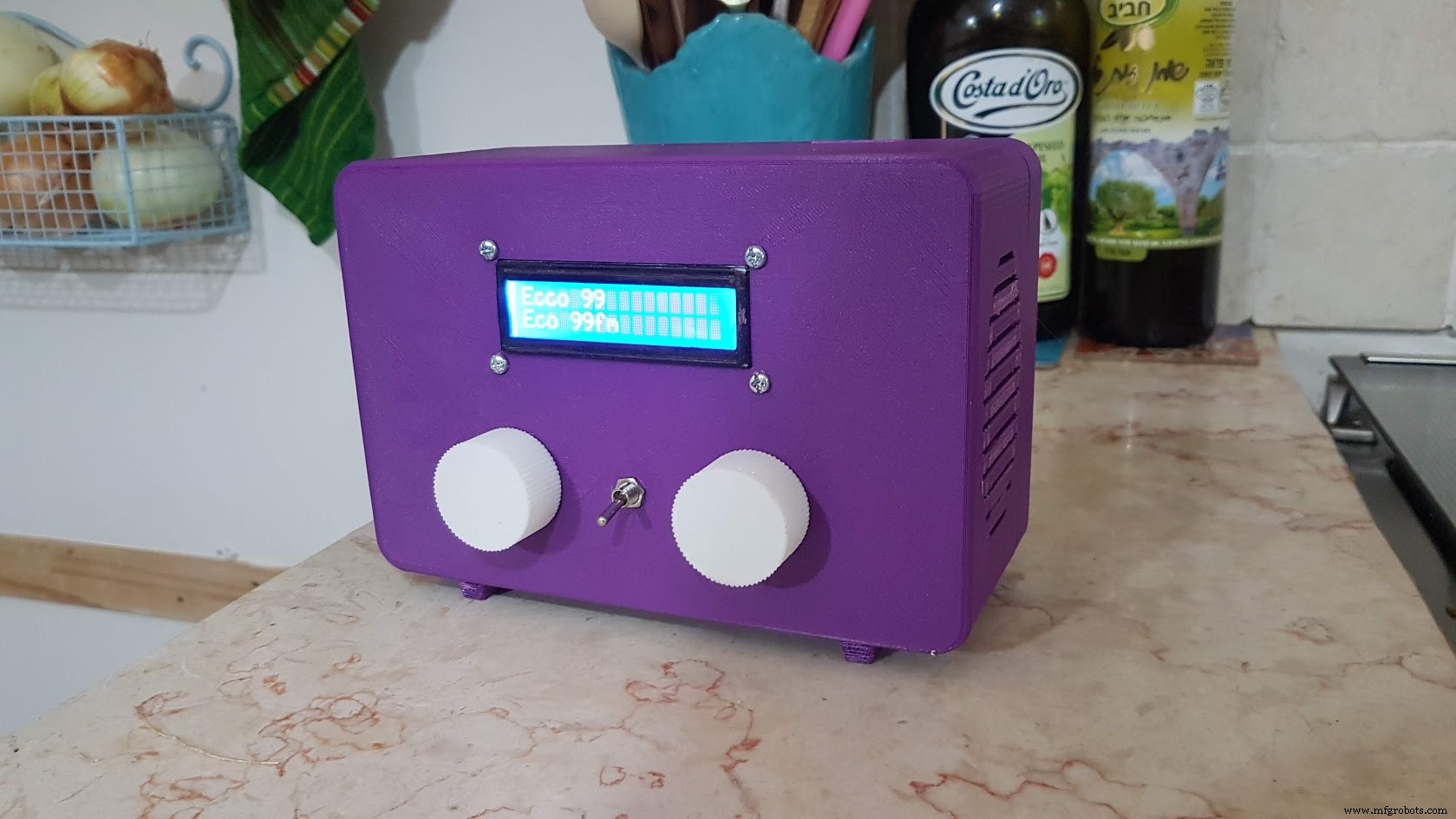
last update: i remade it: , added rotary encoders for dialing and volume it and 3d printed the case:
Code
- piradio
- radio_plylist.sh
piradioPython
I am not a python programmer (this is mostly copy/past from bits i found in google.so far it works:)
This script should load on startup in the pi, i added to a crontab task
from datetime              import datetime
from subprocess            import *
from time                  import sleep, strftime
from Queue                 import Queue
from threading             import Thread
import os
from nanpy import Arduino, Lcd
import socket
Arduino.pinMode(14, input)

lcd = Lcd([8,9,4,5,6,7],[16,2])            # Setup the LCD pins for the Sainsmart Shield
lcd.printString("Ruben's  RadioZ",0,0)
lcd.printString("Loading" + "."*3,0,1)
sleep(5)
max_trax = 10
x = 1
loop_menu = 1
loop_radio = 1
stations=[]

#added to show the station name when push button pressed

stations.append("Ecco 99         ")
stations.append("Galgalaz        ")
stations.append("Galaz           ")
stations.append("88 FM           ")
stations.append("Gimel           ")
stations.append("Radios 100fm    ")
stations.append("Kol Hamusica    ")
stations.append("WQXR New York   ")
stations.append("WPR Winsconsin  ")
stations.append("BBC world servic")
stations.append("LINN jazz")
stations.append("LINN classical")
#............


def get_local_ip_address(target):
  ipaddr = ''
  try:
    s = socket.socket(socket.AF_INET, socket.SOCK_DGRAM)
    s.connect((target, 8000))
    ipaddr = s.getsockname()[0]
    s.close()
  except:
    pass

  return ipaddr
print "Raspberry Pi - Local IP Address"
print(get_local_ip_address('10.0.1.1'))
print(get_local_ip_address('google.com'))

#show the ip address

def display_ipaddr():
   show_wlan0 = "ip addr show wlan0 | cut -d/ -f1 | awk '/inet/ {printf \"w%15.15s\", $2}'"
   show_eth0  = "ip addr show eth0  | cut -d/ -f1 | awk '/inet/ {printf \"e%15.15s\", $2}'"
   ipaddr = ''
   #ipaddr = run_cmd(show_eth0)
   ipaddr =get_local_ip_address('10.0.1.1')
   #if ipaddr == "":
    #  ipaddr = run_cmd(show_wlan0)
   lcd.printString('IP Address:',0,0)
   lcd.printString(ipaddr,0,1)
   sleep(2)

#menu in the fifth pushbutton

def displaymenu():
    if x==1:
        lcd.printString("1. Display      ",0,0)
        lcd.printString("   IP Address   ",0,1)
    elif x==2:
        lcd.printString("2. Audio Output ",0,0)
        lcd.printString("   to hdmi Port ",0,1)
    elif x==3:
        lcd.printString("3. Audio Output ",0,0)
        lcd.printString("  to Analog port",0,1)
    elif x==4:
        lcd.printString("4. Audio Output ",0,0)
        lcd.printString("  Auto Sel. Port",0,1)
    elif x==5:
        lcd.printString("5. Reload the   ",0,0)
        lcd.printString("   Playlist     ",0,1)
    elif x==6:
        lcd.printString("6. ShutDown     ",0,0)
        lcd.printString("   the System   ",0,1)
    else:
        lcd.printString("7. Exit to      ",0,0)
        lcd.printString("   Main Menu    ",0,1)

def load_playlist():
   output = run_cmd("mpc clear")
   output = run_cmd("/home/pi/radio/radio_playlist.sh")

def run_cmd(cmd):
   p = Popen(cmd, shell=True, stdout=PIPE, stderr=STDOUT)
   output = p.communicate()[0]
   return output

def getKey():
   val = Arduino.analogRead(14)
   if val == 1023:
      return "NONE"
   elif val < 100:
      return "RIGHT"
   elif val < 150:
      return "UP"
   elif val < 330:
      return "DOWN"
   elif val < 510:
      return "LEFT"
   elif val < 750:
      return "SEL"
   else:
      return "KBD_FAULT"

load_playlist()
def getTrack():
   L= [S.strip('\n') for S in os.popen('mpc').readlines()]        # Get the Track info from the stdout of the mpc command
   output = run_cmd("mpc current")
   station = output [0:16]                                           # Pick out the Station and Track info
   track =  output [-17:-1]
   lcd.printString(station + " "*(16 - len(station)), 0, 0)
   lcd.printString(track + " "*(16 - len(track)), 0, 1)

track_num = 1                                      # Start off on Track number 1
os.system("sudo service mpd restart")
os.system("mpc play "+str(track_num))                             # Tell the OS to Play it

while loop_radio == 1:
   getTrack()
   loop_menu = 1
   x = 1
   key = getKey()
   if key == "UP":
      track_num += 1
      if track_num > max_trax:
         track_num = 1
      lcd.printString(stations[track_num-1],0,0)
      os.system("sudo service mpd restart")
      os.system("mpc play " + str(track_num))

      getTrack()
   elif key == "DOWN":
      track_num -= 1
      if track_num < 1:
         track_num = max_trax
      lcd.printString(stations[track_num-1],0,0)
      os.system("sudo service mpd restart")
      os.system("mpc play " + str(track_num))
      getTrack()
   elif key == "LEFT":
                  os.system("mpc volume +10")
                  lcd.printString(16*" ", 0, 0)
                  lcd.printString(16*" ", 0, 1)
                  output = run_cmd("mpc volume")
                  lcd.printString("VOLUME UP:", 0, 0)
                  lcd.printString(output, 5, 1)
                  sleep(.25)
                  lcd.printString(16*" ",0,0)
                  lcd.printString(16*" ",0,1)
   elif key == "RIGHT":
                  os.system("mpc volume -10")
                  lcd.printString(16*" ",0,0)
                  lcd.printString(16*" ", 0,1)
                  output = run_cmd("mpc volume")
                  lcd.printString("VOLUME DOWN:", 0, 0)
                  lcd.printString(output, 5, 1)
                  sleep(.25)
                  lcd.printString(16*" ",0,0)
                  lcd.printString(16*" ",0,1)
   elif key == "SEL":
      while loop_menu == 1:
           displaymenu()
           key = getKey()
           if key == "RIGHT":
                  os.system("mpc volume +10")
                  lcd.printString(16*" ", 0, 0)
                  lcd.printString(16*" ", 0, 1)
                  output = run_cmd("mpc volume")
                  lcd.printString("VOLUME UP:", 0, 0)
                  lcd.printString(output, 5, 1)
                  sleep(.25)
                  lcd.printString(16*" ",0,0)
                  lcd.printString(16*" ",0,1)
           elif key == "LEFT":
                  os.system("mpc volume -10")
                  lcd.printString(16*" ",0,0)
                  lcd.printString(16*" ", 0,1)
                  output = run_cmd("mpc volume")
                  lcd.printString("VOLUME DOWN:", 0, 0)
                  lcd.printString(output, 5, 1)
                  sleep(.25)
                  lcd.printString(16*" ",0,0)
                  lcd.printString(16*" ",0,1)
           elif key == "UP":
                 if x <= 1:
                     x = 7
                 else:
                    x = x - 1
           elif key == "DOWN":
                 if x >= 7:
                      x = 1
                 else:
                     x = x + 1
           elif key == "SEL":
                 if x == 1:
                    display_ipaddr()
                    #get_local_ip_address()
                    sleep(1)
                 elif x == 2:
                    output = run_cmd("amixer -q cset numid=3 2")
                    lcd.printString("Audio OUT-->HDMI", 0, 0)
                    lcd.printString("output ", 0, 1)
                    sleep(.5)
                 elif x == 3:
                    output = run_cmd("amixer -q cset numid=3 1")
                    lcd.printString("Audio OUT->Analog", 0, 0)
                    lcd.printString("output ", 0, 1)
                    sleep(.5)
                 elif x == 4:
                    output = run_cmd("amixer -q cset numid=3 0")
                    lcd.printString("Audio OUT->  Auto", 0, 0)
                    lcd.printString("output ", 0, 1)
                    sleep(.5)
                 elif x == 5:
                    load_playlist()
                    os.system('mpc play 1')
                 elif x == 6:
                    lcd.printString("Good Bye         ", 0, 0)
                    lcd.printString("Have a Nice Day  ", 0, 1)
                    output = run_cmd("mpc stop")
                    # = run_cmd("sudo shutdown now")
                    quit()
                 elif x == 7:
                     loop_menu = 0
                     getTrack()
                 break
           elif key == "RIGHT":
                  os.system("mpc volume +2")
                  lcd.printString(16*" ",0,0)
                  lcd.printString(16*" ", 0,1)
                  output = run_cmd("mpc volume")
                  lcd.printString("VOLUME UP:", 0, 0)
                  lcd.printString(output, 5, 1)
                  sleep(.25)
                  lcd.printString(16*" ",0,0)
                  lcd.printString(16*" ",0,1)
           elif key == "LEFT":
                  os.system("mpc volume -2")
                  lcd.printString(16*" ", 0, 0)
                  lcd.printString(16*" ", 0, 1)
                  output = run_cmd("mpc volume")
                  lcd.printString("VOLUME DOWN:", 0, 0)
                  lcd.printString(output, 5, 1)
                  sleep(.25)
                  lcd.printString(16*" ",0,0)
                  lcd.printString(16*" ",0,1)
radio_plylist.shSH
this is my playlist with israeli stations#! /bin/sh mpc clear 1>/dev/null #1 ecco99 mpc add http://99.livecdn.biz/99fm_aac #2 galgalaz mpc add http://glglzwizzlv.bynetcdn.com/glglz_mp3 #3 galaz mpc add http://glzwizzlv.bynetcdn.com/glz_mp3 #4 88 fm mpc add http://ibala.vidnt.com:8000/iba_radio-88fmM #5 gimel mpc add http://ibala.vidnt.com:8000/iba_radio-gimelM #6 radios 100 fm mpc add http://100fm.streamgates.net/Radios100Fm #7 kol hamusica mpc add http://ibala.vidnt.com:8000/iba_radio-kolmusicaM #8 wqxr mpc add http://stream.wqxr.org/wqxr #9 npr current mpc add http://current.stream.publicradio.org/kcmp.mp3 #10 bbc mpc add http://bbcwssc.ic.llnwd.net/stream/bbcwssc_mp1_ws-eieuk #11 linn jazz mpc add http://radio.linnrecords.com:8003/autodj #12 linn classical mpc add http://radio.linnrecords.com:8004/autodj
Schematics
Manufacturing process
- Build a Bluetooth‑Controlled Raspberry Pi Robot with Audio Feedback
- Build an Internet‑Controlled Video‑Streaming Robot with Arduino & Raspberry Pi
- Control LEDs with Alexa via Raspberry Pi – Easy Step‑by‑Step Guide
- Build a Compact FM Radio with Arduino Nano and RDA8057M
- Build a Powerful FM Radio Receiver with Arduino and TEA5767 Module
- DIY All‑Band Arduino Radio with Si4730 (LW, MW, SW, FM) – Low‑Cost, Step‑by‑Step Build
- Build a Raspberry Pi 3 & Arduino Laptop: Step‑by‑Step Guide
- Smart Automated Garden System with Arduino UNO and Raspberry Pi
- Build Stunning Web-Driven LED Animations with Raspberry Pi & Arduino
- Mini Vintage Internet Radio – Compact Retro‑Style Streaming Device