



Smart Automated Garden System with Arduino UNO and Raspberry Pi
Components and supplies
 |
| × | 1 | |||
 |
| × | 1 | |||
 |
| × | 1 | |||
 |
| × | 1 | |||
| × | 1 | ||||
 |
| × | 1 | |||
 |
| × | 1 | |||
| × | 1 | ||||
| × | 1 | ||||
 |
| × | 1 | |||
| × | 1 |
Apps and online services
 |
| |||
 |
| |||
| ||||
| ||||
 |
|
About this project
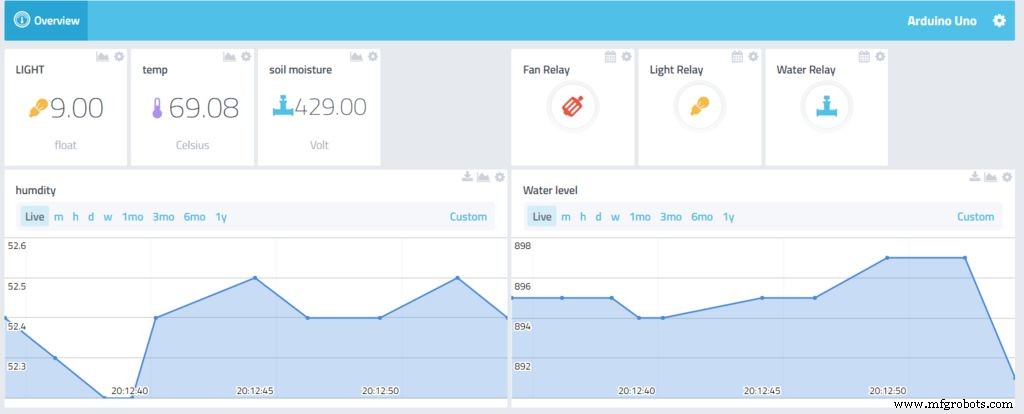
This is the second project using my automated garden, but this time everything will be controlled by Cayenne so it will be a lot easier. Also I added a Raspberry Pi in order to do a time-lapse video.
Setting up the Arduino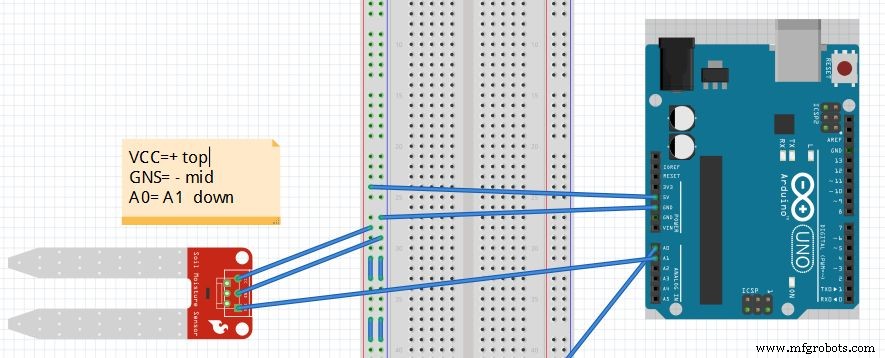
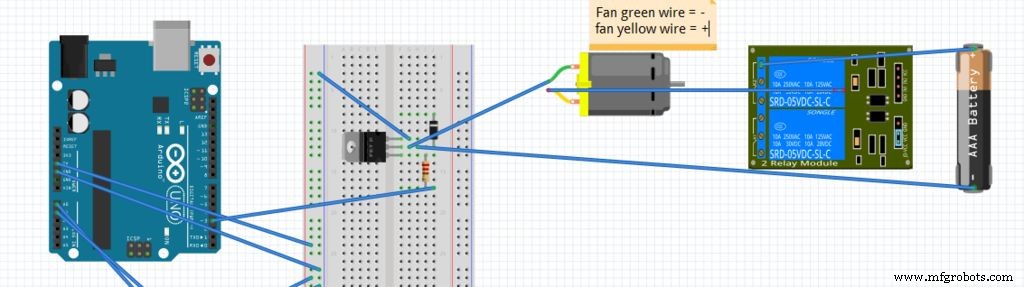
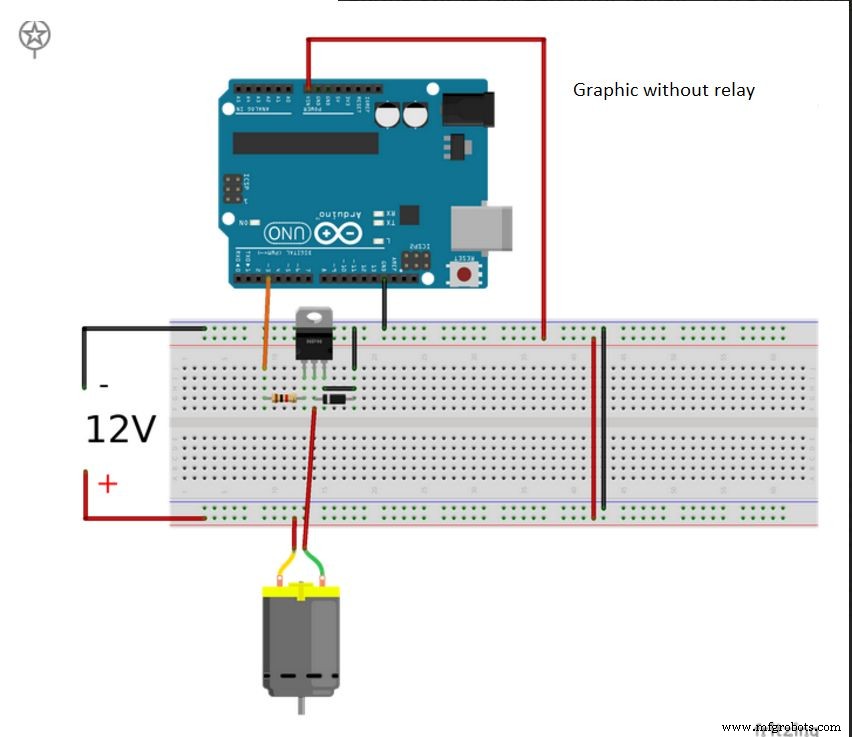
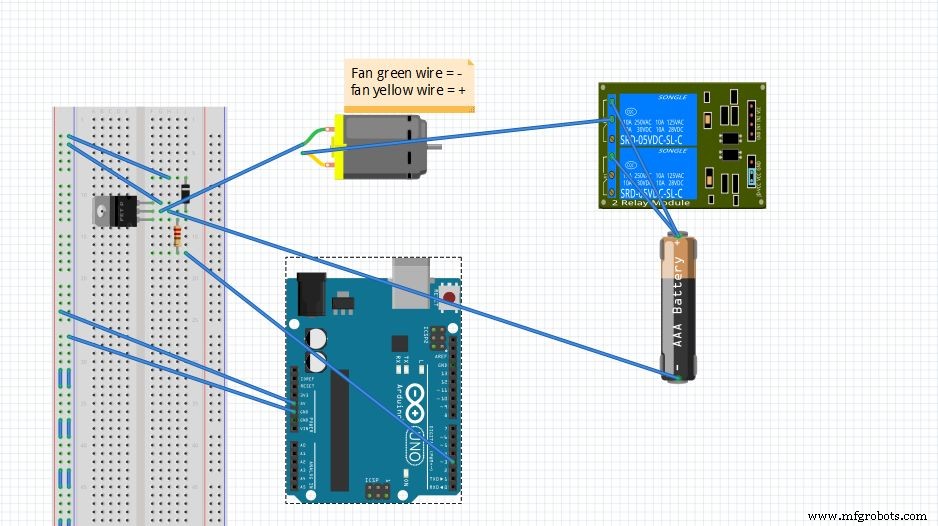
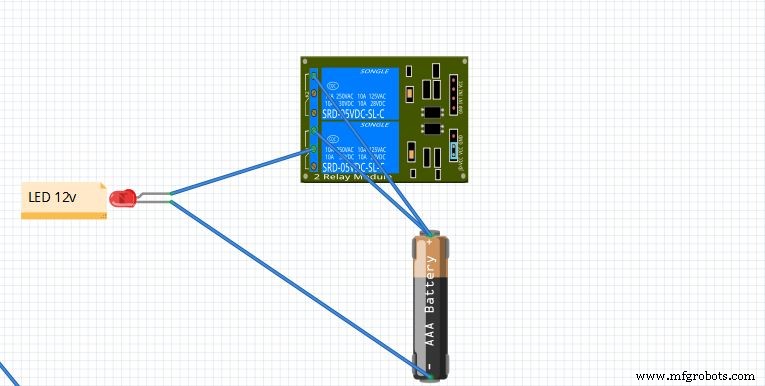
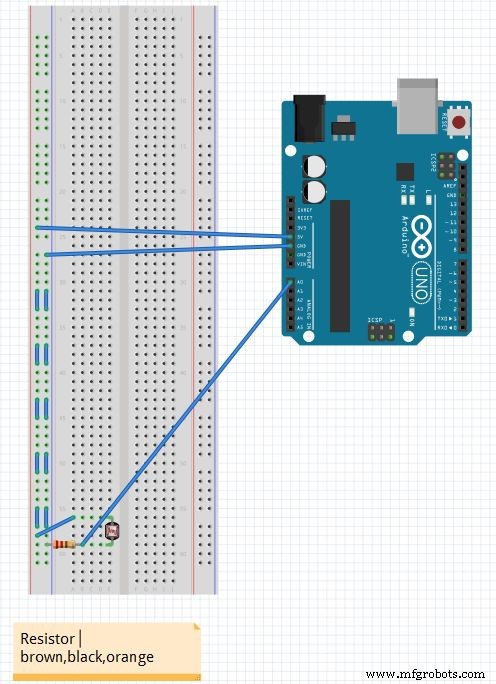
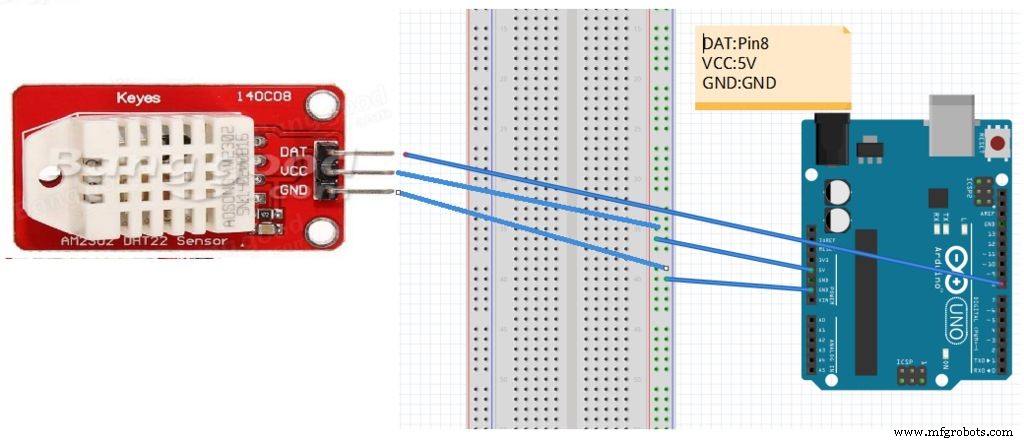
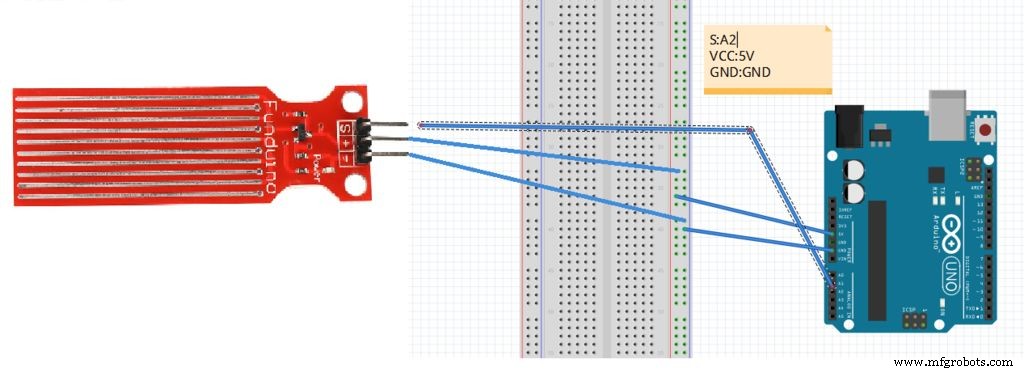
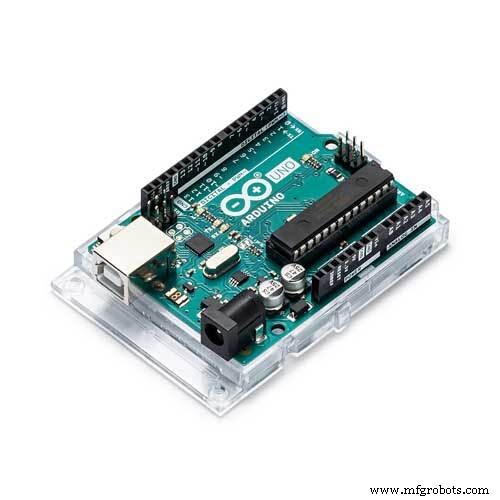
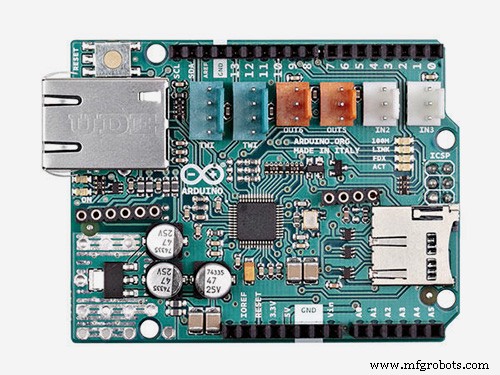
In order to monitor our garden I used a few devices which can be helpful. Before starting, remember to connect the Ethernet shield to the Arduino.
ConnectionsSoil moisture: To check if the plants need water.
- VCC: 5v
- GND:GND
- A0: A1
The Fan: If it's get to hot it will activate or just to give some fresh air.
- One wire goes from the resistor to pin 3-The GND of the fan goes on the middle pin of the transistor.
- The + of the fan goes to the relay (middle pin) The last pin of the transistor goes to GND.
- The diode goes to the middle pin of the transistor and to the GND.
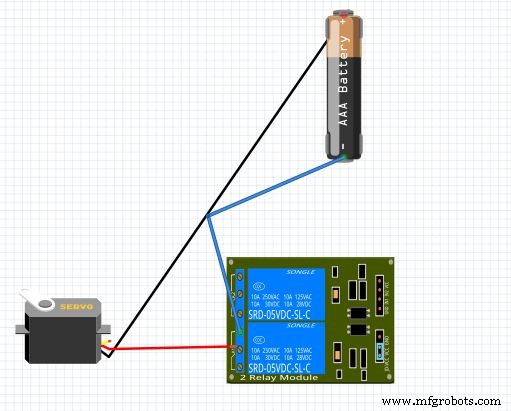
The water pump: It will activate with the soil moisture.
- The + goes to middle on the relay and GND to GND of the power source.
Photoresistor (optional): This part will allow us to measure if there is enough light in the room.
- One part is connected to A0 with the resistor connected to the ground.
- The other one to the 5V.
- The anode (+) goes to the relay. The other to the GND of the power supply.
Light:
- The anode (+) goes to the relay. The other to the GND of the power supply.
Humidity /temperature sensor: Some code is required for this device in order to work properly with Cayenne.
- VCC: 3.3V
- GND:GND
- DAT: digital pin 8
Water level sensor:
- VCC:5V
- GND:GND
- SIG:A2
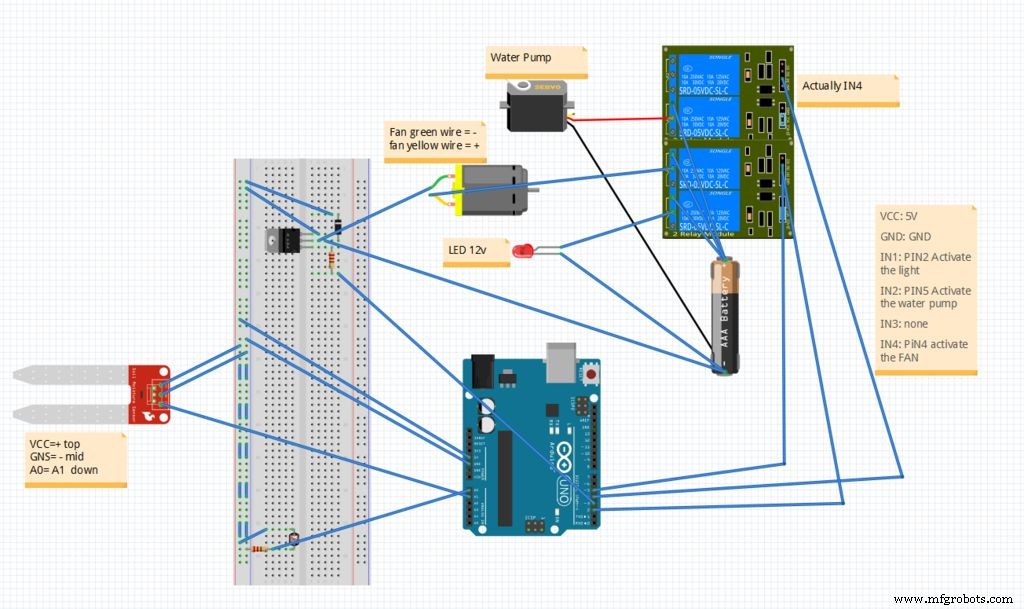
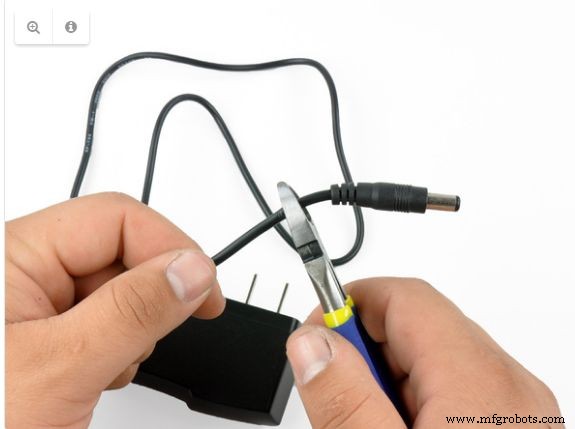
I used 2 relay in the graphic because Fritzing does not have a 4-channel relay yet. For the relay I used only one 12v power supply. I separated the positive and negative wires, and then soldered 3 wire from the positive and connect each part on the relay. One is enough as everything does not turn on at the same time.
I used a 5V power supply for the Arduino RELAY:
- VCC: 5V
- GND: GND
- IN1: PIN2 Activate the light
- IN2: PIN5 Activate the water pump
- IN3: none IN4
- PiN4: activate the FAN
Here we gonna see how to configure Cayenne which is very easy.
- First create an account Here.
- Then you should have your Ethernet shield with Rj45 cable connected.
- Here is the code to connect to Cayenne and also to configure the hum/temp sensor.
This code work for the w5100 shield the code is available on cayenne for other Ethernet/WiFi shield. Also don't forget to add your token you get it after creating your account.
#include "DHT.h"//#define CAYENNE_DEBUG         // Uncomment to show debug messages
#define CAYENNE_PRINT Serial  // Comment this out to disable prints and save space
#include </p><p>#define DHTPIN 8     // what digital pin we're connected to
#define DHTTYPE DHT22   // DHT 22  (AM2302), AM2321</p><p>#define VIRT_TEMP V1
#define VIRT_HUM V2</p><p>// Cayenne authentication token. This should be obtained from the Cayenne Dashboard.
char token[] = "your toker";</p><p>DHT dht(DHTPIN, DHTTYPE);
unsigned long prev_DHT_refresh, interval_DHT_refresh = 1000;</p><p>void setup()
{
  Serial.begin(9600);
  Cayenne.begin(token);</p><p>  dht.begin();
}void loop()
{
  Cayenne.run();</p><p>  getDhtValues();</p><p>}</p><p>void getDhtValues() {
    unsigned long now = millis();

  if (now - prev_DHT_refresh > interval_DHT_refresh) {
    // Reading temperature or humidity takes about 250 milliseconds!
    // Sensor readings may also be up to 2 seconds 'old' (its a very slow sensor)
    float h = dht.readHumidity();
    // Read temperature as Celsius (the default)
    float t = dht.readTemperature();   // Check if any reads failed
    if (!isnan(h) && !isnan(t)) {
      Cayenne.virtualWrite(VIRT_HUM, h);
      Cayenne.celsiusWrite(VIRT_TEMP, t);
    }
    prev_DHT_refresh = now;
  }
}
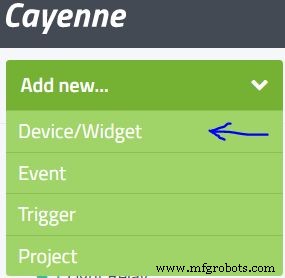
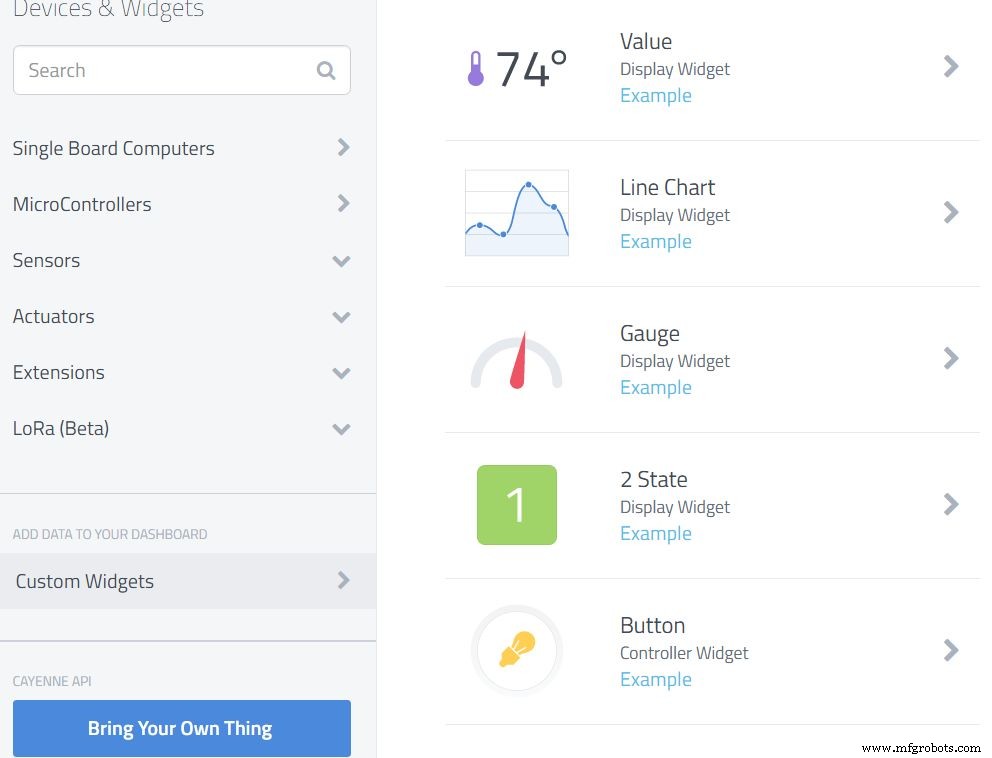
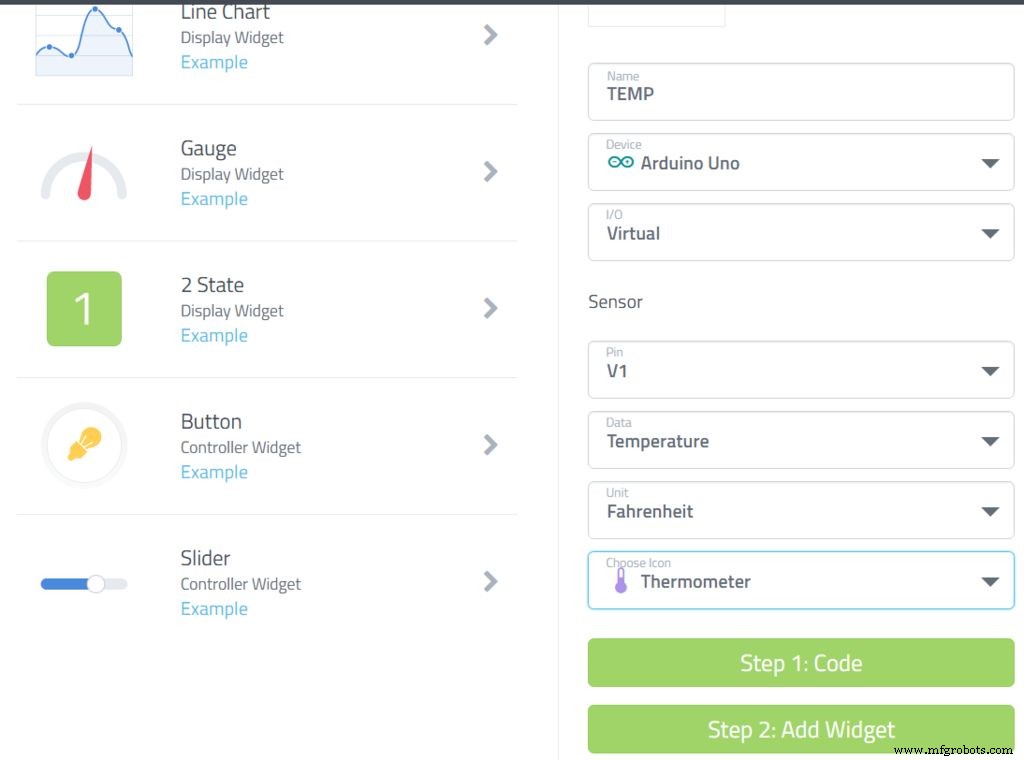
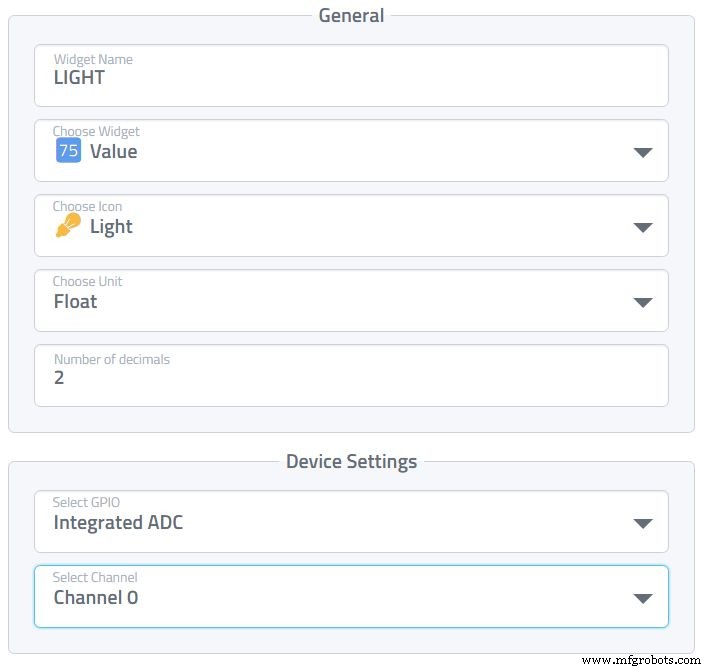
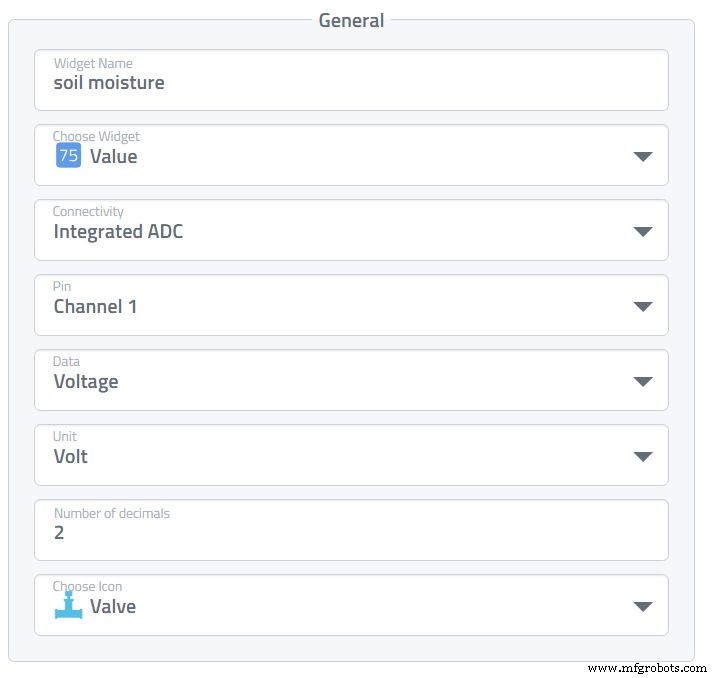
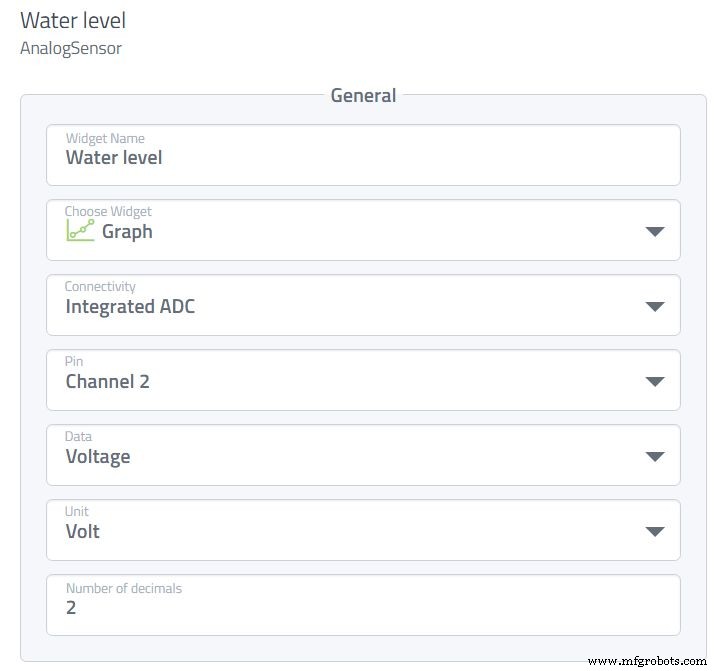
We are almost done with the Arduino. Now it's the easy part. We are going to add all the devices on Cayenne.
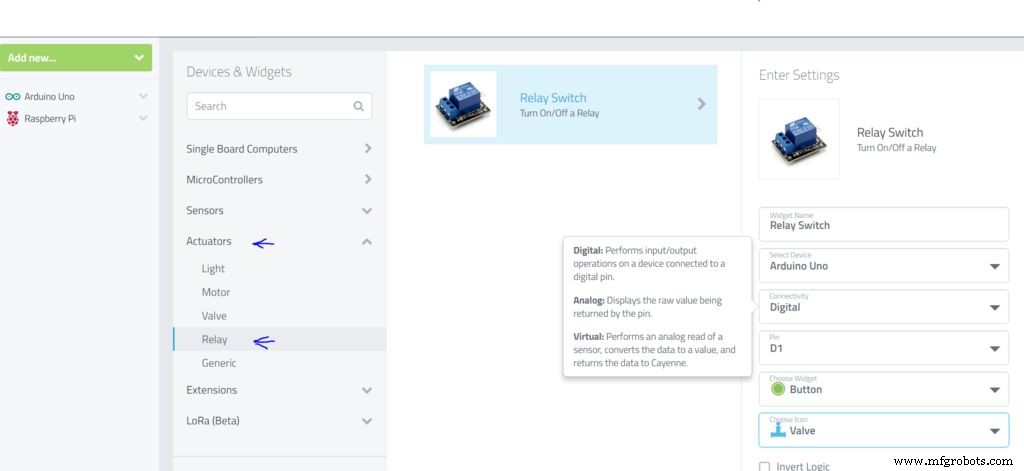
Add device -> Custom widgetSelect the kind of widget you like. I used chart for humidity and water level otherwise I used value. For the humidity and temperature sensor we use a virtual pin:
- Temp: Vpin1
- Humidity: VPin2
For the other device instead of choosing virtual pin take Analog with the pin link to it. Same procedure but this time in actuators then select the pin of the Arduino connected to the relay for the light/fan/water pump.
Event and trigger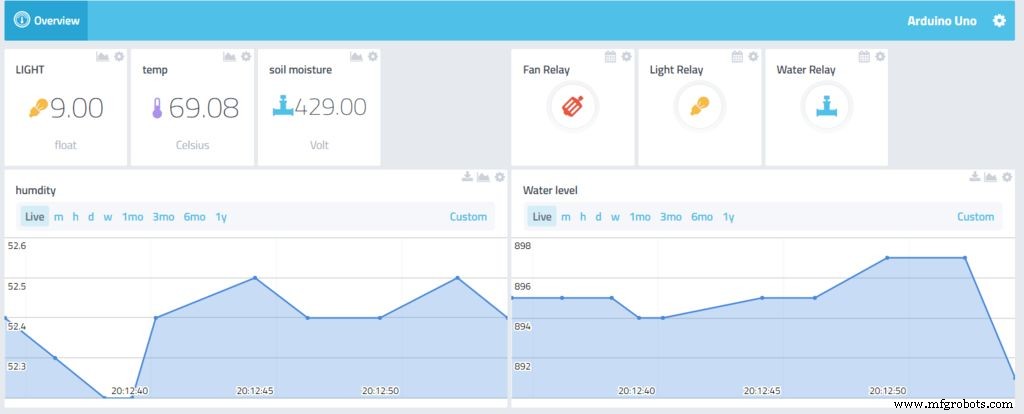
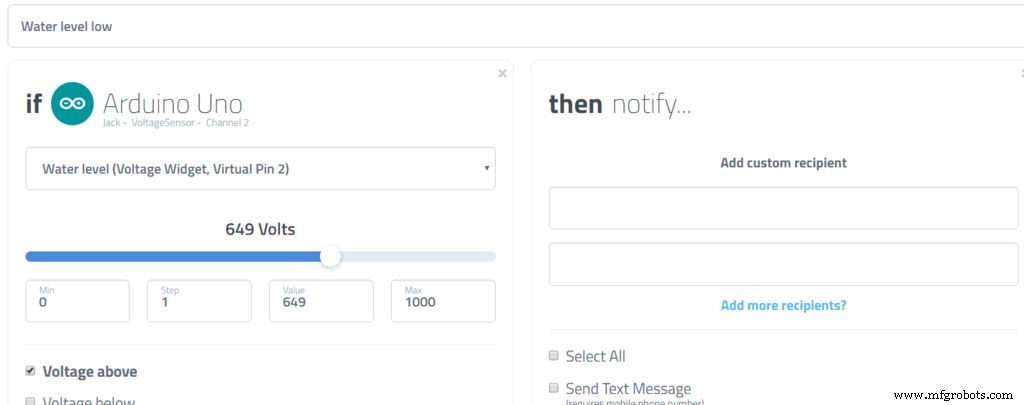
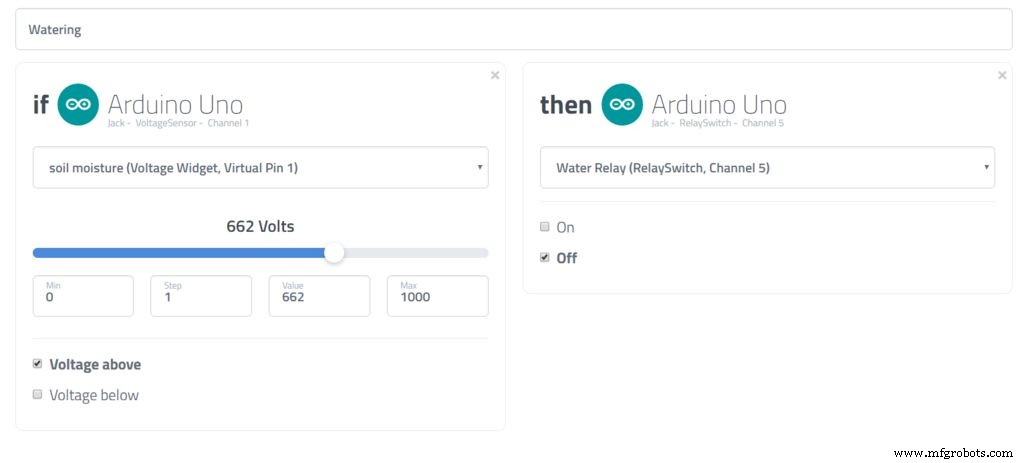
Now that we have the dashboard we are going to setup the Triggers:
- Water pump: This will turn on the pump when the soil moisture detected is too dry. Notice I used 2 triggers: one to start the water pump and to one to stop it.
- Water level: When the value is high means water is missing. Here we will receive an email to alert us.
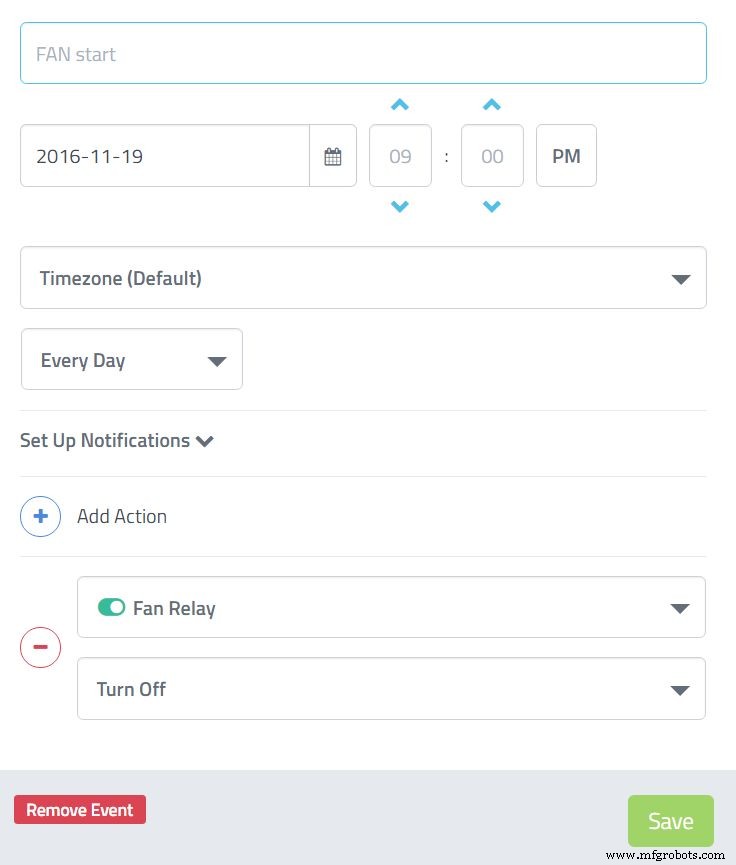
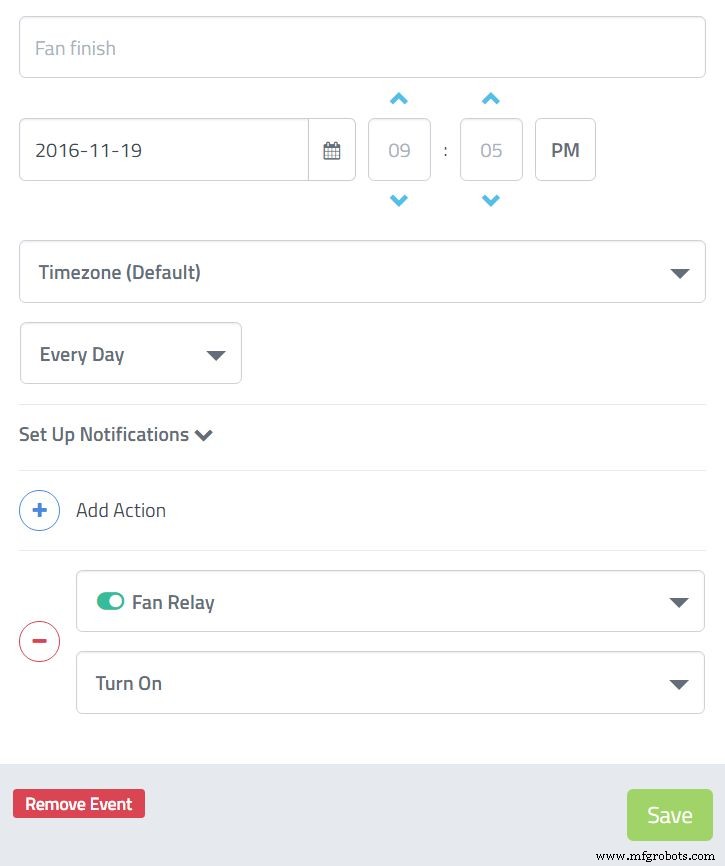
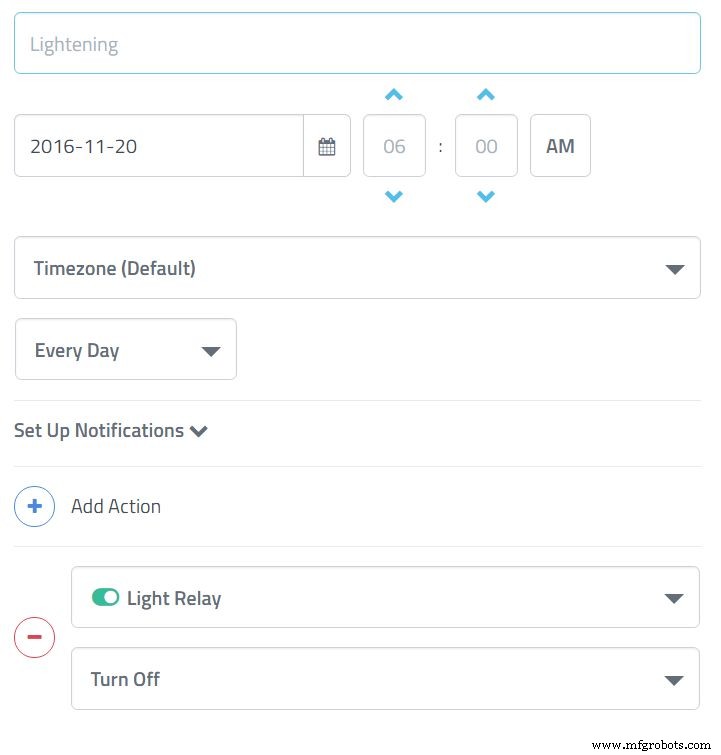
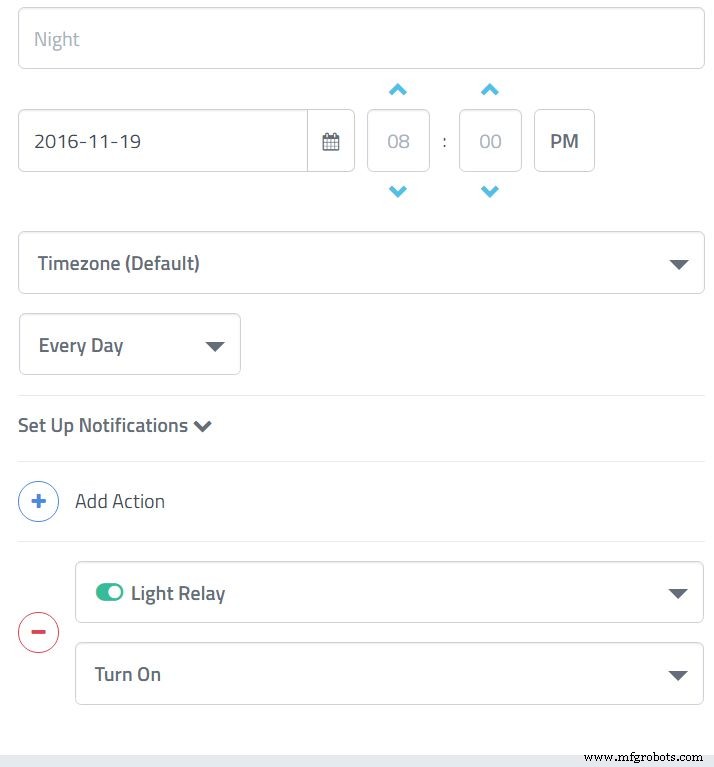
- Events: I set up 4 events, one to start the light in the morning, and one to stop it in the evening, and 2 for the fan on/off.
Let's do a time lapse of the plant growing.
3 Software:
- Raspbian
- Win32diskimager to burn the image on the SD card
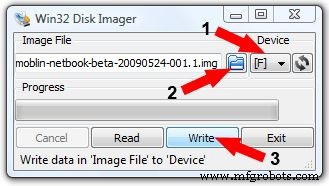
- Putty to connect in remote to the Raspberry WIn32 disk imager:
After downloading, install it. Open it:
1. You will see "device". In general the default is good (if you only have the SD card connected)
2. Click on the blue icon folder and select the Raspbian Jessie image you have downloaded
3. Click write and it's done. You can now insert the card to the Raspberry.
Putty: It allow us to connect via SSH, open Putty (no need to install).
- Connect internet cable to the Raspberry
- You need to find the IP of the Raspberry 2 the easy way:
- Connect to your box interface you will be able to see the device with the IP
- Connect the touchscreen and keyboard go to terminal then
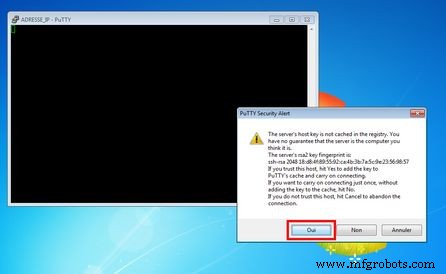
ifconfig.Now in Putty enter the IP address. It will be something like 192.168.0.3 then enter.
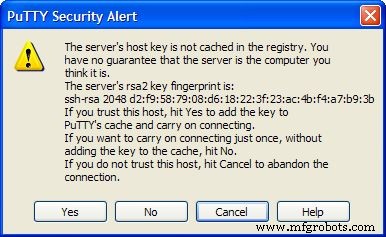
- It will ask to trust, click yes (picture).
- login:
pi, password:raspberry. Leave the windows on the side we will come back here later.
Now that we have the Raspberry running, a few updates are needed, so in Putty copy paste the command:
sudo apt-get update
sudo apt-get upgrade
VNC:
If you don't have a screen to connect your Raspberry install VNC to remote control.
sudo apt-get install tightvncserver
When finished to start the server:
vncserver :1
And downloading vncviewer on your computer, to connect enter IP and number of server. It will look like this 192.168.0.3:1
Cayenne: You can take remote control of your Raspberry with Cayenne, only have to install it:
wget https://cayenne.mydevices.com/dl/rpi_03wl1tt4nt.shsudo bash rpi_03wl1tt4nt.sh -v
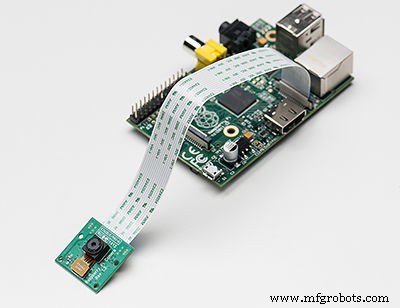
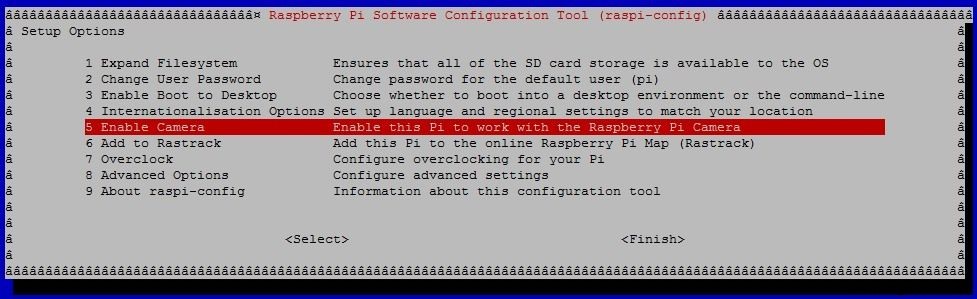
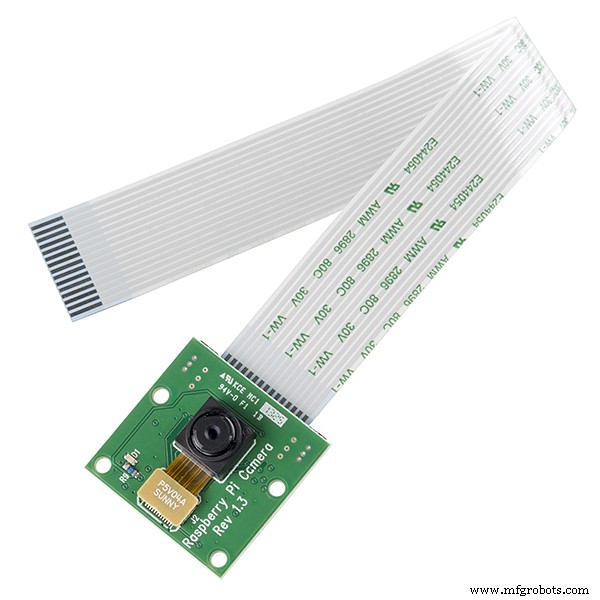
Last step! We can now enable the camera to do so in Putty or in a terminal paste:
sudo raspi-config
Then go to enable camera. We have to create a folder to store the pictures:
cd /home/pi/Desktopmkdir timelapse
After plugging the web cam we are going to create a script to take a picture every hour:
cd /home/pi/Desktop
nano timelapse.sh
Paste this:
SAVEDIR=/home/pi/Desktop/timelapse/
while [ true ];
do filename=-$(date -u +"%d%m%Y_%H%M-%S").jpg
/opt/vc/bin/raspistill -o $SAVEDIR/$filename
sleep 3600;
done;
And to make sure the script is executable:
chmod +x timelapse.sh
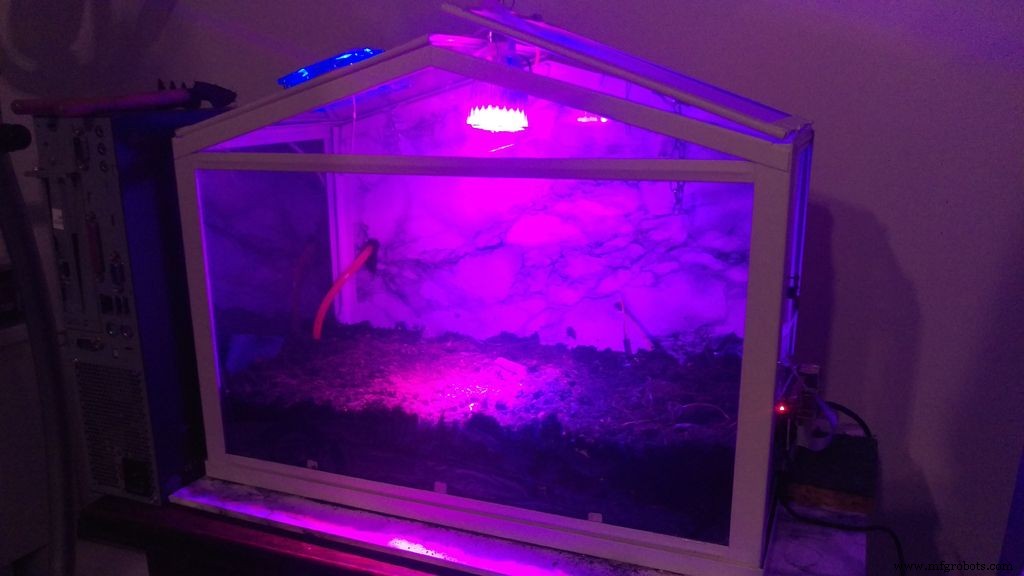
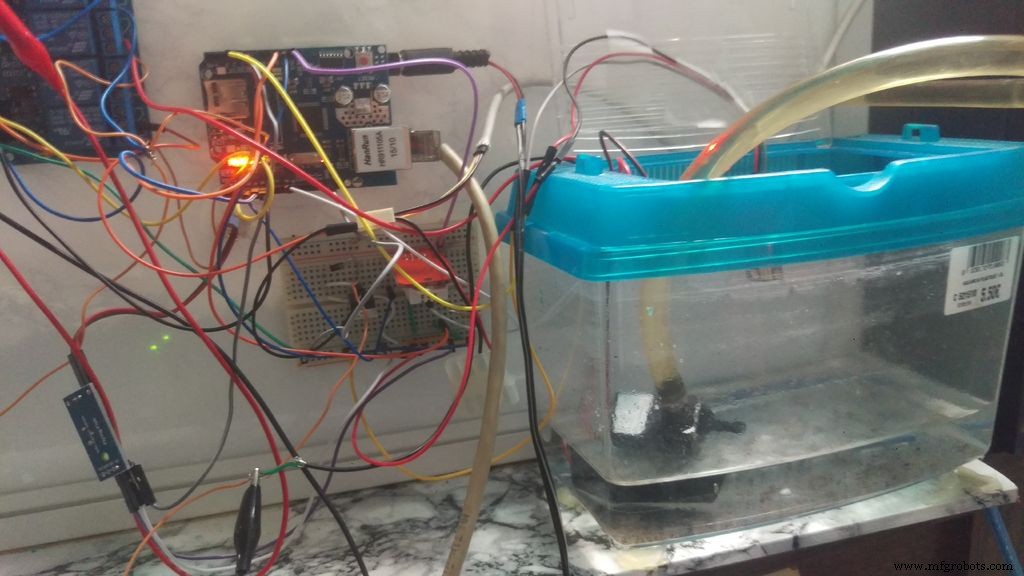
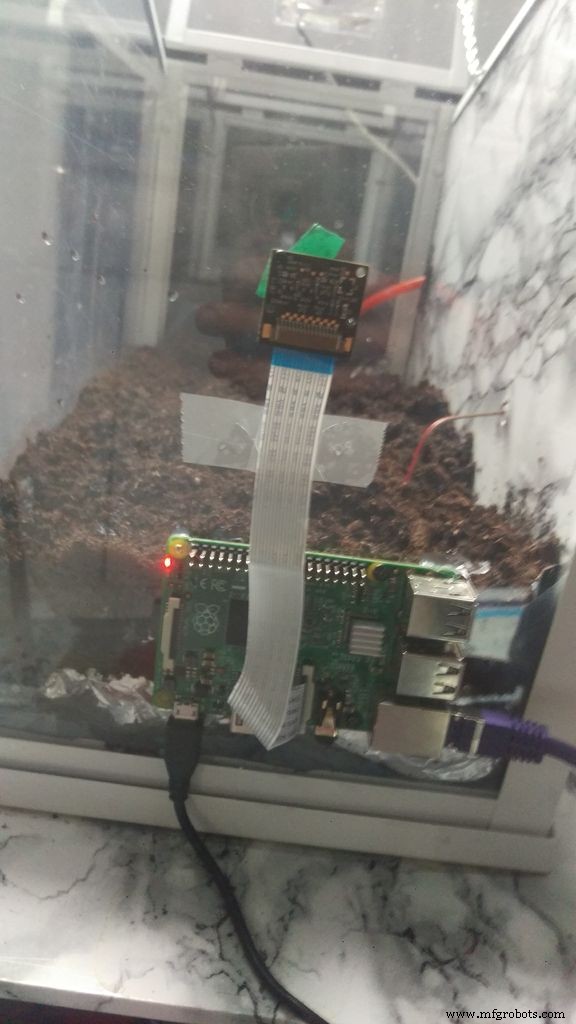
The tutorial was long but very easy, there are just few devices to connect and configure the platform. On the picture is a big mess. I used too long of a wire. I will post the result of my time-lapse when the plants are done growing.
Advice:
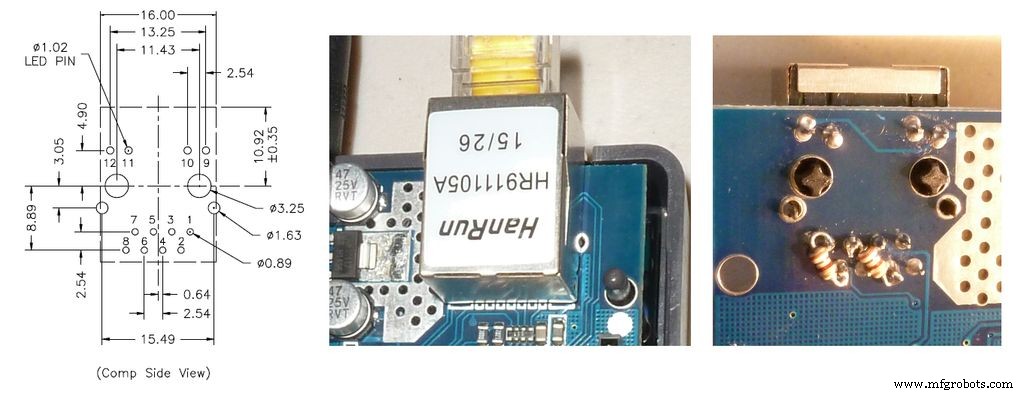
The Ethernet shield can get the error DHCP fail. When trying to connect I found the solution on the Arduino forum: You have to solder two 100ohm resistors in random places to annoy your readers.
Code
- Code snippet #1
- Code snippet #9
Code snippet #1Arduino
<p>#include "DHT.h"<br>//#define CAYENNE_DEBUG         // Uncomment to show debug messages<br>#define CAYENNE_PRINT Serial  // Comment this out to disable prints and save space
#include </p><p>#define DHTPIN 8     // what digital pin we're connected to
#define DHTTYPE DHT22   // DHT 22  (AM2302), AM2321</p><p>#define VIRT_TEMP V1
#define VIRT_HUM V2</p><p>// Cayenne authentication token. This should be obtained from the Cayenne Dashboard.
char token[] = "your toker";</p><p>DHT dht(DHTPIN, DHTTYPE);
unsigned long prev_DHT_refresh, interval_DHT_refresh = 1000;</p><p>void setup()
{
  Serial.begin(9600);
  Cayenne.begin(token);</p><p>  dht.begin();
}</p><p>void loop()
{
  Cayenne.run();</p><p>  getDhtValues();</p><p>}</p><p>void getDhtValues() {
    unsigned long now = millis();

  if (now - prev_DHT_refresh > interval_DHT_refresh) {
    // Reading temperature or humidity takes about 250 milliseconds!
    // Sensor readings may also be up to 2 seconds 'old' (its a very slow sensor)
    float h = dht.readHumidity();
    // Read temperature as Celsius (the default)
    float t = dht.readTemperature();</p><p>    // Check if any reads failed
    if (!isnan(h) && !isnan(t)) {
      Cayenne.virtualWrite(VIRT_HUM, h);
      Cayenne.celsiusWrite(VIRT_TEMP, t);
    }
    prev_DHT_refresh = now;
  }
}</p>
Code snippet #9SH
SAVEDIR=/home/pi/Desktop/timelapse/

while [ true ];

do filename=-$(date -u +"%d%m%Y_%H%M-%S").jpg
/opt/vc/bin/raspistill -o $SAVEDIR/$filename
sleep 3600;
done;
Manufacturing process
- Build a Bluetooth‑Controlled Raspberry Pi Robot with Audio Feedback
- Build an Automated LEGO Star Wars Shooter with Arduino Uno
- Build a Wi‑Fi Internet Radio with Raspberry Pi and Arduino: Stream Global Stations
- Control LEDs with Alexa via Raspberry Pi – Easy Step‑by‑Step Guide
- SunGlass‑BOT: Smart Sunglasses That Auto‑Adjust to Light
- Build an Arduino-Powered Automated Google Chrome Dino Game
- Arduino-Driven Automated Dehumidifier Sump Pump – DIY System
- Smart Arduino-Powered Automated Parking Garage System
- Build a Raspberry Pi 3 & Arduino Laptop: Step‑by‑Step Guide
- Arduino-Powered Indoor Garden: Smart, Automated Plant Care