



Build an Arduino-Powered Automated Google Chrome Dino Game
Components and supplies
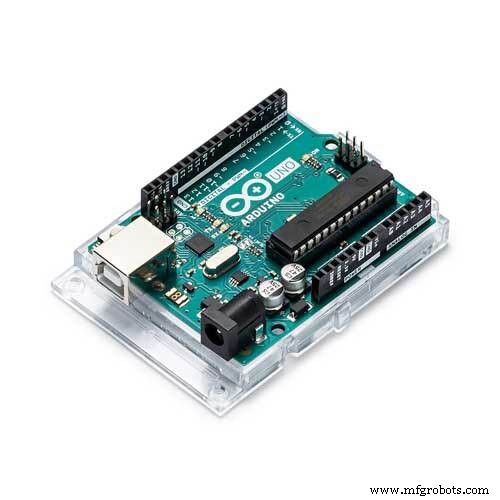 |
| × | 1 | |||
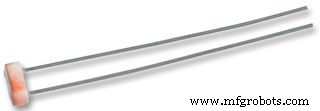 |
| × | 1 |
About this project
Bored AF, During this quarantine time ?🥴

Let’s play google chrome Dino game… ;)

But, what to do if Dino game gets boring too.
Let's automate Dino game😉.
So, We need a Arduino and LDR. Little knowledge in python is also required.
Let’s first setup our Arduino.
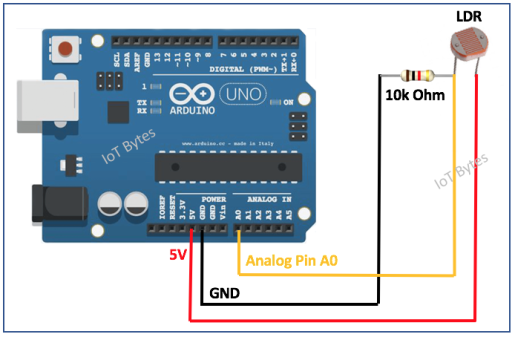
Connect Arduino UNO with LDR. (Don't forget to add Resistor )
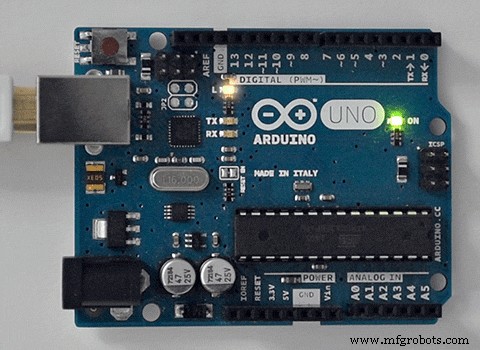
Next, upload code to analog Read LDR value.
// Arduino Dino Game ! :)

int sensorPin = A0;    //Connect LDR on A0
int sensorValue = 0;  // variable to store the value coming from LDR
int thresholdValue = 45; //this one depend on your trial and error method.
void setup() {
  Serial.begin(9600);  //Serial begin on 9600
}

void loop() {
  // read the value from the sensor:
  sensorValue = analogRead(sensorPin); //read sensor data
  //Serial.println(sensorValue);  //uncomment this while first use and take your thresholdValue and set.

  if(sensorValue <= thresholdValue){   //if condition to detect obstacle.
    Serial.println(1);                 //Serial printing if condition is true.
  }
  delay(40);                         //delay 50ms
}
Fix your LDR on the monitor then read analogValues when an obstacle is present. set that value as thresholdValue and update your if condition. Yesssss !!!!! ✌️ Now Arduino part is over.
You can add a servo motor to press ‘Space bar’ to make Dino jump. But this is quarantine time. So, I don't have any way to get servo motor. So, here I'm used python code to do this task.
So, let’s code in python ;)

Copy and paste python code, make appropriate changes.
In code we are using pyserial module to read serial data. Then for pressing up button using PyAutoGUI module.
import subprocess
import time
import pyautogui
import serial
subprocess.call([r'C:\Program Files\Mozilla Firefox\Firefox.exe',
    '-new-tab', 'https://chromedino.com/'])
								#Add google chrome path for chrome users.
								#to open browser and open Dino game.
          						#I'm a firefox user so, i don't have Dino game,
          						#Here i'm using chromedino.com to play game.
time.sleep(6)                 	#give a short time to open and setup all.
print("All sett :)")

ser = serial.Serial('COM4')		#Update with your arduino [port]
ser.baudrate = '9600'			#set baudRate

while True:						# looping.
  h1=ser.readline() 			#reading serial data.
  if h1:
   ss = int(h1.decode('utf-8')) # decode and make a int value
   if ss== 1:					# true while obstacle.
   	print("Oh :< Jump!! ")
   	pyautogui.press('up') 		#Auto press [UP] key
Run your python code and fit your LDR in appropriate place by trial and error method. Yes !!! Automated Dino game is ready.💃 🕺

You can make this next level by using another LDR to detect bird also.
GitHub Repo : https://github.com/rafitc/arduDino
YouTube Video
Code
- Code snippet #1
- Code snippet #2
Code snippet #1Arduino
// Arduino Dino Game ! :)

int sensorPin = A0;    //Connect LDR on A0
int sensorValue = 0;  // variable to store the value coming from LDR
int thresholdValue = 43; //this one depend on your trial and error method.
void setup() {
  Serial.begin(9600);  //Serial begin on 9600
}

void loop() {
  // read the value from the sensor:
  sensorValue = analogRead(sensorPin); //read sensor data
  //Serial.println(sensorValue);  //uncomment this while first use and take your thresholdValue and set.

  if(sensorValue <= thresholdValue){   //if condition to detect obstacle.
    Serial.println(1);                 //Serial printing if condition is true.
  }
  delay(50);                         //delay 50ms
}
Code snippet #2Python
import subprocess
import time
import pyautogui
import serial
subprocess.call([r'C:\Program Files\Mozilla Firefox\Firefox.exe',  #Add google chrome path for chrome users.
    '-new-tab', 'https://chromedino.com/'])  #to open browser and open Dino game.
                               #I'm a firefox user so, i don't have Dino game,
                               #Here i'm using chromedino.com to play game.
time.sleep(6)                 #give a short time to open and setup all.
print("All sett :)")

ser = serial.Serial('COM4')   #Update with your arduino [port]
ser.baudrate = '9600'     #set baudRate

while True:           # looping.
  h1=ser.readline()       #reading serial data.
  if h1:
   ss = int(h1.decode('utf-8')) # decode and make a int value
   if ss== 1:         # true while obstacle.
    print("Oh :< Jump!! ")
    pyautogui.press('up')     #Auto press [UP] key
Github
GitHUb repo link https://github.com/rafitc/arduDinoSchematics
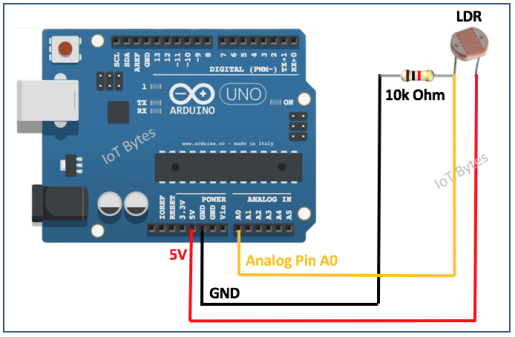
Manufacturing process
- DIY Arduino USB Gaming Controller – Build Your Own High-Performance Gamepad
- Build an Automated LEGO Star Wars Shooter with Arduino Uno
- Pixel Chaser: Interactive One-Tap LED Game with Arduino Nano
- Build a Compact FM Radio with Arduino Nano and RDA8057M
- Arduino-Driven Automated Dehumidifier Sump Pump – DIY System
- DIY LED Roulette Game – Build a One‑Person Arcade with Arduino Nano
- Smart Arduino-Powered Automated Parking Garage System
- Build a Real-Time Face-Tracking System with Arduino & OpenCV
- Smart Automated Garden System with Arduino UNO and Raspberry Pi
- Build an Arduino Tic‑Tac‑Toe Game on a Touchscreen: A Step‑by‑Step Tutorial