Build a Compact Weather Station with Arduino Nano – Easy DIY Guide
Components and supplies
Arduino Nano R3
×
1
DHT 11 module
×
1
BMP-280 PRESSURE SENSOR
×
1
1.44 inch ST7735 LCD Display
×
1
3D PRINTED ENCLOSURE
×
1
USB A to mini USB B cable
×
1
Necessary tools and machines
Soldering iron (generic)
3D Printer (generic)
Soldering Wire
Double sided tape
Apps and online services
Arduino IDE
Autodesk Fusion 360
About this project
Introduction
Capturing physical data in real-time is always fascinating. In this project, you will not only be able to capture three fundamental physical parameters for weather predication viz. temperature, humidity and atmospheric pressure, but will also be able to display the real-time data on a LCD screen.
Description and Working Principle
The two sensors used in this project are BMP-280 and DHT-11. The former senses the temperature and atmospheric pressure whereas the later senses the relative humidity. The DHT-11 could have been done with by using BME-280 (it can measure humidity also) instead of the BMP-280, but if the cost is taken into account then using the combination of sensors used here is much more economical for DIY projects. It should also be noticed that although DHT-11 is capable of sensing both temperature and humidity, it is used for humidity sensing only because its temperature sensing resolution is +/-2° compared to +/-.5° for BMP-280. The heart of this project is the Arduino NANO development board. Here also the NANO board has been chosen over the masspreferred UNO because of its affordable price. A 1.44” ST7735 series TFT LCDscreen is used as the display for our project. A bigger screen has been avoidedhere so that the Arduino NANO is not overloaded.
Circuit and Programming
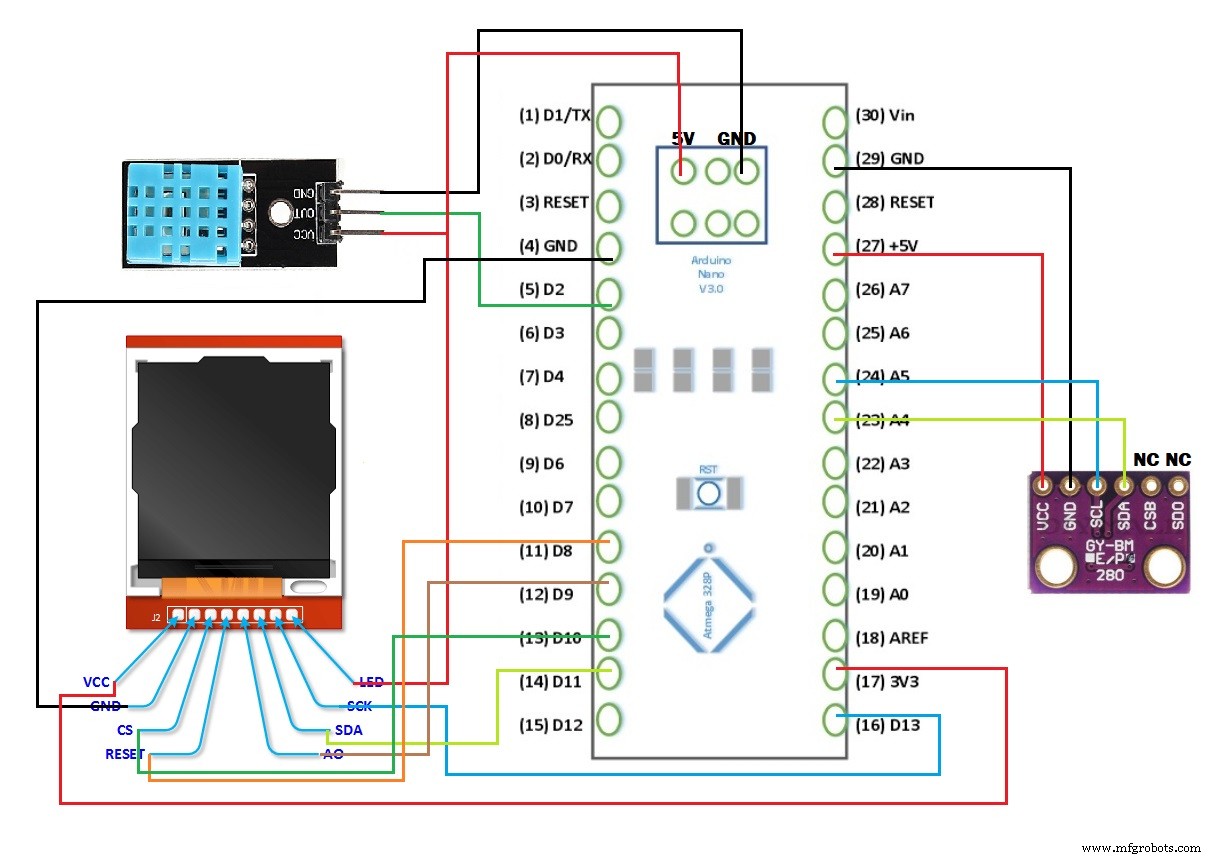
A combination of circuit diagram and block diagram has been provided as conveniently as possible to help the makers understand the physical configuration and connection of the components. Tables for pin-out of the components is also provided to make things easier. Going through the diagram and tables one will notice that the 5V and GND pins of the ICSP header on Arduino NANO has been utilised for supplying power to the components along with the on-board power and ground pins. This has been done to do away with any additional power source which will make the system bulky.
Coming to the programming, in the first part an array of libraries have been included to keep the programming short and simple. Besides the obvious ones, the Wire.h and SPI.h libraries are worth mentioning because Wire.h is the one that allows the Arduino to communicate with the I2C/TWI devices such as the BMP-280 and the ST7735 LCD and SPI.h provides the serial peripheral interface with the ST7735 LCD. In the second part, the sensors are initialized and the layout, font colour, etc. of the LCD are set up for displaying the data as per our preferences. In the final part of our programming, the output from the sensors are obtained and displayed with a convenient delay between each reading to keep things stable.
Construction and Testing
In the prototype, the components have been kept modular and connected using jumper wires instead of soldering. This not only allows easy troubleshooting and repairing but also makes the assembly process hassle free. The device-case has been custom 3D-printed for a perfect fit for the components. The case is provided with proper ventilation in order to expose the sensors to the measurands and dissipate the heat generated by the system which will otherwise interfere with the sensing elements. The device is powered via the same type AUSB to type B mini USB used to program the Arduino. The prototype has beentested indoors at stretch for a few hours using both PC USB port and 5Vsmartphone charger as supply. The results are quite accurate compared with online meteorological data, considering the production cost and development time.
Conclusion
In conclusion it can be said that this project is quite economical, useful to say the least, and most importantly, it is fun having a small and handy weather station that fits right in your pocket.
To buy electronic parts order them from UTSOURCE
Bibliography
· Google.com
· Arduino.cc
· Mytectutor.com
Code
THE CODE
THE CODEC/C++
THIS IS THE RELEVANT SKETCH FOR THE PROJECT, THE COMMENT STATEMENTS WILL EXPLAIN THE WORKING
#include <SPI.h>               //include Serial Peripheral Interface library
#include <Wire.h>              //include Two Wire Interface library
#include <Adafruit_GFX.h>      // include Adafruit graphics library
#include <Adafruit_ST7735.h>   // include Adafruit ST7735 TFT library
#include <Adafruit_BMP280.h>   // include Adafruit BMP280 sensor library
#include "DHT.h"               //include DHTXX sensor library
#define DHTPIN 2               //DHT11 data pin connected to arduino pin D2
#define DHTTYPE DHT11          //specifying the type of DHT sensor used
#define TFT_RST   8            // TFT RST pin is connected to arduino pin D8
#define TFT_CS    10           // TFT CS  pin is connected to arduino pin D9
#define TFT_DC    9            // TFT DC  pin is connected to arduino pin D10
// initialize ST7735 SERIES TFT library
Adafruit_ST7735 tft = Adafruit_ST7735(TFT_CS, TFT_DC, TFT_RST);

// define device I2C address: 0x76 or 0x77 (0x77 is the library default address)
#define BMP280_I2C_ADDRESS  0x76

Adafruit_BMP280  bmp280;       // initialize Adafruit BMP280 library
DHT dht(DHTPIN, DHTTYPE);      // initialize DHT sensor

void setup(void)
{
  dht.begin();                                         // synchronizing DHT sensor
  tft.initR(INITR_144GREENTAB);                        // initialize a ST7735S chip, black tab
  tft.fillScreen(ST77XX_BLACK);                        // setting black background
  tft.drawFastHLine(0, 15 ,  tft.width(), ST77XX_CYAN);// draw horizontal seperation line at position (0, 15)

  tft.setTextColor(ST77XX_CYAN, ST77XX_BLACK);         // set text color to white and black background
  tft.setTextSize(1);                                  // setting text size to 1
  //tft.setCursor(4, 0);                               // move cursor to position (4, 0) pixel
  //tft.print("ARDUINO + ST7735 TFT");
  tft.setCursor(25, 5);                                // move cursor to position (25, 5) pixel
  tft.print("WEATHER BUDDY");

  // initialize the BMP280 sensor
  if( bmp280.begin(BMP280_I2C_ADDRESS) == 0 )
  {  // connection error or device address wrong!
    tft.setTextColor(ST77XX_RED, ST77XX_CYAN);         // set text color to red and black background
    tft.setTextSize(2);                                // setting text size to 2
    tft.setCursor(5, 76);                              // move cursor to position (5, 76) pixel
    tft.print("Connection");
    tft.setCursor(35, 100);                            // move cursor to position (35, 100) pixel
    tft.print("Error");
    while(1);  // stay here
  }

  tft.drawFastHLine(0, 55,  tft.width(), ST77XX_CYAN);  // draw horizontal seperation line at position (0, 55)pixel
  tft.drawFastHLine(0, 95,  tft.width(), ST77XX_CYAN);  // draw horizontal seperation line at position (0, 195)pixel
  tft.setTextColor(ST77XX_RED, ST77XX_BLACK);           // set text color to red and black background
  tft.setCursor(30, 20);                                // move cursor to position (30, 20) pixel
  tft.print("TEMPERATURE ");                            // setting heading for first section
  tft.setTextColor(ST77XX_CYAN, ST77XX_BLACK);          // set text color to cyan and black background
  tft.setCursor(40, 60);                                // move cursor to position (40, 60) pixel
  tft.print("HUMIDITY ");                               // setting heading for second section
  tft.setTextColor(ST77XX_GREEN, ST7735_BLACK);         // set text color to green and black background
  tft.setCursor(40, 100);                               // move cursor to position (40, 100) pixel
  tft.print("PRESSURE ");                               // setting heading for third section
  tft.setTextSize(2);                                   // setting text size to 2
}

// main loop
void loop()
  {

  char _buffer[8];
  // read temperature, humidity and pressure from the BMP280 sensor
  float temp = bmp280.readTemperature();    // get temperature in °C
  float hum = dht.readHumidity();           // get humidity in rH%
  float pres = bmp280.readPressure();       // get pressure in hPa

  // print temperature (in °C)
  if(temp < 0)                              // if temperature < 0
    sprintf( _buffer, "-%02u.%02u", (int)abs(temp), (int)(abs(temp) * 100) % 100 );
  else                                      // if temperature >= 0
    sprintf( _buffer, " %02u.%02u", (int)temp, (int)(temp * 100) % 100 );// setting the value approximation
  tft.setTextColor(ST77XX_YELLOW, ST77XX_BLACK);  // set text color to yellow and black background
  tft.setCursor(11, 34);                          // move cursor to position (11,34) pixel
  tft.print(_buffer);                             // print temperature from BMP-280 sensor
  tft.drawCircle(89, 34, 2, ST77XX_YELLOW);       // print the degree symbol ( ° )(can be omitted if * is used instead)
  tft.setCursor(95, 34);                          // move cursor to position (95,34) pixel
  tft.print("C");                                 // print the Celcius symbol

  // 2: print humidity (in %)
  sprintf( _buffer, "%02u ", (int)(hum));          // setting the value approximation
  tft.setTextColor(ST77XX_MAGENTA, ST77XX_BLACK);  // set text color to magenta and black background
  tft.setCursor(45, 74);                           // move cursor to position (45,74) pixel
  tft.print(_buffer);                              // print humidity from DHT-11 sensor
  tft.setCursor(75, 74);                           // move cursor to position (75,74) pixel
  tft.print("%");                                  // print the percentage symbol


  // 3: print pressure (in hPa)
  sprintf( _buffer, "%04u.%02u", (int)(pres/100), (int)((uint32_t)pres % 100) ); // setting the value approximation
  tft.setTextColor(ST77XX_ORANGE, ST77XX_BLACK);  // set text color to orange and black background
  tft.setCursor(3, 112);                          // move cursor to position (3,112)pixel
  tft.print(_buffer);                             // print atmospheric pressure from BMP-280
  tft.setCursor(91, 112);                         // move cursor to position (91,112)pixel
  tft.print("hPa");                               // print unit of atmospheric pressure as hecto pascal

  delay(1000);                                    // wait 1 second before taking next sensor reading

}
Custom parts and enclosures
THIS IS THE STL FILE FOR THE 3D PRINTED PARTS I USED