



MATLAB M-Files: Master Scripts and Functions for Powerful Programming
So far, we have used MATLAB environment as a calculator. However, MATLAB is also a powerful programming language, as well as an interactive computational environment.
In previous chapters, you have learned how to enter commands from the MATLAB command prompt. MATLAB also allows you to write series of commands into a file and execute the file as complete unit, like writing a function and calling it.
The M Files
MATLAB allows writing two kinds of program files −
Scripts − script files are program files with .m extension. In these files, you write series of commands, which you want to execute together. Scripts do not accept inputs and do not return any outputs. They operate on data in the workspace.
Functions − functions files are also program files with .m extension. Functions can accept inputs and return outputs. Internal variables are local to the function.
You can use the MATLAB editor or any other text editor to create your .mfiles. In this section, we will discuss the script files. A script file contains multiple sequential lines of MATLAB commands and function calls. You can run a script by typing its name at the command line.
Creating and Running Script File
To create scripts files, you need to use a text editor. You can open the MATLAB editor in two ways −
- Using the command prompt
- Using the IDE
If you are using the command prompt, type edit in the command prompt. This will open the editor. You can directly type edit and then the filename (with .m extension)
edit
Or
edit <filename>
The above command will create the file in default MATLAB directory. If you want to store all program files in a specific folder, then you will have to provide the entire path.
Let us create a folder named progs. Type the following commands at the command prompt (>>) −
mkdir progs    % create directory progs under default directory
chdir progs    % changing the current directory to progs
edit  prog1.m  % creating an m file named prog1.m
If you are creating the file for first time, MATLAB prompts you to confirm it. Click Yes.
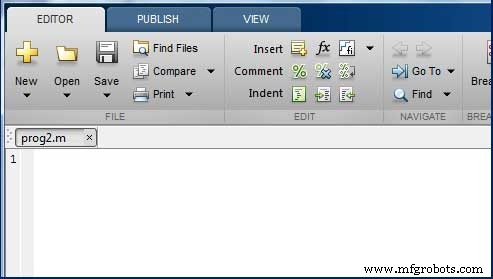
Alternatively, if you are using the IDE, choose NEW -> Script. This also opens the editor and creates a file named Untitled. You can name and save the file after typing the code.
Type the following code in the editor −
Live DemoNoOfStudents = 6000; TeachingStaff = 150; NonTeachingStaff = 20; Total = NoOfStudents + TeachingStaff ... + NonTeachingStaff; disp(Total);
After creating and saving the file, you can run it in two ways −
Clicking the Run button on the editor window or
Just typing the filename (without extension) in the command prompt: >> prog1
The command window prompt displays the result −
6170
Example
Create a script file, and type the following code −
Live Demoa = 5; b = 7; c = a + b d = c + sin(b) e = 5 * d f = exp(-d)
When the above code is compiled and executed, it produces the following result −
c =  12
d =  12.657
e =  63.285
f =    3.1852e-06
MATLAB
- Understanding Variables in MATLAB: Basics and Examples
- Master MATLAB Matrix Basics: Create, Reference, and Manipulate Data
- MATLAB – Numbers: Types, Storage, and Conversion
- Master MATLAB Strings: Easy Creation & Usage Guide
- MATLAB Data Import: Efficient Ways to Load External Files
- Exporting Data from MATLAB: File Formats & Techniques
- Plotting Functions in MATLAB: A Step-by-Step Guide
- Mastering MATLAB Graphics: Advanced Plotting Techniques
- MATLAB for Calculus: Solving Differential Equations, Integrals & Limits
- Computing Symbolic Derivatives in MATLAB with the diff Command