



Avoid Unclosed Contour Errors in Objet Studio: A Quick Fix Guide
Validation is a critical step when preparing models in Objet Studio. It ensures that no parts overlap on the build tray and that the geometry is build‑ready. If a model fails validation, it’s best not to proceed with printing.
One of the most common issues PolyJet users encounter is the “Unclosed Contours Detected” warning. When this occurs, the model turns orange, signaling a build integrity problem, and a pop‑up appears.
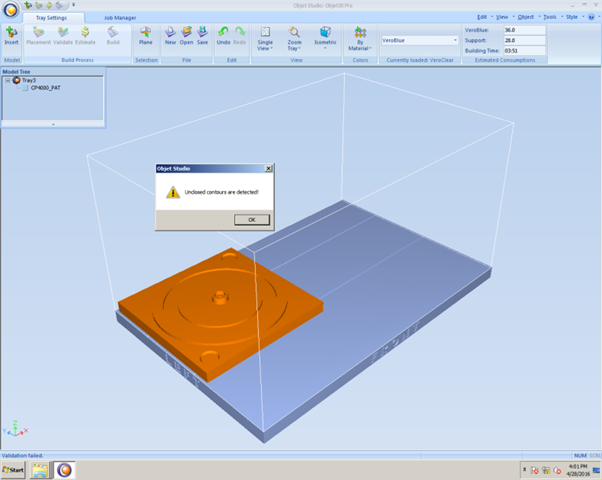
Several factors can trigger this error, but the most frequent cause is an invisible surface that remains in the CAD file. Surfaces that aren’t hidden or deleted may not show any error until Objet Studio runs its validation check.
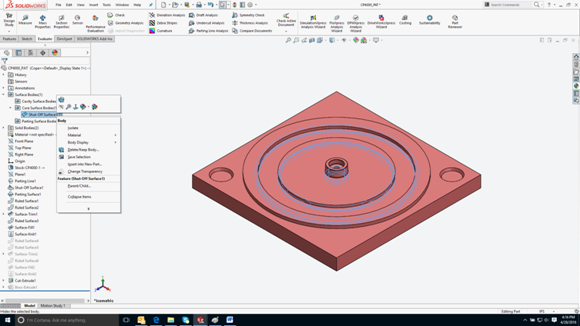
The simplest remedy is to return to your CAD application, locate the Surface Bodies folder, and either hide or delete the offending surface. After making this adjustment, resave the STL file.
Below is an example from SOLIDWORKS, demonstrating how to identify and remove the problematic surface:
If you continue to see the error after cleaning your model, please reach out to technical support for further assistance.
Tags: Contours, Objet Studio, PolyJet, Solidworks, Tech Support
3D printing
- The History, Design, and Future of Toy Model Kits: From Ancient Origins to Modern Manufacturing
- Lionel Model Trains: History, Manufacturing & Future
- Master Vapor Polishing for Flawless 3D Printed Parts
- Sealing FDM Parts with Stratasys Insight: A Practical Guide
- How to Convert Support to Model Material in Insight: A Time‑Saving Shortcut
- Achieving Smooth Ball Bearing Performance in FDM Parts with Insight Custom Groups
- Mastering 3‑D Print Orientation: Tips for Surface Finish, Strength, and Support Efficiency
- Revolutionizing Indian Dentistry: How 3D Printing Transforms Patient Care
- Yantracraft Delivers Accurate 1:20 Golden Temple Scale Model Using Divide By Zero’s Accucraft i250D
- Simulink: MATLAB’s Advanced Simulation & Model-Based Design Tool