



How to Convert Support to Model Material in Insight: A Time‑Saving Shortcut
When I was recently asked whether Insight has a “magic button” that turns support material into model material without creating Custom Groups, I realized that while there isn’t a single click, there is a straightforward shortcut that can save you both time and filament.
For this demonstration I loaded the L‑Bracket example from the Insight training library, deliberately flipped it upside‑down to maximise support usage, set the build to Sparse Fill and chose SMART support – the configuration that balances material savings and build speed.
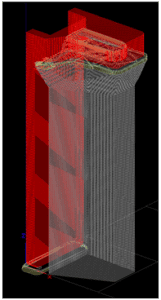
In the screenshot, the model is highlighted in red while the original support appears in gray. Insight’s Estimate Build Time reports:
- Model = .334 in³
- Support = .375 in³
- Time = 2 h 24 min
Next, I opened Support → Setup… from the main menu:
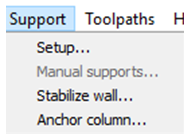
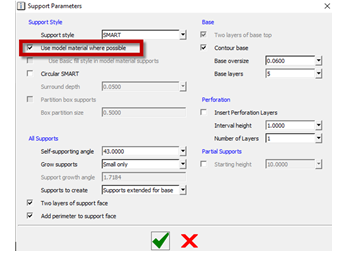
Inside the Setup dialog I deleted the default support objects (see icon) and navigated to Advanced Support Settings to reveal the Support Parameters. There I checked Use model material where possible:


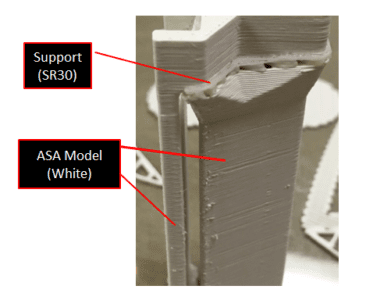
I re‑processed the build with the checkbox enabled. The support area now appears blue‑gray – a visual cue that Insight is using sacrificial model material instead of separate support. The new estimate reads:
- Model = .661 in³
- Support = .054 in³
- Time = 1 h 03 min
Although the upside‑down orientation results in a rough print, the reduction in support volume and build time is evident.
To confirm the accuracy of the estimate, I opened Insight’s Control Center, selected the Services tab, and reviewed the System History for the job. The actual machine data matched the updated estimate:
- Model = .630 in³
- Support = .072 in³
- Time = 1 h 03 min
These results validate that the “Use model material where possible” setting reliably reduces both material consumption and printing time for support‑heavy models.
I will continue to experiment with this feature and share future findings. For now, it is a valuable tool for complex or time‑intensive prints, but it does not replace the flexibility that Custom Groups and selection filters provide.
Tags: 3D Printers, AMG, Insight, Stratasys, Support to Model
3D printing
- Lionel Model Trains: History, Manufacturing & Future
- Support Structures in 3D Printing: Expert Guide to Design, Use, and Optimization
- 10 Essential Insight Features for Optimizing Stratasys FDM Printing
- Avoid Unclosed Contour Errors in Objet Studio: A Quick Fix Guide
- Stratasys Insight: Proven Strategies to Minimize Part Curl in FDM Printing
- Mastering 3‑D Print Orientation: Tips for Surface Finish, Strength, and Support Efficiency
- Yantracraft Delivers Accurate 1:20 Golden Temple Scale Model Using Divide By Zero’s Accucraft i250D
- Simulink: MATLAB’s Advanced Simulation & Model-Based Design Tool
- Revolutionize FFF 3D Printing with Soluble Filament Supports
- Enhancing 3D Printing: Mastering Support Structures for Complex Builds