



Comprehensive PyQt5 Tutorial: Build Professional GUIs in Python
What is PyQt?
PyQt is a Python binding for the Qt framework, a cross‑platform C++ library used to create native GUI applications on Windows, macOS, Linux, Android, iOS, Raspberry Pi, and more. The binding is maintained by Riverbank Computing (UK), while Qt itself is developed by The Qt Company (Finland). PyQt gives Python developers access to Qt’s rich set of widgets, networking, database, 3D, and multimedia capabilities.
In this tutorial you’ll learn:
- Key features of PyQt5
- Available PyQt versions
- How to install PyQt5 on Windows, macOS, and Linux
- Fundamental PyQt concepts and sample programs
- Core components and widgets
- Layout strategies and theme customization
Key Features of PyQt5
PyQt5 exposes over 600 classes that cover:
- Graphical User Interfaces
- SQL database integration (SQLite, MySQL, PostgreSQL, Oracle, ODBC)
- Web rendering via QtWebEngine
- XML parsing and manipulation
- Robust networking (TCP/UDP, SSL, DNS)
- Multimedia and 3D graphics (QtMultimedia, Qt3D)
These capabilities enable developers to build complex, high‑performance desktop and embedded applications. Major corporations such as LG, Mercedes‑Benz, AMD, Panasonic, and Harman rely on Qt for their UI stacks.
PyQt Versions
Riverbank Computing offers two main bindings:
- PyQt4 – supports Qt 4.x and Qt 5.x modules (not backward compatible)
- PyQt5 – bindings exclusively for Qt 5.x
Additionally, PyQt3D provides Python bindings for the Qt3D framework, useful for real‑time 3D rendering and simulation.
Installing PyQt5
Two common installation methods are described below. We recommend using wheel packages because they include compiled C++ binaries and avoid lengthy build processes.
Method 1: Install via Wheels (Recommended)
- Open your preferred terminal or command prompt.
- Run
pip install PyQt5to download the wheel (≈ 50 MB). - Verify that the installation completes successfully.
Example on Windows:
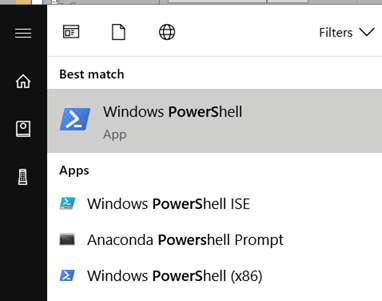
pip install PyQt5
Once installed, you can import PyQt5.QtWidgets and start building applications.
Method 2: Build from Source
Building from source is more complex because it compiles C++ code. It’s only necessary if you need custom modifications or the wheel for your platform is unavailable.
Fundamentals of PyQt5 Programming
Below is a minimal example that opens a 300×300 window titled “Guru99”. Each line is annotated for clarity.
import sys
from PyQt5.QtWidgets import QApplication, QWidget

if __name__ == "__main__":
    app = QApplication(sys.argv)
    w = QWidget()
    w.resize(300, 300)
    w.setWindowTitle("Guru99")
    w.show()
    sys.exit(app.exec_())
Explanation:
QApplication– the core event loop.QWidget– base class for all UI components.resize()– sets the window dimensions.setWindowTitle()– defines the title bar text.show()– displays the widget.app.exec_()– starts the event loop and blocks until the window closes.
Adding Interactivity
The following example adds a label, a button, and a message box that appears when the button is clicked. It demonstrates signals and slots, the core of Qt’s event system.
import sys
from PyQt5.QtWidgets import QApplication, QWidget, QLabel, QPushButton, QMessageBox

def dialog():
    mbox = QMessageBox()
    mbox.setText("Your allegiance has been noted")
    mbox.setDetailedText("You are now a disciple and subject of the all‑knowing Guru")
    mbox.setStandardButtons(QMessageBox.Ok | QMessageBox.Cancel)
    mbox.exec_()

if __name__ == "__main__":
    app = QApplication(sys.argv)
    w = QWidget()
    w.resize(300, 300)
    w.setWindowTitle("Guru99")

    label = QLabel("Behold the Guru, Guru99", w)
    label.move(100, 130)

    btn = QPushButton("Beheld", w)
    btn.move(110, 150)
    btn.clicked.connect(dialog)

    w.show()
    sys.exit(app.exec_())
Clicking the button triggers dialog(), which creates a modal QMessageBox.
Core Components and Widgets
PyQt5’s architecture is organized into several modules. Understanding this hierarchy helps you import only what you need.
Module Overview
- Qt – aggregates all sub‑modules; convenient for small scripts.
- QtCore – core non‑GUI classes (signals, slots, timers).
- QtWidgets – standard GUI widgets (buttons, labels, etc.).
- QtGui – graphical primitives and advanced painting.
- QtNetwork – TCP/UDP sockets, SSL, DNS.
- QtMultimedia – audio/video support.
- QtSql – database integration.
Common Widgets
QLineEdit– single‑line text input.QRadioButton– selectable radio button.QComboBox– drop‑down selector.QCheckBox– toggle box.QMenuBar– horizontal menu bar.QToolBar– toolbar with buttons.QTabWidget– tabbed interface.QScrollBar– scroll bar widget.QSplitter– resizable split view.QDockWidget– detachable dock panel.
Layout Management
Instead of manually positioning widgets with move() and resize(), Qt offers layout managers that automatically arrange widgets based on the window size.
Box Layouts (HBox & VBox)
QHBoxLayout arranges widgets horizontally; QVBoxLayout arranges them vertically.
import sys
from PyQt5.QtWidgets import QApplication, QWidget, QPushButton, QHBoxLayout, QVBoxLayout

app = QApplication([])
win = QWidget()
win.setWindowTitle("Musketeers")

btn1 = QPushButton("Athos")
btn2 = QPushButton("Porthos")
btn3 = QPushButton("Aramis")

hbox = QHBoxLayout(win)
hbox.addWidget(btn1)
hbox.addWidget(btn2)
hbox.addWidget(btn3)

win.show()
app.exec_()
Replace QHBoxLayout with QVBoxLayout to stack the buttons vertically.
Grid Layout
Organize widgets in a 2‑D grid. The addWidget() method accepts row and column indices plus optional row‑span and column‑span arguments.
import sys
from PyQt5.QtWidgets import QApplication, QWidget, QPushButton, QGridLayout

app = QApplication([])
win = QWidget()
layout = QGridLayout(win)

for i in range(3):
    for j in range(3):
        layout.addWidget(QPushButton(f"Button {i},{j}"), i, j)

win.show()
app.exec_()
Custom Themes and Styles
PyQt5 supports native themes and custom stylesheets.
Built‑in Themes
Set the application style with app.setStyle("Fusion") or any other available style.
app = QApplication([])
app.setStyle("Fusion")
Palette Customization
Use QPalette to modify widget colors programmatically.
from PyQt5.QtGui import QPalette
from PyQt5.QtCore import Qt

palette = QPalette()
palette.setColor(QPalette.ButtonText, Qt.black)
palette.setColor(QPalette.Window, Qt.black)
palette.setColor(QPalette.Button, Qt.gray)
app.setPalette(palette)
Qt Style Sheets (CSS‑like)
For advanced styling, apply stylesheets directly to widgets or the entire application.
btn.setStyleSheet("background-color: #4CAF50; color: white; padding: 5px;")
Key Takeaways
- PyQt5 is a powerful Python binding for the Qt framework, suitable for cross‑platform desktop, embedded, and mobile apps.
- Installation is best performed via wheels; source builds are optional.
- Core modules: QtCore, QtGui, QtWidgets, QtNetwork, QtMultimedia, QtSql.
- Widgets include buttons, labels, text fields, radio buttons, checkboxes, menus, toolbars, tabs, splitters, and docks.
- Interactivity relies on Qt’s signals and slots mechanism.
- Layouts—Box and Grid—automate widget placement, improving responsiveness.
- Theming can be achieved with built‑in styles, palettes, or Qt Style Sheets.
- Qt Designer and Qt Creator streamline UI design and application packaging.
Python
- Python Print() Function: A Practical Guide with Examples
- Master Python’s str.count(): How to Count Characters & Substrings with Examples
- Master Python `format()` Strings with Clear Examples
- Master Python's String.find() Method: Syntax, Examples & Alternatives
- Master Python Lambda Functions: Practical Examples & Best Practices
- Python round() Function Explained with Practical Examples
- Mastering Python's map() Function: Syntax, Examples, and Best Practices
- Python timeit() – Measuring Execution Time with Practical Examples
- Python list.count(): Expert Guide with Practical Examples
- Python Module Importing – A Practical Guide with Examples