



Mastering an 8×8 LED Matrix with Arduino Uno: A Step‑by‑Step Guide
Components and supplies
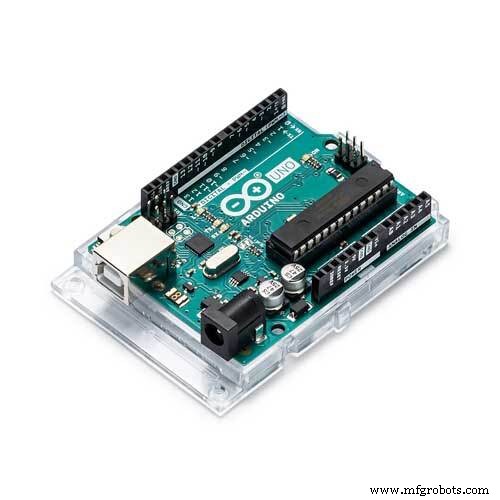 |
| × | 1 | |||
| × | 1 | ||||
 |
| × | 1 | |||
| × | 1 | ||||
| × | 20 | ||||
| × | 20 |
Apps and online services
 |
|
About this project
This project shows how to control an array of 8x8 LED matrices using an Arduino Uno. This guide might be used to create a simple (and relatively cheap display) for your own projects. This way you might display letters, numbers or custom animations.
A 5 matrix array used in one of our robot projects ("Robô da Alegria") is used as an example to illustrate this technology. You might be interested in learning more about this project in the following links:
- https://hackaday.io/project/12873-rob-da-alegria-joy-robot
- https://github.com/ferauche/RoboAlegria
- https://www.facebook.com/robodaalegria/
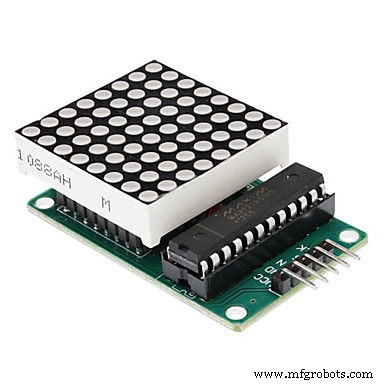
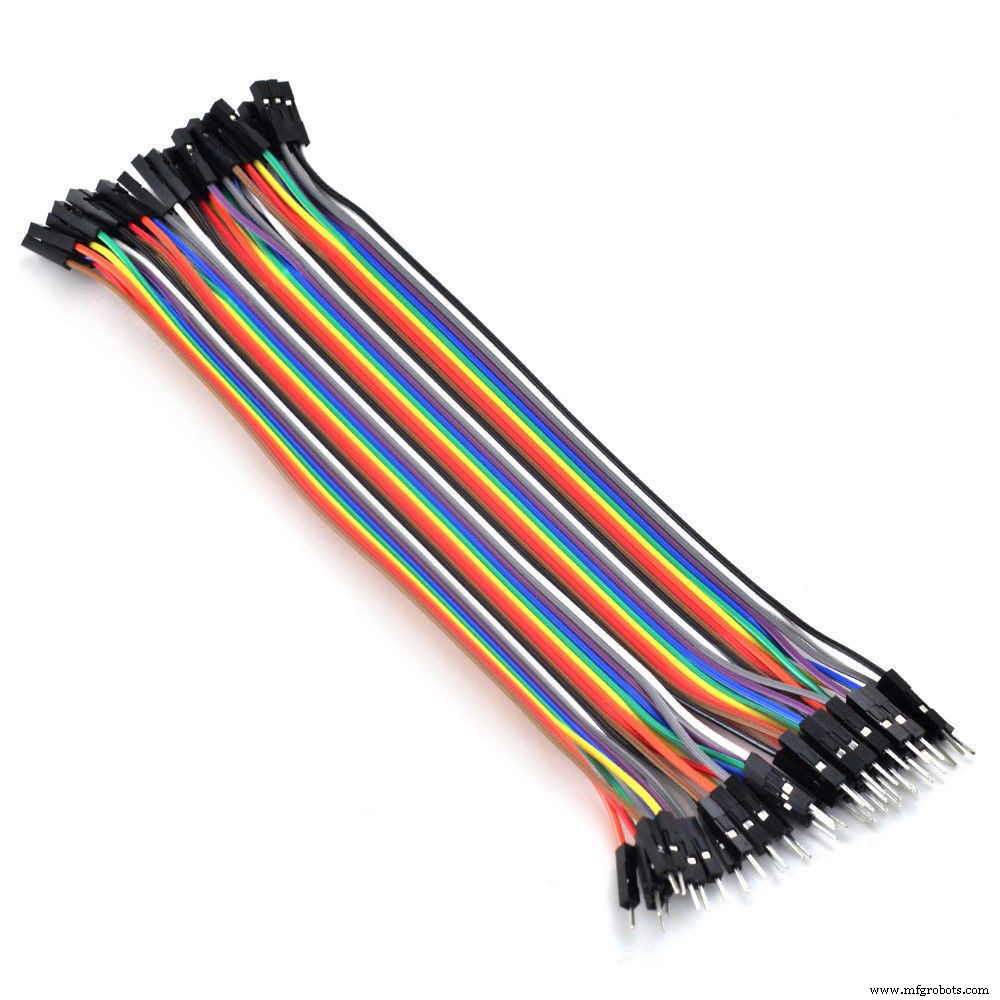
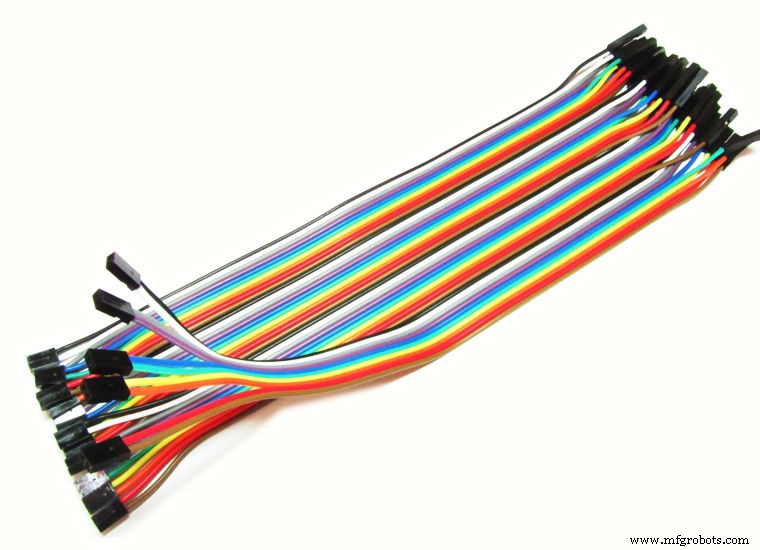
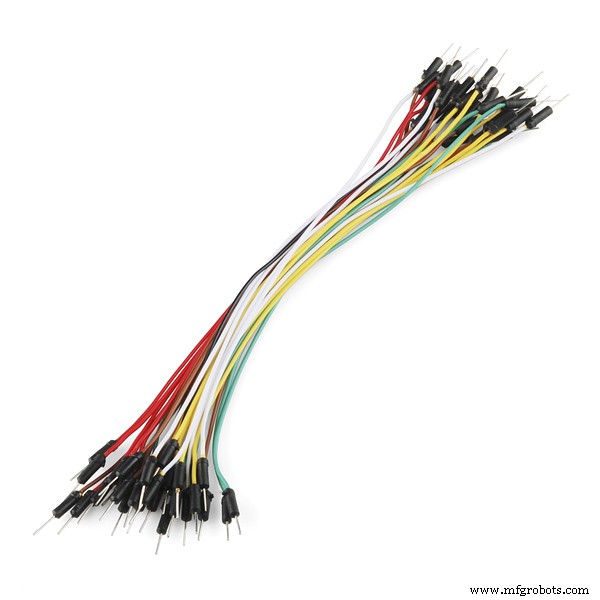
Notice that you'll need two types of jumpers: female-to-female for the connection between the matrices and a male-to-female for the connection of the first matrix to the Arduino.
The number of components may vary according to the structure you have in mind.
Assembly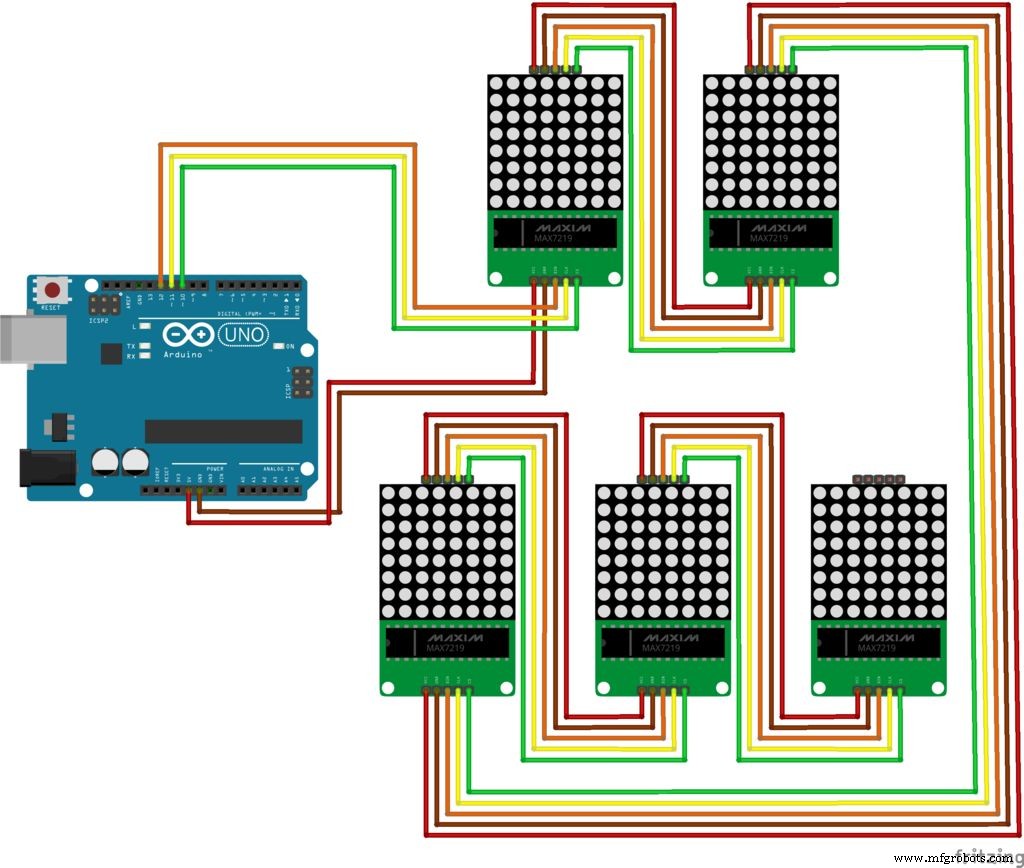
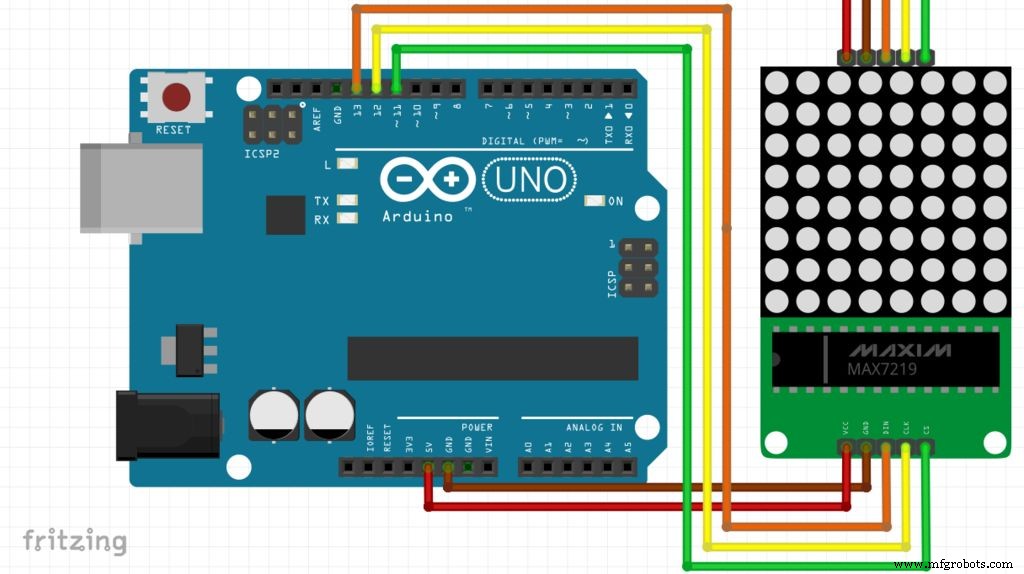
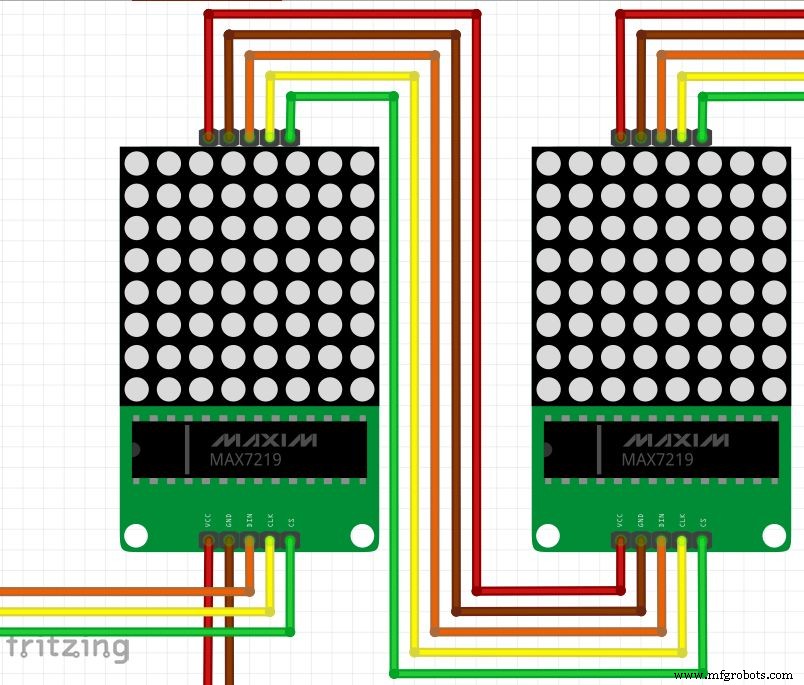
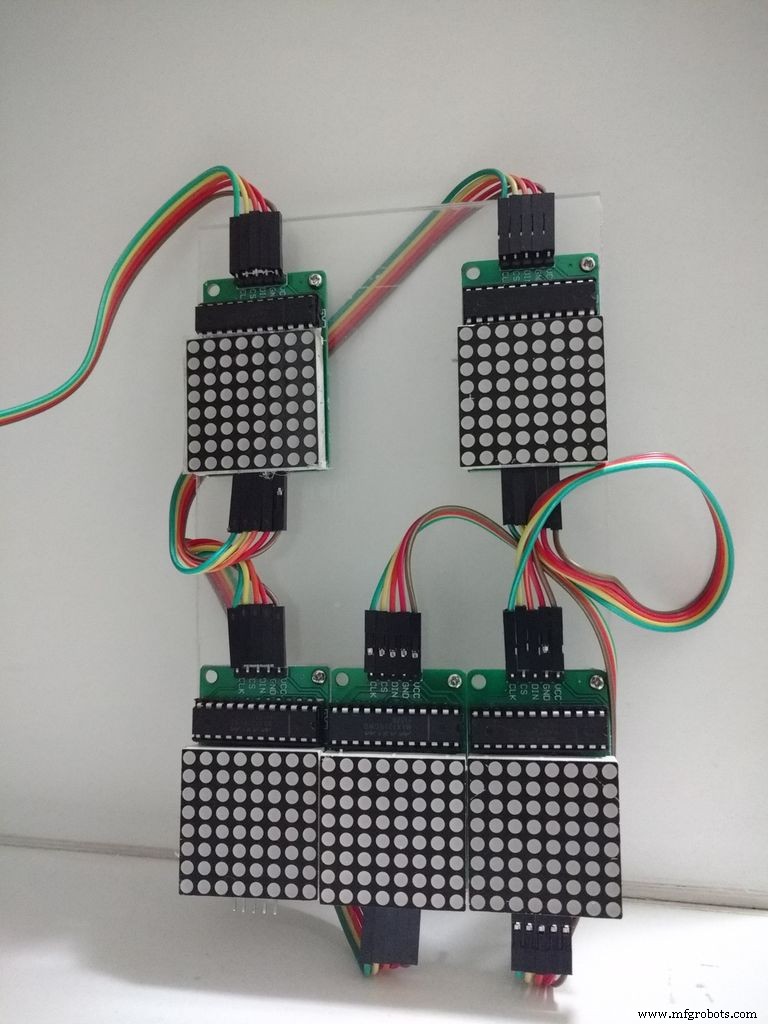
Connect all the components according to the schematic. You'll need some jumper wires to connect the first matrix to the Arduino, and each matrix to the next one on the array.
Arduino Pinout:
- Arduino digital pin 13 = DIN of the first display
- Arduino digital pin 12 = CLK of the fist display
- Arduino digital pin 11 = CS of the first display
- Arduino 5V pin = Vcc of the first display
- Arduino GND pin = Gnd pin of the first display
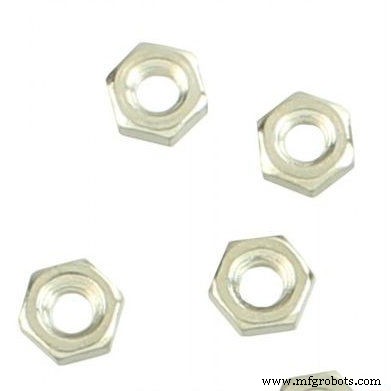
You might also want to arrange each display in a given position. For that you might use the acrylic sheet, some screws and nuts (four for each display) and place each component in position. No tool is needed to assemble the circuit, but you will need a screwdriver if you wish attach the displays to a surface. In our example, five displays were placed in a face pattern (two eyes and a mouth). Plug the USB cable to the Arduino Uno board and proceed to the next step.
FLPMR9JIRKFL3VQ.fzzCoding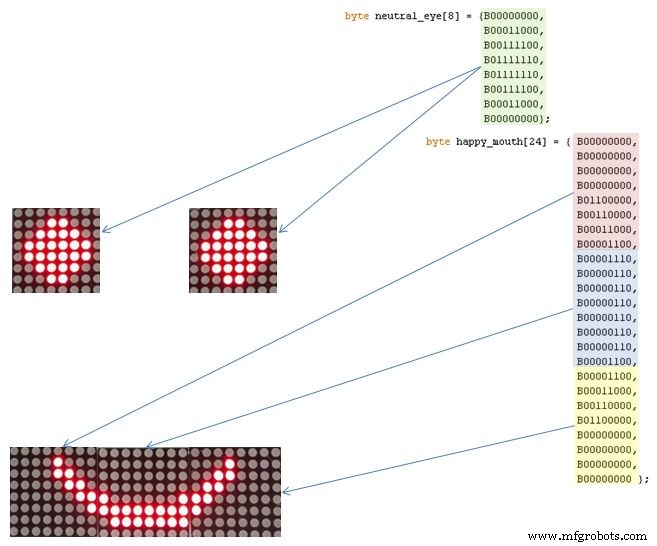
With the latest Arduino IDE version installed, add the LedControl.h library, which is used to control the LEDs. Download, compile and upload Arduino the code, which is divided in 4 parts:
- 1. Definition of the eyes and mouth: each eye is configured and a 8-byte array. The mouths are defined as a 24-byte array
- 2. Setup: configure displays and start communication
- 3. Main: wait for serial communication commands and choose wich face will be displayed
- 4. Auxiliary functions: functions for setting eyes' and mouth's displays. setRow function was used to set each row of the LED display. It was used instead of setColumn because it runs eight times faster! This way, the drawings for each display have to be declared rotated 90 degrees counter-clockwise.
setIntensity was used to limit LEDs brightness. It was set as 1 (in a scale from 0 to 15) in order to reduce the power consumption of the modules to a level acceptable by the USB port.
FEGF6QQIRKFL5XL.inoUsage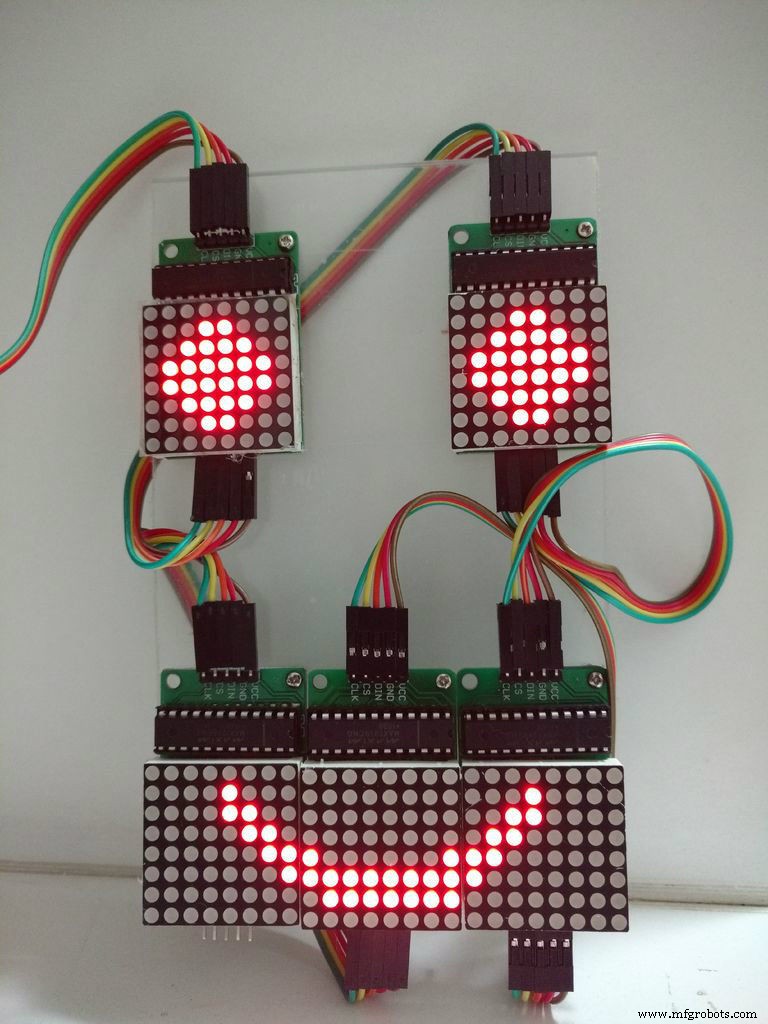
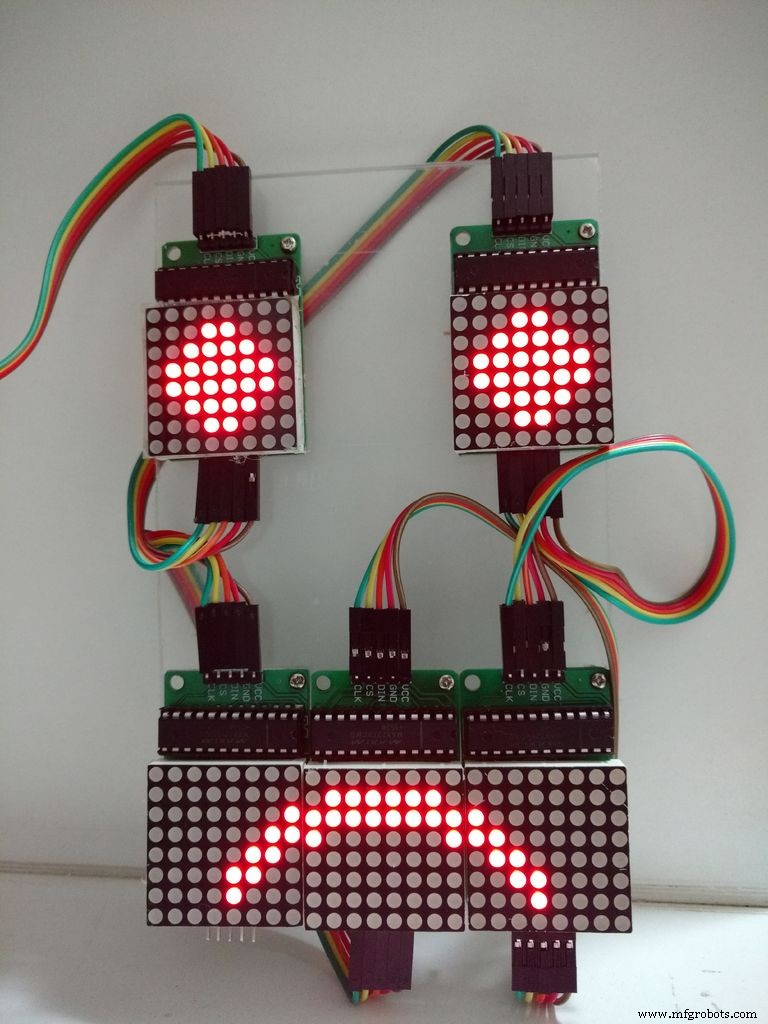
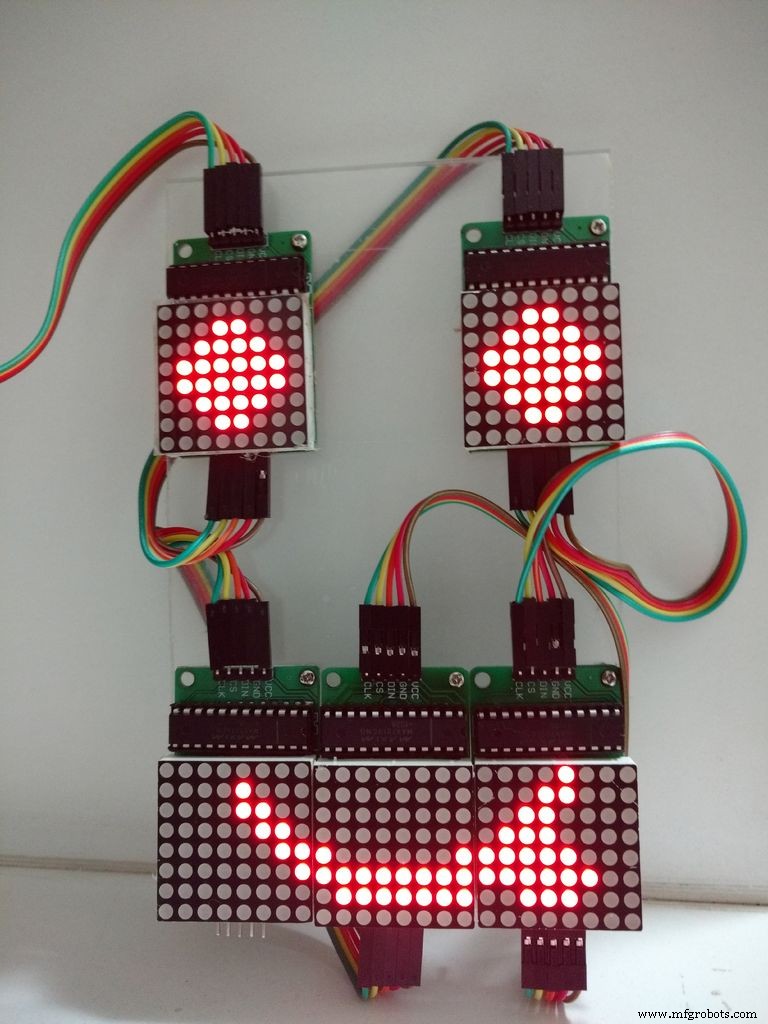
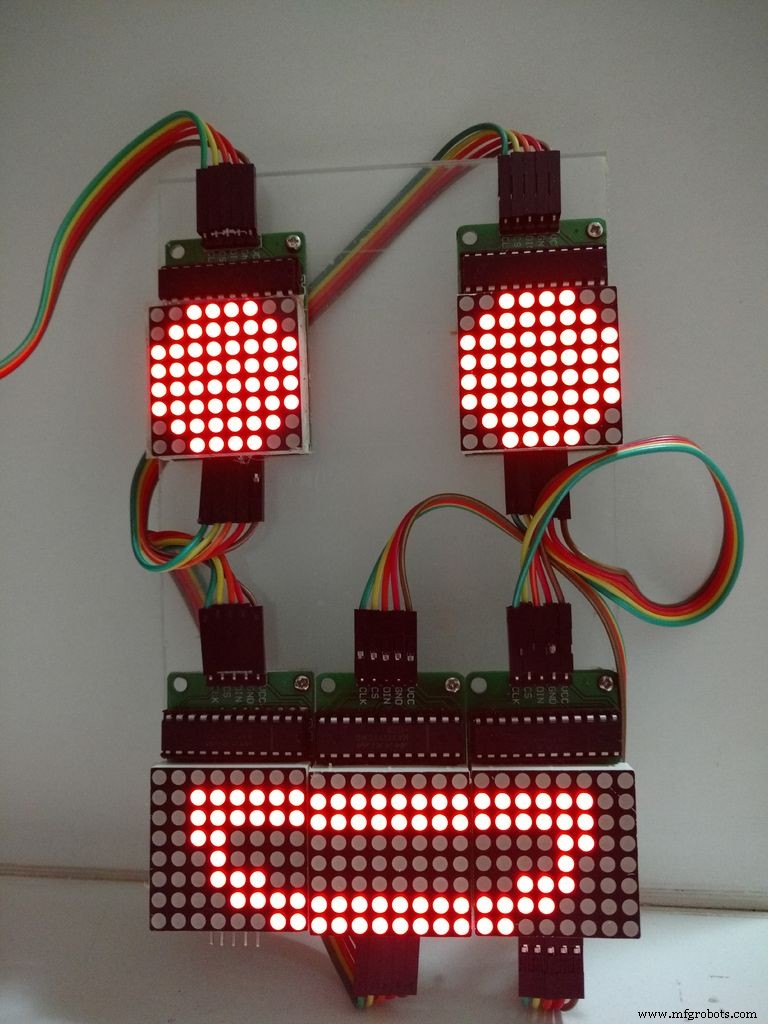
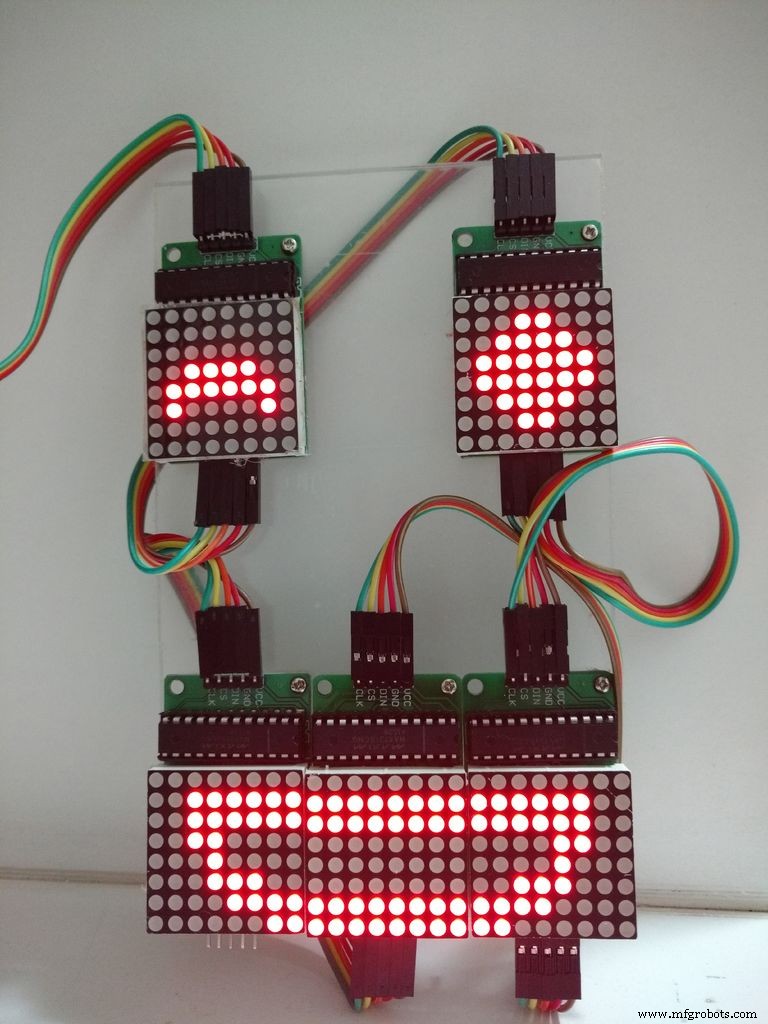
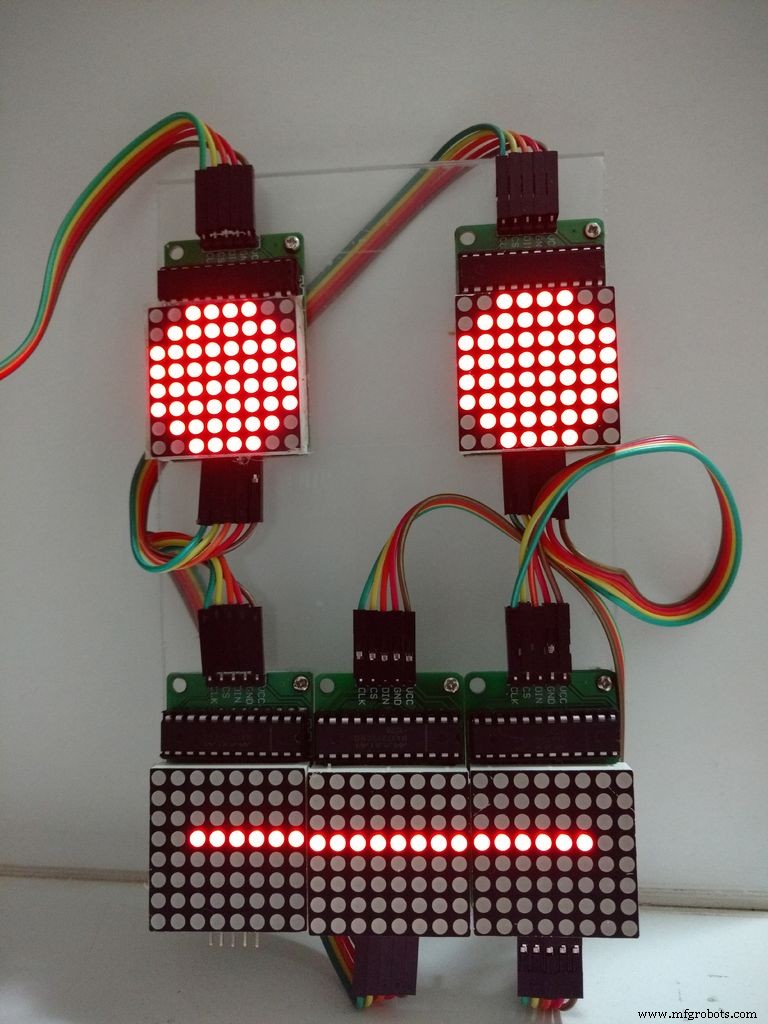
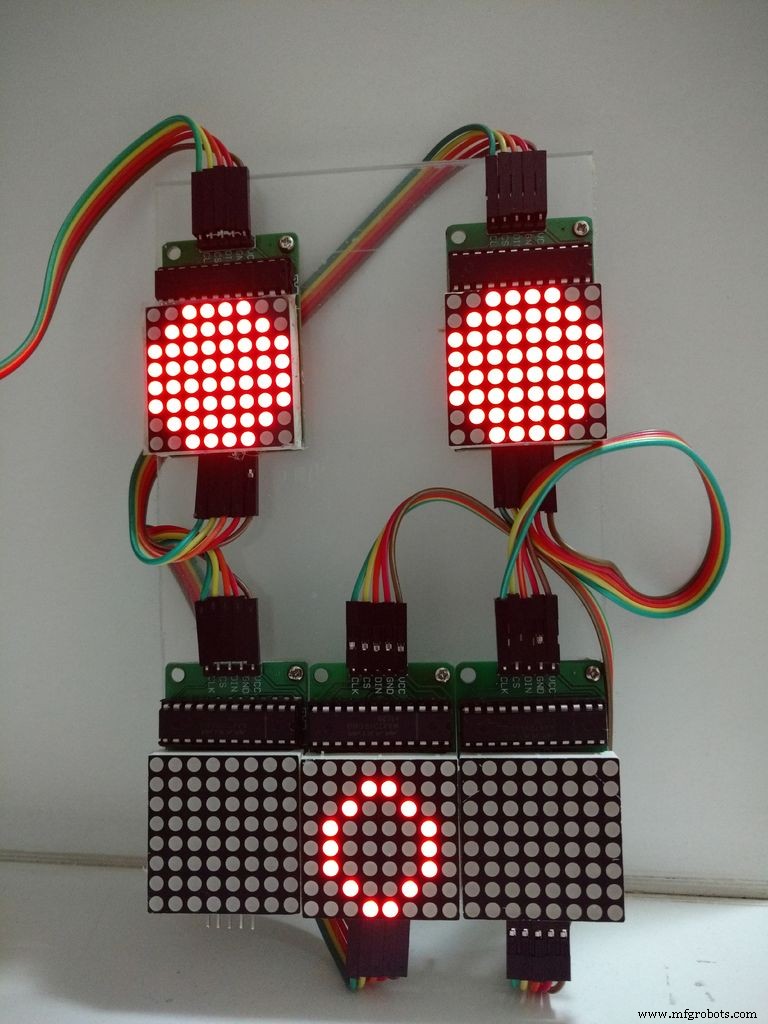
After the upload keep the Arduino connected to the USB port of your computer and open the Serial Monitor. The code is programmed to display a set of emoticons on the LED face, depending on the message received by the serial port. The following commands were configured:
For the eyes
- : (normal eyes)
- ; (blink)
- 8 (spooky eyes)
For the mouth:
- ) (happy)
- | (neutral)
- ( (sad)
- D or d (very happy)
- O or o (surprised)
- P or p (tongue out)
Type a pair of characters (on for the eyes and other for the mouth) in the serial monitor, press enter and the displays will be updated according to your command.
You might change the drawings (add new faces for instance) or change the control method (including a Bluetooth or Wi-Fi interface), according to your needs.
Have fun!
Code
Github
https://github.com/ferauche/RoboAlegriahttps://github.com/ferauche/RoboAlegriaGithub
https://github.com/wayoda/LedControlhttps://github.com/wayoda/LedControlManufacturing process
- Build Sensor‑Driven Audio Effects with the Satellite CCRMA Kit
- Build an Arduino Real‑Time Clock for Islamic Prayer Times
- Control an LED via Bluetooth with Arduino – Simple DIY Guide
- Build a 4x4x4 LED Cube with Arduino Uno & 1Sheeld – Interactive LED Project
- Arduino & NeoPixel Optocouplers: Efficient Control of Multiple Relays
- Build an Arduino Snake Game on an 8x8 LED Matrix
- Build an RGB Matrix Audio Visualizer Using Arduino – Step‑by‑Step Guide
- Build a Snake Game on a 16x16 LED Matrix with Arduino UNO
- Arduino Nano 4x64 LED Matrix Clock – New Version
- Efficiently Program ATtiny85 Using Arduino Uno: A Cost‑Effective Multi‑Sensor Solution