Build an AI LCD Companion: Your Interactive Buddy
Components and supplies
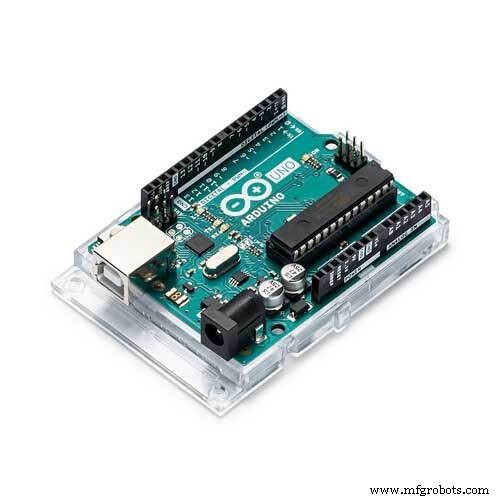 | | × | 1 | |
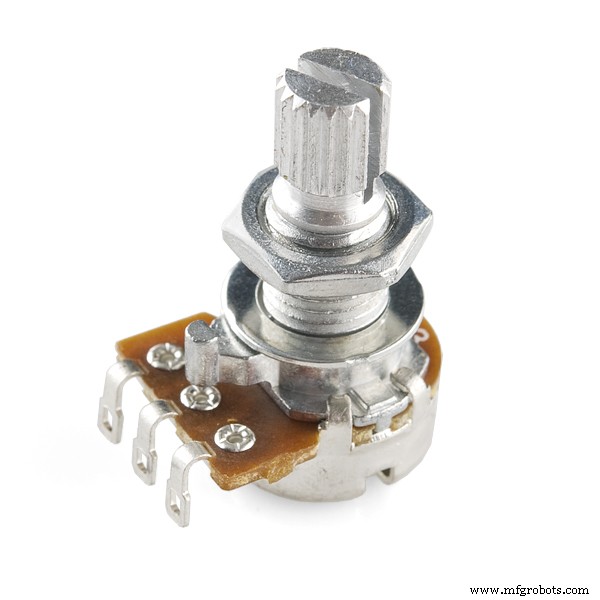 | | Rotary potentiometer (generic) |
| × | 1 | |
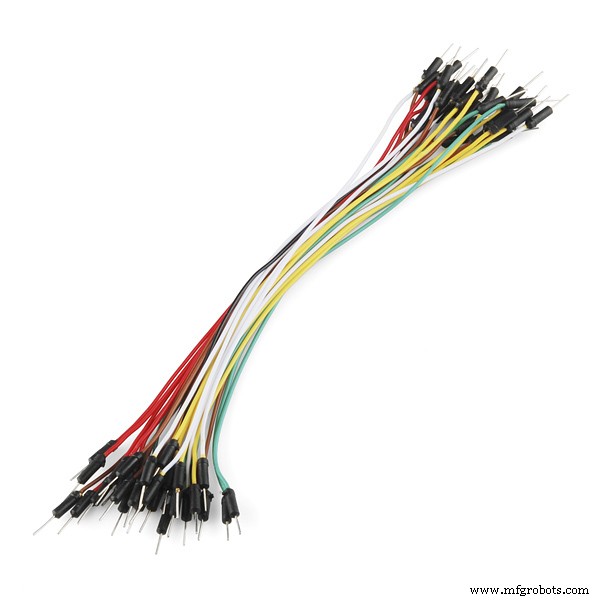 | | × | 19 | |
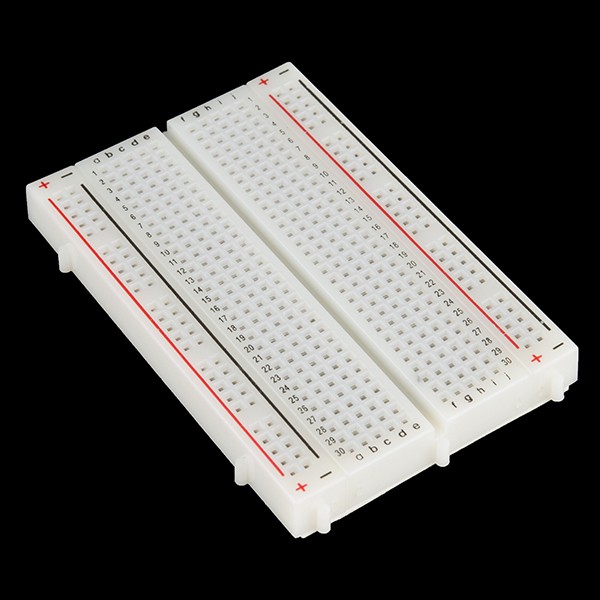 | | × | 1 | |
| | × | 4 | |
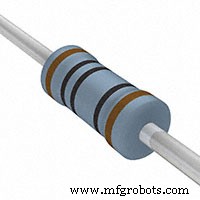 | | × | 3 | |
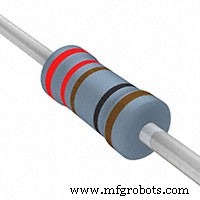 | | × | 1 | |
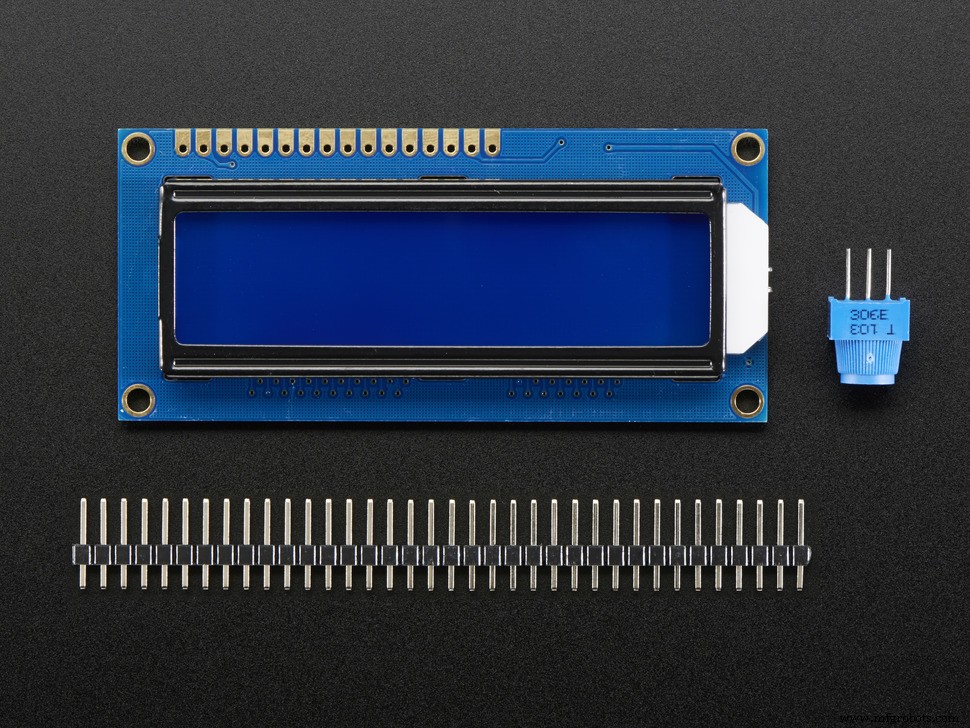 | | Adafruit Standard LCD - 16x2 White on Blue |
| × | 1 | |
About this project
To give you a buddy during lonely times.
Code
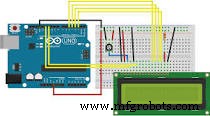
The codeC/C++
You can extend it if you want, just post the extended code in a comment! Just copy and paste this after "to be continued." -->
lcd.clear();
lcd.print("To be ");
lcd.setCursor(2, 2);
lcd.print("continued.");
delay(2000);#include <LiquidCrystal.h>
LiquidCrystal lcd(12, 11, 5, 4, 3, 2);
const int buttonPin = 9;
int buttonState = 0;
const int buttonPin2 = 10;
const int buttonPin3 = 8;
void setup() {
// put your setup code here, to run once:
pinMode(buttonPin, INPUT);
pinMode(buttonPin2, INPUT);
pinMode(buttonPin3, INPUT);
lcd.begin(16, 2);
lcd.print(" (.) (.) Hi I");
lcd.setCursor(2, 2);
lcd.print("(____) am Robi");
delay(2000);
lcd.clear();
lcd.print(" (.) (.) You ");
lcd.setCursor(2, 2);
lcd.print(" ____ can talk");
delay(2000);
lcd.clear();
lcd.print(" (-) (-) to ");
lcd.setCursor(2, 2);
lcd.print(" (____) me!");
delay(2000);
lcd.clear();
lcd.print(" (.) (.)Tap");
lcd.setCursor(2, 2);
lcd.print(" ____ the");
delay(2000);
lcd.clear();
lcd.print(" (.) (.) but");
lcd.setCursor(2, 2);
lcd.print(" (____) ton");
delay(2000);
}
void loop() {
buttonState = digitalRead(buttonPin);
if (buttonState == HIGH) {
lcd.clear();
lcd.print("Hello I am");
lcd.setCursor(2, 2);
lcd.print("Alexander");
delay(2000);
lcd.clear();
lcd.print(" (*) (*) Hi!");
lcd.setCursor(2, 2);
lcd.print(" (____)");
delay(2000);
lcd.clear();
lcd.print(" (.) (.)Let's");
lcd.setCursor(2, 2);
lcd.print(" ____ play");
delay(2000);
lcd.clear();
lcd.print("OK!");
lcd.setCursor(2, 2);
lcd.print(" But Where?");
delay(2000);
lcd.clear();
lcd.print(" (.) (.) Park");
lcd.setCursor(2, 2);
lcd.print(" (____)or home?");
delay(2000);
lcd.clear();
lcd.print("Left = Park");
lcd.setCursor(2, 2);
lcd.print("Right = Home");
delay(2000);
}
buttonState = digitalRead(buttonPin2);
if (buttonState == HIGH) {
lcd.clear();
lcd.print("You go to");
lcd.setCursor(2, 2);
lcd.print("the Park...");
delay(2000);
lcd.clear();
lcd.print(" (.) (.) Lets");
lcd.setCursor(2, 2);
lcd.print(" ____ swing!");
delay(2000);
lcd.clear();
lcd.print("OK!");
lcd.setCursor(2, 2);
lcd.print("You swing...");
delay(2000);
lcd.clear();
lcd.print(" (*) (*) I'm");
lcd.setCursor(2, 2);
lcd.print(" (___) tired");
delay(2000);
lcd.clear();
lcd.print("Me too!");
lcd.setCursor(2, 2);
lcd.print("Lets drink.");
delay(2000);
lcd.clear();
lcd.print(" (.) (.) Yeah");
lcd.setCursor(2, 2);
lcd.print(" (____) ");
delay(2000);
lcd.clear();
lcd.print("You go buy");
lcd.setCursor(2, 2);
lcd.print("a drink...");
delay(2000);
lcd.clear();
lcd.print(" (*) (*) Ahh!");
lcd.setCursor(2, 2);
lcd.print(" ____ OW!!");
delay(2000);
lcd.clear();
lcd.print("What?");
lcd.setCursor(2, 2);
lcd.print("...");
delay(2000);
lcd.clear();
lcd.print(" (*) (*)Water");
lcd.setCursor(2, 2);
lcd.print(" []got in my eye");
delay(2000);
lcd.clear();
lcd.print("To be ");
lcd.setCursor(2, 2);
lcd.print("continued.");
delay(2000);
}
buttonState = digitalRead(buttonPin3);
if (buttonState == HIGH) {
lcd.clear();
lcd.print("You go to");
lcd.setCursor(2, 2);
lcd.print("your home...");
delay(2000);
lcd.clear();
lcd.print(" (.) (.) WOW!");
lcd.setCursor(2, 2);
lcd.print(" ___ Cool!");
delay(2000);
lcd.clear();
lcd.print("You play for");
lcd.setCursor(2, 2);
lcd.print("the day...");
delay(2000);
lcd.clear();
lcd.print("To be");
lcd.setCursor(2, 2);
lcd.print("continued.");
delay(2000);
lcd.clear();
}
}
Schematics