



Python 3 to Arduino UNO: Easy Command Control and LED Demo
Components and supplies
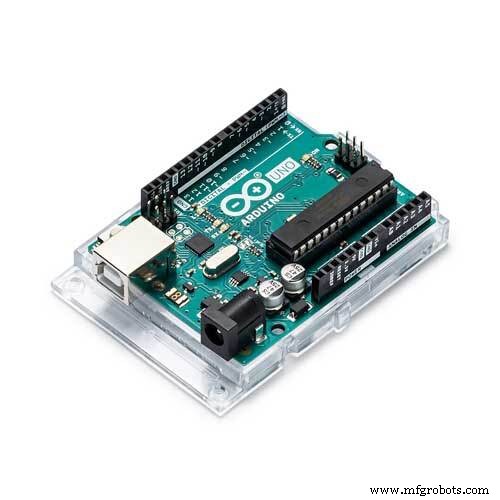 |
| × | 1 | |||
 |
| × | 1 |
About this project
Project DescriptionIn this project we will be sending commands from Python3 to an Arduino board, which will make things easier to understand when communicating between Python3 and Arduino. We will make a "Hello world" of the Arduino platform which means turning ON/OFF built-in LED on the Arduino Uno.
So first of all let me tell you...
Why I Made This ProjectFirstly, there are many tutorials uploaded on internet specially on youtube about this topic but they are using Python2 versions, and secondly, I had installed latest version which is Python3.7.2. There is a little bit of difference between Python2 and Python3 when you are using it to connect with Arduino. So after I solved the problem of sending command from Python3 to Arduino, I thought this should be shared to makers and the entire hobbyist community.
Let's start follow below steps:
Installation Procedure- How to install python3 version and PySerial package
Now you can search on YouTube about installation stuff. Below is video for installing both Python3 version and PySerial package.
Demos- Part 1 : Arduino Code
- Part 2: Python Code
Make sure that first you upload Arduino sketch and then Python code. :)
Let me know on comment section if you are having any issue while making this project.
Code
- Arduino Code
- Python3 Code
Arduino CodeArduino
This code is for arduino and you need to upload this code before running python codeint datafromUser=0;
void setup() {
// put your setup code here, to run once:
pinMode( LED_BUILTIN , OUTPUT );
Serial.begin(9600);
}
void loop() {
// put your main code here, to run repeatedly:
if(Serial.available() > 0)
{
datafromUser=Serial.read();
}
if(datafromUser == '1')
{
digitalWrite( LED_BUILTIN , HIGH );
}
else if(datafromUser == '0')
{
digitalWrite( LED_BUILTIN, LOW);
}
}
Python3 CodePython
import serial
import time

arduino=serial.Serial('COM1', 9600)
time.sleep(2)

print("Enter 1 to turn ON LED and 0 to turn OFF LED")

while 1:

    datafromUser=input()

    if datafromUser == '1':
        arduino.write(b'1')
        print("LED  turned ON")
    elif datafromUser == '0':
        arduino.write(b'0')
        print("LED turned OFF")
Schematics
For this project you just need arduino board and usb cable
Manufacturing process
- Build Engaging LCD Animation & Gaming with Arduino UNO
- SERENA: A Custom Arduino Mega 2560 Alarm System with TFT LCD Touchscreen
- Build a Compact FM Radio with Arduino Nano and RDA8057M
- Build a Raspberry Pi 3 & Arduino Laptop: Step‑by‑Step Guide
- Build a Morse Code Transmitter with Arduino – Easy DIY Guide
- Build Reliable Long‑Range Arduino Networks with the HC‑12 Module
- Mastering I2C Communication with Arduino: A Practical Tutorial
- Master Arduino Control with MATLAB GUI: Step-by-Step Tutorial
- Master Serial Communication with Arduino – Step-by-Step Video Guide
- Arduino Serial Communication: Mastering UART Basics and Troubleshooting