



Installing Visual Studio 2019 Community Edition for C# Development on Windows
Microsoft Visual Studio is the industry‑standard IDE for building Windows applications on the .NET platform. It supports desktop, web, mobile and cloud development, and includes integrated debugging, profiling and version‑control tools.
Whether you are creating Windows Forms, ASP.NET, or cross‑platform .NET applications, Visual Studio provides a unified environment for coding, testing and deployment. The following step‑by‑step guide shows how to download and install the free Visual Studio 2019 Community Edition on a Windows machine.
Step‑by‑Step Installation
1. Download the installer
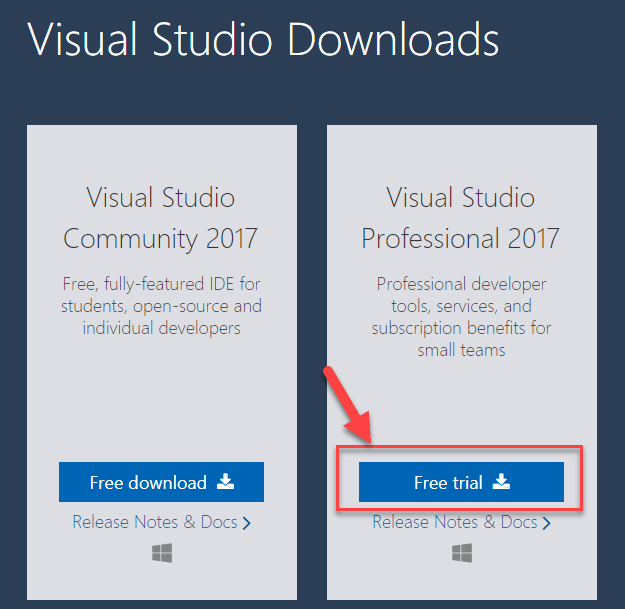
Navigate to https://visualstudio.microsoft.com/downloads/ and choose Visual Studio 2019 Community Edition (free) or the Professional Edition (30‑day trial). Click Free download to start the .exe.
2. Launch the installer
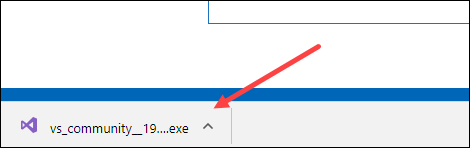
Run the downloaded .exe file. The installer will launch and prompt you to continue.
3. Begin installation
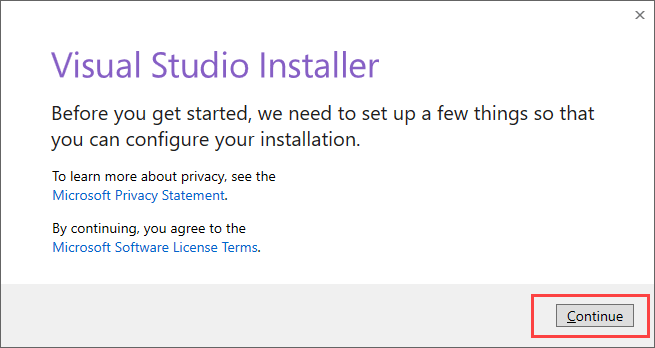
Click Continue on the welcome screen. The installer will download the core files required for Visual Studio.
4. Choose workloads
In the workloads dialog, select .NET desktop development to target Windows desktop apps. You can add additional workloads later if needed.
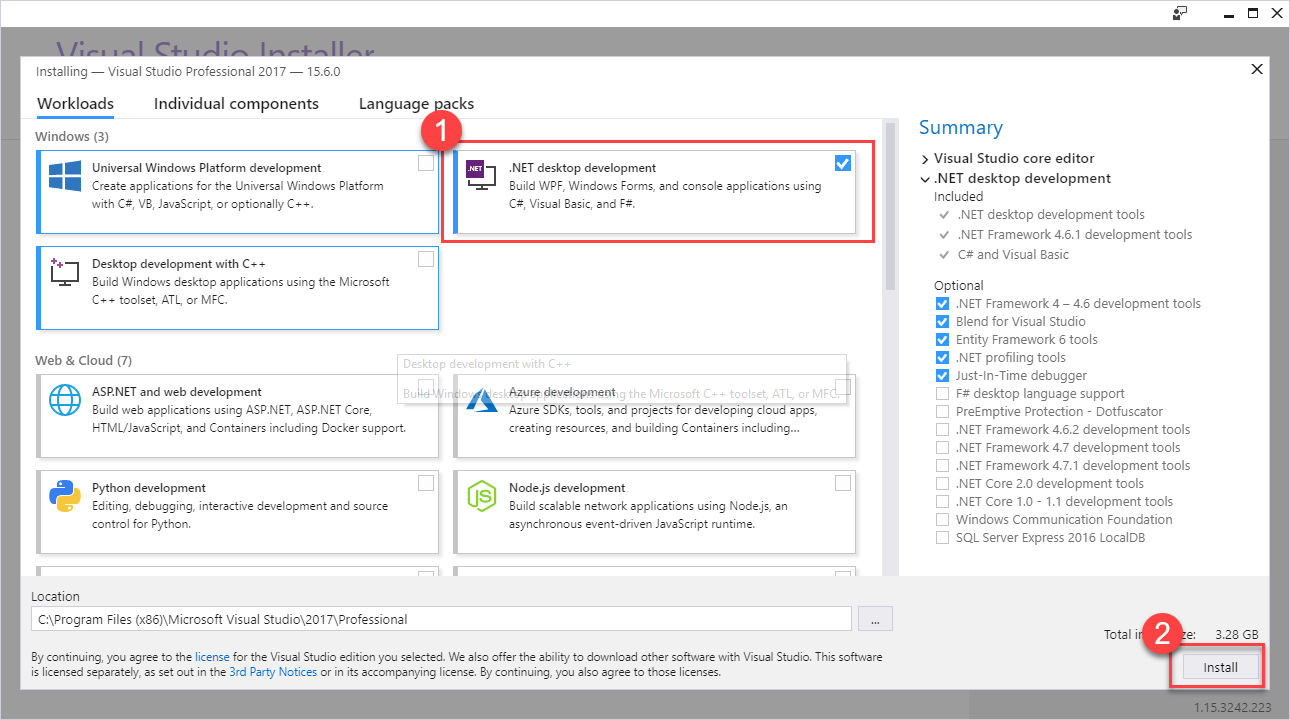
- .NET desktop development
- Click Install
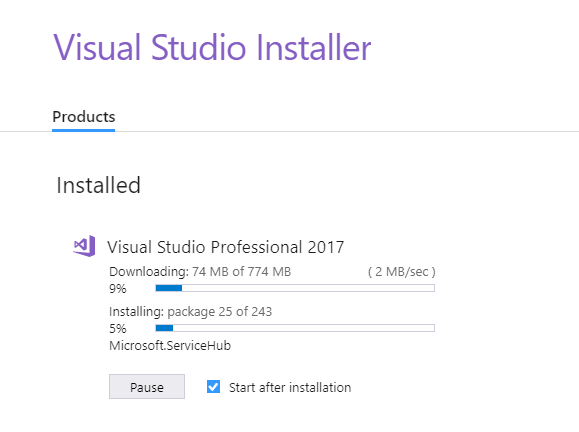
5. Wait for the download
The installer will fetch the selected components. Download speed depends on your internet connection.
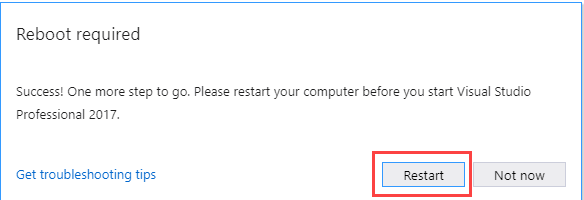
6. Reboot when prompted
After installation completes, a restart may be required to finish the setup. Save your work and reboot the PC.
7. Launch Visual Studio
Post‑reboot, open Visual Studio. Choose a theme and click Start Visual Studio to launch the IDE.
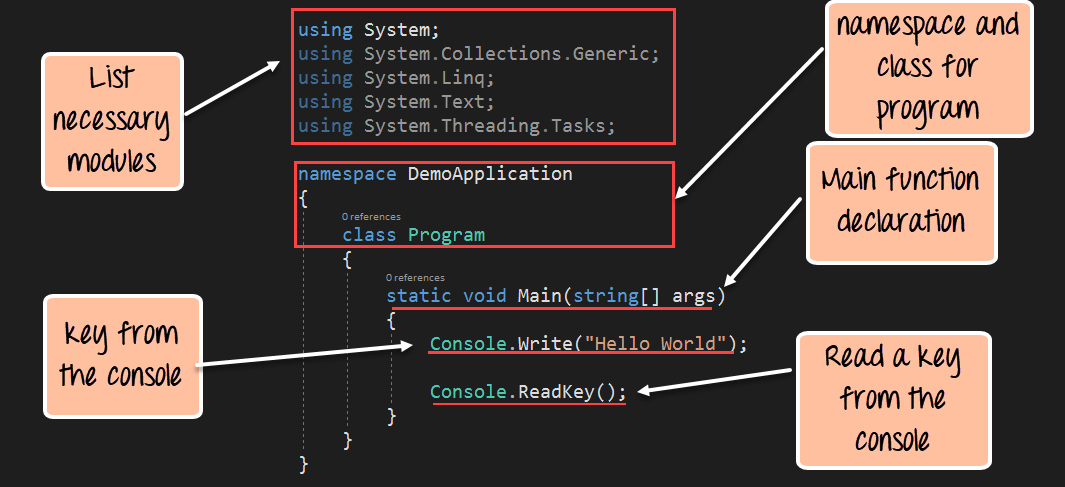
8. Create your first project
From the File menu, select New → Project, choose a C# template (e.g., Console App or Windows Forms), and click Create. You’re ready to code.
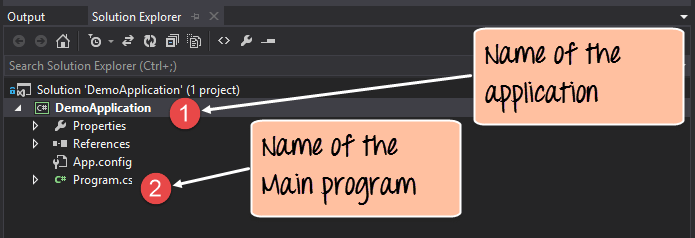
That completes the installation of Visual Studio 2019 Community Edition for C# development.
Key Features of Visual Studio
- Multi‑language support – Build applications in C#, VB.NET, F#, and more, all within the same IDE.
- Versatile project templates – From console apps to ASP.NET MVC and Windows Forms.
- Live debugging – Run, step through, and debug code on the fly, catching errors early.
- Extensibility – Install extensions (e.g., Git, Azure, Resharper) directly from the IDE.
C Language
- Free VHDL Simulator & Editor Setup: A Student’s Guide
- Installing Dev‑C++ on Windows: Step‑by‑Step Guide
- How to Install GCC Compiler on Windows, macOS, and Linux: A Step‑by‑Step Guide
- How to Download and Install Java JDK 8 on Windows 10 (64‑Bit) – Step‑by‑Step Guide
- Step‑by‑Step Guide: Downloading and Installing Eclipse IDE for Java
- How to Install Oracle Java on Ubuntu Linux – Step‑by‑Step Guide
- Install Python and PyCharm on Windows: Step‑by‑Step Guide
- E3.Student – Free Study Edition for Engineering Students
- Synergizing Industry 4.0 and IIoT: Driving Digital Transformation in Manufacturing & Beyond
- Debugging C++ Components and Programs on PLCnext Control Devices with Visual Studio