



Installing Dev‑C++ on Windows: Step‑by‑Step Guide
What is Dev‑C++?
Dev‑C++ is a free, open‑source IDE for C and C++ development, created by Bloodshed Software and released under the GNU GPL. It bundles the GCC compiler, GDB debugger, and a lightweight project manager, making it a popular choice for beginners and professionals alike.
How to Download and Install Dev‑C++ on Windows
Follow these steps to get Dev‑C++ up and running on Windows 7/8/10/11.
- Download the installer
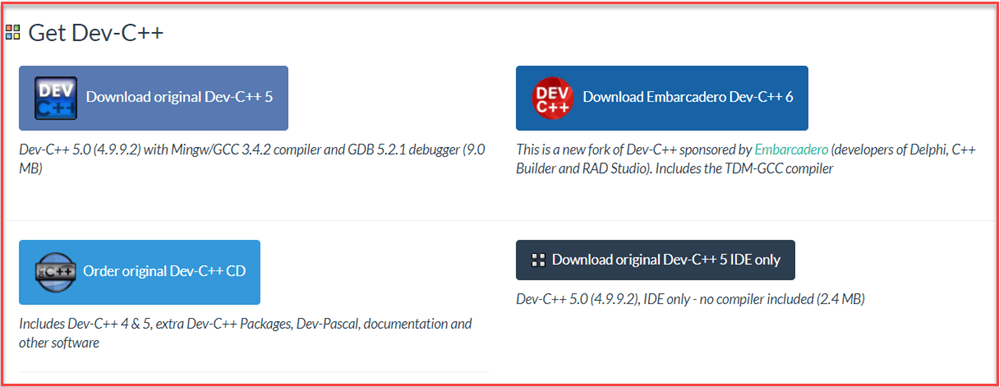
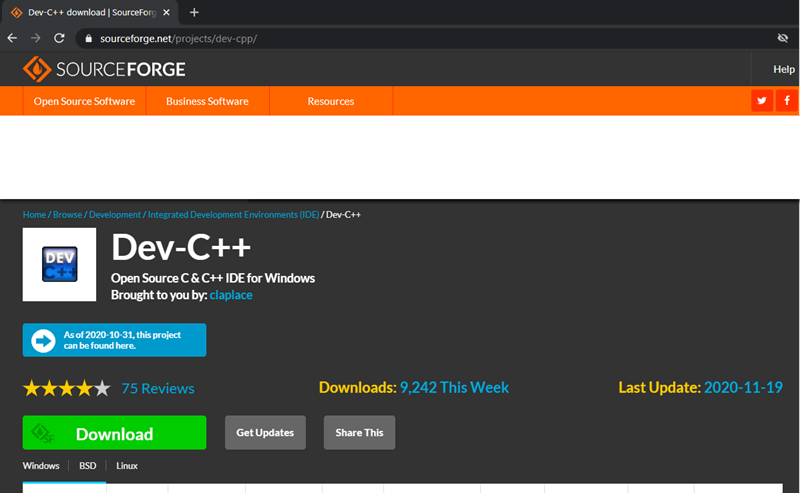
Visit the official Dev‑C++ website https://www.bloodshed.net/ and click on the “Download” link. The site will redirect you to the SourceForge mirror where the installer is hosted. - Choose the correct package
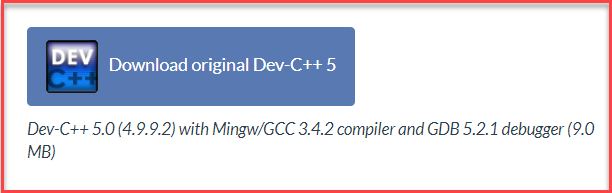
The latest stable release is Dev‑C++ 5.0 (4.9.9.2). It ships with MinGW/GCC 3.4.2 and GDB 5.2.1, weighing only 9 MB. Click Download from SourceForge. - Download the .exe file
On SourceForge the download starts automatically. Save the file (default location:Downloads) and run the.exewhen it finishes. - Run the installer
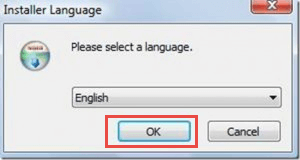
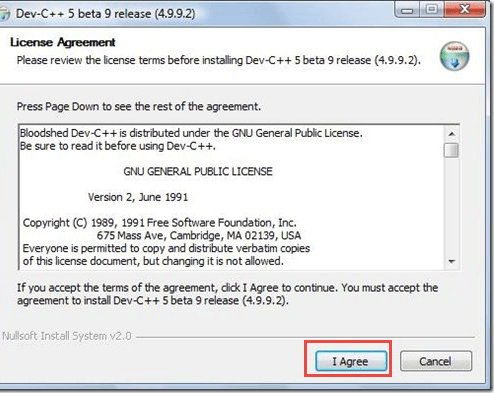
Choose English as the language, then click OK. Accept the license agreement by clicking I agree. - Select components
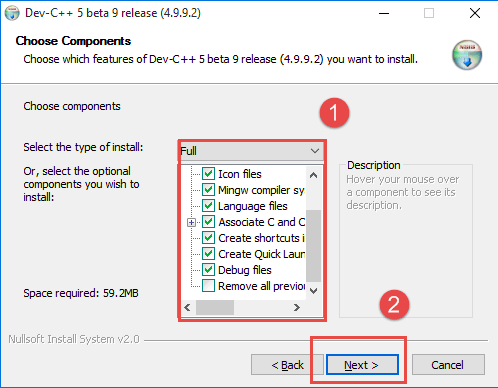
The default component set is fine; click Next to proceed. - Choose installation folder
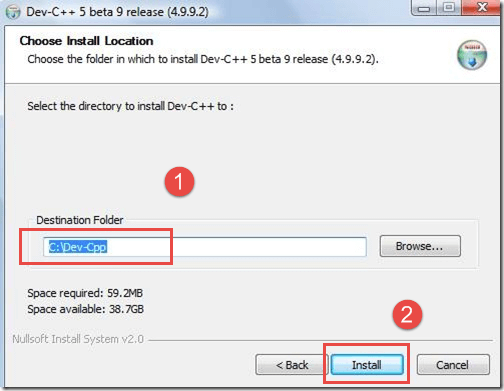
By default the IDE will be installed inC:\Program Files\Dev-C++. Change it only if you need to, then click Install. - Finish the installation
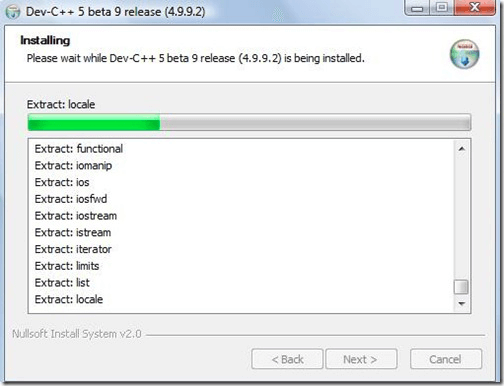
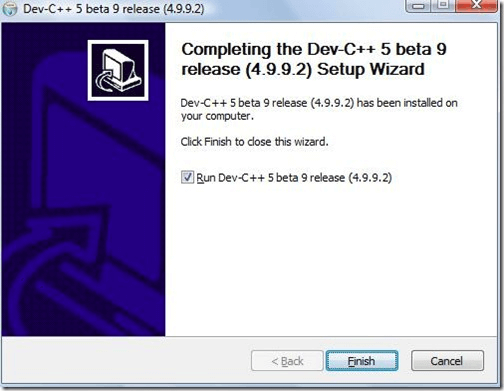
When the progress bar completes, check the Run Dev‑C++ box and click Finish. The IDE should launch automatically.
That’s it! You can now compile and debug C or C++ programs right from your desktop.
Key Features of Dev‑C++
- Integrated GDB debugger for step‑by‑step troubleshooting.
- Multilingual interface with localization support.
- Resource editor for compiling UI files.
- Find‑and‑replace engine with regular‑expression support.
- Custom project templates and a versatile project manager.
- Class and variable browsers to inspect code structure.
- CVS integration for source‑control management.
C++ Programming Basics: What Is C++ and Why It Matters
C++ Hello World Tutorial: Step‑by‑Step Code, Setup & Explanation
C Language
- How to Pass and Return Objects in C++ Functions
- Free VHDL Simulator & Editor Setup: A Student’s Guide
- 15 Best C++ IDEs for Windows, macOS & Linux – Free & Paid Options (2021)
- Installing Visual Studio 2019 Community Edition for C# Development on Windows
- How to Install GCC Compiler on Windows, macOS, and Linux: A Step‑by‑Step Guide
- How to Download and Install Java JDK 8 on Windows 10 (64‑Bit) – Step‑by‑Step Guide
- Step‑by‑Step Guide: Downloading and Installing Eclipse IDE for Java
- How to Install Oracle Java on Ubuntu Linux – Step‑by‑Step Guide
- Install Python and PyCharm on Windows: Step‑by‑Step Guide
- Comprehensive Guide to Date and Time in C++