



How to Download and Install Java JDK 8 on Windows 10 (64‑Bit) – Step‑by‑Step Guide
Java Development Kit (JDK) 8 enables you to write and run Java applications on Windows 10. While multiple JDK versions can coexist on the same machine, installing the latest compatible JDK is generally recommended for stability and security.
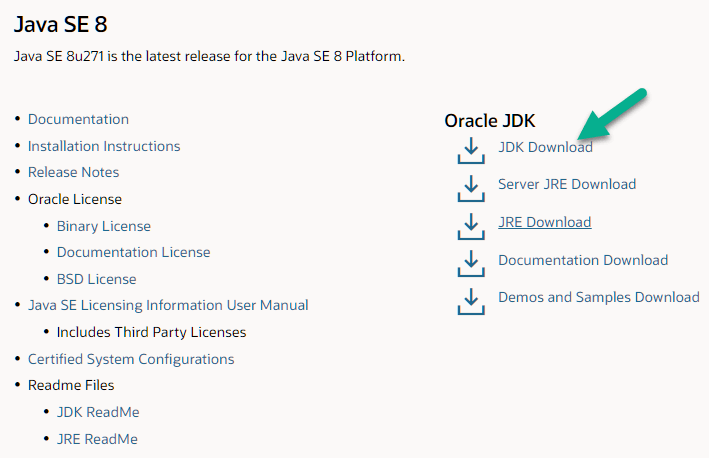
Step 1 – Download the JDK 8 Installer
Visit the official Oracle download page and choose the 64‑bit JDK 8 installer. Accept the license agreement and select the appropriate executable for your system.
Step 2 – Register or Sign In to Oracle
After accepting the license, Oracle will redirect you to the login page. If you don’t have an Oracle account, you can create one quickly using your basic details.
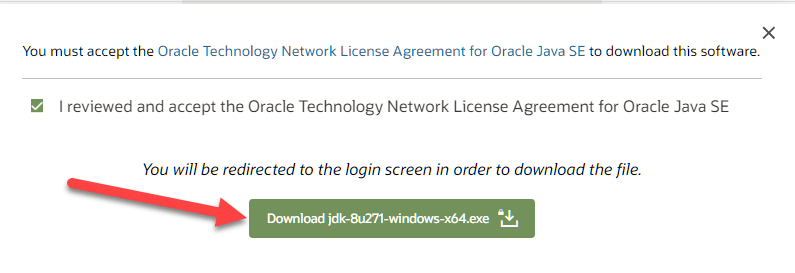
Note: A valid Oracle account is required to download the JDK installer.
Step 3 – Install the JDK
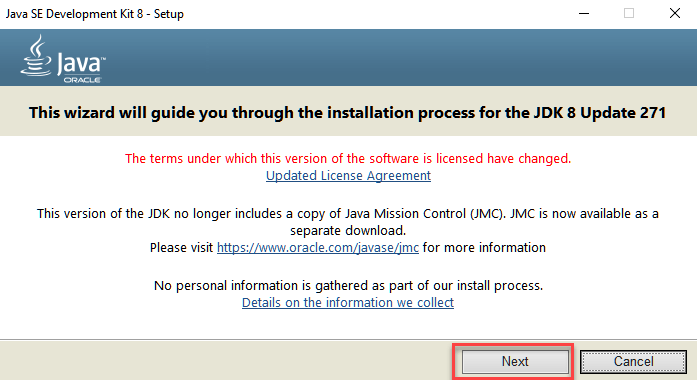
Run the downloaded .exe file. Click Next to start the installation wizard.
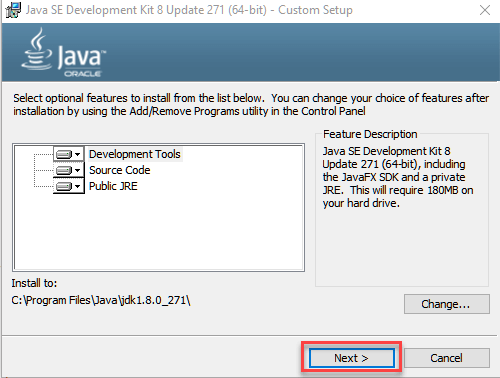
Select the default installation directory (or change it if desired) and click Next again.
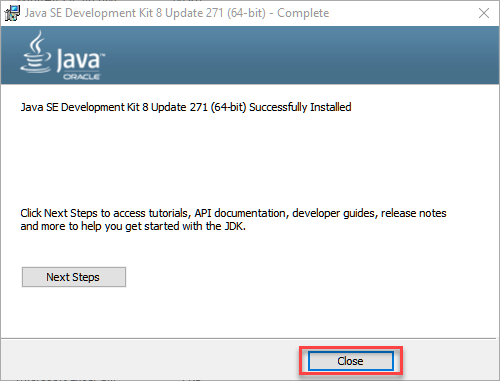
Follow the on‑screen prompts until the installation completes, then click Close.
Step 4 – Configure Environment Variables
Setting the PATH and CLASSPATH variables ensures that Java tools are accessible from any command prompt.
Setting PATH
- Right‑click This PC and select Properties.
- Click Advanced system settings.
- In the System Properties window, choose Environment Variables….
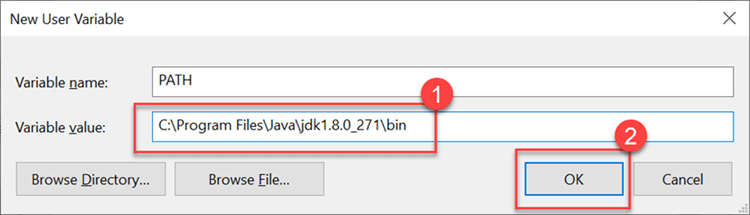
- Under User variables, click New… and set the variable name to
PATH. - For the value, paste the path to the JDK’s
bindirectory, e.g.,C:\Program Files\Java\jdk1.8.0_271\bin. If a PATH already exists, append the new path:C:\Program Files\Java\jdk1.8.0_271\bin;%PATH%. - Click OK to close each dialog.
Setting CLASSPATH (optional but recommended for certain IDEs)
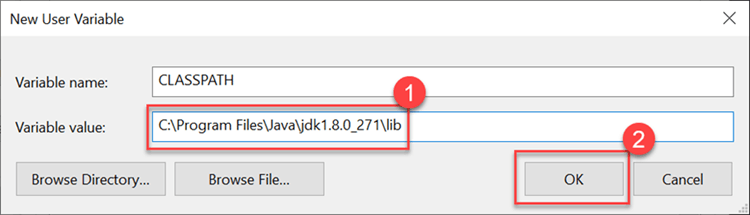
- In the Environment Variables window, click New… under User variables.
- Enter
CLASSPATHas the variable name. - Set the value to
C:\Program Files\Java\jdk1.8.0_271\lib\tools.jar(adjust the path to match your installation). - Click OK to apply.
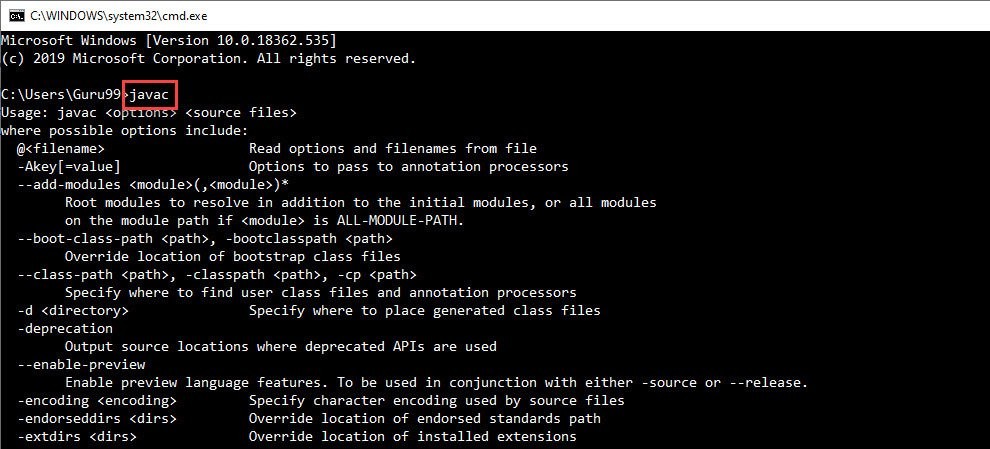
To verify the installation, open a new Command Prompt and run javac -version. You should see the Java compiler version displayed, confirming that JDK 8 is correctly installed and configured.
If you encounter issues installing Java, try our Online Java Compiler for quick testing.
Java
- Understanding Java: JDK, JRE, and JVM Explained
- Installing Dev‑C++ on Windows: Step‑by‑Step Guide
- Installing Visual Studio 2019 Community Edition for C# Development on Windows
- How to Install GCC Compiler on Windows, macOS, and Linux: A Step‑by‑Step Guide
- Step‑by‑Step Guide: Downloading and Installing Eclipse IDE for Java
- How to Install Oracle Java on Ubuntu Linux – Step‑by‑Step Guide
- Creating an Array of Objects in Java: A Step‑by‑Step Guide
- Generate Random Numbers in Java: Practical Guide with Random and Math.random
- Install Python and PyCharm on Windows: Step‑by‑Step Guide
- Java 10: Unified JDK Forest Repository