



Step‑by‑Step Guide: Downloading and Installing Eclipse IDE for Java
Download & Install Eclipse IDE for Java
Follow these expert steps to set up the Eclipse IDE, a powerful open‑source IDE widely used by Java developers worldwide.
Prerequisites
- Windows 10/11 or equivalent.
- Internet connection.
- Administrator rights for installation.
Step 1: Download Eclipse
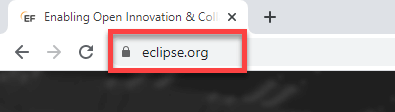
- Open your browser and navigate to https://www.eclipse.org/.
- Click the Download button.
- On the downloads page, select Download 64‑bit for Windows.
- Choose the “Eclipse IDE for Java Developers” package and click Download again to get
eclipse-inst-win64.exe.
Step 2: Install Eclipse
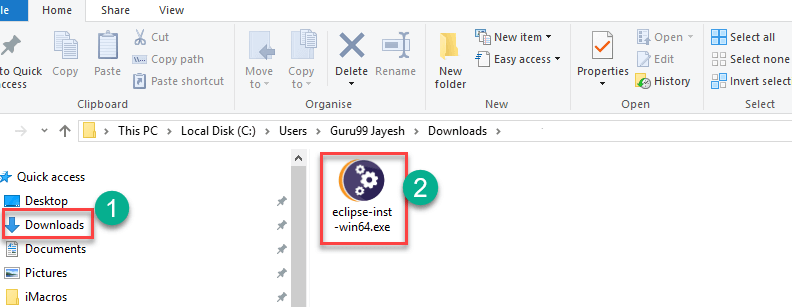
- Navigate to the
Downloadsfolder in File Explorer. - Double‑click
eclipse-inst-win64.exeto launch the installer. - Click Run in the UAC prompt.
- Select Eclipse IDE for Java Developers and click Install.
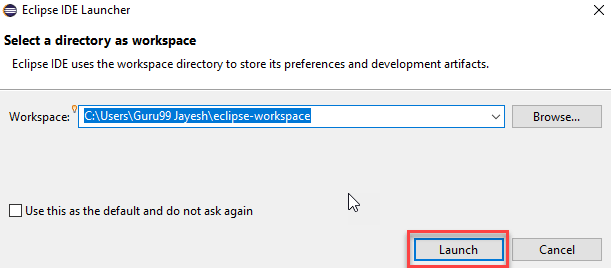
- When the wizard finishes, click Launch to start Eclipse.
Step 3: Create Your First Java Project
- In Eclipse, click File > New > Java Project.
- Enter a project name and click Finish.
- Right‑click the
srcfolder, choose New > Package, and name it (e.g.,com.example.helloworld). - Right‑click the new package, select New > Class, name it (e.g.,
HelloWorld), check the box forpublic static void main(String[] args), and click Finish. - Paste the following code into the editor:
- Click the green Run button (or press Ctrl+F11) to execute the program.
- The console will display:
Hello, world!
public class HelloWorld {
    public static void main(String[] args) {
        System.out.println("Hello, world!");
    }
}
Congratulations! You now have a fully functional Eclipse environment and have successfully run your first Java program.
How to Download and Install Java JDK 8 on Windows 10 (64‑Bit) – Step‑by‑Step Guide
How to Install Oracle Java on Ubuntu Linux – Step‑by‑Step Guide
Java
- Java Variables and Literals: A Comprehensive Guide
- Free VHDL Simulator & Editor Setup: A Student’s Guide
- Installing Dev‑C++ on Windows: Step‑by‑Step Guide
- Installing Visual Studio 2019 Community Edition for C# Development on Windows
- How to Install GCC Compiler on Windows, macOS, and Linux: A Step‑by‑Step Guide
- How to Download and Install Java JDK 8 on Windows 10 (64‑Bit) – Step‑by‑Step Guide
- How to Install Oracle Java on Ubuntu Linux – Step‑by‑Step Guide
- Install Python and PyCharm on Windows: Step‑by‑Step Guide
- Expert Guide to Designing & Installing Solar PV Systems
- Step-by-Step Guide to Installing and Replacing Drum Brakes Safely