Build a Stunning POV Cylinder with Arduino Due – Step‑by‑Step Guide
Components and supplies
Arduino Due
×
1
HC-06 Bluetooth Module
×
1
1 m LPD8806 LED RGB Stripe IP20 60 LEDs/m - 30 ICs/m
×
1
Linear Regulator with Adjustable Output
×
1
Texas Instruments General Purpose Dual Op-Amp
×
1
Resistor 20k ohm
×
3
Resistor 220 ohm
×
1
Resistor 1k ohm
×
2
General Purpose Transistor NPN
×
1
Capacitor 1000 µF
×
1
Capacitor 100 nF
×
1
Capacitor 1 µF
×
1
Resistor 240 ohm
×
1
Trimming Resistor 1k ohm
×
1
IR transmitter (generic)
×
1
IR receiver (generic)
×
1
Breadboard (generic)
×
1
Styrofoam Cylinder (Diameter: 20cm, Height: 10cm)
×
2
Electric Motor, 12V, XDRIVE 545-1
×
1
Crown gear 60 T 8 MM
×
1
Crown Gear 12 T, 3.2 MM
×
1
Toothed Belt, 80 T, 6 x 200 MM
×
1
Threaded Bar, M8, 125 mm
×
3
Threaded Bar, M8, 330 mm
Used as shaft.
×
1
Contact Ring ASL9017
×
1
Adhesive Tape (black, 48 mm)
Used to stick on rotor
×
1
Plywood Disk (Ø 150mm, Thickness: 10mm)
×
2
Aluminum Disk ( Ø 200mm, Thickness: 2.5mm)
×
2
Necessary tools and machines
Soldering iron (generic)
Scroll saw (generic)
Bench Drill (generic)
Laboratory power supply (generic)
Laptop with Windows 10 (generic)
Apps and online services
Microchip Technology Microchip Studio
Used for Arduino SW Development
Arduino IDE
Can be used as alternative to Atmel Studio IDE
Cygwin
Cygwin provides functionality similar to a Linux distribution on Windows. Used for the PC Control Program.
Microsoft Visual Studio 2015
Used for the Graphical User Interface.
About this project
Introduction
This is my first Arduino project. My work was inspired by several maker projects that created Persistence of Vision Displays [2,3,4].
Persistence of vision (POV) refers to the optical illusion whereby multiple discrete images blend into a single image in the human mind and believed to be the explanation for motion perception in cinema and animated films [1].
The projects [2,3,4] implement POV globe displays, using discrete LEDs and discrete shift registers. Instead my device is using a rotating cylinder and off-the-shelf RGB LED strips as POV Display.
The main features of my POV Cylinder are:
POV (Persistence of Vision) Display
Displays animated GIF pictures on a rotating cylinder
The GIF pictures are stored in Arduino's RAM or Flash
Communication with PC via Bluetooth
Technical Overview
Cylinder Diameter: 200 mm
Cylinder Height: 200 mm
Cylinder material: Styrofoam
Cylinder weight: 420 g
4 RGB LED Strips based on LPD8806
Screen size 151 x 40 pixels
Based on Arduino Due
Includes HC06 Bluetooth module
Controlled via Bluetooth from a PC
Mechanical Construction
The mechanical construction is shown in the drawing below.
The device comprises a chassis and a rotor. The chassis consists of two circular plywood disks which are connected via three threaded bars. The distance between the disks is 120 mm. In the middle there are two ball bearings and the shaft. For the shaft also a threaded bar is used. The shaft is driven by an electric motor via two crown gears and a toothed belt. The rotation speed is up to 1300 RPM (22 Hz).
The rotor consists of two styrofoam cylinders and two circular aluminium disks. The styrofoam cylinders are glued to the lower disk. The upper disk can be removed. It is used to attach the rotor to the shaft.
The electronics is located in the upper part of the rotor. It includes the following parts:
Arduino Due board
Self-made shield for the Arduino Due board
Power Supply (PS) Board
HC-06 Bluetooth Module
The power supply (7.5V) is fed to the power supply board via sliding contacts and a contact ring.
Four LEDs strips with in total 40 RBG LEDs are used. They are connected with cables to the Arduino Shield.
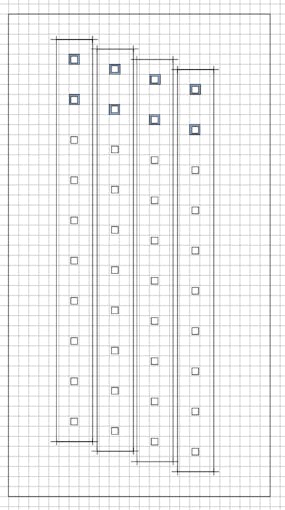
The four LED stripes are placed as shown in the drawing below. By using four shifted LED stripes the distance in the Y-axis between the LEDs is divided by 4. The distance in the X-axis is handled by SW. The SW updates all 40 LEDs 151 times per revolution. The grid in the drawing corresponds to the visible pixels.
Electronic Circuitry
The electronic circuitry is shown in the attached PDF schematic.
There is a power supply board with a LM317 voltage regulator. The input voltage is 7.5 Volt and the output voltage is 4.6 Volt. The voltage regulator supplies the Arduino Due board and the LED strips.
There is also a self-made shield for the Arduino. It contains the connector cables to the LED strips and a circuitry for the IR receiver. The IR receiver is used to detect the rotor position. It is connected to a timer/interrupt input of the Arduino.
There are four LED strips named STRIP0 to STRIP3. Each strip has 5 LPD8806 LED drivers and 10 RBG LEDs. STRIP0 is connect to USART0 and STRIP1 is connected to USART1. Both USARTs are operating in SPI mode. STRIP2 and STRIP3 are connected in series and are driven by the Arduino's SPI interface.
For communication with a PC a HC-06 Bluetooth module is connected to USART3. The Bluetooth module is supplied by the 3.3 Volt provided by the Arduino board.
Arduino Software
The Arduino software consists of the main program (mpc.ino) and the following libraries:
bt - Driver SW for Bluetooth module
LDP8806 - Driver SW for LED strips
MemoryFree - Functions to detect available free RAM memory
mpcgif - Playback of GIF files located in RAM or Flash memory
pictures - Internal GIF pictures stored in Flash
trace - Functions for SW debugging
Periodic output of the pictures to the LED strips is done interrupt driven. There are two toggle frame buffers. Each frame buffer holds one picture with 40 x 151 pixels. Each pixel is a one byte color palette index. While one frame buffer is output to the LED strips via interrupt and DMA, the other frame buffer is prepared by the main program (e.g. by the function decoding the GIF pictures). Toggling of the frame buffers is done by the frame interrupt routine.
There is one frame interrupt per revolution triggered by the IR sensor. The frame interrupt routine measures (via a hardware timer) the evolution speed and programs periodic column interrupts (one per column, i.e. 150 interrupts per revolution) with a hardware timer. The column interrupt routine outputs the current column to the LED strips. For performance reasons output is done via three DMA channels that operate fully in parallel.
The full Arduino source code is available at github.
PC Control Program
The PC Control Program (pccp) is a command line tool written in C++. It is running under Cygwin and communicates with the Arduino via Bluetooth. The pccp allows to control the POV Cylinder with the following single character commands:
0-7 - fill screen with color (black, red, yellow, green, cyan, blue, violet, white)
t - draw triangle curve (as a test picture)
s - enable or disable rotation of displayed picture
r - draw single row
c - draw single column
y - playback internal GIF picture stored in Flash memory
f - download external GIF file from PC via BT
x - playback downloaded external GIF file
The pccp also provides an interface to a graphical user interface. Furthermore it displays the current rotation speed (in Hz and µs) and a frame counter value.
The full source code is available at github.
Graphical User Interface
The graphical user interface is an Universal Windows App. It allows to select the GIF file to be displayed by the POV Cylinder. The app has been derived from the FilePicker app from the "Microsoft Windows Universal Samples" [5].