



C# Windows Forms Development: A Hands‑On Tutorial
C# Windows Forms Development: A Hands‑On Tutorial
After mastering console applications, the next logical step is to create rich desktop experiences using Visual Studio’s Windows Forms. This guide walks you through every stage—from project setup to adding controls, wiring events, and even incorporating advanced components like TreeView and PictureBox.
Windows Forms Basics
A Windows Forms application runs natively on a desktop machine. It comprises a visual layout and a set of controls (labels, text boxes, list boxes, etc.) that the user interacts with.
Below is a simple login form created in C#:
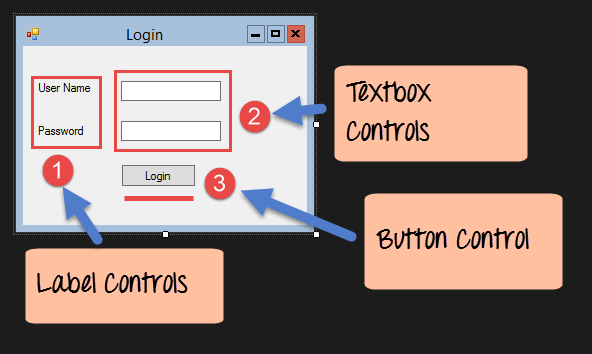
Key elements in the example:
- Label controls that describe adjacent text boxes.
- Text boxes for username and password input.
- A button that triggers authentication logic.
C# Hello World
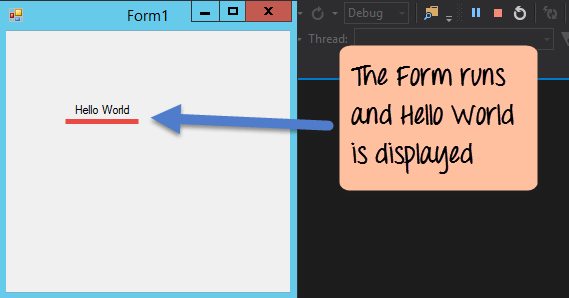
Let’s create a basic “Hello World” Windows Form to understand the Visual Studio workflow.
- Open Visual Studio and select File > New > Project.
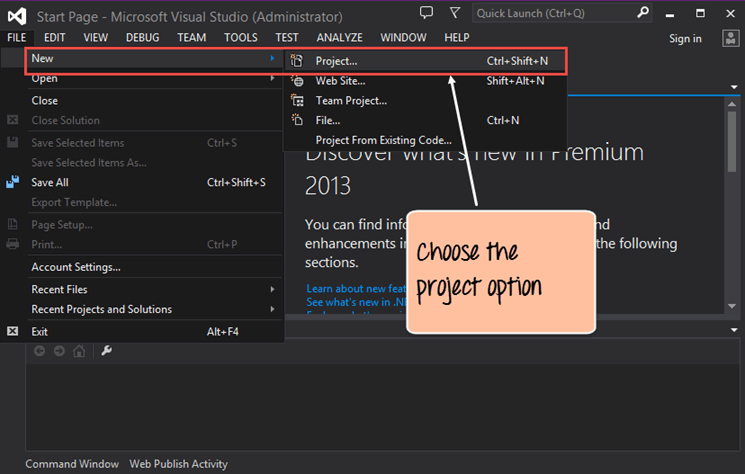
- Choose the Windows category and select Windows Forms App (.NET Framework). Name the project
DemoApplicationand click OK.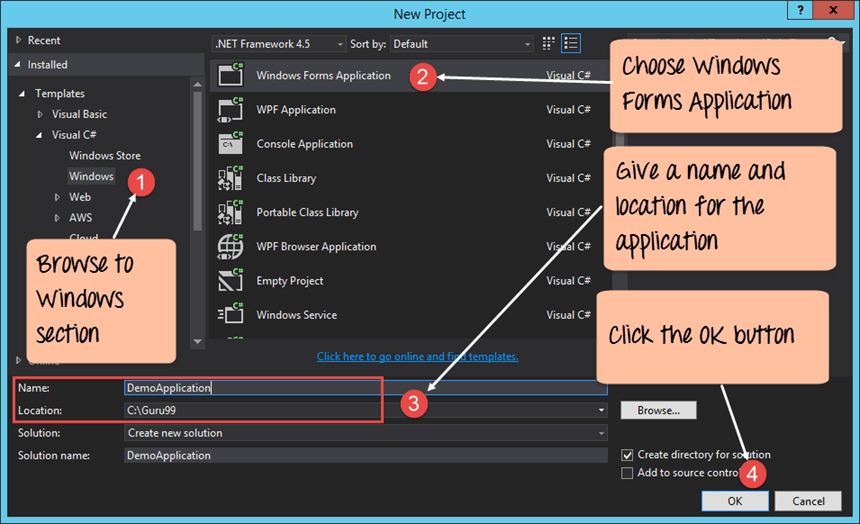
- The Solution Explorer will show two files:
Form1.cs– the visual form.Program.cs– application entry point.
- Add a Label from the Toolbox, drag it onto the form, and set its
Textproperty toHello World.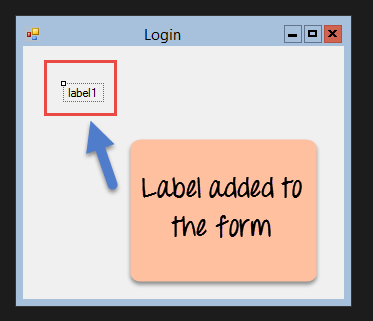
- Run the application – the form displays “Hello World”.
Adding Controls to a Form
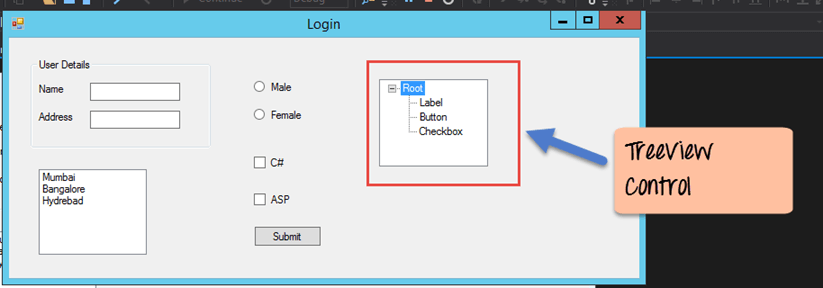
Below is a step‑by‑step guide to assembling a user‑information form that captures name, address, city, gender, and course preferences.
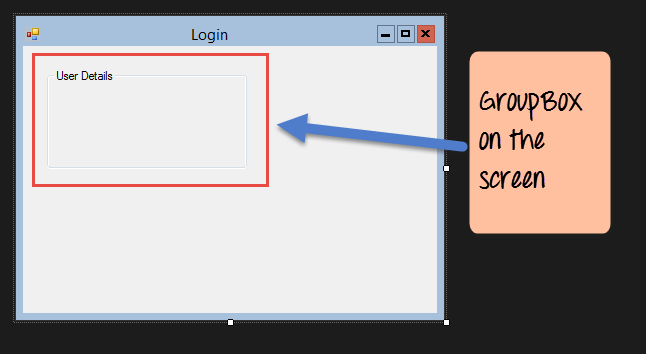
GroupBox – Logical Sectioning
Drag a GroupBox onto the form and rename its Text property to User Details.
Label
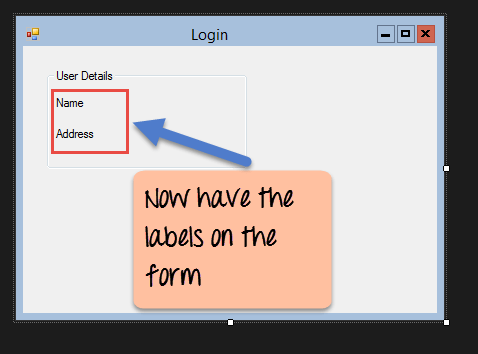
Place two labels inside the GroupBox: “Name” and “Address”.
TextBox
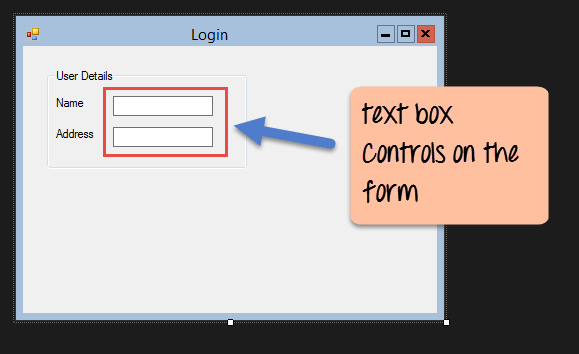
Add two text boxes, naming them txtName and txtAddress.
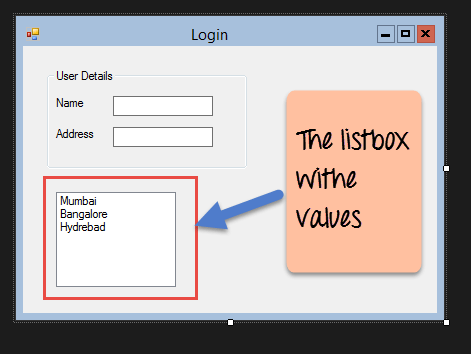
ListBox – City Selection
Insert a ListBox named lstCity and populate it with “Mumbai”, “Bangalore”, and “Hyderabad”.
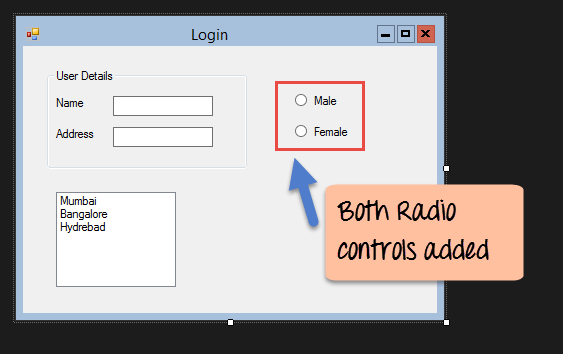
RadioButton – Gender
Place two RadioButton controls: rdMale (Text: Male) and rdFemale (Text: Female).
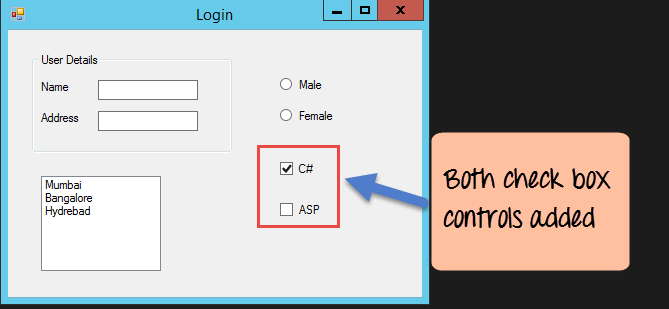
CheckBox – Course Preference
Add two CheckBox controls: chkC (Text: C#) and chkASP (Text: ASP.NET).
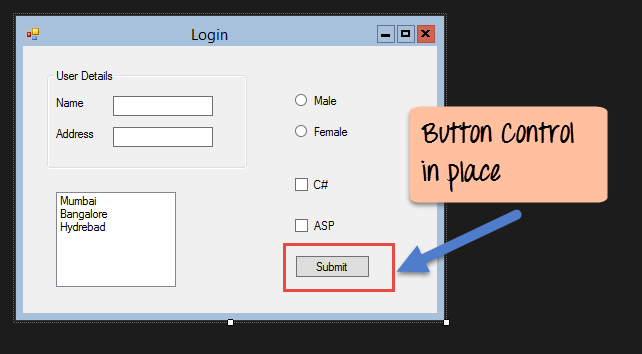
Button – Submit
Drop a Button named btnSubmit with Text set to “Submit”.
Event Handling for Controls
Events fire in response to user actions. Below are two common scenarios.
ListBox Selection Changed
Double‑click the lstCity control to generate an event handler. Add the following code:
private void lstCity_SelectedIndexChanged(object sender, EventArgs e)
{
    var selected = lstCity.SelectedItem?.ToString();
    if (!string.IsNullOrEmpty(selected))
        MessageBox.Show($"You selected: {selected}");
}
Running the app will show a message box whenever a city is chosen.
Button Click – Submit
Double‑click btnSubmit to create its handler and insert:
private void btnSubmit_Click(object sender, EventArgs e)
{
    var name = txtName.Text;
    var address = txtAddress.Text;
    MessageBox.Show($"Name: {name}\nAddress: {address}");
}
When you click “Submit”, the entered details are displayed.
TreeView and PictureBox Controls
TreeView – Hierarchical Data
Drag a TreeView onto the form. Use the Nodes property to add a root node labeled “Root”, then add child nodes “Label”, “Button”, and “CheckBox”.
PictureBox – Display Images
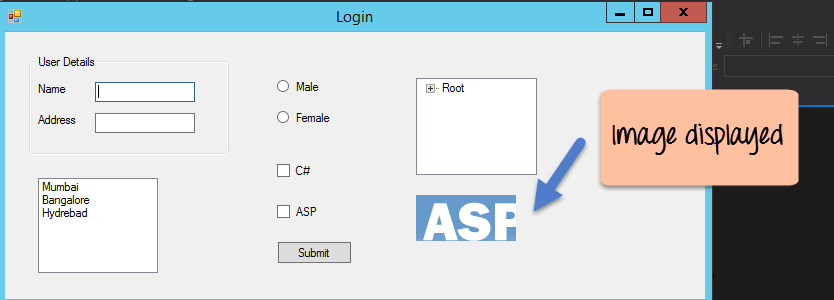
Insert a PictureBox, set its SizeMode to Zoom, and assign an image via the Image property.
Summary
- Windows Forms enables desktop applications that run directly on the user’s machine.
- Controls such as labels, text boxes, list boxes, radio buttons, and checkboxes are added from the Toolbox.
- Advanced components like
TreeViewandPictureBoxextend UI capabilities. - Event handlers respond to user interactions, with button clicks and list selections being the most common.
C Language
- C++ For Loops Explained: Syntax, Workflow, and Practical Examples
- C++ Structs Explained with a Practical Example
- Mastering std::list in C++: Syntax, Functions & Practical Examples
- C# Enumerations (Enums) – Definition, Example, and Usage
- C# Abstract Classes: A Practical Tutorial with Code Examples
- Understanding C# Interfaces: Definition, Example, and Practical Use
- Mastering C# File Streams: StreamReader & StreamWriter – Step‑by‑Step Guide
- Master Java Reflection API: A Practical Guide with Code Examples
- Master Python Unit Testing with PyUnit: A Practical Guide & Example
- Python Calendar Module: Expert Guide with Code Examples